Tabs on iPad and tablets
FreeiPad & Android tablets
Updated · September 2026
On a tablet, the Mento app works like a browser: the topic you're reading, the notebook you're writing in, and the cards you've opened each get their own tab along the top of the screen, and switching between them is instant. This guide covers how tabs open, how to pin, reorder, and close them — and how to hide the tab bar entirely when you want the page to yourself.
Tabs are a tablet feature. On your phone, Mento keeps the simpler bottom-bar navigation on purpose; on the web, your browser already has tabs — the closest web equivalent inside Mento is the side pane.
How tabs open
Open something, and it's a tab. Topics, notebooks, PDFs, and images each get a pill in the bar as you open them, with a small mark showing what kind of thing it is. The leftmost pill is the space itself — it's the "home" of the set and always stays first.
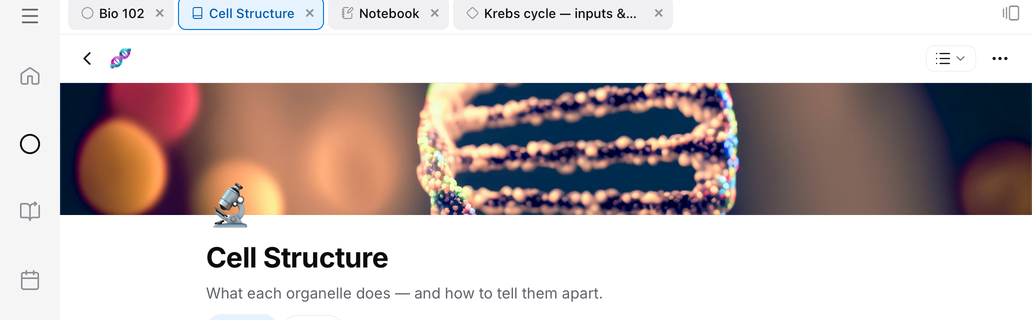
The marks are the same ones you'll see next to these things everywhere else in Mento:
- — the space itself, always the leftmost pill.
- — a topic.
- — a notebook, including any PDF you've opened (PDFs live inside notebooks).
- — an image you've opened full screen.
- — a card.
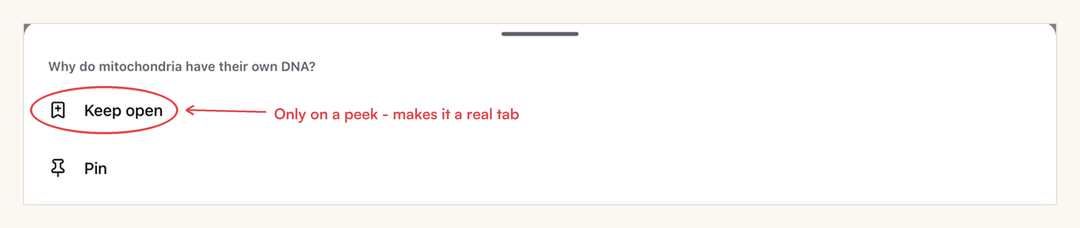
Cards are slightly special: they open as a peek — an italic pill at the end of the bar. There's only ever one peek, so glancing through several cards doesn't pile up tabs; each peek replaces the last. A peek becomes a real tab the moment you treat it like one: edit the card, or hold its pill and choose Keep open or Pin.

Holding a peek's pill shows where that graduation lives — its menu starts with Keep open, which regular tabs don't have:
Tapping a tab switches to it instantly — nothing reloads, everything stays exactly where you left it. Your tabs are also remembered on the device, so closing and reopening the app brings your working set back.
Rearranging, pinning, and closing
Hold a pill for a moment and drag to reorder — neighboring pills make room as you go. The space pill is the one pill that won't move: it anchors the left end.

Hold a pill and release without dragging, and its menu opens:
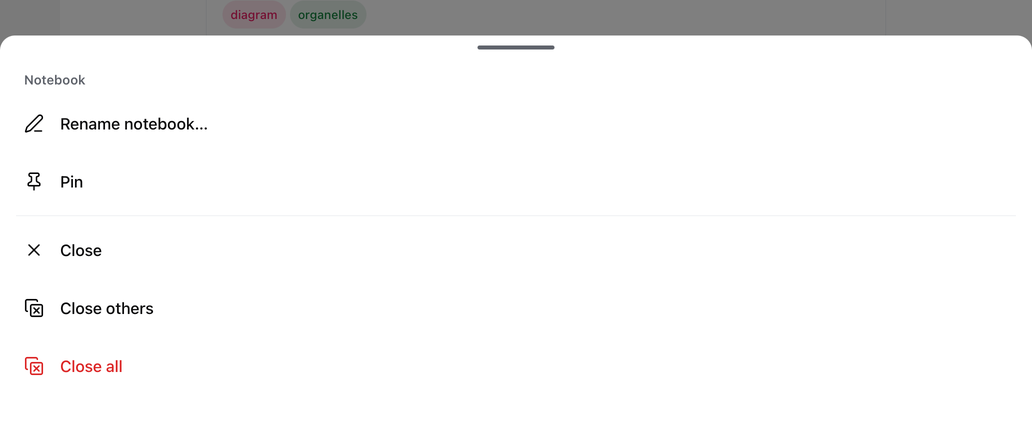
- Pin keeps a tab at the front of the set, right after the space pill — for the notebook you return to all lecture long. Close others closes everything except that tab, but spares pinned ones.
- Close all clears the whole set — pinned tabs included — and drops you back on Home.
- Notebook pills get one extra: Rename notebook…. It renames the notebook's card too, and it's handy because the notebook's own title bar steps aside while the tab bar is showing.
To close a single tab, tap its ×. Closing the tab you're on lands you on the one you used before it.
The tab overview
The button at the very right end of the bar opens the overview — every open tab as a list.

Tap a row to switch, the pin to pin, or the × to close tabs one after another without the sheet closing on you.
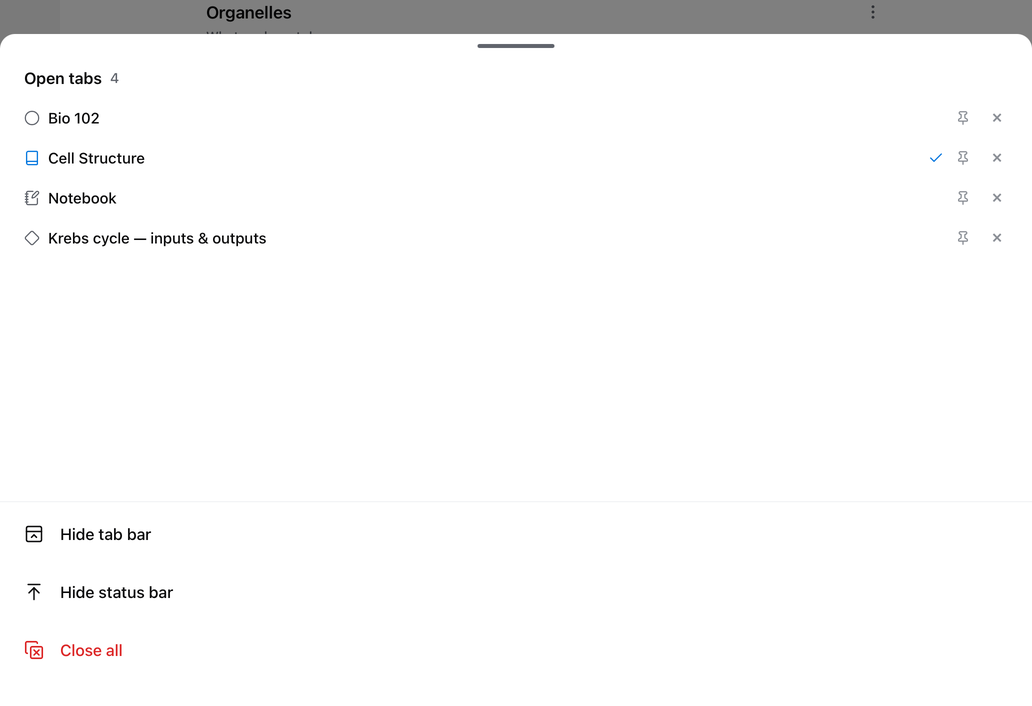
The bottom of the sheet holds three actions: Hide tab bar, Hide status bar (that one hides the clock and battery row everywhere in Mento, not just here), and Close all.
One set of tabs per space
Tabs are grouped by space, the way a browser profile keeps its own windows. Bio 102's tabs live with Bio 102; when you switch to another space, the bar swaps to that space's set — nothing closes, it's just out of the way. Come back and your tabs are where you left them, still on the tab you had focused.
Anything you open from the Inbox gets its own cross-space group, with an Inbox pill as its anchor, so organizing captures never mixes tabs into a class.

Hiding the tab bar
If you want the page to yourself — usually when writing in a notebook — hide the bar. The switch lives in several places, so one is always nearby:
- The tab overview's Hide tab bar.
- Settings → Preferences → Show tabs.
- Hide tabs in the ⋯ menu of a space, topic, or card, and in a notebook's page menu.
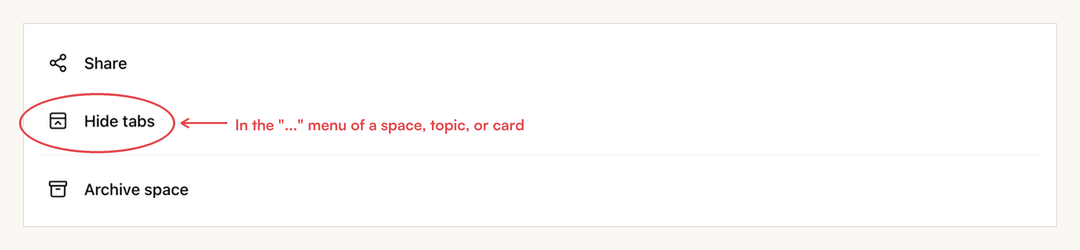
Hiding the bar hides only the bar. You can keep opening and switching things the whole time, and when you show tabs again, everything you opened in the meantime is waiting in the bar.
Common questions
Do tabs work on my phone? No — that's deliberate. A phone screen spends that space better on your notes, so phones keep the bottom-bar navigation and their own "jump back in" shortcuts. Tabs are for iPads and Android tablets, where the screen has room for a working set.
Why don't I see tabs on the web? On the web, your browser already is the tab manager — open Mento in as many browser tabs as you like, and each one keeps its place. A second tab bar inside the page would just double up on that, so the web app stays clean without one. If what you want is two things visible at once inside a single tab, that's the side pane.
I hid the tab bar and can't find the way back. Settings → Preferences → Show tabs always brings it back, and the ⋯ menu on any space or topic has a Show tabs row.

Do my tabs sync between devices? No. Tabs are your working set on that device — they survive restarting the app, but your iPad and your Android tablet each keep their own.
How many tabs can I have? There's no fixed limit. Tabs group per space, which keeps sets naturally small — and Close others is the quick reset when a set gets crowded.
Up next
Keyboard shortcuts
Every Mento-specific shortcut in the web app, in one place — the same list you get by pressing ? inside Mento.
Didn't find it?
The FAQ answers the questions we get most, and every way to reach us is on the contact page.