Sketch in your notes
Updated · September 2026
Some ideas are drawings. A supply curve, a labeled cell, an arrow between two boxes — faster to draw than to describe. This guide covers where to start a sketch, the tools you get on the canvas, and where the drawing shows up afterward — in your notes and when you study.
Where to start a sketch
A sketch is part of a note, so you start one wherever you're writing:
- In quick capture — click the pen icon (Draw a sketch). Draw, and the sketch attaches to the note you're capturing.
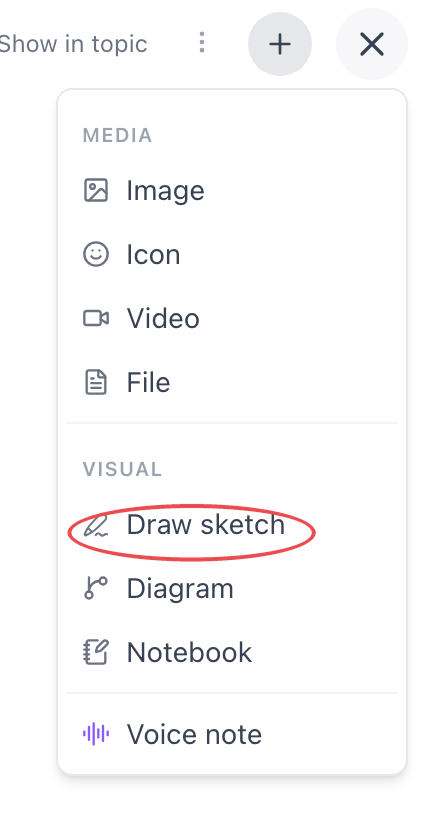
- On a card you have open — click the + button in the top-right corner and choose Draw sketch. The drawing becomes the card's visual, sitting above the text.
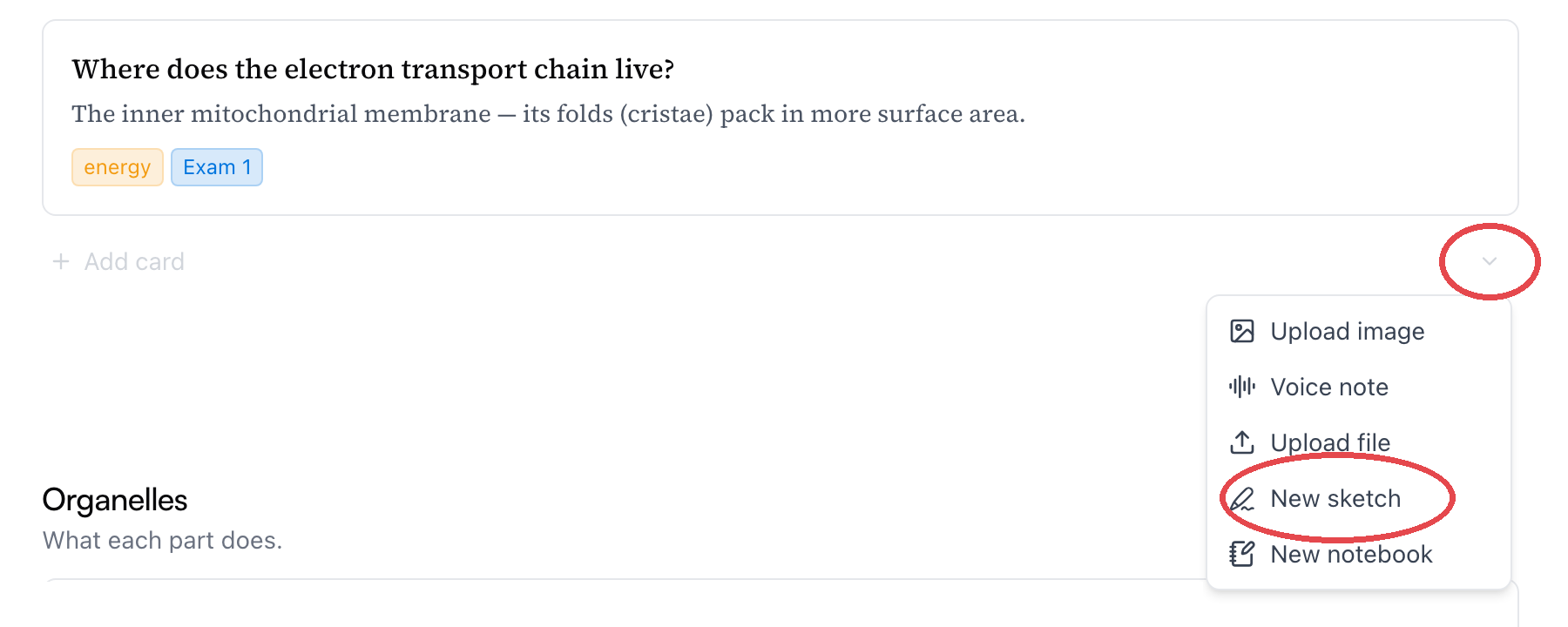
- In a topic or the Inbox — open the composer's More ways to add menu and choose New sketch. That creates a card whose whole point is the drawing.
- Inside a card's notes — type
/and pick Sketch. The drawing lands inline in the text, right where your cursor was.
That third door is worth a closer look. In a topic, every section ends with an Add card row, and the small ⌄ chevron at its right end is the composer's More ways to add menu — New sketch sits right in it, next to voice notes and notebooks. Once you know the chevron is there, it's the fastest way to start a sketch exactly where the card belongs:
All of these buttons wear the same pen — is the sketch icon. Wherever you see it in Mento, it opens the same drawing surface, even on top of an image (more on that below).
They all lead to the same place: a drawing window called Draw.
Drawing
The canvas is a single page with a small toolbar. You don't need a stylus — a mouse, trackpad, or finger is fine for the kind of diagram that would take three sentences to describe.
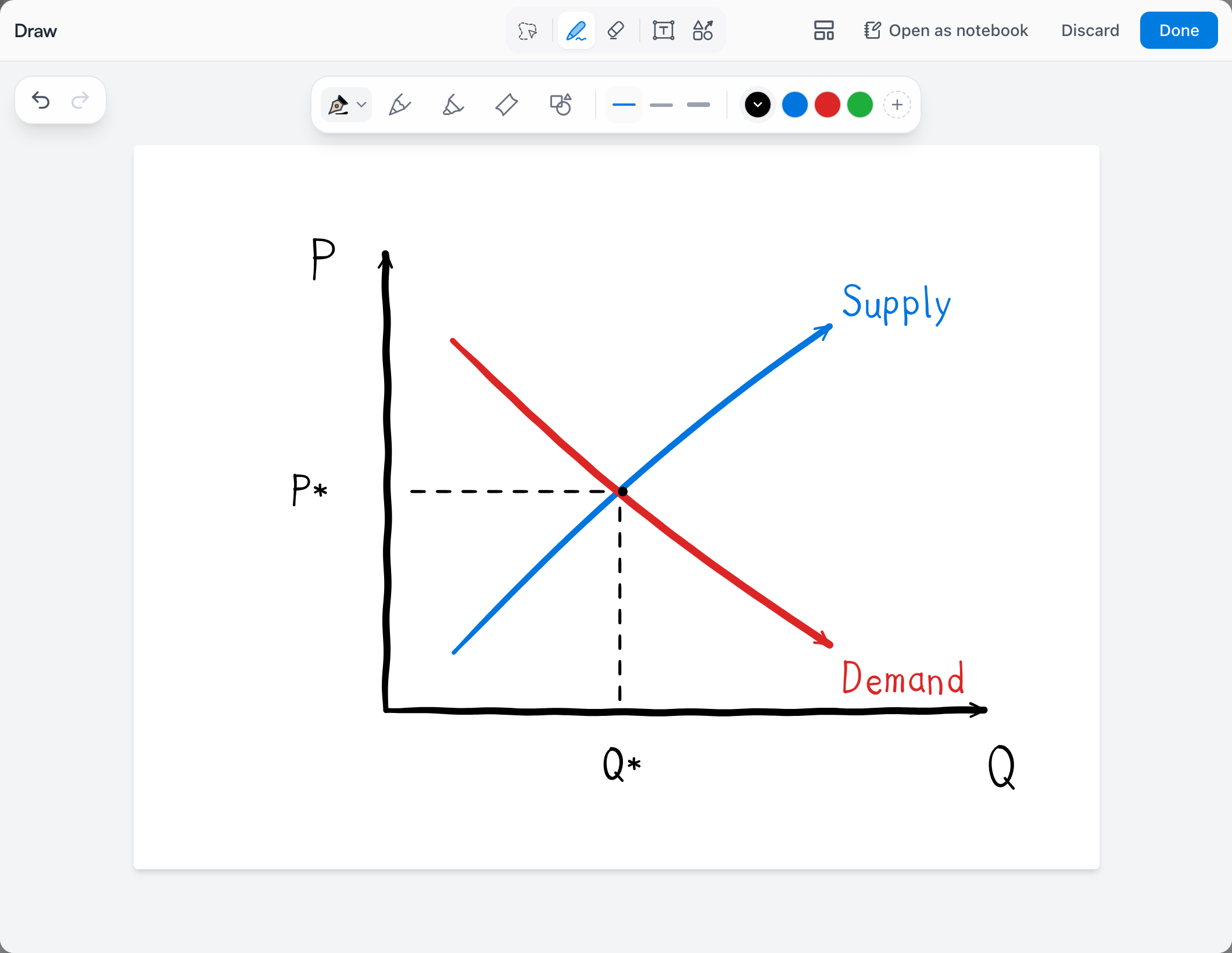
The essentials:
- Pens. A pen, a pencil, and a highlighter, with a few stroke weights and colors to switch between.
- Eraser, and undo and redo in the corner for when the eraser feels too careful.
- Text. The text tool adds typed labels, so your axes don't have to rely on your handwriting.
- Select. Draw a loop around anything to move, resize, or delete it — handy when the diagram is right but the layout isn't.
- Paper. The Paper & template button changes the page — ruled, grid, and other paper styles.
When you're finished, click Done — and don't worry about losing work: closing the window keeps your drawing too. The only way to throw away changes is the explicit Discard button, which asks first.
Where the drawing shows up
A card holds one main visual — the image or drawing that sits above the text and represents the card everywhere: on the card in its topic, and front and center when the card comes up in a study session. A sketch you start from the + menu, from the composer's New sketch, or in quick capture becomes that visual.
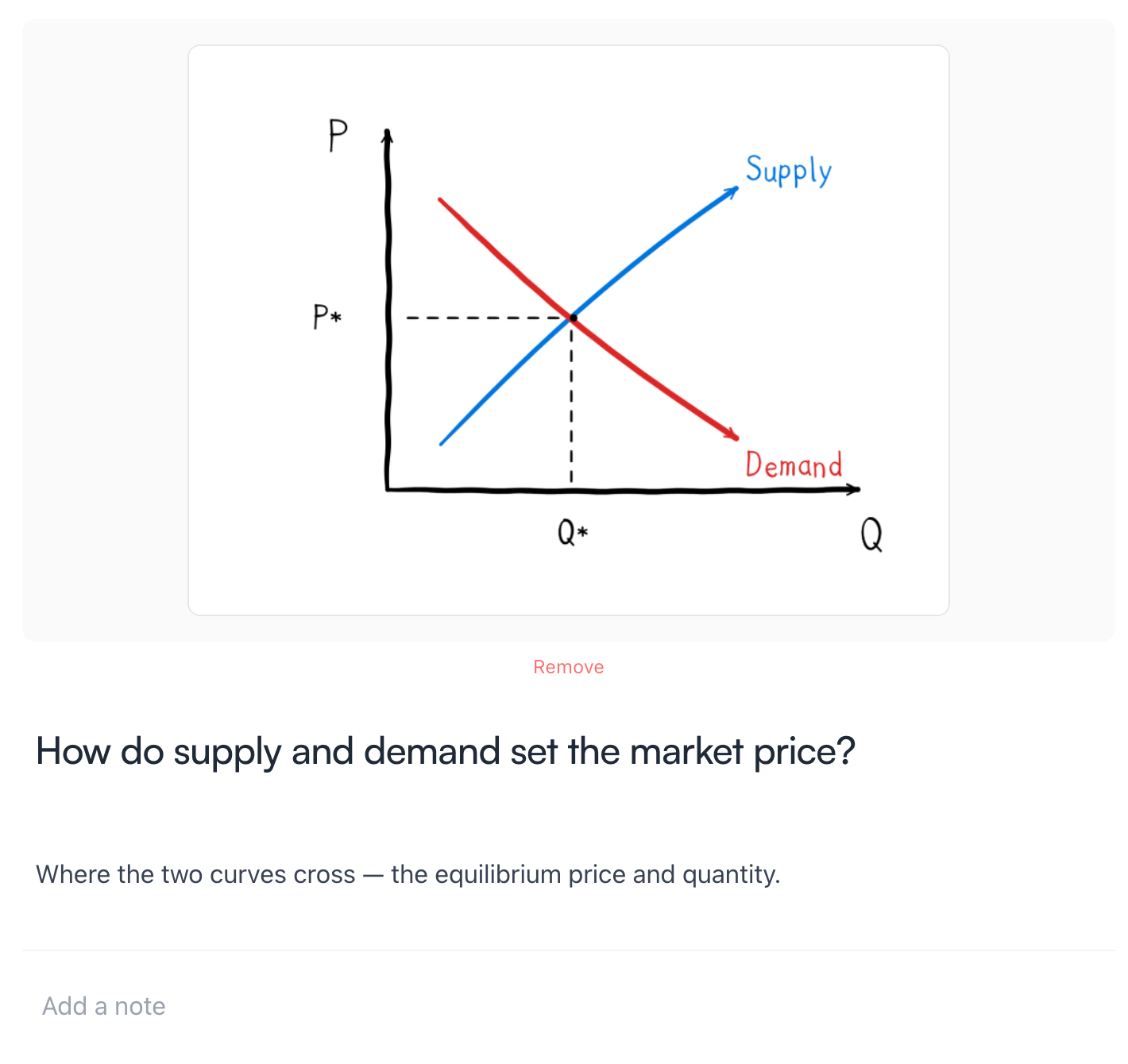
Because the visual comes along when you study, a flashcard with a sketch shows the drawing during your study session — a diagram you've drawn once and then get asked about later tends to stick.
Back in the topic, the card carries its drawing as a small thumbnail — easy to spot when you're scanning a section:
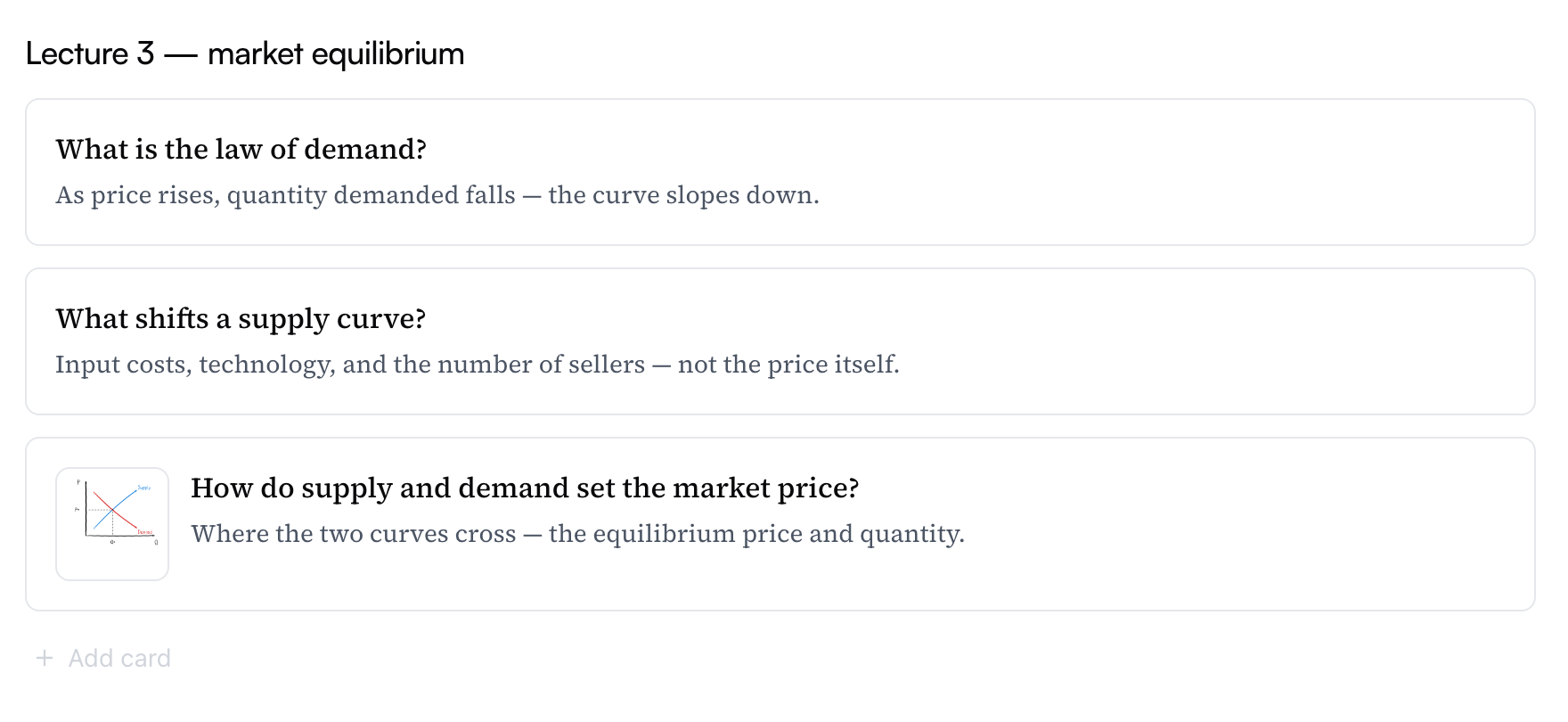
Your notes are the opposite: no limit there. Inside a card's notes, / → Sketch drops a drawing inline right where your cursor is, and one note can mix as many sketches into the text as you like. And in quick capture, a sketch attaches to the note as a small preview, then becomes the new card's visual when you hit Capture.
However it got there, a sketch is never finished unless you want it to be: click the drawing to view it full size, and the pencil there (Edit sketch) reopens the canvas.
Sketching is free on every plan — draw as many as you like.
Sketch on images
The sketch tools aren't only for blank pages. Click any image — a card's visual or a picture in your notes — to open it full size, then choose the pen (Annotate). The same pens, highlighter, and text tool open on top of the image, so you can circle the structure you keep forgetting, highlight a label, or mark up a diagram from a textbook or a photo of the board.
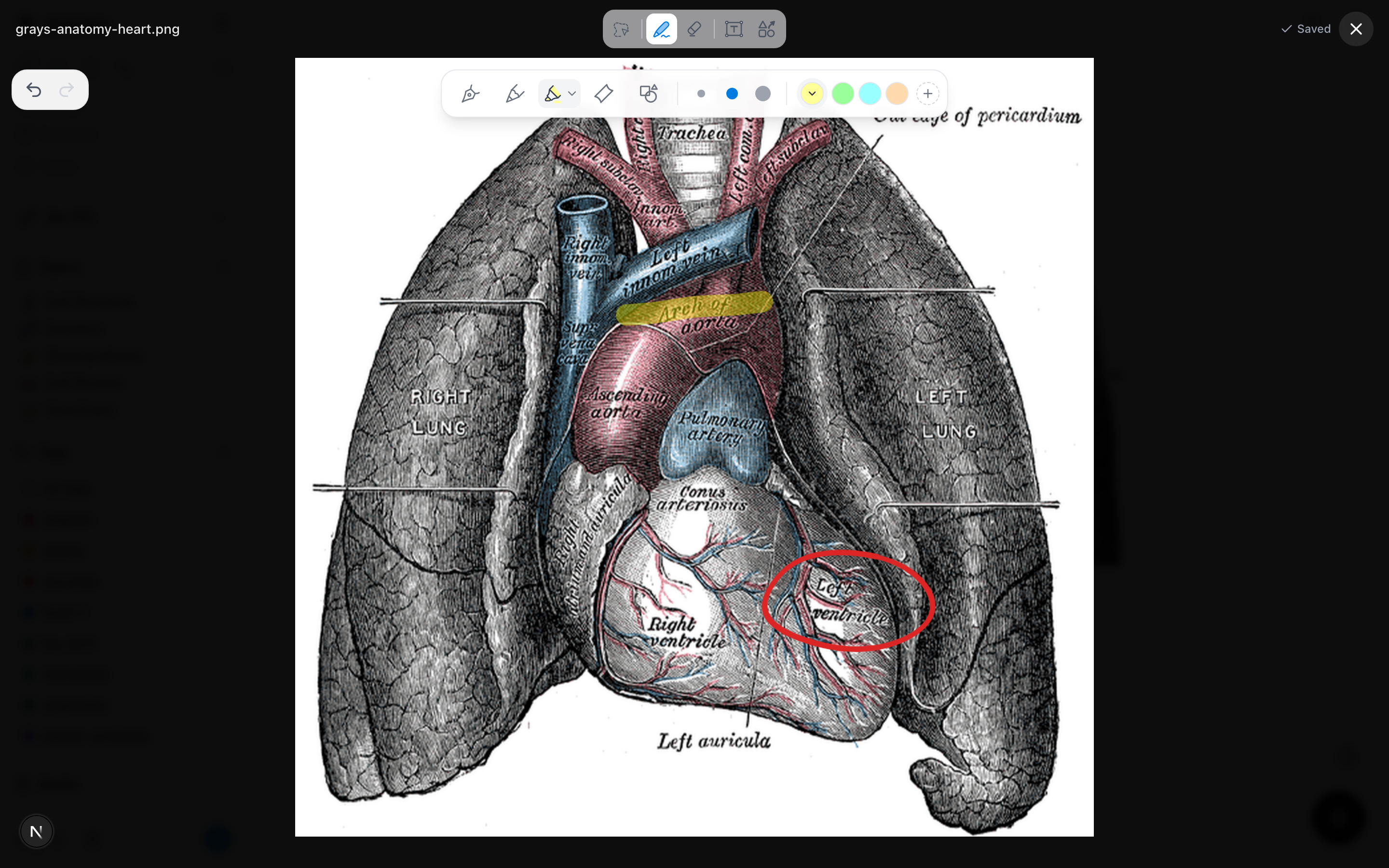
Your marks live on their own layer — the image underneath is never changed. The download button offers both versions: the untouched original, or Download with annotations.
When a sketch outgrows its card
A sketch is one canvas — perfect for a quick graph, cramped for a full page of notes. When you're editing a sketch on a card and it clearly wants more room, click Open as notebook at the top of the drawing window. Your sketch becomes page 1 of a notebook on that same card, with full pages and paper templates — and on an iPad, the whole Apple Pencil experience.
Note: This is one-way — a notebook can't be turned back into a sketch. Mento asks before converting.
For everything notebooks can do, see Handwritten notes in the notebook.
Common questions
Do I need an iPad or a stylus? No. Sketches are built for the quick mouse-or-finger drawing you make mid-note. But if you have one, it works: on an iPad, an Apple Pencil draws straight into a sketch. For long handwritten notes, the notebook is a much better home for a stylus.
Do sketches use AI actions? No. Drawing is just drawing — sketches never touch your AI budget.
Can I edit a sketch after saving it? Yes, any time. Open the card, click the sketch, and use the pencil to reopen the canvas. Done saves your changes back to the note.
Up next
The notebook
Full handwritten pages — with an Apple Pencil on an iPad, an S Pen or stylus on an Android tablet, or your finger anywhere — living next to your typed notes.
Didn't find it?
The FAQ answers the questions we get most, and every way to reach us is on the contact page.