Mento on your phone
FreeiOS & Android
Updated · September 2026
Mento on your phone is the companion to Mento on your computer: the fastest way to get things in — a thought, a photo, a voice note — and the easiest way to keep up with your reviews wherever you are. Everything syncs, so what you capture in line for coffee is waiting in your Inbox when you sit down to work. This guide walks through what the phone app does best.
Get the app
- iPhone and iPad: download on the App Store
- Android phones and tablets: get it on Google Play
Sign in with the same account you use on the web and everything is already there — your spaces, your cards, your study progress.
Find your way around
The bottom bar has five buttons: Home, your current Space, the + capture button in the middle, Agenda, and Search.
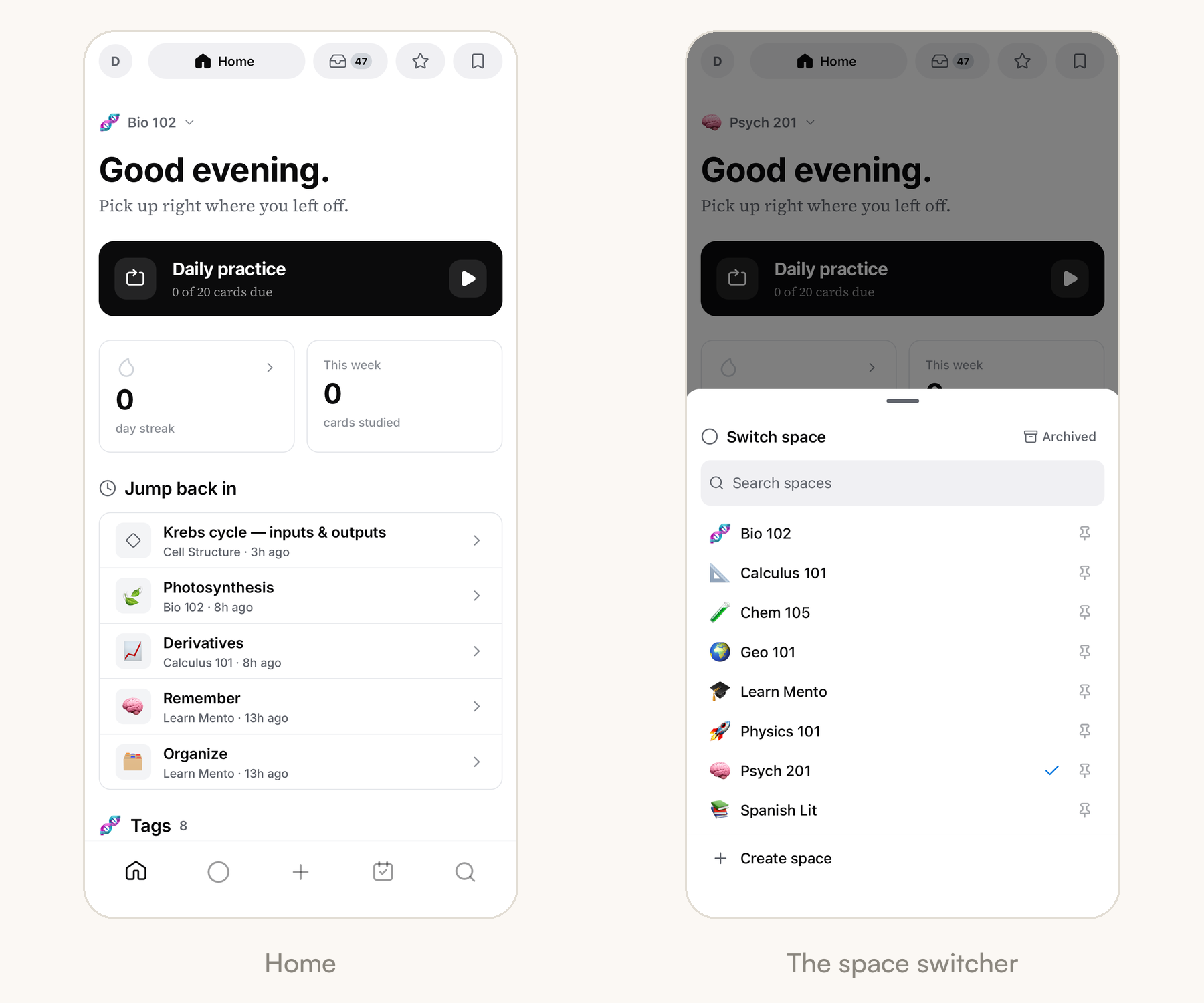
Home is the landing screen: your Daily practice for the day, your streak, this week's study count, and a Jump back in list of the cards you touched last. The row at the top holds your Inbox — with a count when things are piling up — and your favorites and saved items.
Your courses are one tap away: touch the space name at the top of Home and the Switch space sheet slides up. Tap a course to jump into it, pin the ones you use most, or start a new one with Create space. The Space tab always lands on whichever course you switched to last.
Capture with the + button
The + in the middle of the bottom bar is quick capture — the phone's whole reason to exist. It opens a full-screen note: type the idea, leave with the back arrow, and it saves on its own. The chip in the top corner shows where the note will land — Inbox unless you opened capture from inside a space, and you can tap the chip to file it somewhere specific.
The parts of a card
What you're writing is a regular card — the same one you'd make on the web, with the same anatomy:
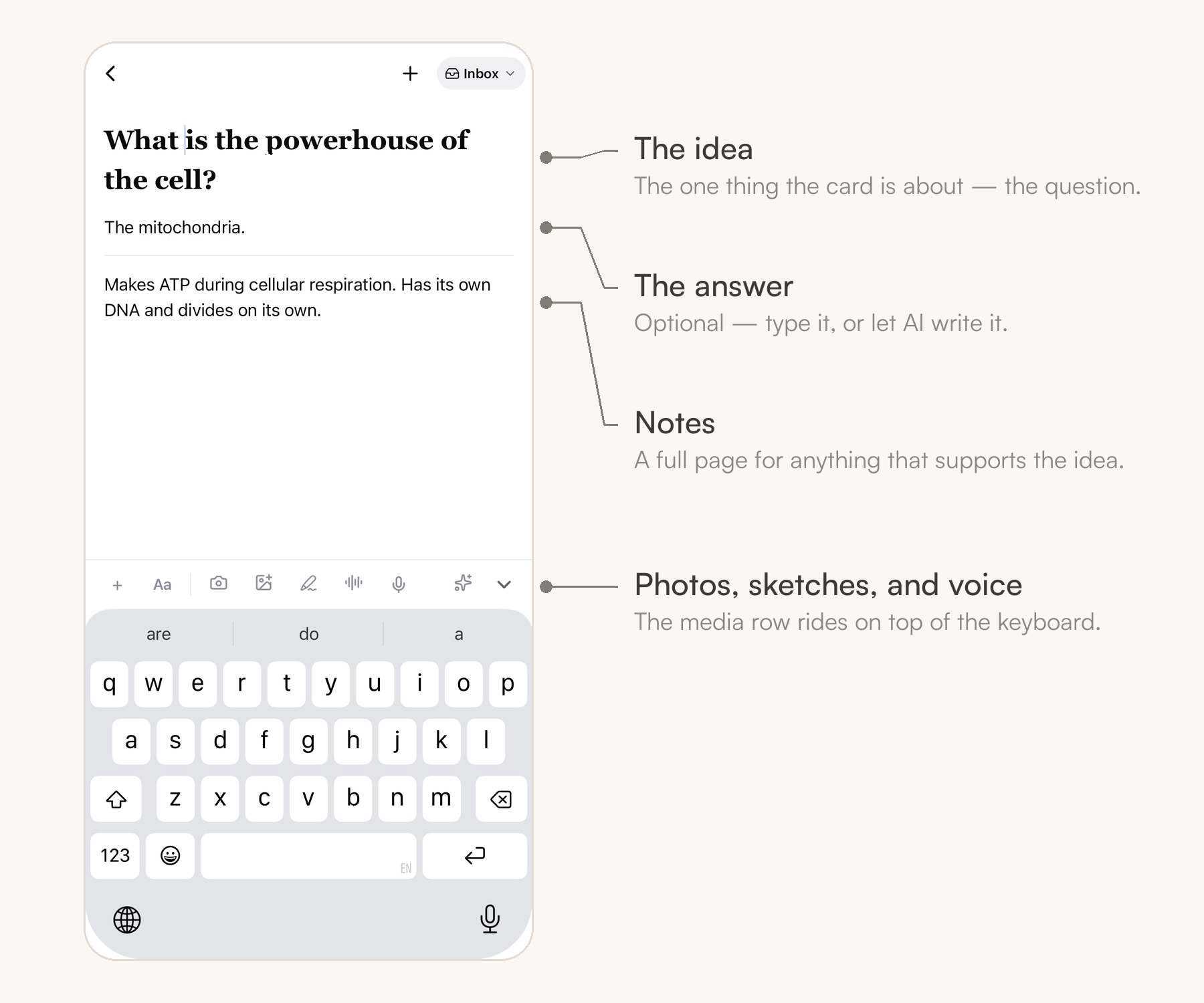
- The idea is the one thing the card is about. One line is enough, and it's the only part a card needs.
- The answer is optional — tap + Add answer and a row of pills appears: Type my own, or let AI write it with Fill, Definition, or Example-based answer. A card with an answer is a flashcard.
- Notes is a full page underneath for everything that supports the idea — explanations, lists, images.
Tip: The row of icons on top of the keyboard is the fast lane for media: camera, photo library, sketch, voice note, and dictation are one tap away while you type. Snap the whiteboard before it's erased; it rides on the card as its attachment.
Speak instead of typing
The phone is where your voice earns its keep, and there are two different moves:
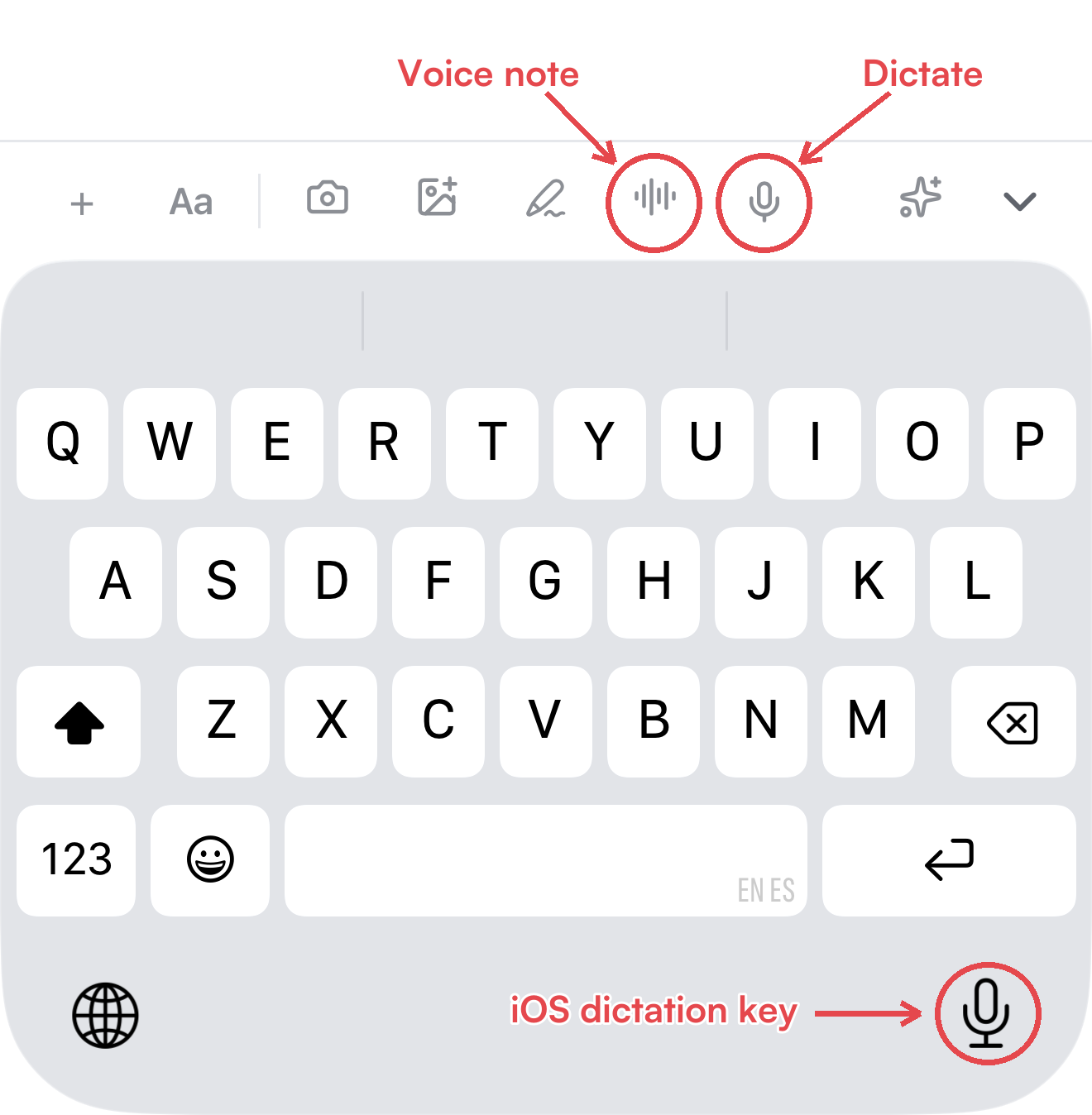
- Dictate (the microphone) turns speech into text, right in whichever field you're writing. It's free and happens on your device.
- A voice note (the waveform) records audio and keeps it: you get the recording on the card plus a transcript in its notes.
Take notes with your voice covers both in depth — and for a whole lecture, see Record your classes.
The Inbox on your phone
Captures land in the Inbox, and the phone shows it the same way the web does — newest on top, with a composer at the top of the list so you can add ideas right there with Save.
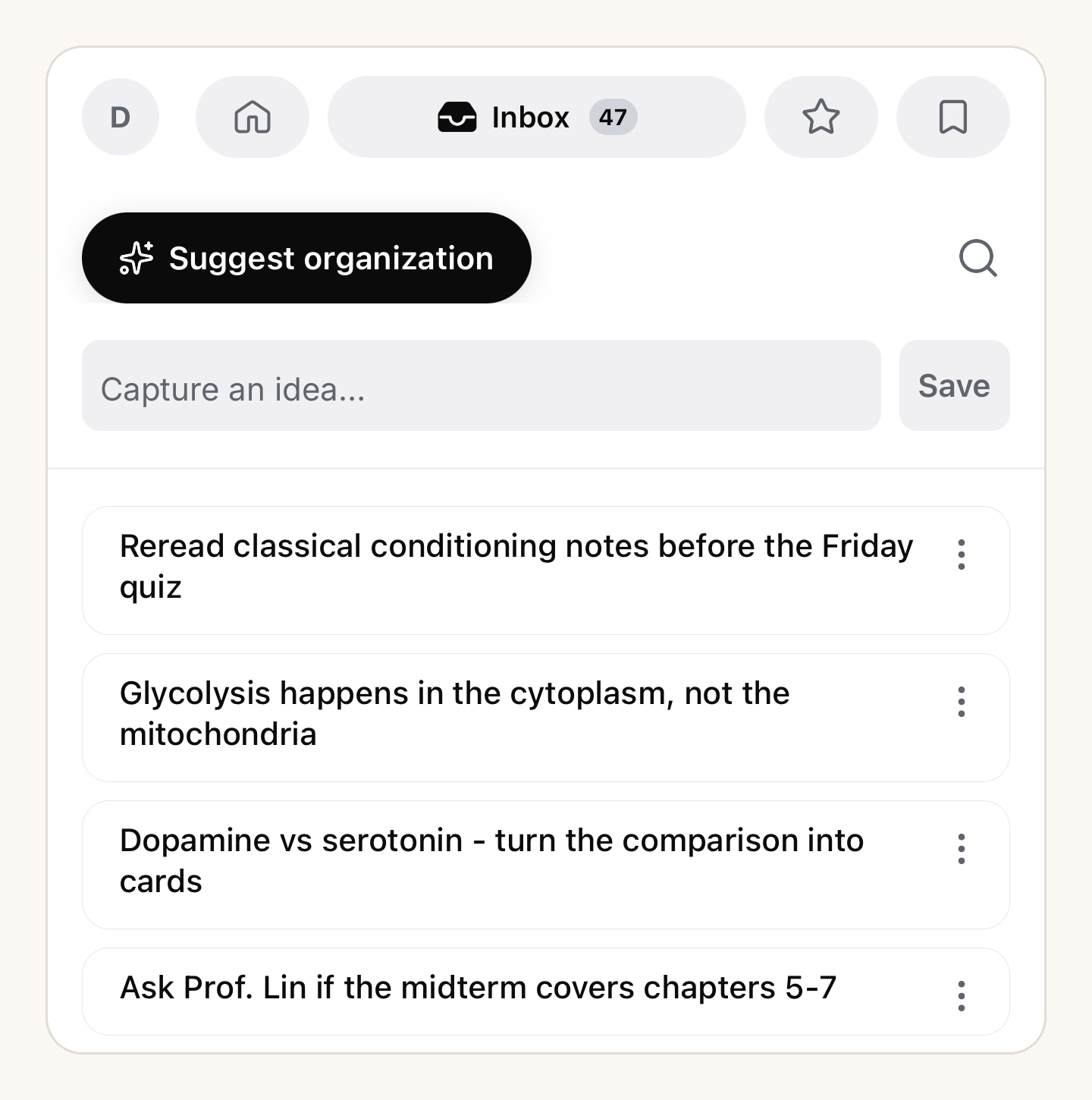
You don't have to file anything from your phone. But if the pile has grown, Suggest organization runs the same AI review you have on the web — it proposes a destination for each card and nothing moves until you approve it. Quick capture and the Inbox has the full story.
Study on the go
Review is the other thing phones are perfect for — a queue of due cards fits exactly in a bus ride. Two ways in:
- Daily practice, right at the top of Home: a short session built from what's due today. Keeping the streak alive is the habit that makes spaced repetition work.
- Study any topic or space: open it and tap Study. The same modes as the web — Learn, Flashcards, Multiple Choice, Written, Match, and Test — from your pocket.
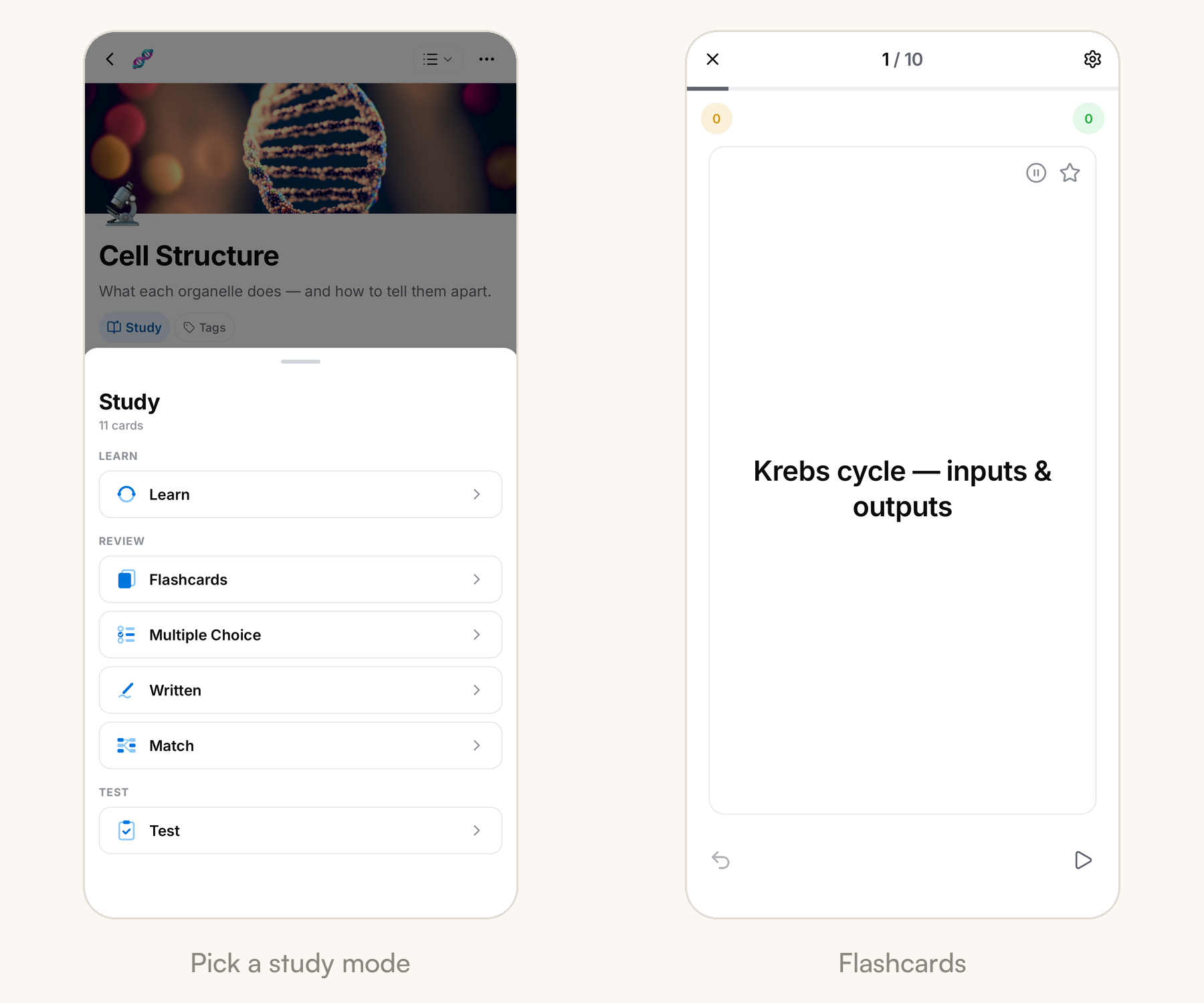
Flashcards are built for thumbs: tap to flip, then swipe right if you knew it, left if you're still learning. How to study explains what each mode is for.
Your day, in Agenda
The calendar button on the bottom bar opens Agenda: one screen for today. The date strip is at the top, your daily note is first on the page, a banner shows how many cards are ready to review, and your scheduled tasks list out below.
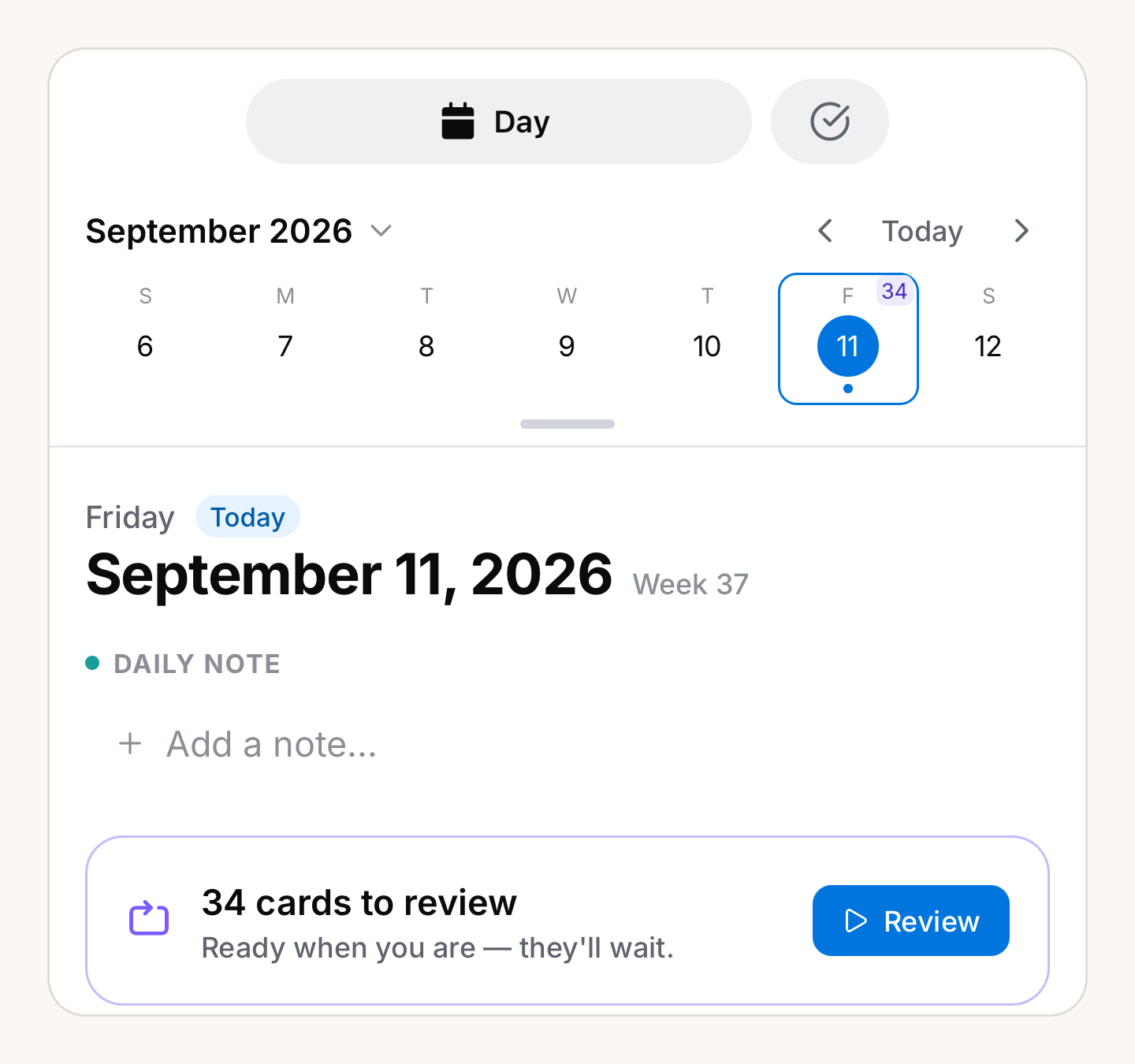
It's the screen to check between classes: write the day's note, knock out reviews, tick off what's due.
On a tablet: your course in tabs
On an iPad or Android tablet the app stretches out: the bottom bar becomes a sidebar on the left, and your open pages sit in a tab strip across the top — space, topics, notebooks, cards — like a browser for your coursework.
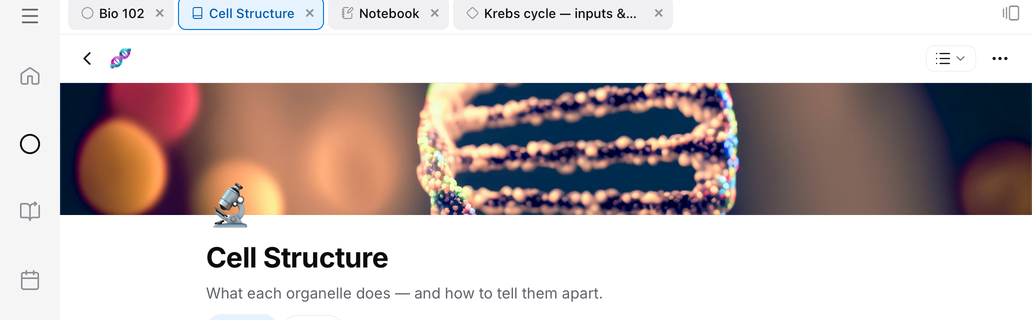
Tabs stay put between sessions, so tomorrow starts where today left off. Tabs covers the whole system — pinning, the tab overview, and how to hide the strip.
On a tablet: real handwriting
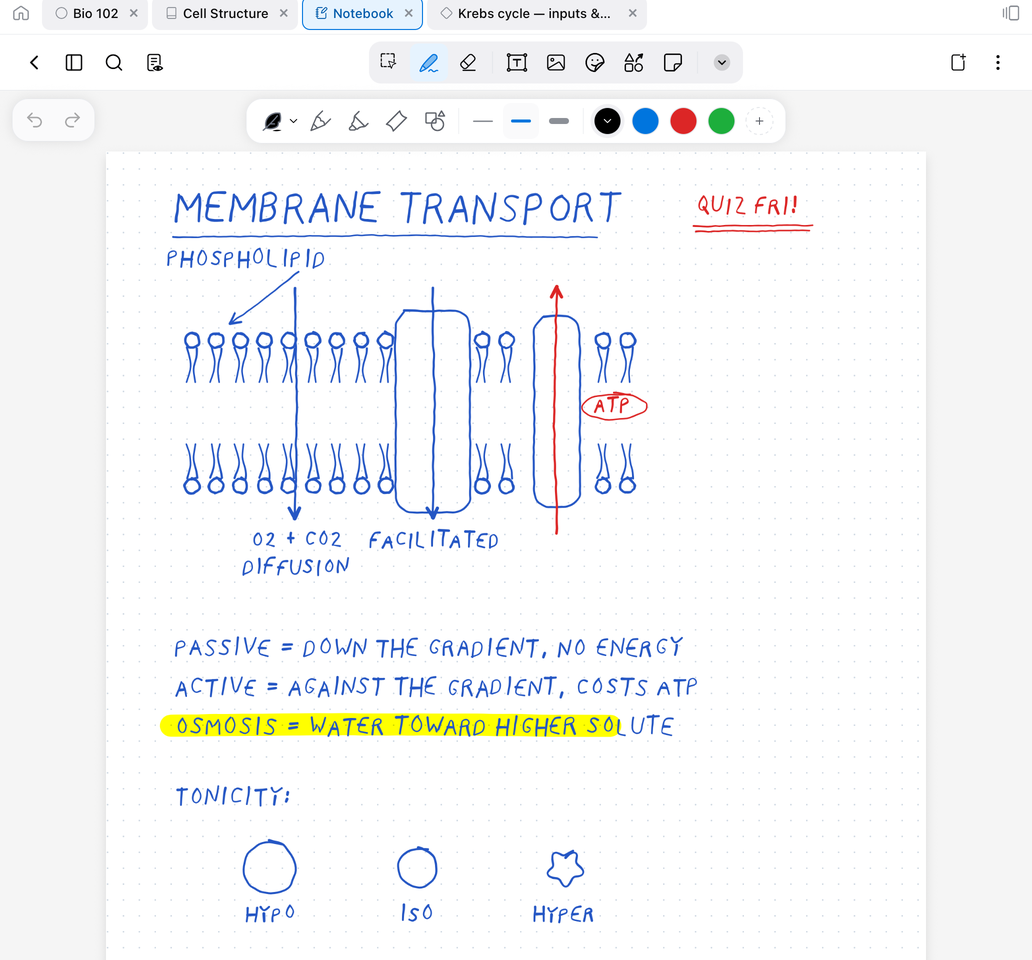
Tablets also unlock the notebook — full-screen, paper-like pages made for an Apple Pencil, an S Pen, or any stylus. Take lecture notes in ink, mark up a PDF, and let AI read your handwriting into flashcards.
Common questions
Do I need the phone app to use Mento? No — the web app is the full experience. The phone earns its place as the capture-and-review companion: it's always with you at the exact moments notes appear and reviews come due.
Where did my capture go? The Inbox, unless the chip at the top of the capture screen said otherwise. Open the Inbox from Home's top row and it'll be the first card.
Is the phone app free? Yes. One account works everywhere, on the same plan — capture, notes, and studying are all part of the free plan, on every device.
Didn't find it?
The FAQ answers the questions we get most, and every way to reach us is on the contact page.