Create flashcards
FreeWeb & mobile
Updated · September 2026
A flashcard in Mento is just a card whose idea has an answer — a question the Study button can ask you. This guide covers both ways to make them: writing cards yourself, and letting AI draft them from your notes, PDFs, and recordings, with a review step where you decide what actually joins your deck. Studying them is the next article.
Write a card yourself
The fastest place to write cards is inside a topic. Every section ends with a faint Add card line — click it and start typing.
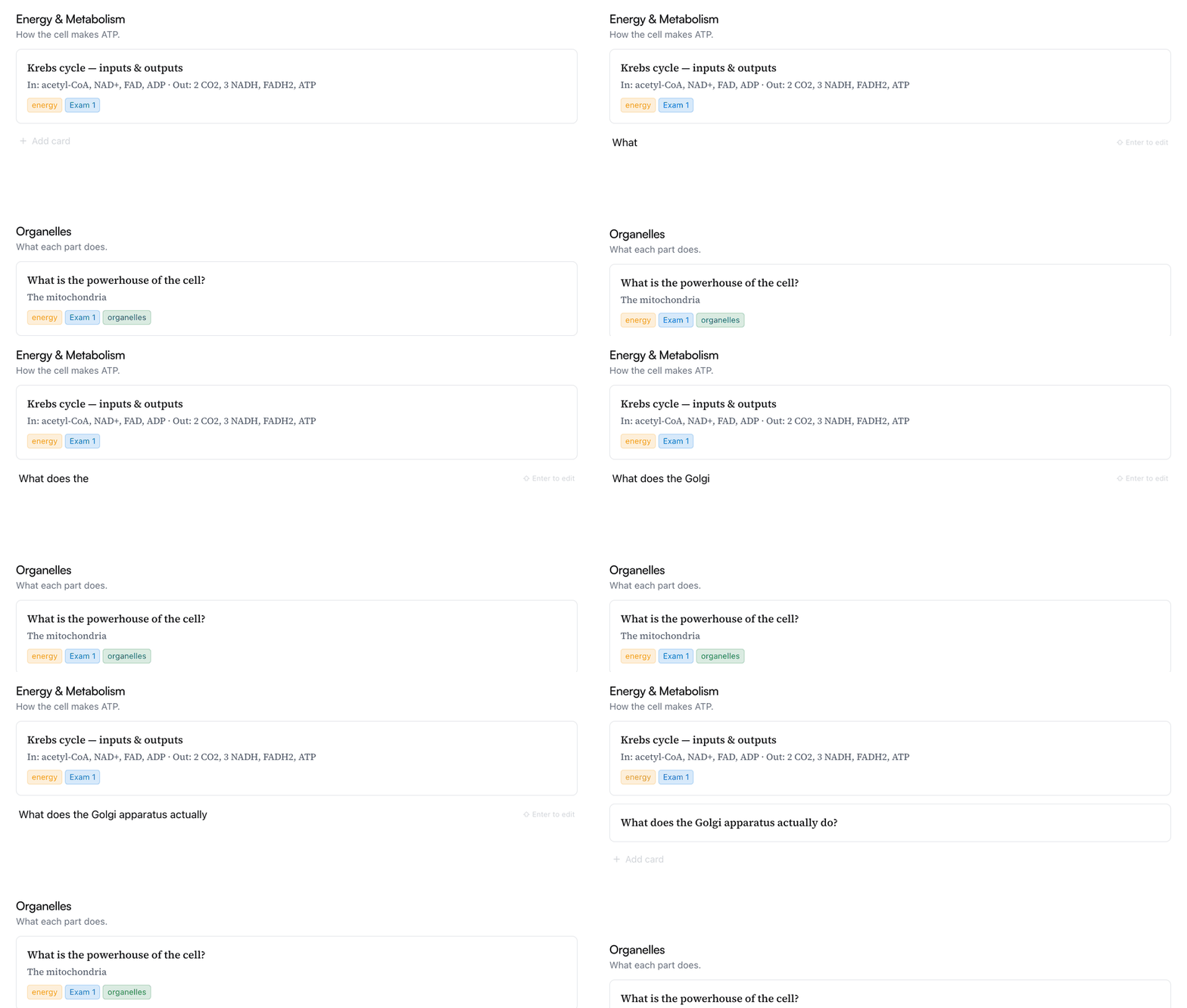
- Press Enter and the card is added — you stay in the composer, ready for the next one. Good for rattling off a list of terms.
- Press ⇧ Enter instead and the card opens in the editor, so you can keep going: answer, notes, tags, attachments.
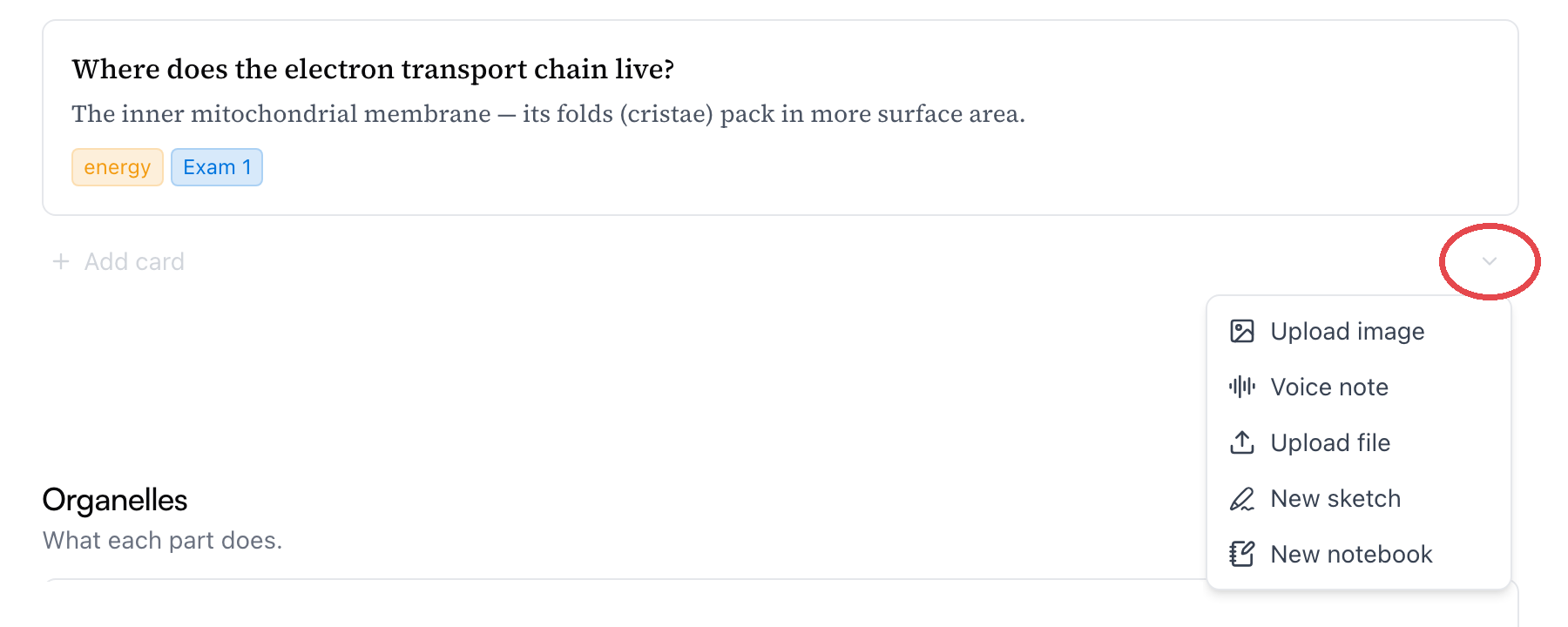
Typing isn't the only thing the row takes. The small ⌄ at its right end starts a card from a voice note, an uploaded image or file, a new sketch, or a notebook — whatever you pick lands in that same section.
You can also capture a card from anywhere with ⌘ K — quick capture has an Add answer & notes option for exactly this. See Quick capture and the Inbox.
Add the answer
A card without an answer is still a perfectly good note. But when you want it to behave as a flashcard, open the card and click + Add answer under the idea. The answer field opens with the cursor in it, and hovering it shows the AI options:
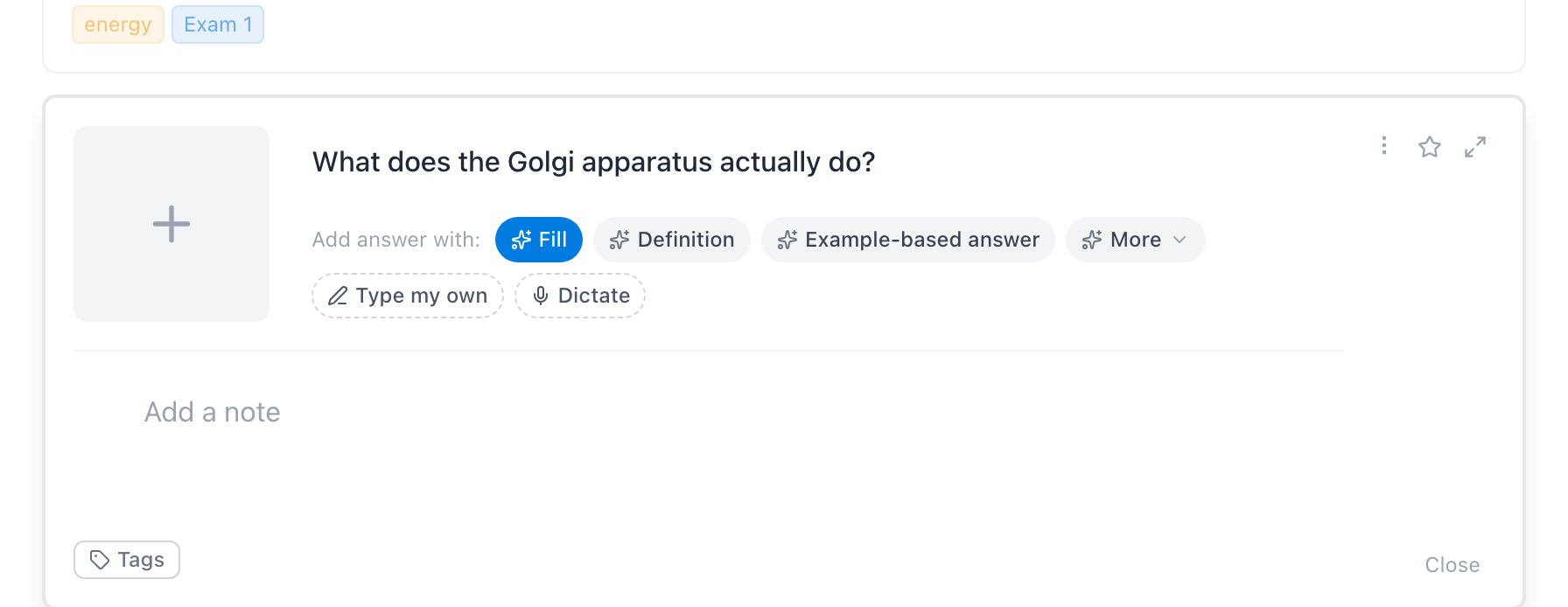
- Fill asks AI to write the answer from your idea — handy when the question already implies it, like a definition.
- The sparkles button next to it lists answer snippets (Definition, Example-based answer, …) — each one a reusable instruction for the shape of answer you want — plus a box for a custom instruction. You can add your own.
- Or just type — the field is already focused.
- Dictate, in the ⋯ menu, lets you speak the answer instead.
Note: The AI options need an idea to work from — write the question first. Fill and the snippets use AI actions from your budget; typing your own is free.
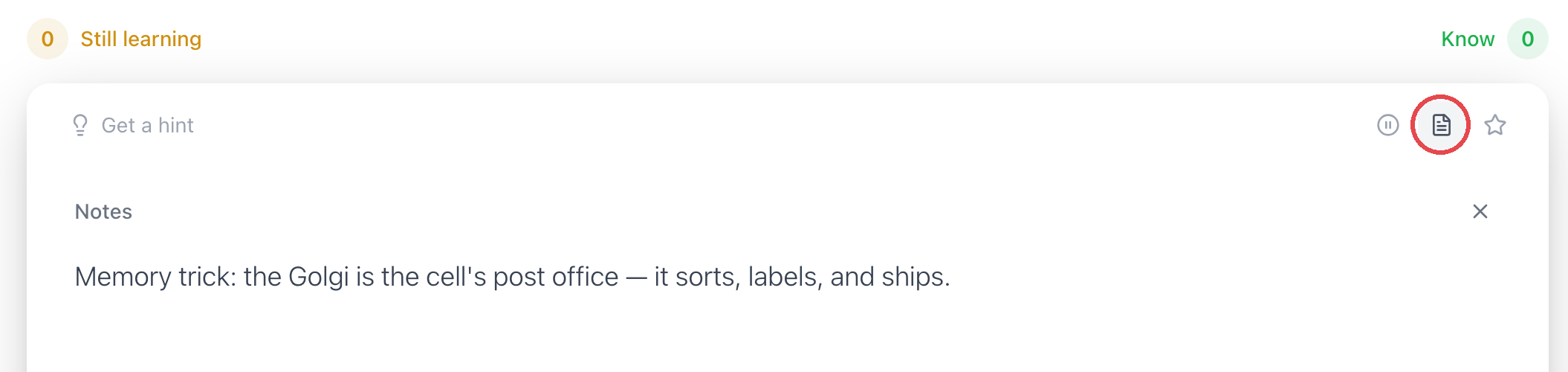
The Add a note area below is worth filling in too, because notes ride along into study: a flashcard that has them shows a small note icon — click it (or press N) and the notes slide over the card. That makes it the place for the mnemonic or trick that makes the answer stick. Give the Golgi card a note like "it's the cell's post office — it sorts, labels, and ships", and it's right there the next time you blank on it.
Let AI draft cards for you
Writing one card is quick; turning a whole lecture into cards is where AI drafting earns its keep. It lives in a few places, and they all open the same drawer:
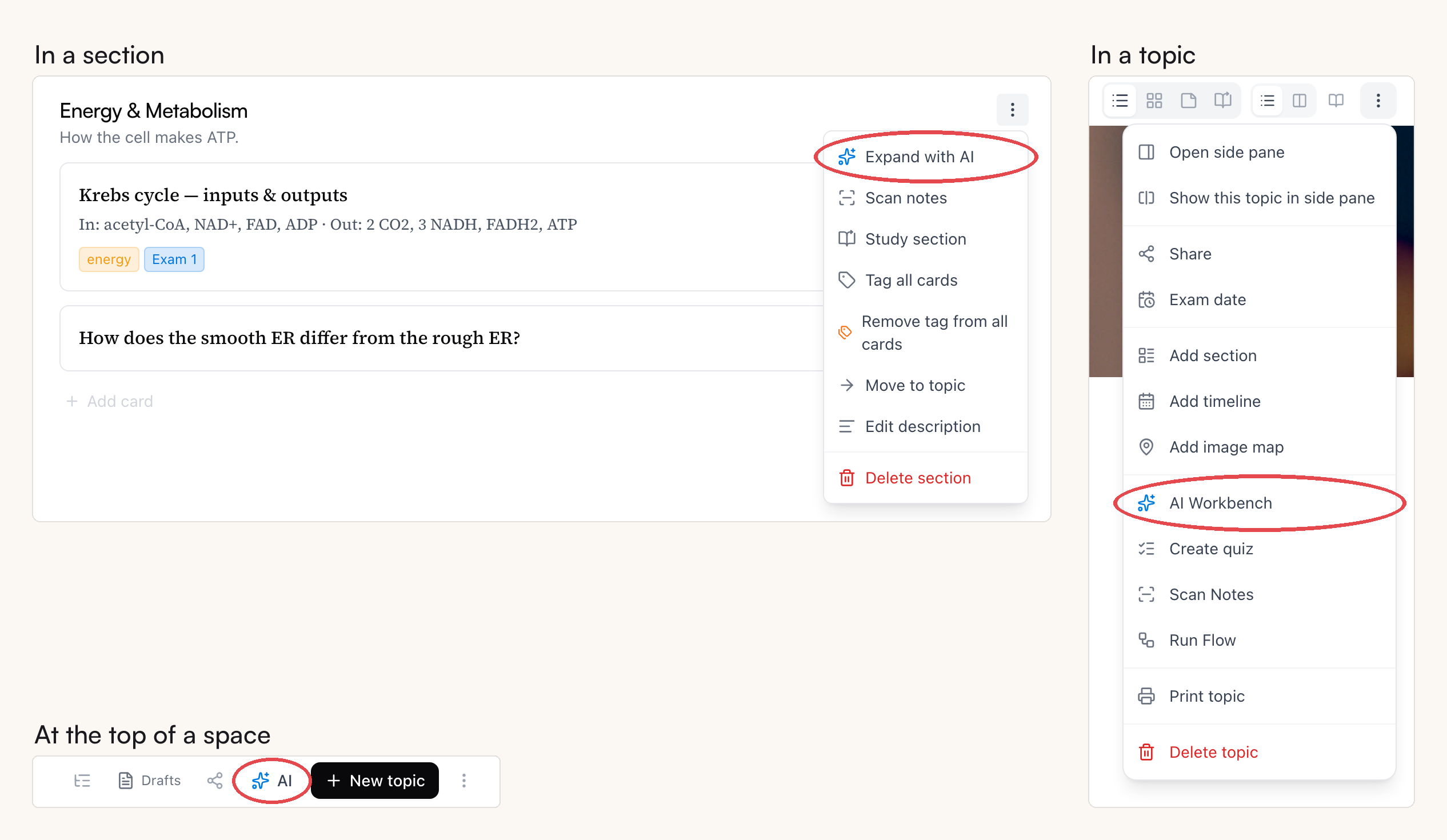
- A section's ⋯ menu → Expand with AI adds cards to that section.
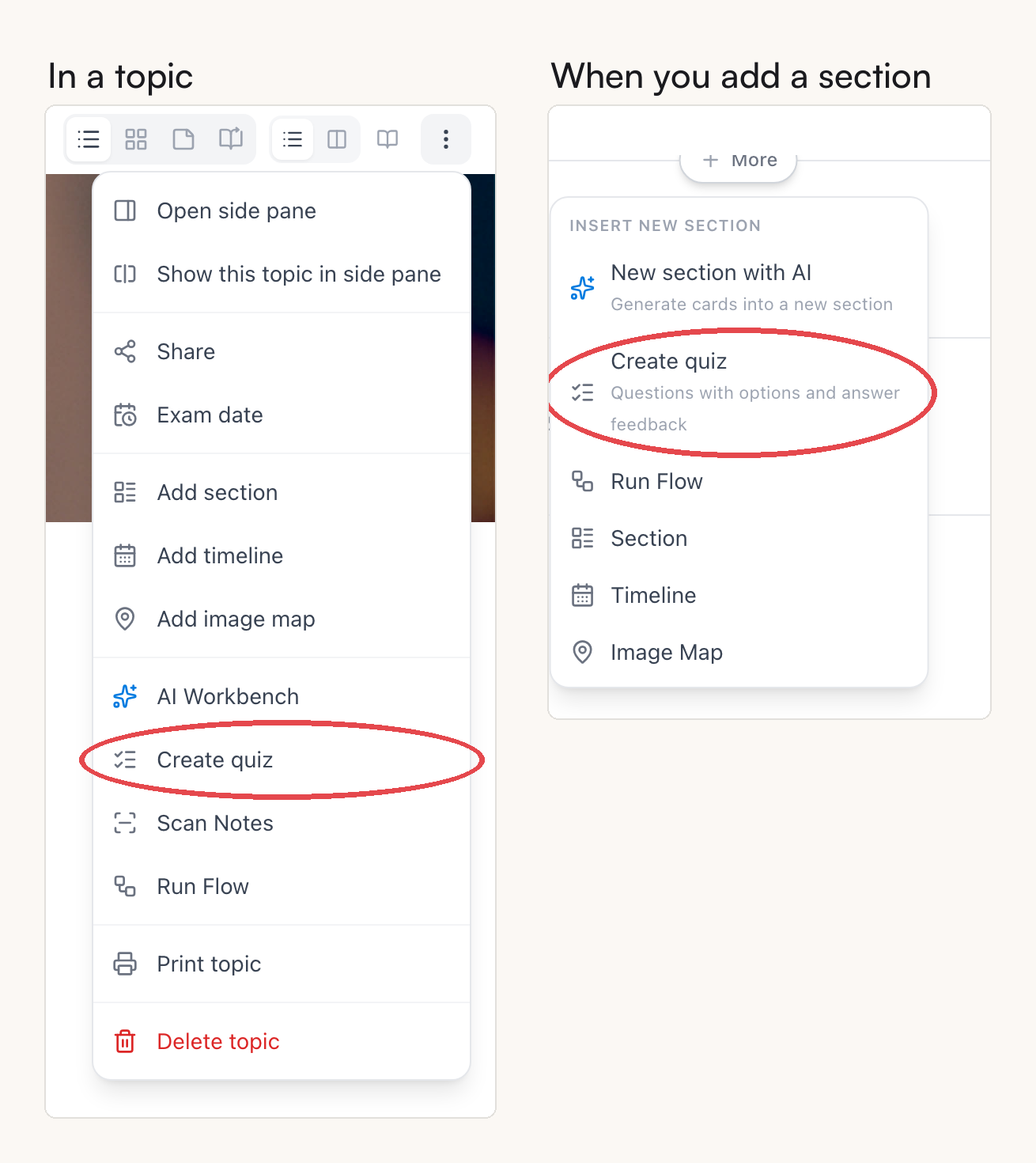
- The topic's ⋯ menu → AI Workbench; adding a new section also offers New section with AI and Create quiz.
- The AI button at the top of a space drafts a whole new topic from scratch.
- Select text inside a card's notes → Extract to Cards turns just that passage into cards.
- A PDF's highlights have AI Generate, and a recording's transcript has Run flow — see Record your classes.
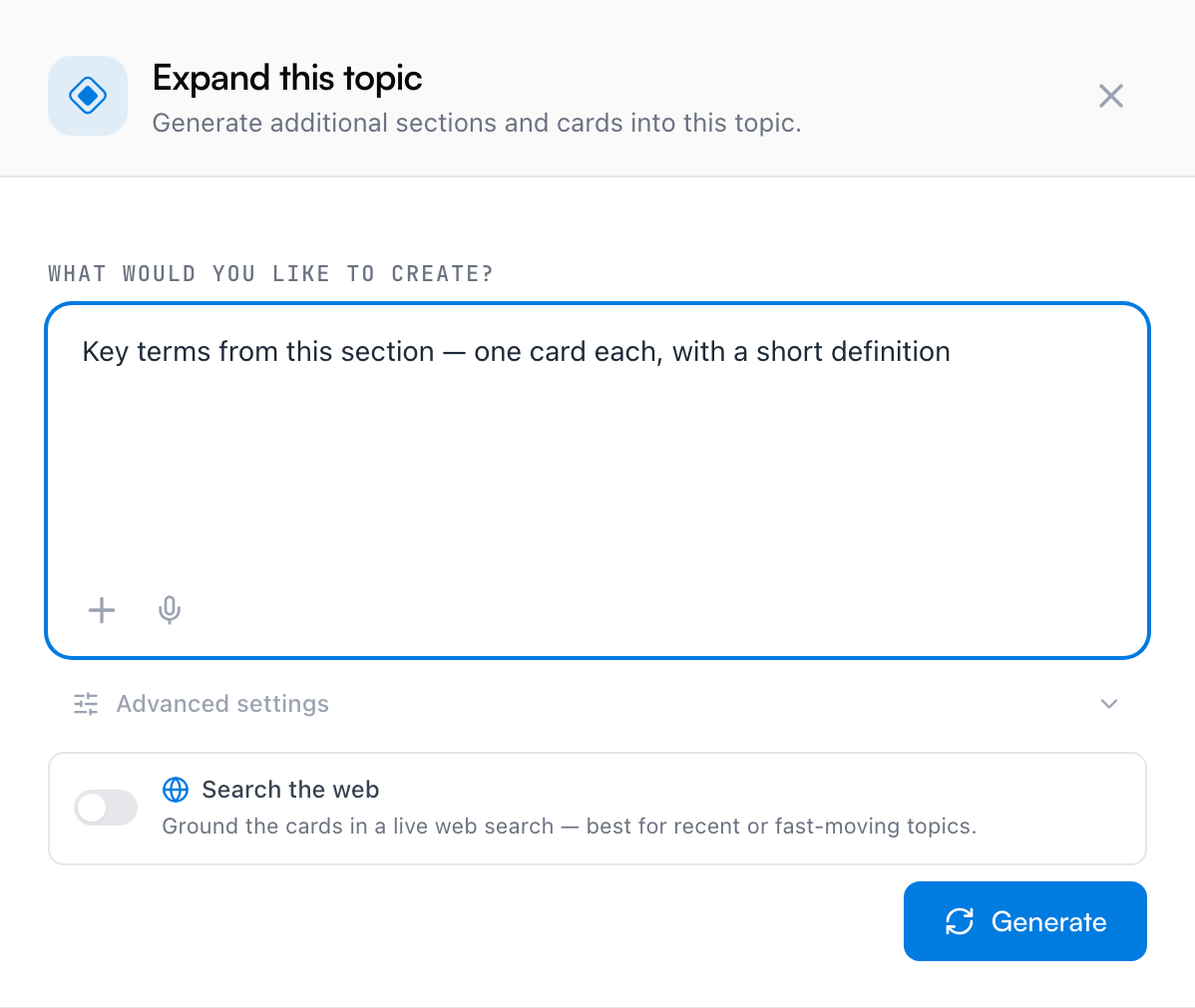
In the drawer, describe what you want ("key terms with definitions", "questions comparing the two processes…") and, if the material isn't already in front of it, attach sources — your notes, or files like PDFs and images. A generation can read 1 PDF on the free plan, 3 with Pro. Then hit Generate.
You don't have to watch it work. While a generation runs, the drawer offers Save and come back later — click it and go do something else in the app; the generation keeps going in the background. The finished draft waits for you in Saved Drafts (the topic's ⋯ menu, or Drafts at the top of the space), where Resume reopens it ready for review.
Got handwritten pages? Scan notes, in the same section and topic menus, takes photos of your handwritten or printed notes and drafts cards from what it reads.
Review before anything sticks
Nothing AI drafts goes straight into your topic. The proposed cards appear first as a preview — dashed outlines, like cards that don't exist yet:
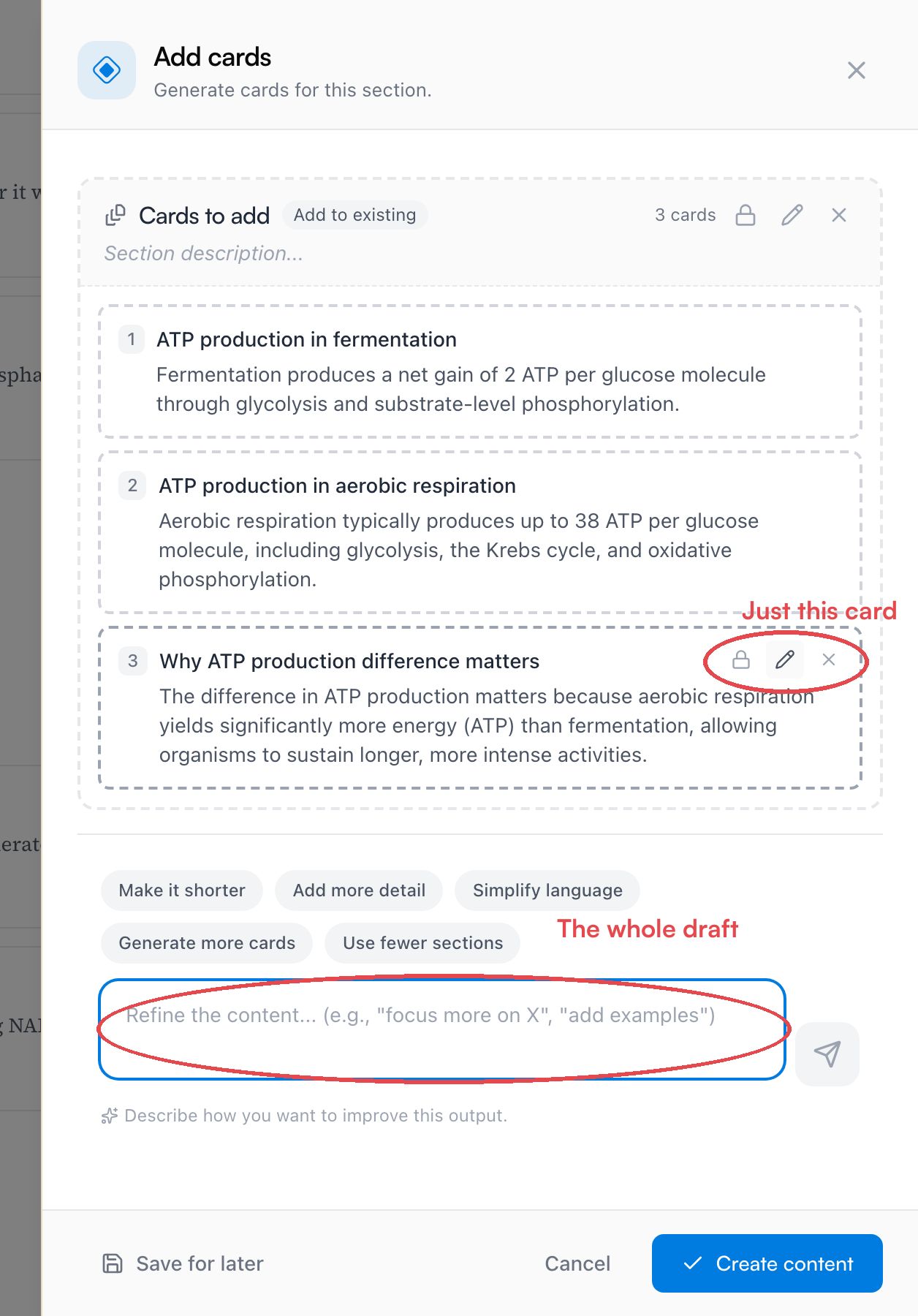
This is your editing table:
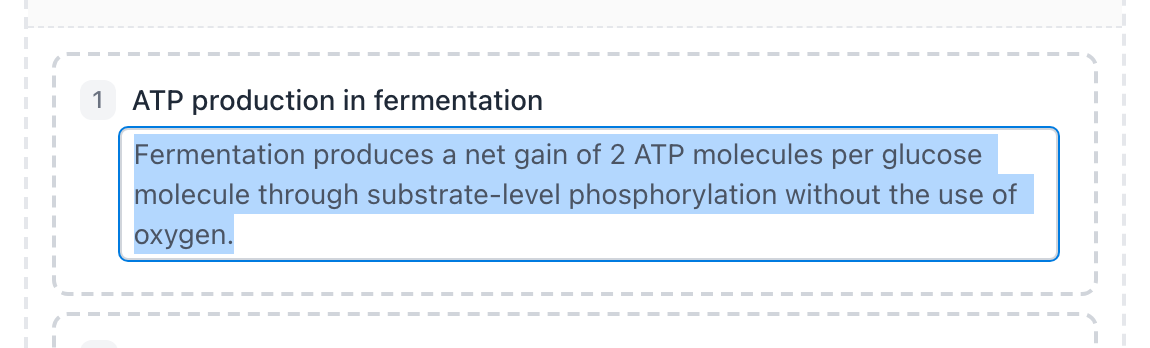
- Edit any card directly — click into its text and rewrite it.
- Drop a card with the × on it; the rest survive.
- Edit with AI rewrites one card from an instruction; the lock icon protects a card you've perfected from further global changes.
- The box at the bottom refines the whole draft — use the suggestion chips (Make it shorter, Generate more cards, …) or type your own, like "focus more on exceptions". Regenerate starts the draft over.
When it looks right, Create content adds the cards to your topic. Not sure yet? Save for later keeps the draft — you'll find it under Saved Drafts in the topic's ⋯ menu (or Drafts at the top of the space), and Resume picks it back up exactly where you left off, edits and all. Cancel discards it entirely.
Create a quiz
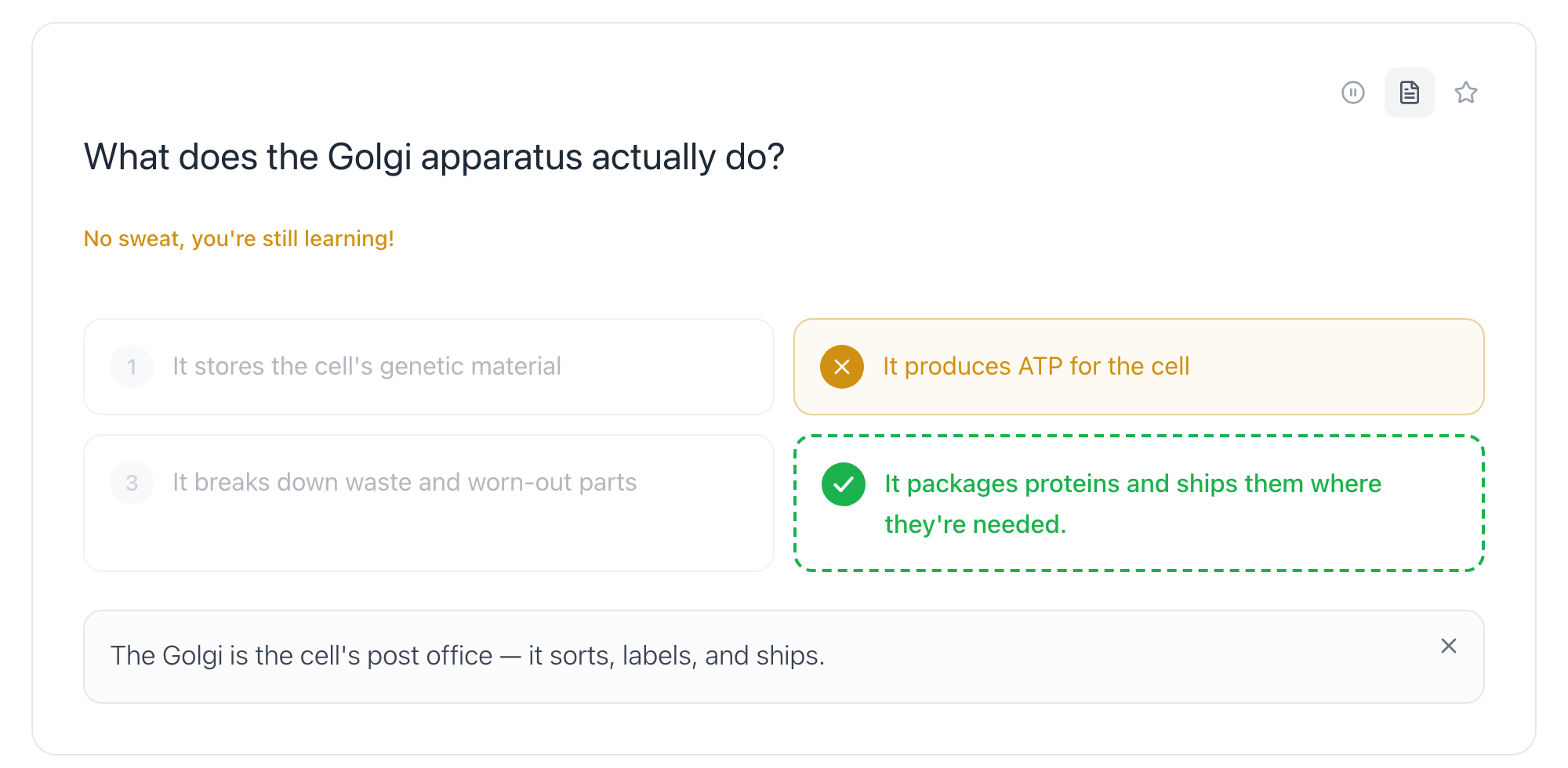
A flashcard asks you to recall the answer; a quiz asks you to pick it out of a lineup. The wrong options are called distractors, and a card can carry its own — a few plausible wrong answers stored alongside the real one.
Create quiz — in the topic's ⋯ menu, and one of the options whenever you add a section — opens the same drawer with one setting flipped: every card is generated with distractors, plus a short line of feedback that lands in the card's notes and appears after you answer.
Distractors are what the Multiple choice study mode runs on (see How to study). A card that has its own uses exactly your option set; cards without them still work — Mento borrows plausible wrong answers from related cards.
You can also give any single card distractors by hand: open it and pick MC distractors from the ⋯ next to the answer, then type your own or let AI write wrong answers from the idea.
Other things that make cards
Not every flashcard starts as typed text:
- Every event on a timeline is a card, and studying the timeline can quiz you on the dates too.
- Every hotspot on an image map is a card — label a diagram once and you've built a deck.
- In the PDF reader, a highlight can become a card as you read — and in the app, selecting text offers Create card with definition, which looks the term up for you.
What it costs
Writing cards yourself is free, always. AI drafting — generating, refining, regenerating — uses AI actions from your monthly budget, and bigger jobs count as more actions. Reviewing costs nothing, and neither does accepting: once a draft is generated, editing it by hand and clicking Create content doesn't use more actions. See Plans and billing.
Common questions
Will AI write cards in my language? Each space has a content language, and AI-generated cards and sections are written in it. If your course runs in Spanish but your interface is English, set the space's language to Spanish and drafts will follow.
Is there a way to automate drafting I do repeatedly? That's what AI flows are — save the instructions and settings you keep reusing as a one-click recipe.
Up next
How to study in Mento
What the Study button actually does — daily practice, streaks, due reviews, the study modes, focusing on weak spots, and getting ready for an exam.
Didn't find it?
The FAQ answers the questions we get most, and every way to reach us is on the contact page.