Share a space, topic, or card
FreeWeb & mobile
Updated · September 2026
Everything you make in Mento is private — nobody sees your spaces, topics, or cards until you decide otherwise. When you do want to share — a deck your study group needs, a whole course for a friend taking it next semester — you can share a space, a topic, or even a single card with a link. Sharing is free, and the people you share with don't need an account just to look.
Where Share lives
- A space: the share icon at the top of the space page, or Share in the space's ⋮ menu.
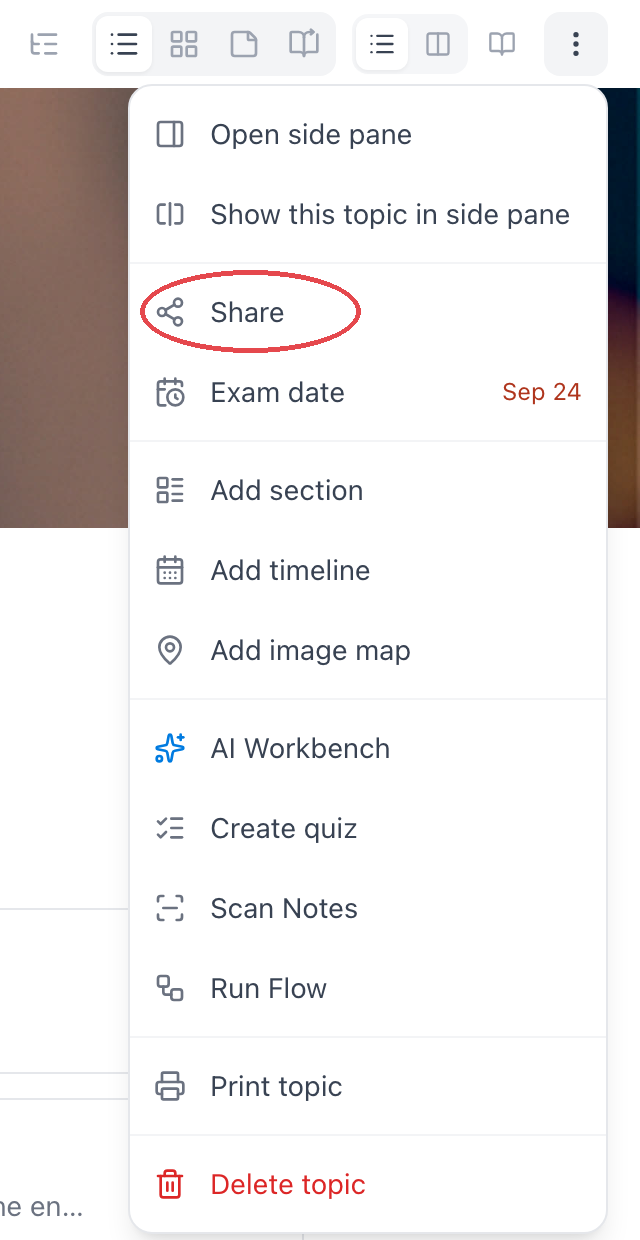
- A topic: the topic's ⋮ menu → Share.
- A single card: open the card's ⋯ menu → Share.
- A timeline or image map: the section's ⋯ menu has Share timeline / Share image map.
Spaces and cards have their own doors to the same place:
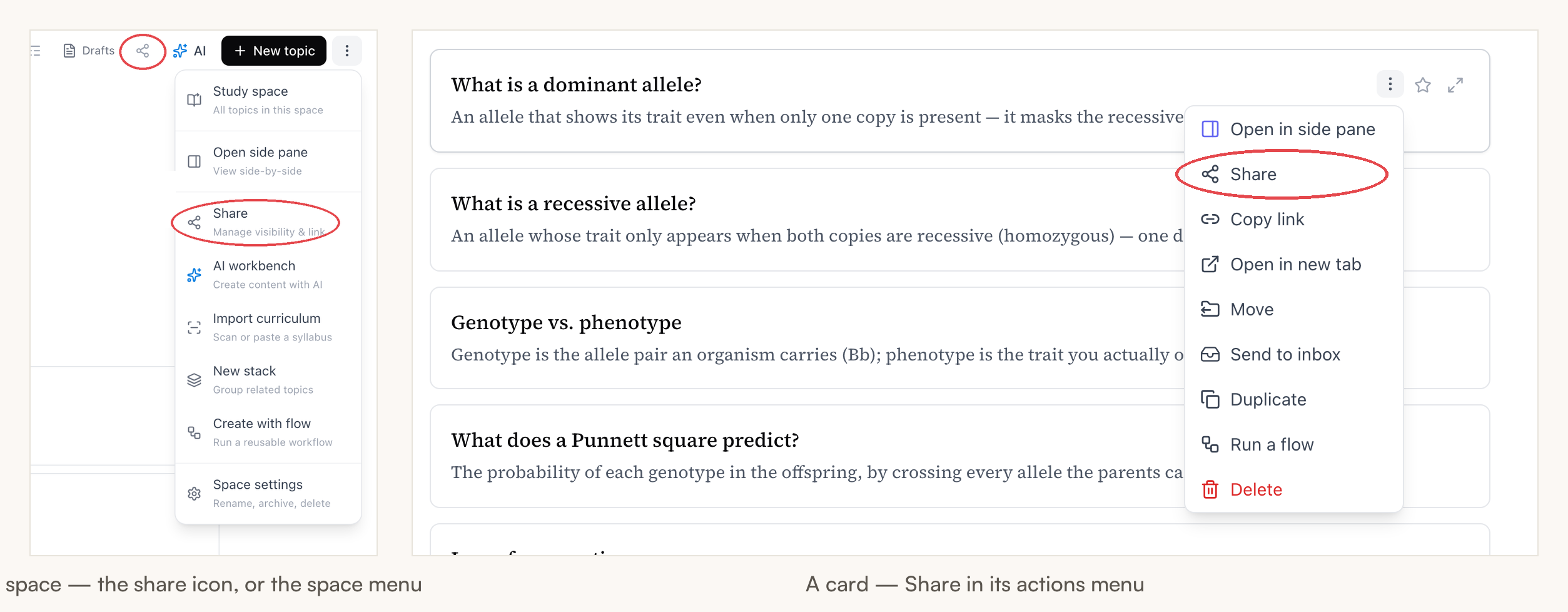
They all open the same dialog.
Pick Unlisted, copy the link
The dialog shows two levels:
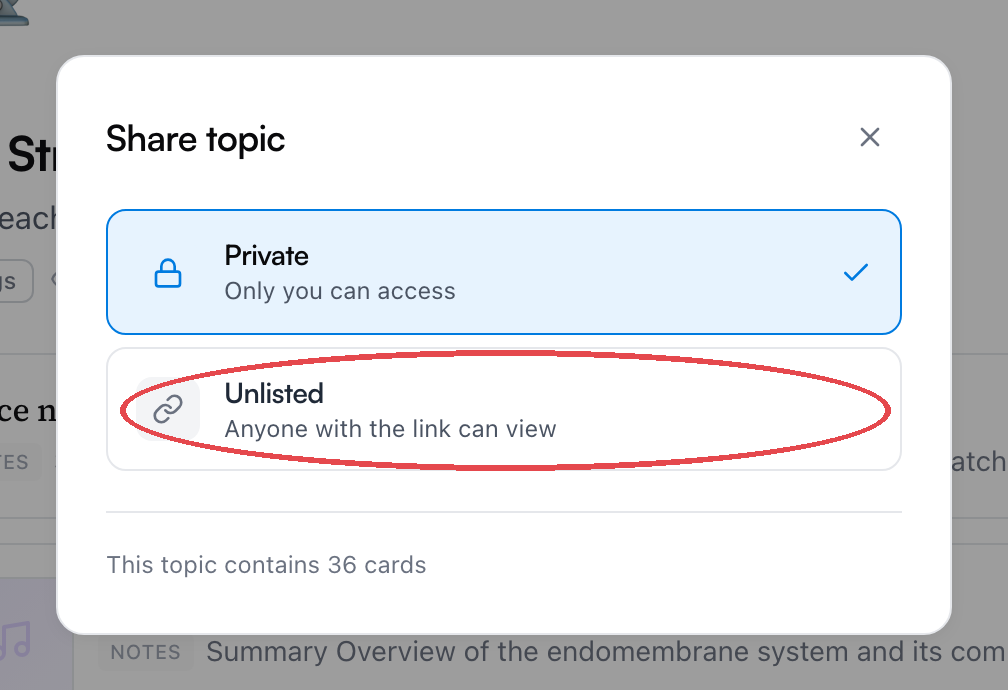
- Private — only you can access. The default, always.
- Unlisted — anyone with the link can view. The page can't be found any other way: it isn't listed anywhere, and search engines are told to skip it. The link is the key.
Pick Unlisted and the share link appears — Copy it and send it wherever:
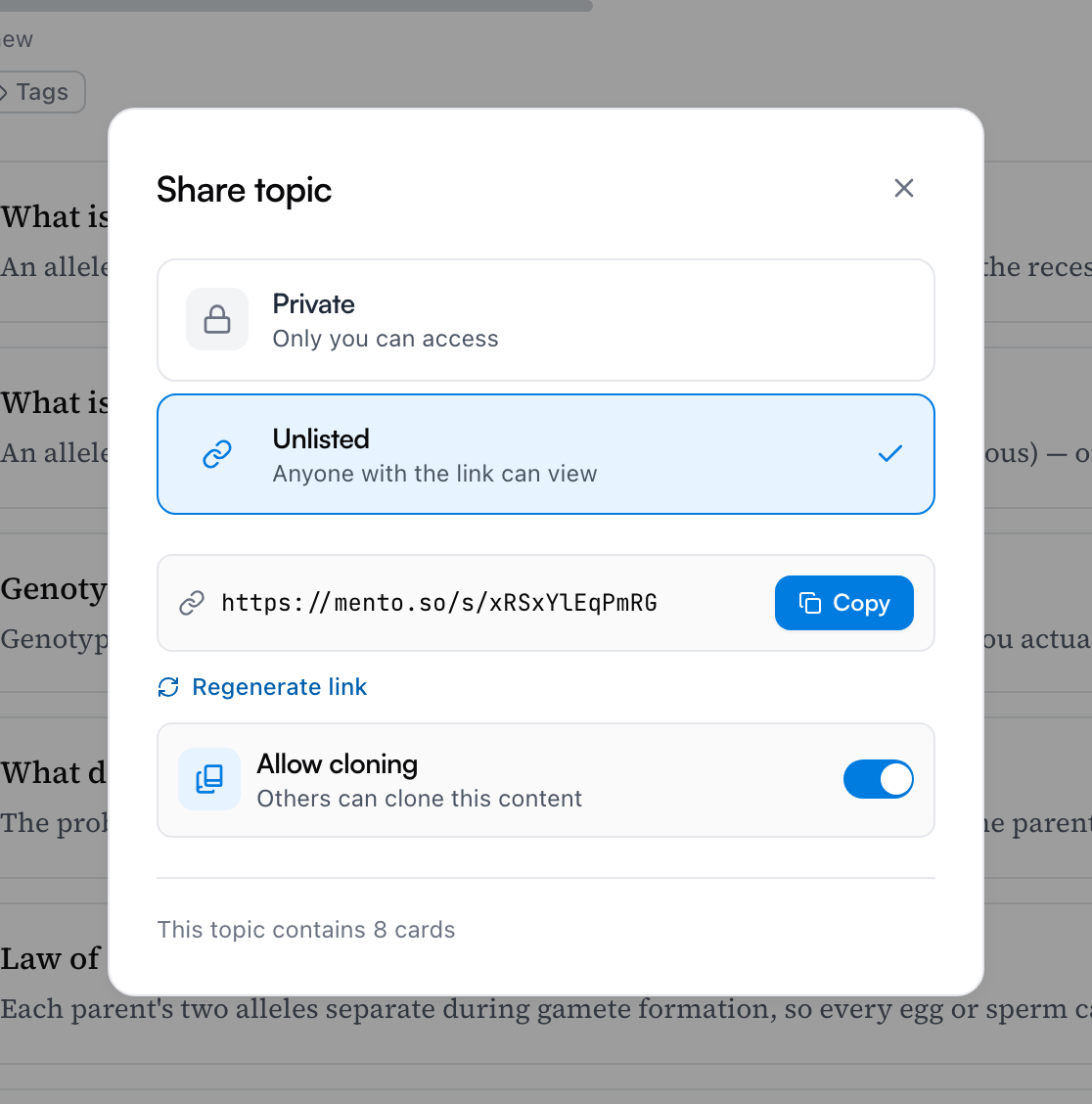
Sharing a space shares the topics inside it; sharing a topic shares its cards. The dialog's footer tells you exactly how much is riding along.
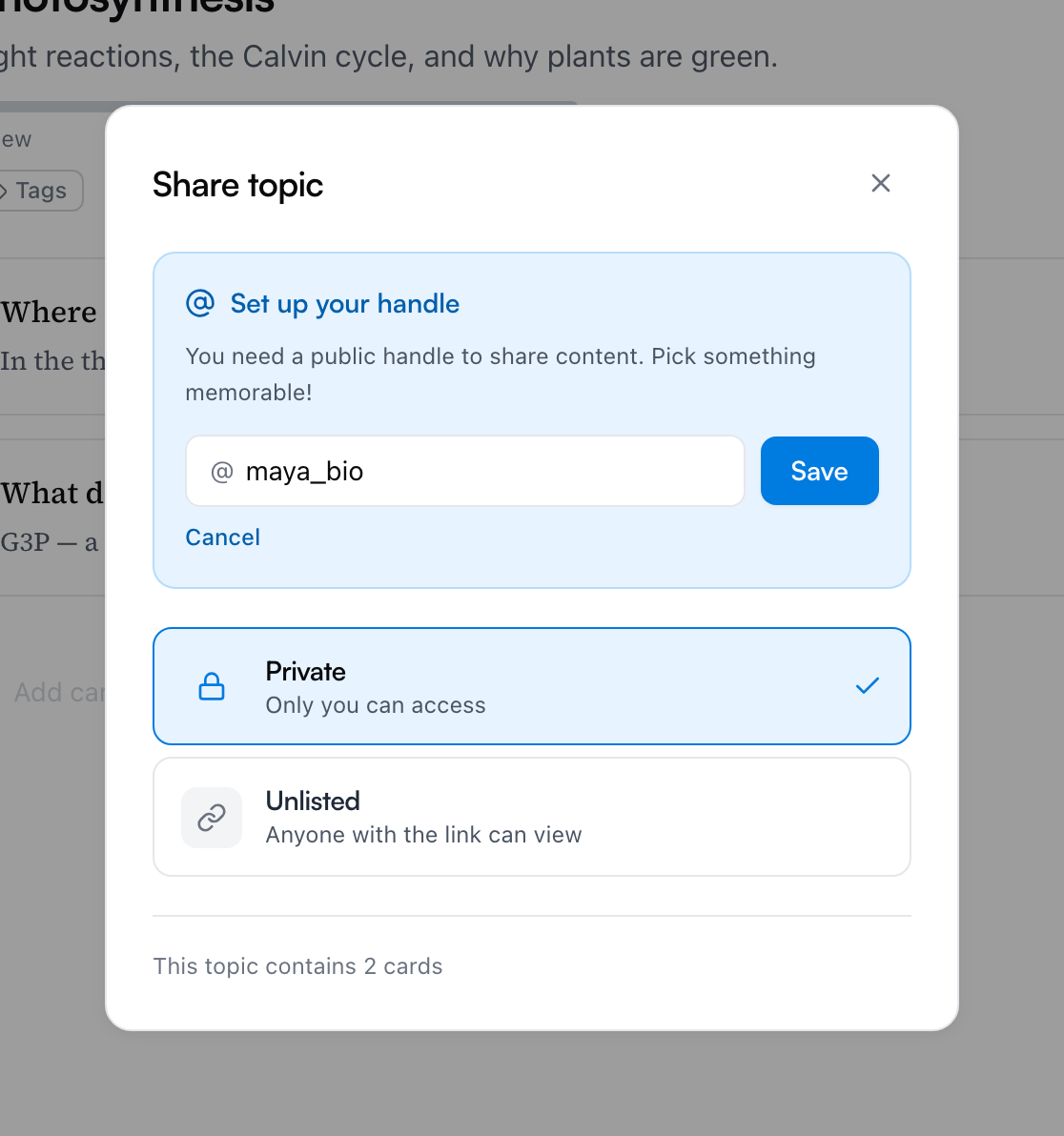
Note: Share links run through your handle — a short username (letters, numbers, and underscores). Most accounts get one automatically when they sign up, so you may never see this. If yours doesn't have one yet, the dialog asks you to pick it the first time you share a space or topic. Single cards don't need one.
What the other person sees
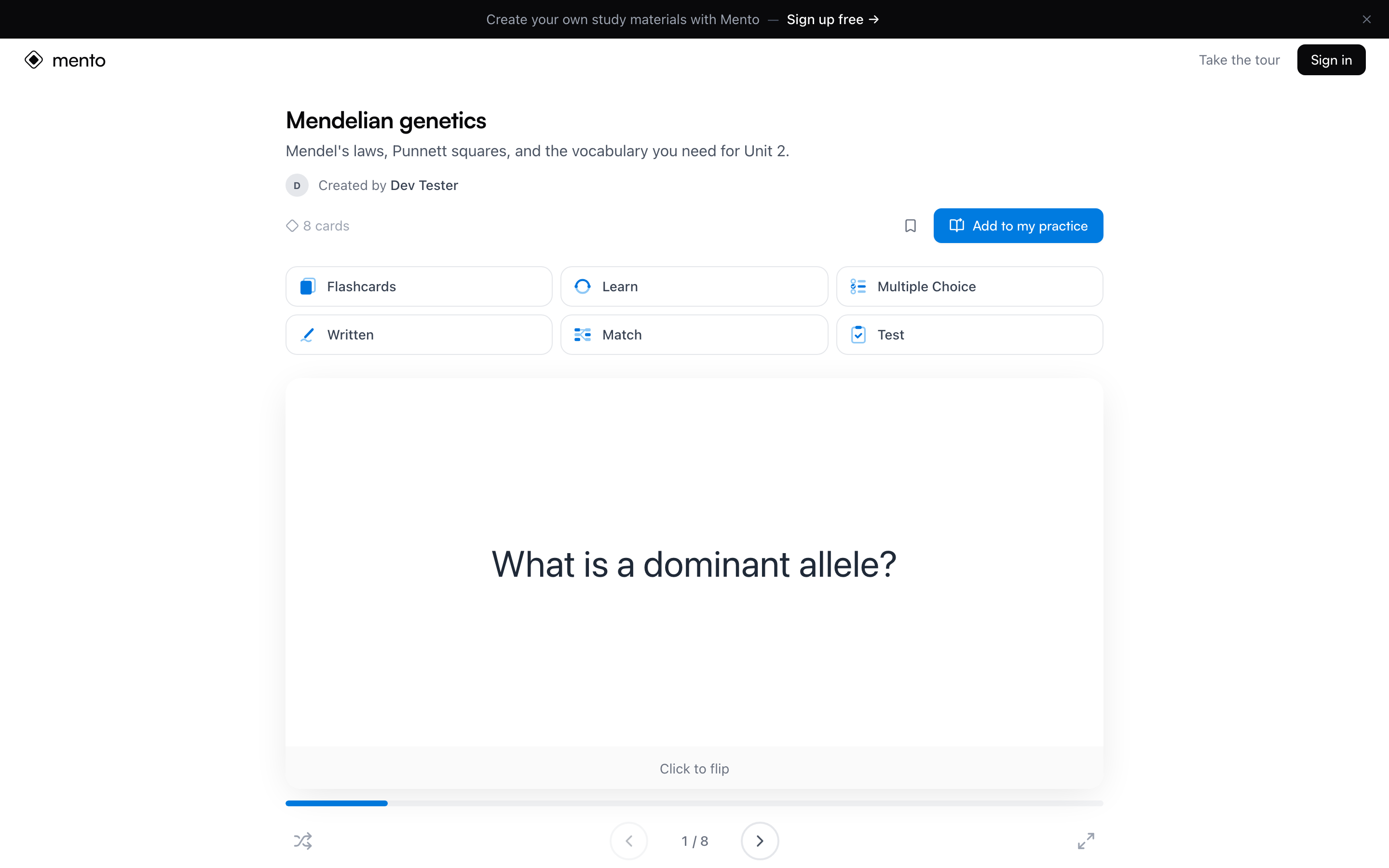
Whoever opens your link gets a clean read-only page — your topic with its sections and cards, or your space with its topics. No account needed to read:
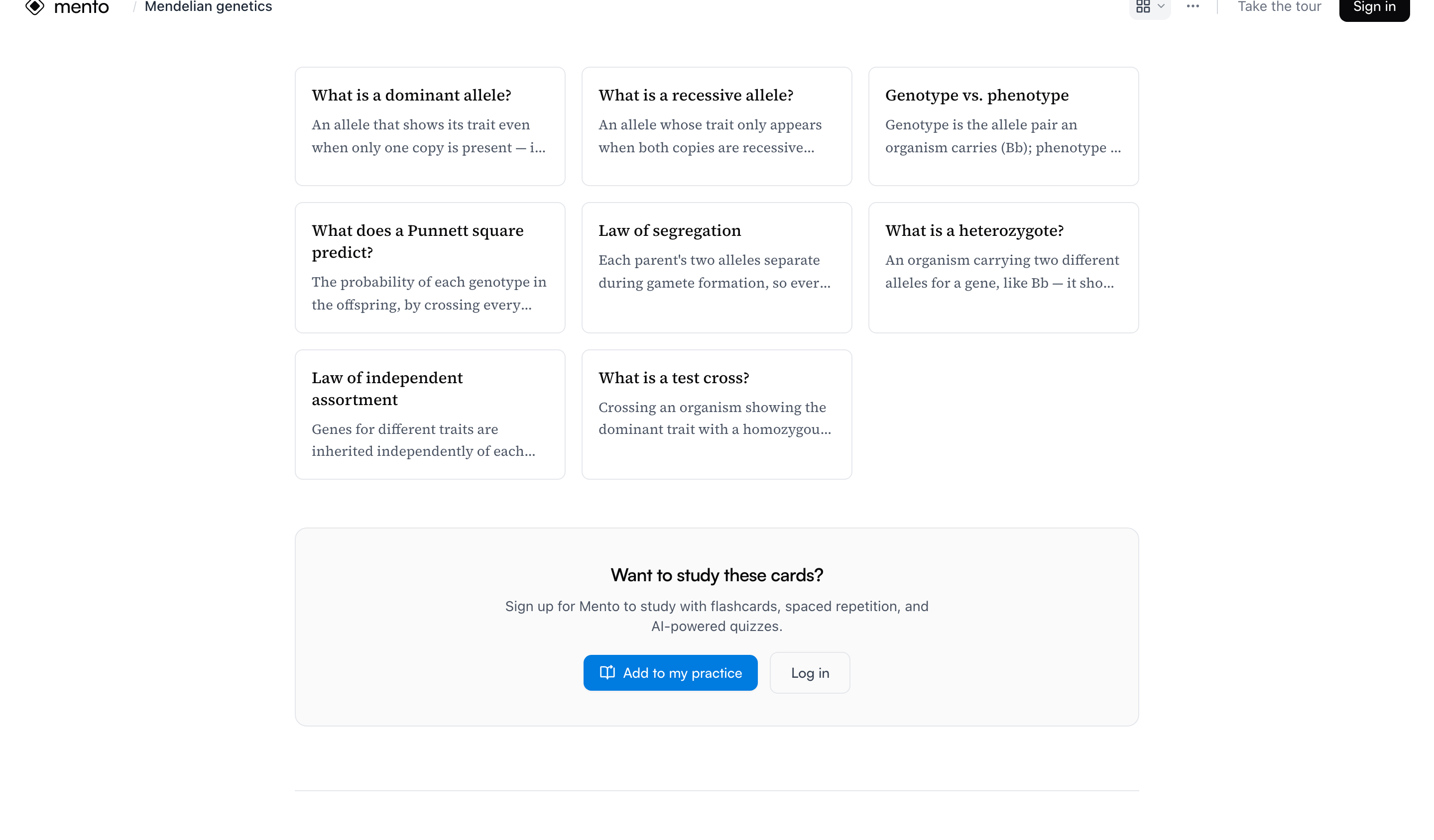
Below the flashcards, the whole topic is laid out card by card — sections and all. Reading never needs an account:
They can also flip through a flashcard preview right at the top. Studying properly — Learn, Written, Match, Test, and saving progress — asks them to create a free account first:
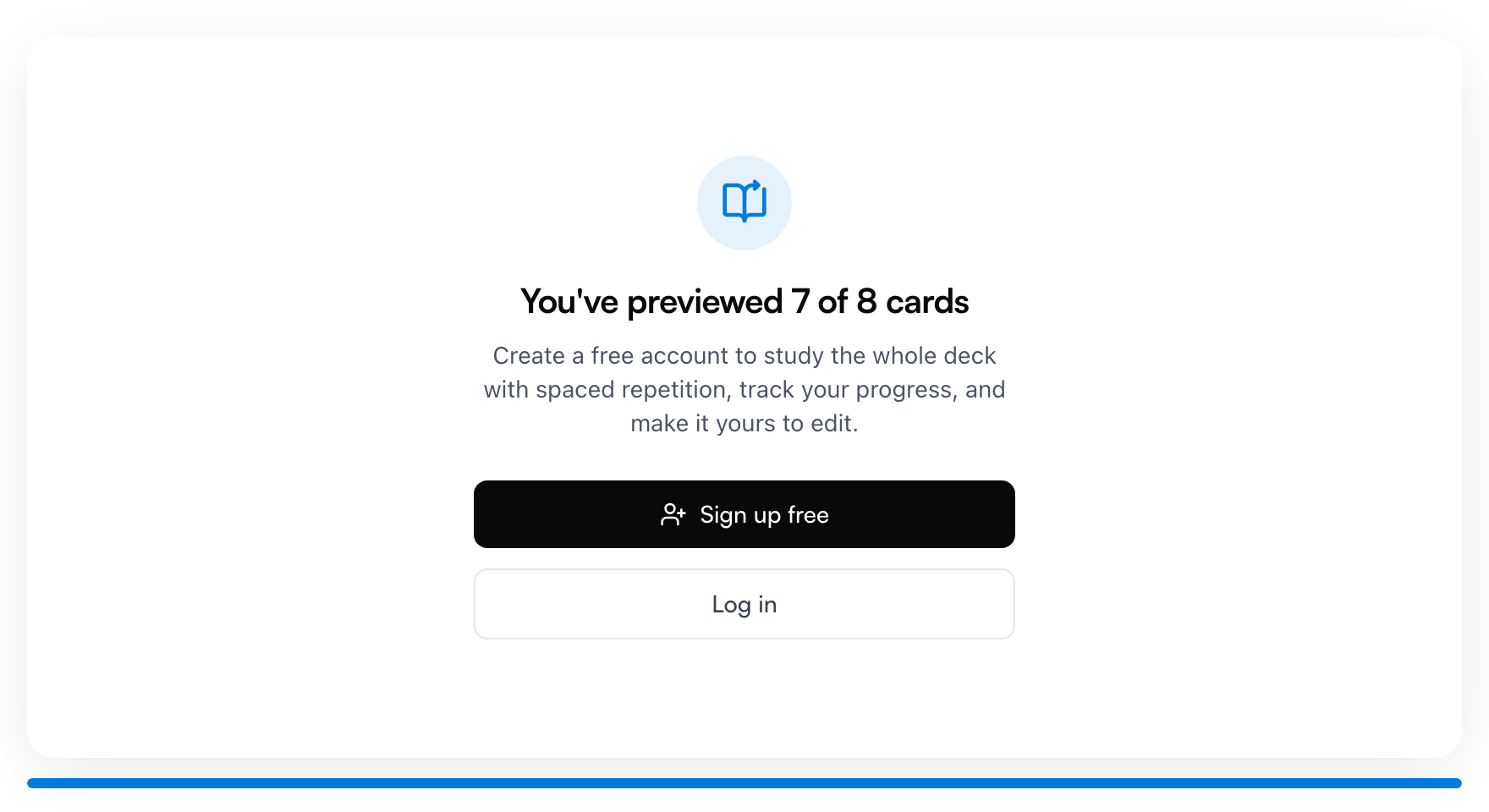
With an account, three more things light up:
- Bookmark keeps your page in their Saved list (in the sidebar) so they can come back to it.
- Add to my practice, on topics, feeds your cards into their own daily practice queue — they study your deck without copying it.
- Make an editable copy clones what you shared into their library. The copy is fully theirs and fully independent: their edits don't touch your original, and your later changes don't reach their copy.
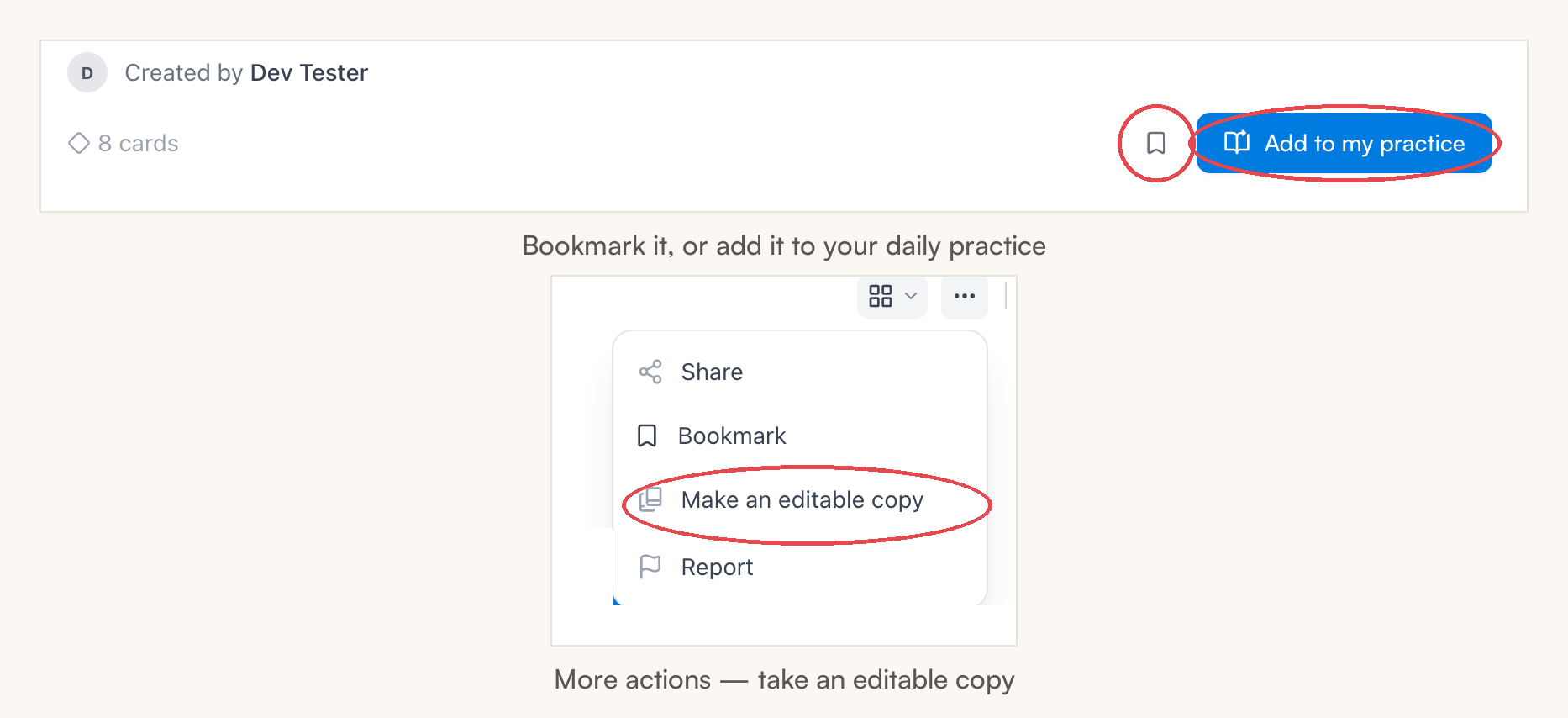
Nobody can ever edit the original. Sharing is view-only — copies are the only way your content leaves your hands, and only if you allow it.
Allow cloning — or don't
The share dialog has an Allow cloning toggle, on by default:
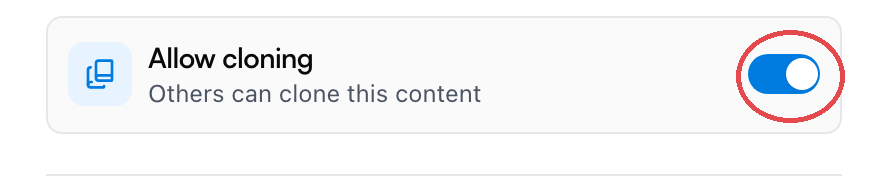
Turn it off and the Make an editable copy button disappears from your shared page — people can still view, bookmark, and practice, but can't take a copy. You can flip it either way at any time, independently of the link itself.
Stop sharing, or reset the link
Changed your mind? Switch the dialog back to Private and the link stops working immediately.
If a link has traveled further than you'd like but you still want to share, use Regenerate link — the old link dies, and you get a fresh one to hand out to the right people.
Share a single card
Cards share the same way — Share in the card's ⋯ menu — but only as a link, and without needing a handle:
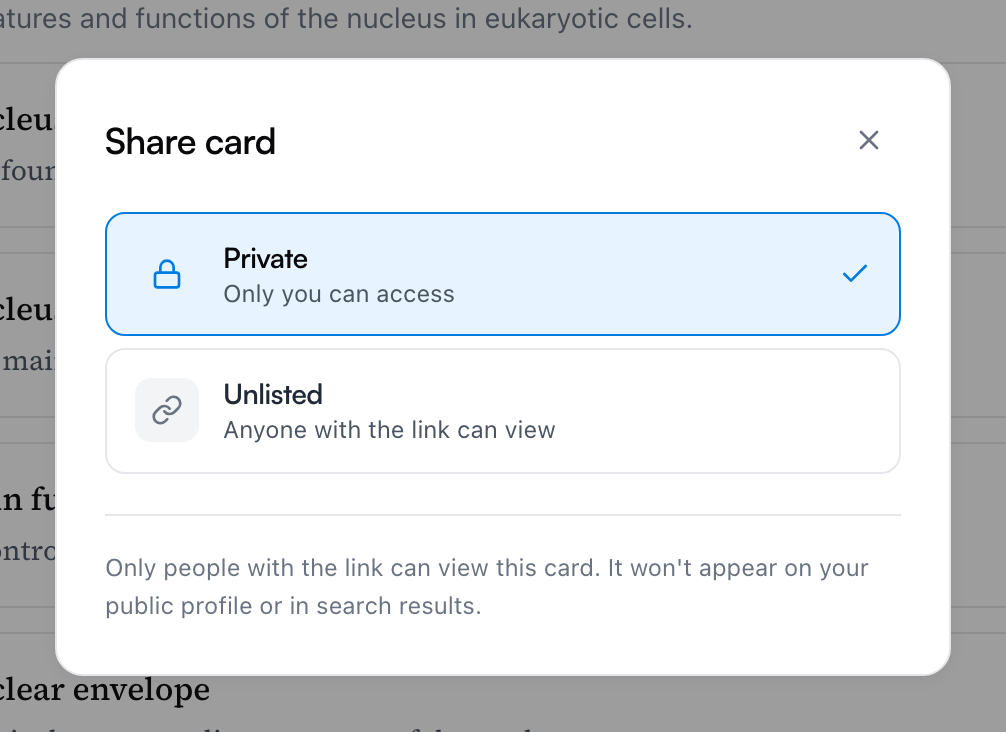
It's the right size for "here's the one formula you asked about." The person on the other end sees just the card, with your name on it:
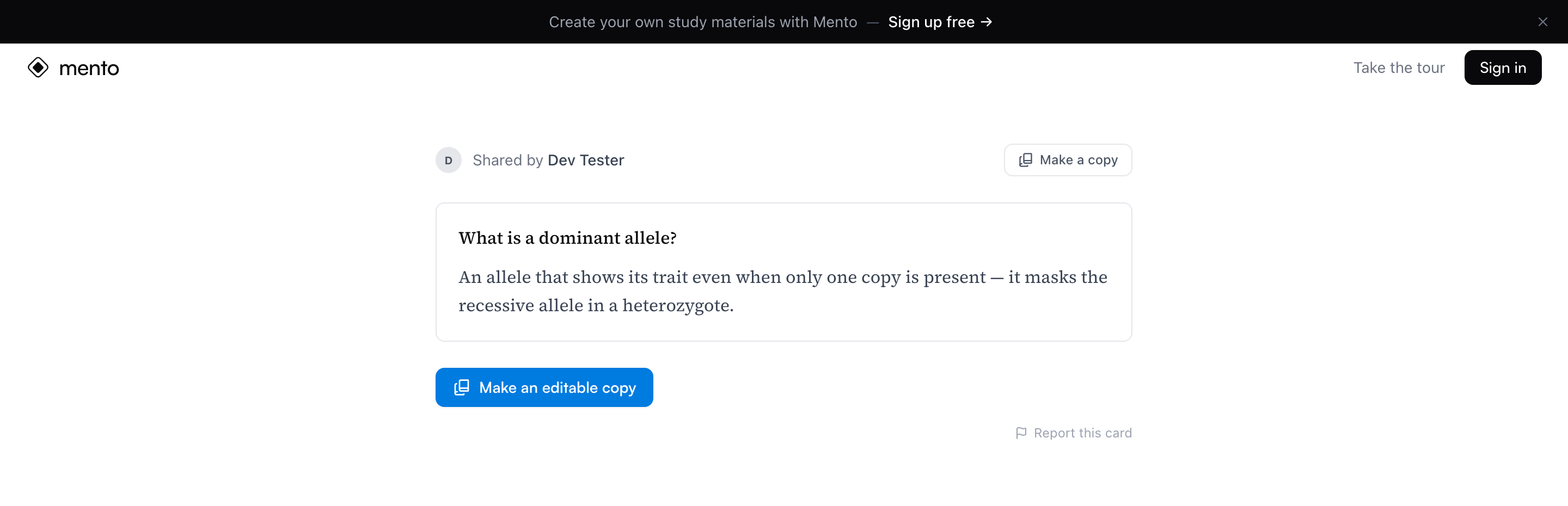
If cloning is allowed, their Make a copy drops the card into their Inbox, ready to file wherever they like.
On your phone
Sharing works the same in the mobile app — Share sits in the same ⋮ menus. On a phone, copying the link hands it to your phone's share sheet, so you can send it straight to a group chat or wherever your class talks.
Common questions
I renamed my space — do the links I already sent still work? Yes. Old links follow the rename, so nothing you've shared goes dead just because you tidied up a title.
If I keep editing after I share, do people see my changes? Yes — a share link always shows the current version of your content, so fixing a typo fixes it for everyone. Copies are the opposite: once someone clones your topic, their copy stops following yours.
Can someone edit what I shared? No. Shared pages are view-only. If cloning is on, someone can take an independent copy and edit that — your original never changes.
Do viewers see the rest of my library? No. A shared topic shows that topic; a shared space shows its topics. Your other spaces, your Inbox, and everything else stay invisible.
How do I stop sharing something? Set it back to Private — access ends immediately. If you want to keep sharing but cut off a link that spread too far, use Regenerate link instead.
Does sharing cost anything? No. Sharing, bookmarking, practicing from a shared topic, and making copies are all free.
Up next
How to study in Mento
What the Study button actually does — daily practice, streaks, due reviews, the study modes, focusing on weak spots, and getting ready for an exam.
Didn't find it?
The FAQ answers the questions we get most, and every way to reach us is on the contact page.