The side pane
FreeWeb only
Updated · September 2026
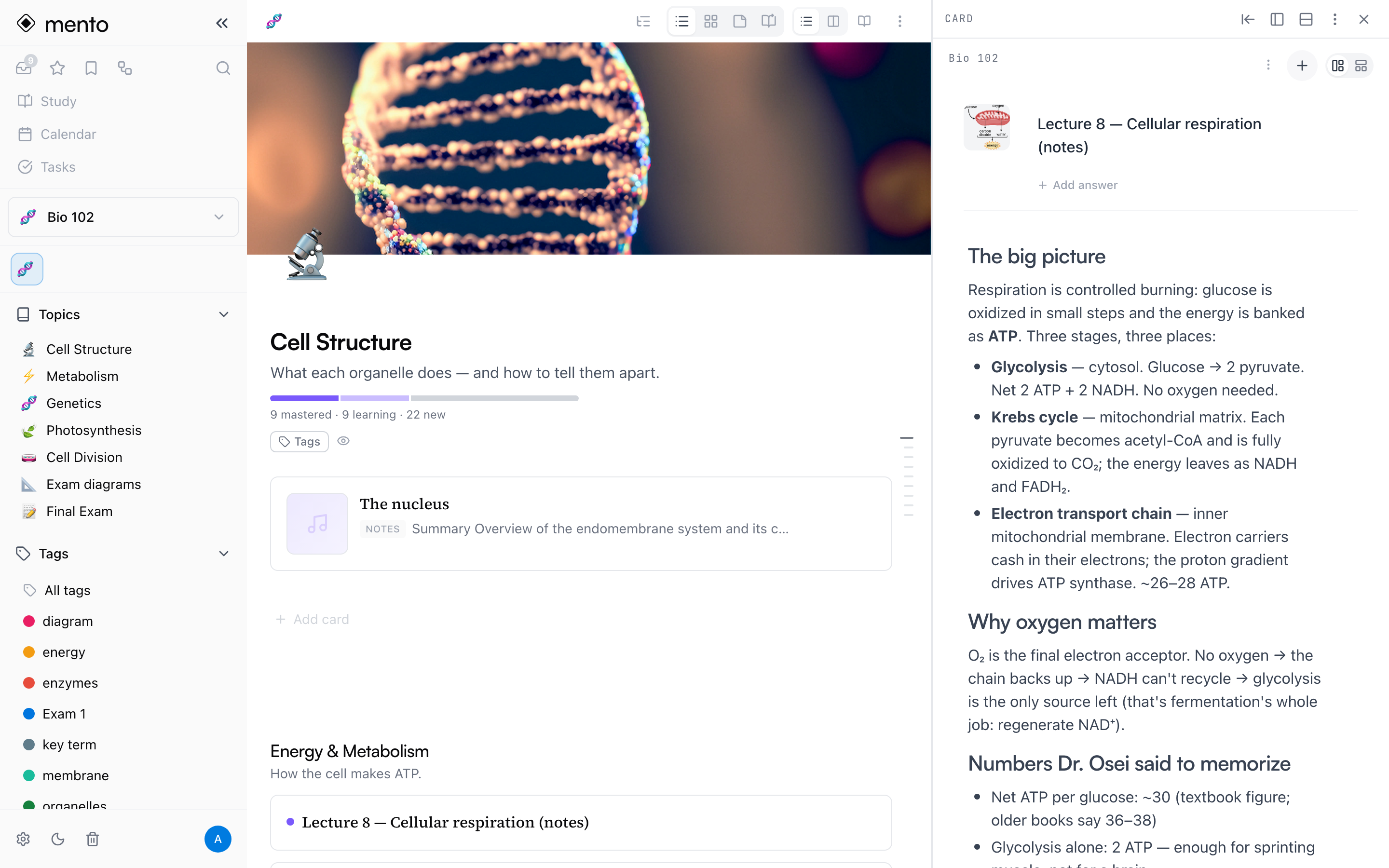
Studying usually means looking at two things at once — the reading and your notes, a card and the topic it came from, a diagram beside the page you're writing. The side pane splits the window so both stay on screen: your main page on one side, and anything else you pick on the other. This guide covers opening it, moving things between the two panes, and how the pane follows you as you move around Mento.
Tip: For jumping between things, you may not need a split at all — on a tablet, tabs keep everything open a tap away, and on the web your browser's tabs do the same (⌘+click any link in Mento). Reach for the side pane when switching isn't enough and you need to see both at once.
Open something in it
The fastest way is Shift + click. Hold Shift and click a card, a topic in the sidebar, a tag, or a search result, and it opens in the side pane instead of taking over the page. Search even reminds you: the footer of the search window says open in side pane next to the Shift key.
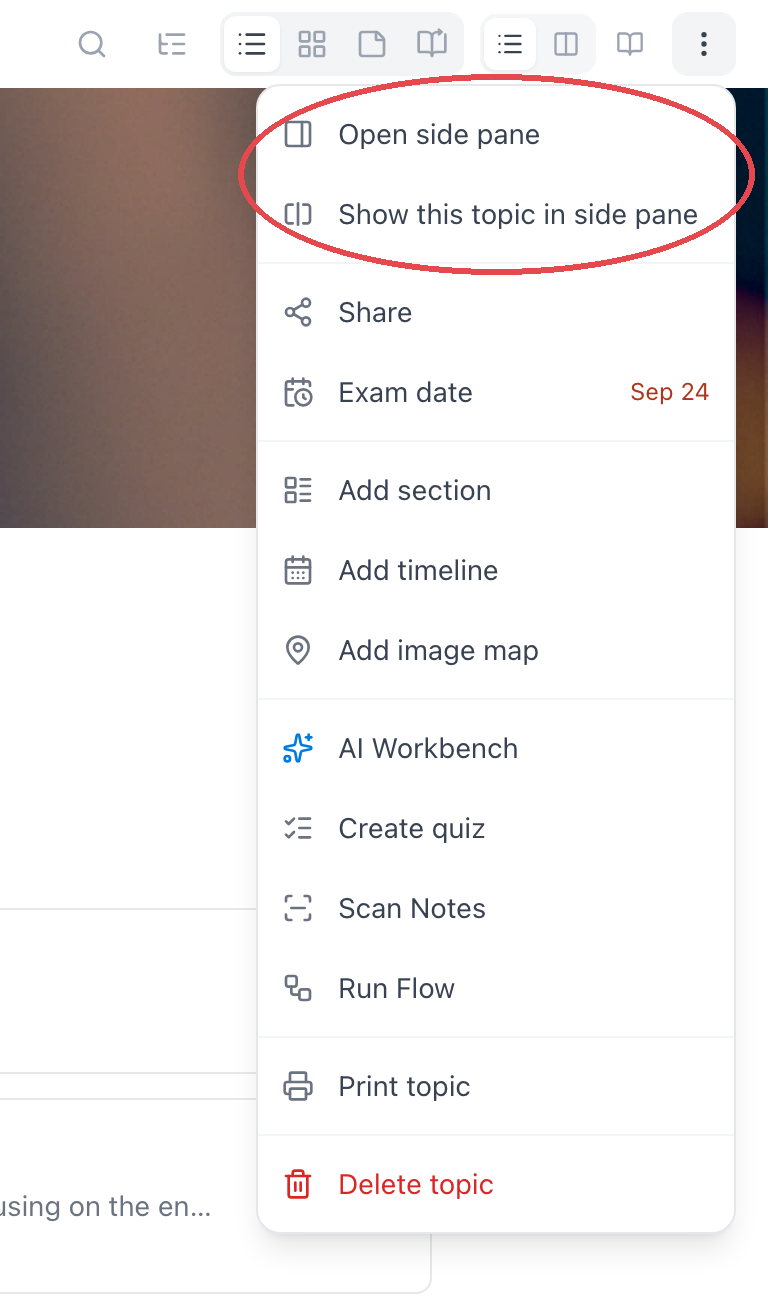
The ⋯ menus have it too: a card's has Open in side pane, and a topic's has Show this topic in side pane — plus an Open side pane entry that opens the pane empty so you can pick what goes in it.
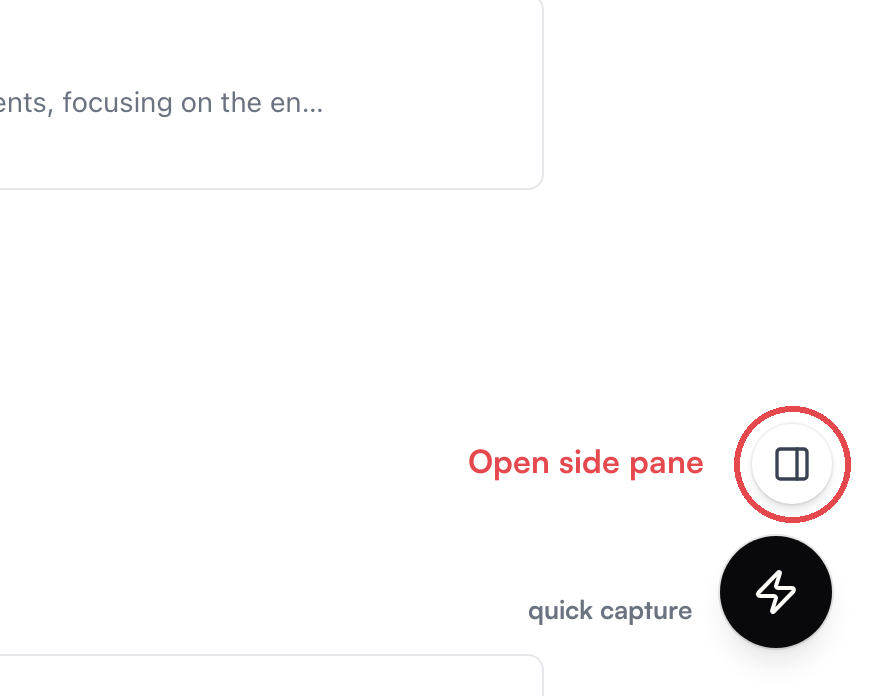
And there's a toggle: the round button near the bottom-right corner — just above the capture button — reopens whatever you last had next to this page, or an empty pane if there's nothing to restore. ⌘\ (Ctrl+\ on Windows) does the same from the keyboard.
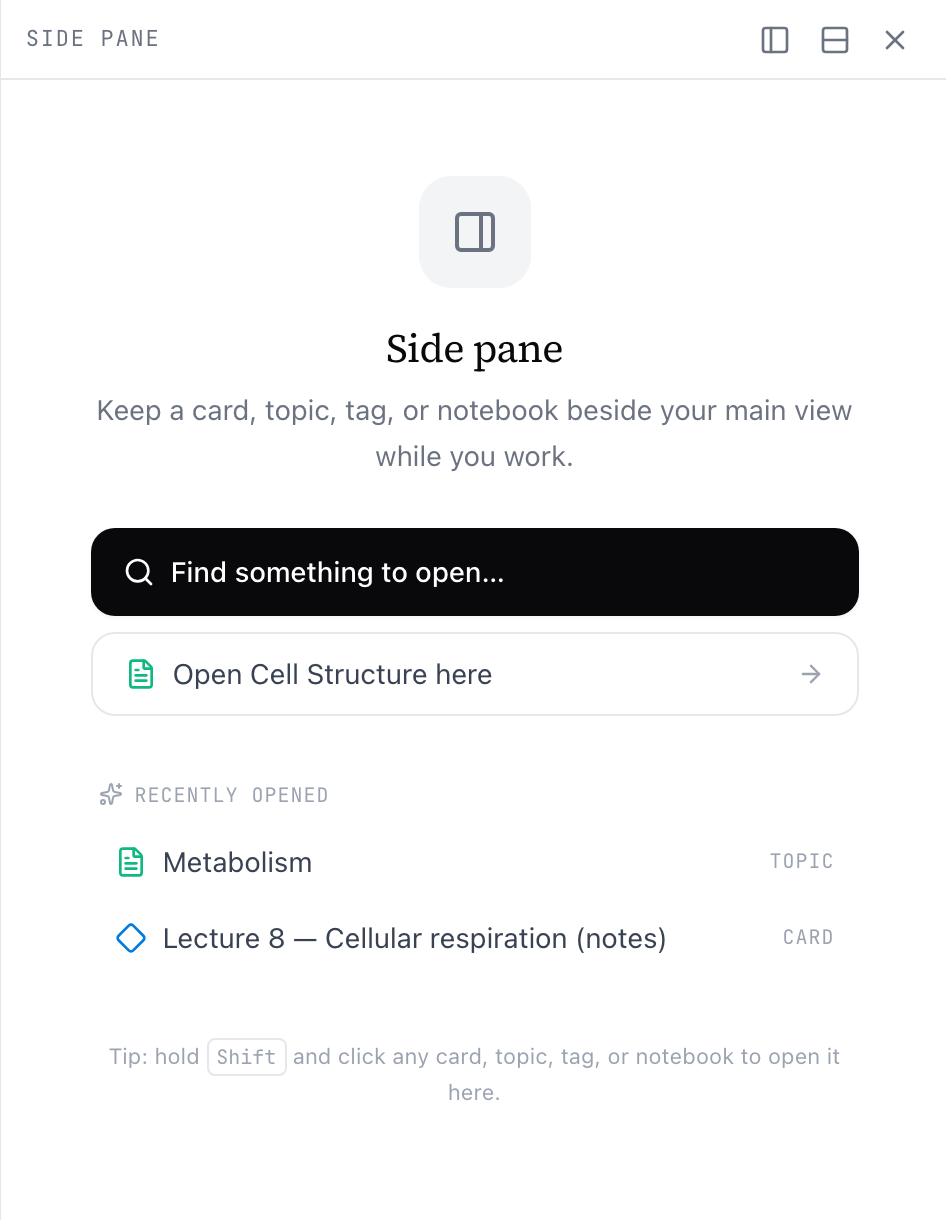
An empty pane is a picker: Find something to open… searches everything by name, a second shortcut offers to open the topic you're currently reading, and a Recently opened list brings back what you had before.
What can go in it
The pane holds a card (including a daily note), a topic, a notebook, a tag, or a whole space. A PDF opens as the notebook it lives in — reading a PDF beside the cards you're making from it is one of the pane's best uses (see the PDF reader).
Cards in the pane are fully editable — it's the same editor as everywhere else, just narrower. The one guard: if the same card is open on both sides of the split, the second copy locks and tells you it's being edited in the other pane.
Move things between the panes
The pane's header keeps the two sides fluid:
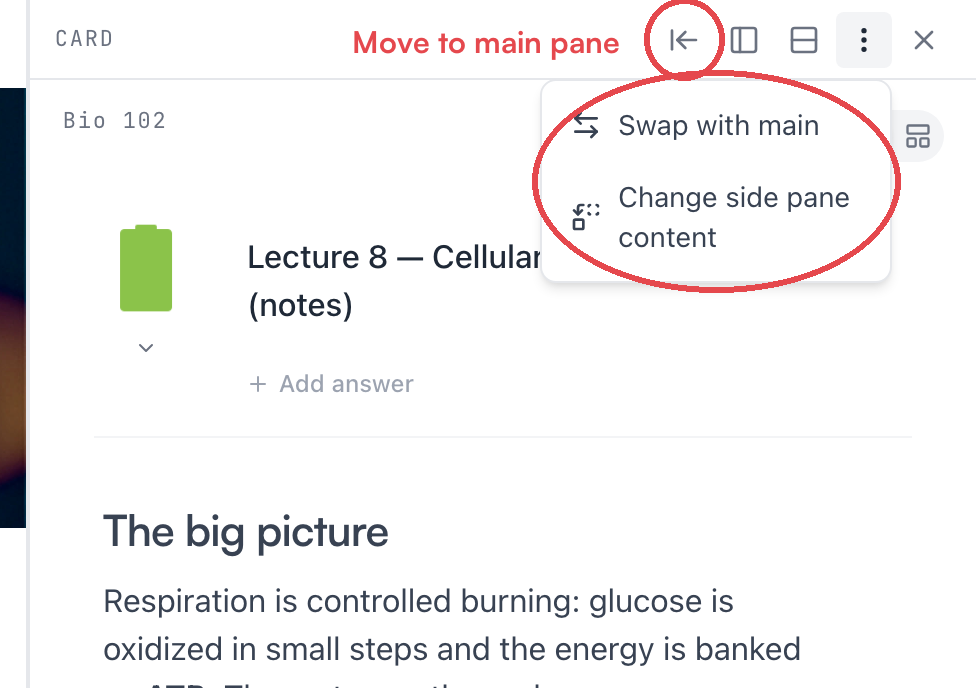
- The arrow button — Move to main pane — sends the pane's content to the main view. Hold ⌘ while clicking it to open the content in a new browser tab instead.
- Swap with main, in the ⋯ menu, trades the two sides in place. ⌘⇧\ does the same.
- Change side pane content, also in the ⋯ menu, returns to the picker without closing the split.
To close: the ✕ in the header, the floating toggle, ⌘\, or Esc while the pane has focus (Esc inside an editor stays in the editor).
Make it fit
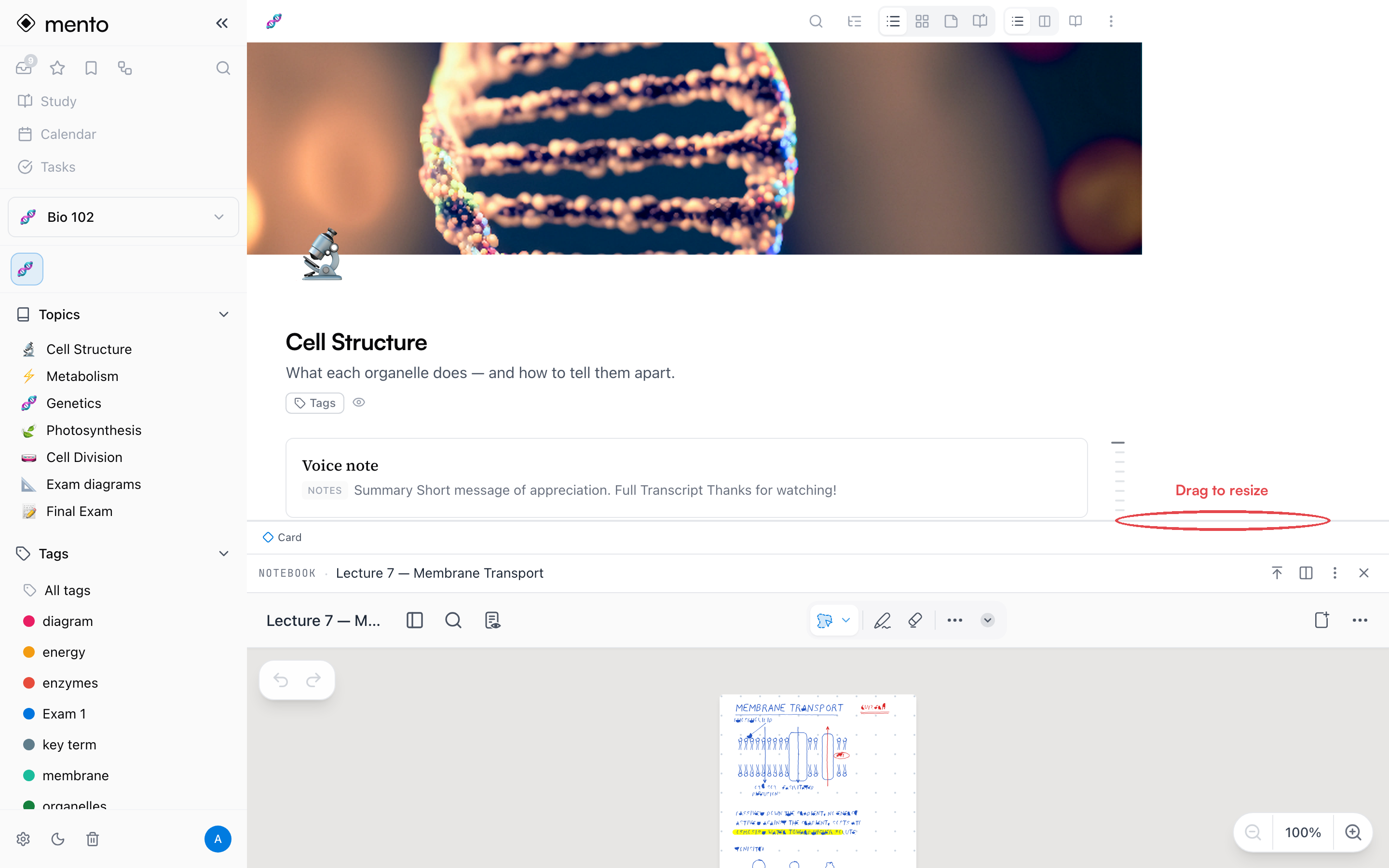
Drag the divider between the panes to resize; double-click it to split evenly. Neither side will shrink past a readable minimum, so if the drag stops early, that's the floor. The other header buttons re-arrange the split itself: Move to left / Move to right switches which side the pane lives on, and Split top/bottom turns the side-by-side split into an over-under one — good for wide content like a notebook page.
The split needs room to be useful, so it only renders when the window is wide enough. In a narrower window — or on the mobile apps, which don't have a side pane — the same actions open things as a full page instead.
It follows you around
Once open, the pane rides along as you navigate: click through topics in the sidebar and your reference stays put on its side of the screen. Each page also remembers what you last had open next to it, so returning to a page later can restore its pane. Closing the pane on a page is the "I'm done here" signal — that page forgets its pane.
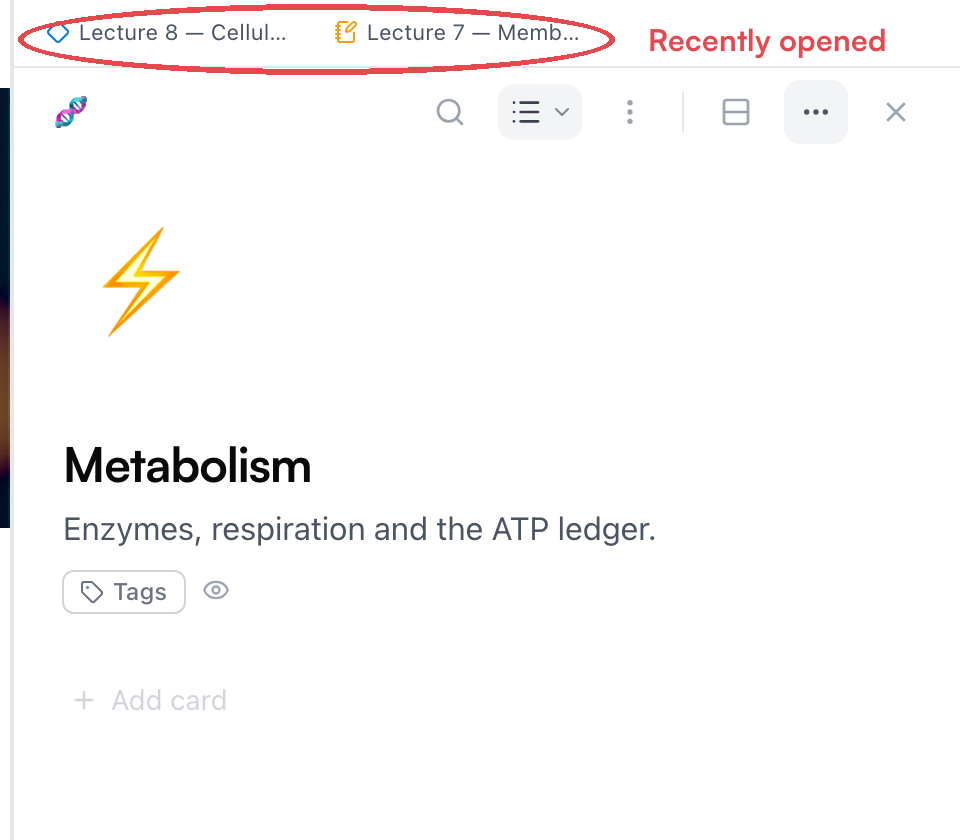
For juggling a working set of references, use recents: Show recents in the ⋯ menu adds a strip of chips above the pane for one-click switching, and the same history appears as Recently opened in the empty-pane picker.
Tip: The pane's state lives in the page URL. A refresh keeps your split, browser back and forward walk through it, and a copied link reopens with the pane included.
Common questions
Is the side pane a paid feature? No — it's free, on every plan. It's web-only, though: the mobile apps open everything full-screen.
Why does nothing happen when I try to open it? Almost always window width. The split needs a genuinely wide window; below that, Mento opens your item as a full page instead, or tells you the window is too narrow.
Can I study in the side pane? Study sessions take over the whole screen — the split closes while you study, and the page it was on remembers it for when you come back.
Where are browser-style tabs? On a tablet, Mento has real ones — see tabs. On the web your browser already does them: ⌘+click any link in Mento to open it in a new browser tab. Tabs are for switching between things; the side pane is for seeing two of them at once — and the recents strip covers the in-between, keeping your working set one click away.
Up next
Tabs on iPad and tablets
Browser-style tabs in the tablet app — keep your topic, notebook, and cards open at once and switch between them instantly.
Didn't find it?
The FAQ answers the questions we get most, and every way to reach us is on the contact page.