AI flows
Part of ProWeb & mobile
Updated · September 2026
A flow is an AI recipe you run again and again — turn a chapter into a complete study set, pull the vocabulary out of a reading, build a timeline of events. Mento ships with six, and you can write your own. This guide covers running a flow, choosing what it reads, where the results land, and building a custom one. Flows are part of Pro (see Plans and billing).
What a flow is
One AI request does one thing. A flow chains several: it's a named list of AI actions that run in order over the same material, and each action produces something concrete — a section of cards, a timeline, or loose cards. Run one flow on a chapter and you get a whole structured topic out the other end, instead of asking for a summary, then the key terms, then practice questions, one prompt at a time.
A flow that works for chapter 3 works for chapter 4 — same recipe, new material.
The AI Hub
Flows live in the AI Hub — the small flow icon near the top of the sidebar. Its Flows page has a search box, a Create Flow button, and tabs for All Flows, System, My Flows, and Actions. (The Snippets tab next to Flows is a separate tool — reusable prompts that shape how AI writes.)
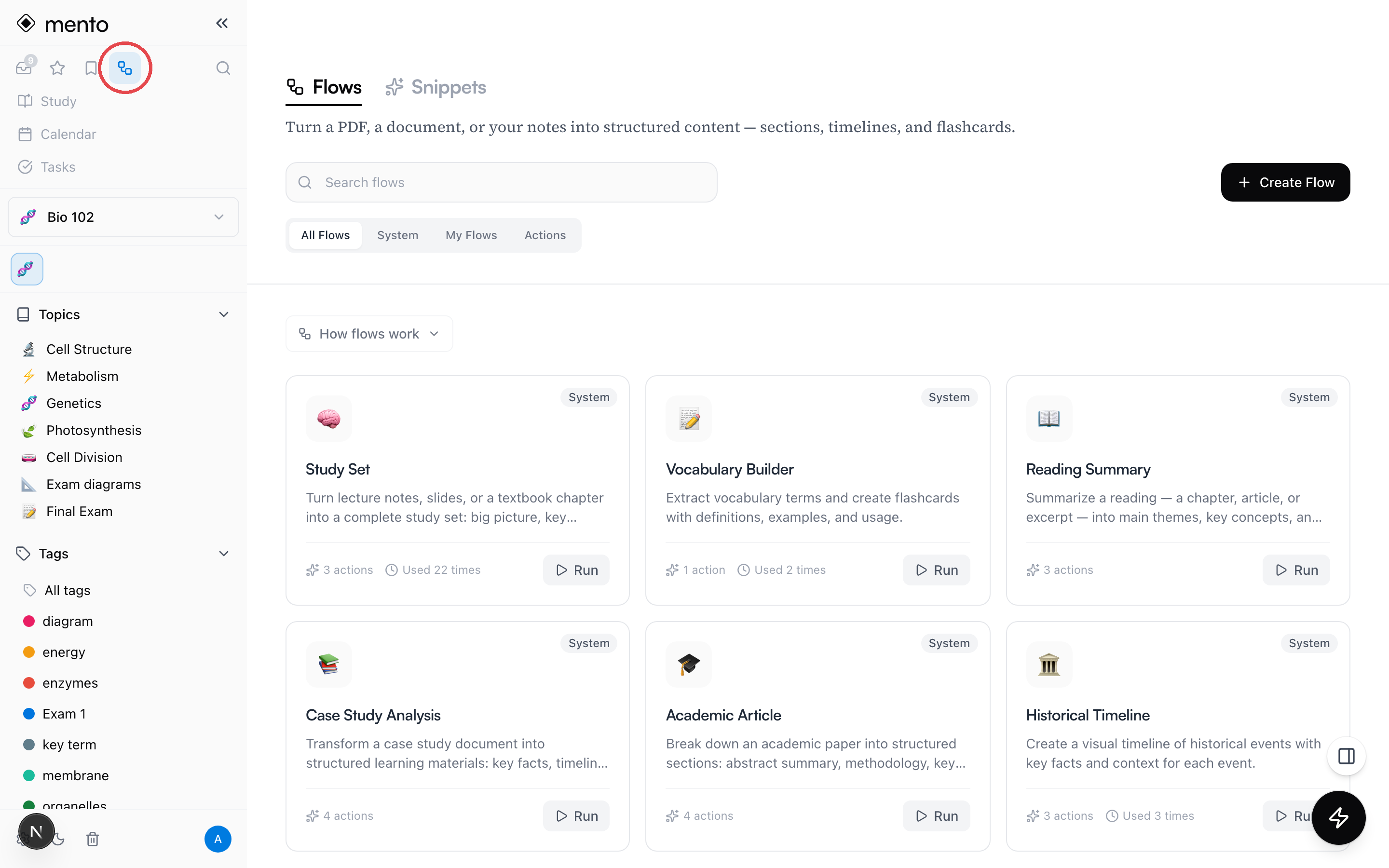
The six built-in flows cover the common study jobs:
- Study Set — the flagship: turns lecture notes, slides, or a textbook chapter into a big picture, key concepts, and practice questions.
- Vocabulary Builder — extracts terms and makes flashcards with definitions, examples, and usage.
- Reading Summary — main themes, key concepts, and takeaways from a chapter or article.
- Case Study Analysis — key facts, a timeline of events, and analysis questions from a case document.
- Academic Article — breaks a paper into abstract summary, methodology, and key findings.
- Historical Timeline — a visual timeline of events with context for each one.
Run a flow
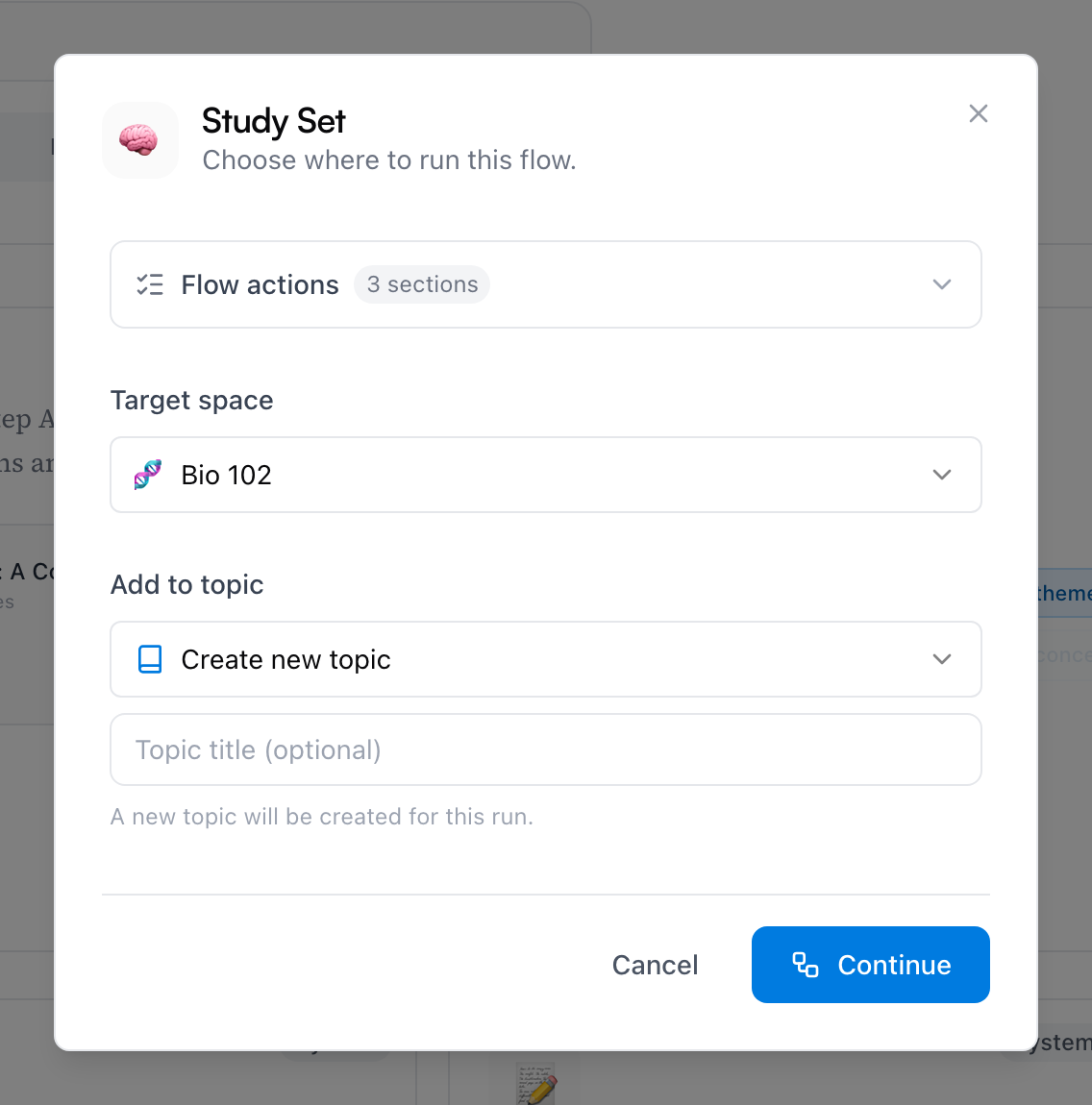
- Click Run on any flow. A window opens asking where to run it — expand Flow actions at the top if you want to see exactly what this flow will produce.
- Pick the Target space, and under Add to topic either keep Create new topic or choose an existing topic to add sections to. Click Continue.
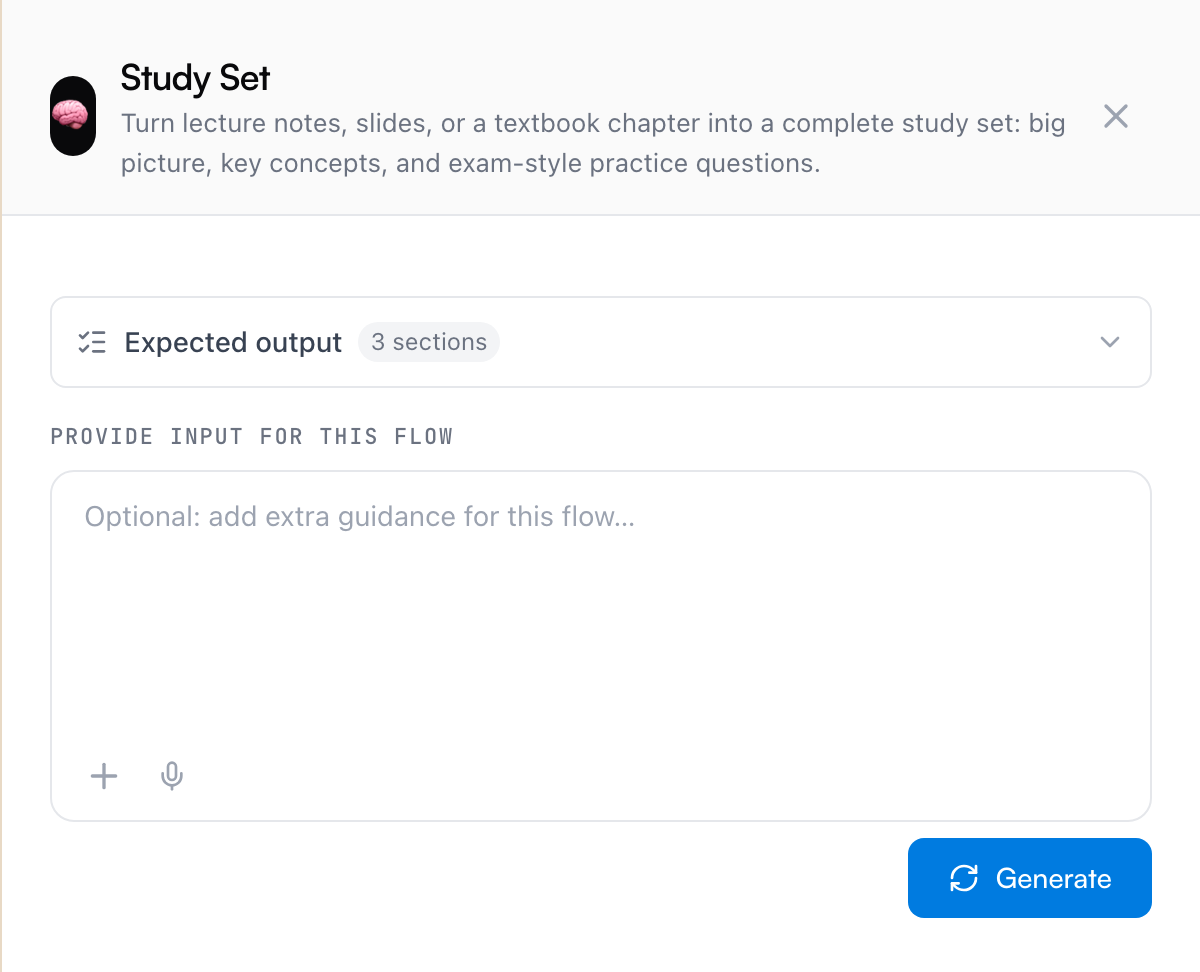
- The run surface opens. Expected output lists the flow's actions; below it is an optional box for extra guidance, with a + button to attach what the flow should read — upload a PDF, or pick cards and sections from the space.
- Click Generate. Give it a moment — a multi-action flow over a long document is real work. While it runs, a Save and come back later link appears, so you don't have to sit and watch.
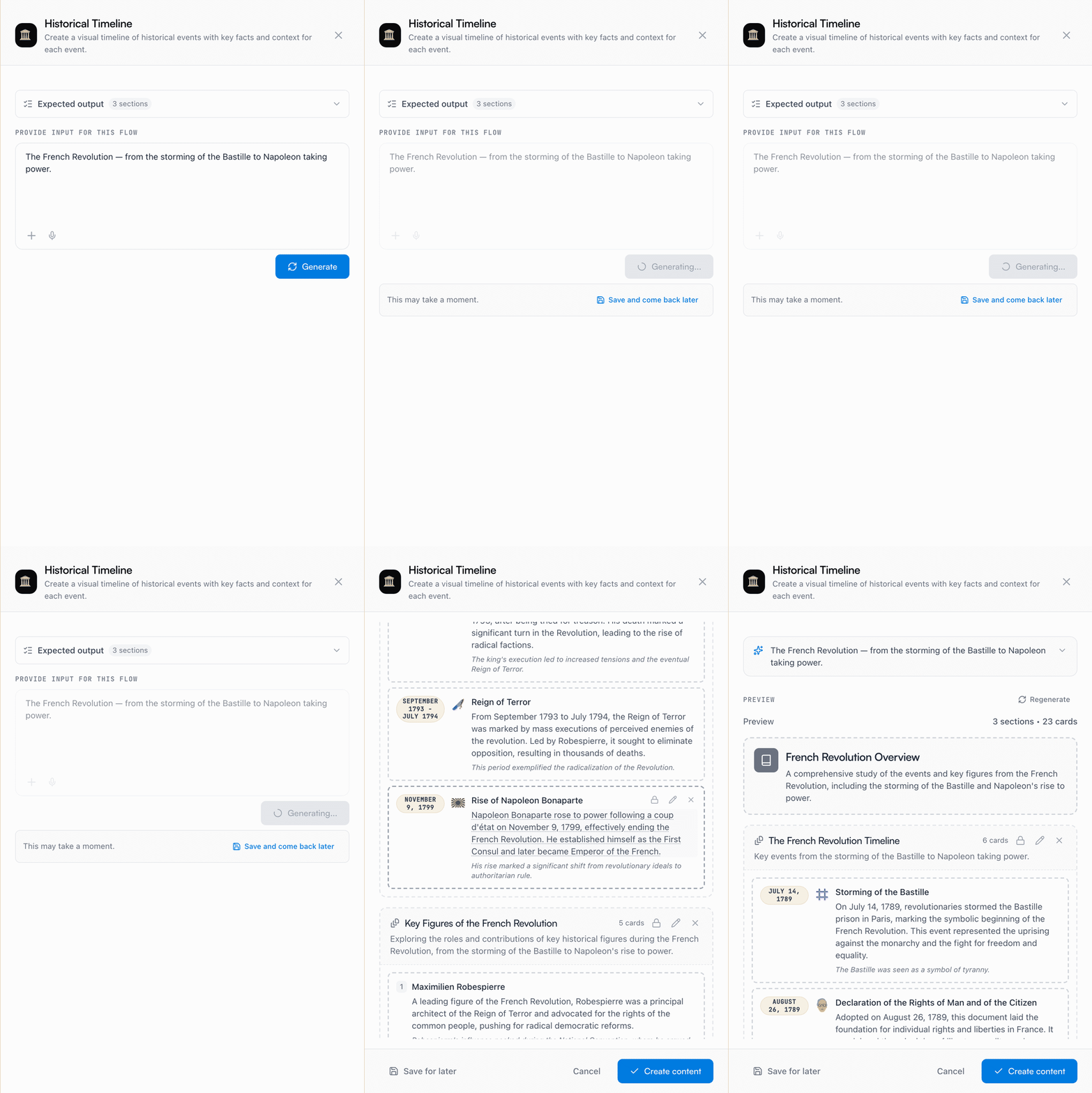
A flow needs something to work from, but that can be as little as a line of guidance: attach a chapter and the flow reads it, or attach nothing and write "the French Revolution" and it works from what it knows.
Where the results land
Nothing is written while a flow generates. What you get first is a preview — every section and card, right there to read:
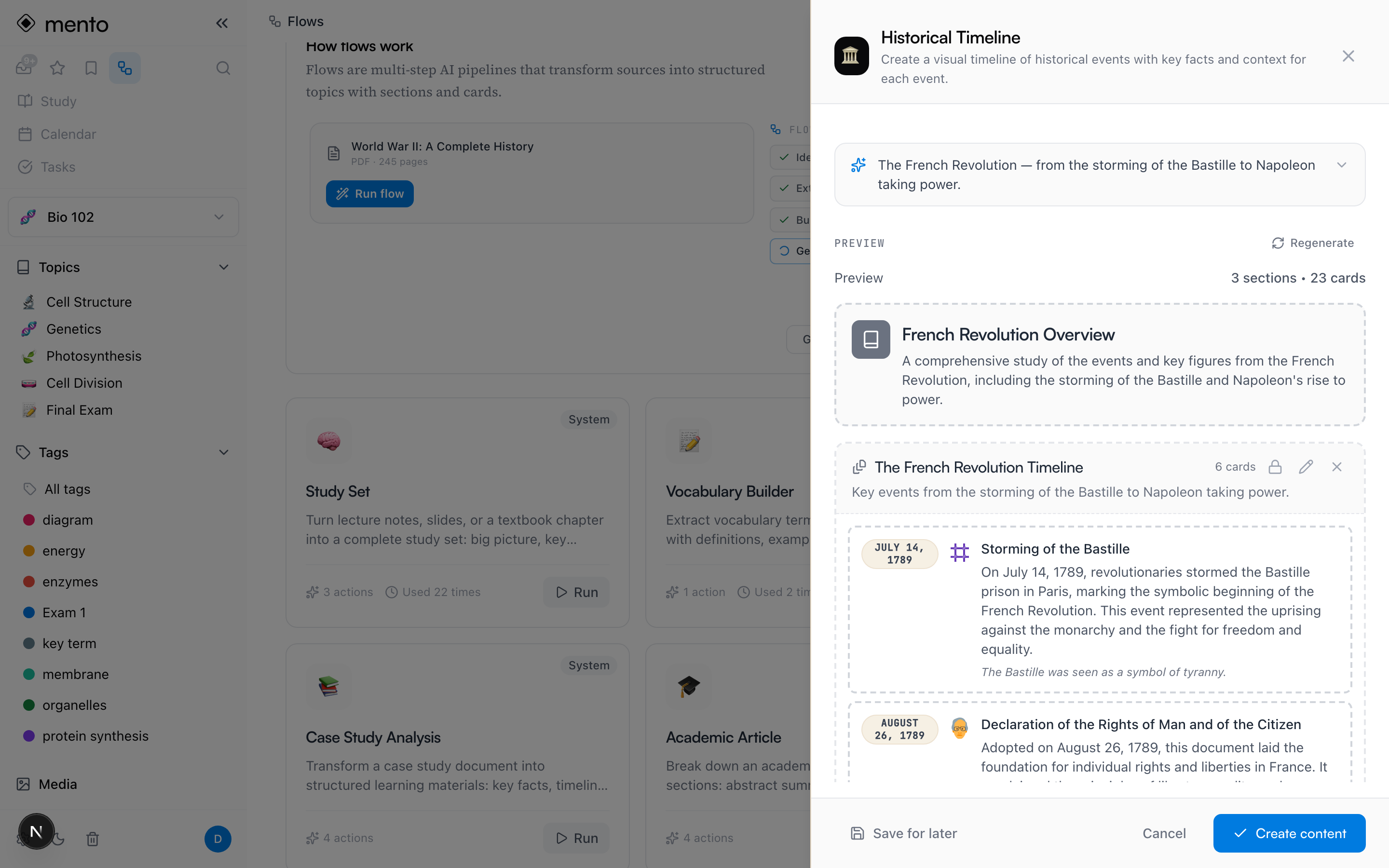
Then it's your call:
- Create content commits it: a new topic in the space you picked, or new sections added to the existing topic you chose.
- Save for later keeps the run as a draft under Saved drafts, to review and commit another day.
- Cancel discards it. Nothing lands.
Before you decide, you can also talk back: the box under the preview takes a refinement in plain words, and one-click chips like Make it shorter, Add more detail, or Generate more cards rework the draft without starting over.
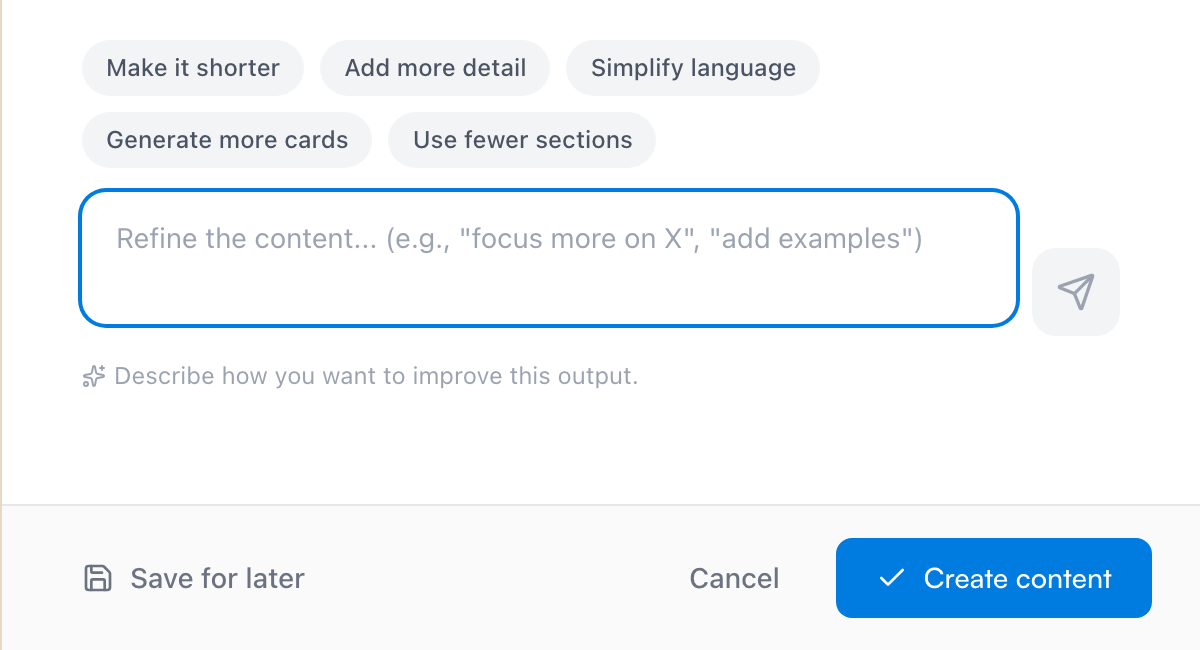
Saved runs wait in the space's Saved drafts dialog — the document icon in the space top bar, which carries a count when drafts are waiting. Click a draft to resume right where you left it:
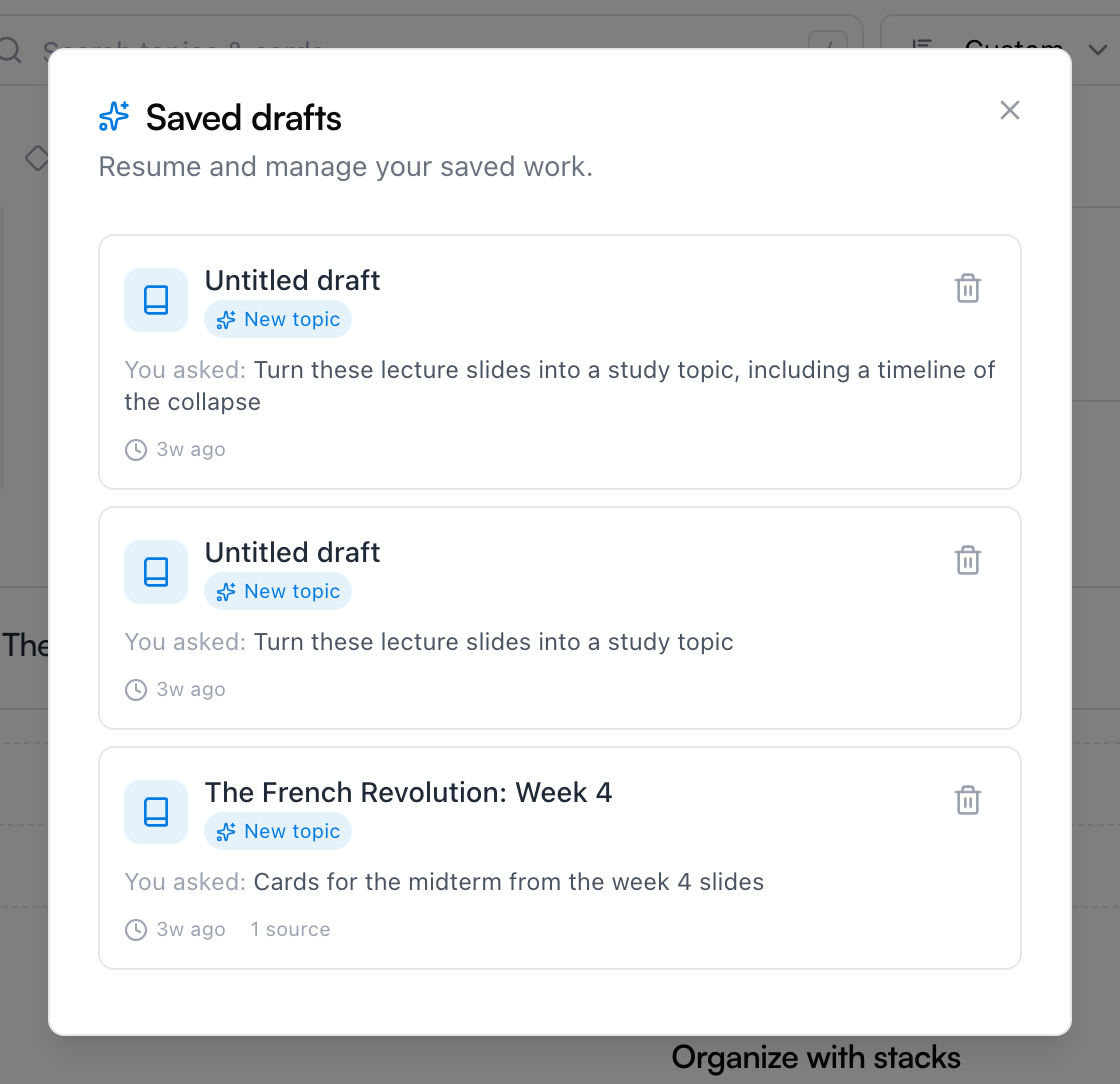
Once committed, the results are ordinary notes — edit them, move them, study them like anything else you made by hand.
Run a flow from where you are
The hub isn't the only door:
- From a card — open the card's ⋯ menu and choose Run a flow. The card comes pre-attached as a source, along with its document if it has one — the fastest way to turn one PDF into a study set.
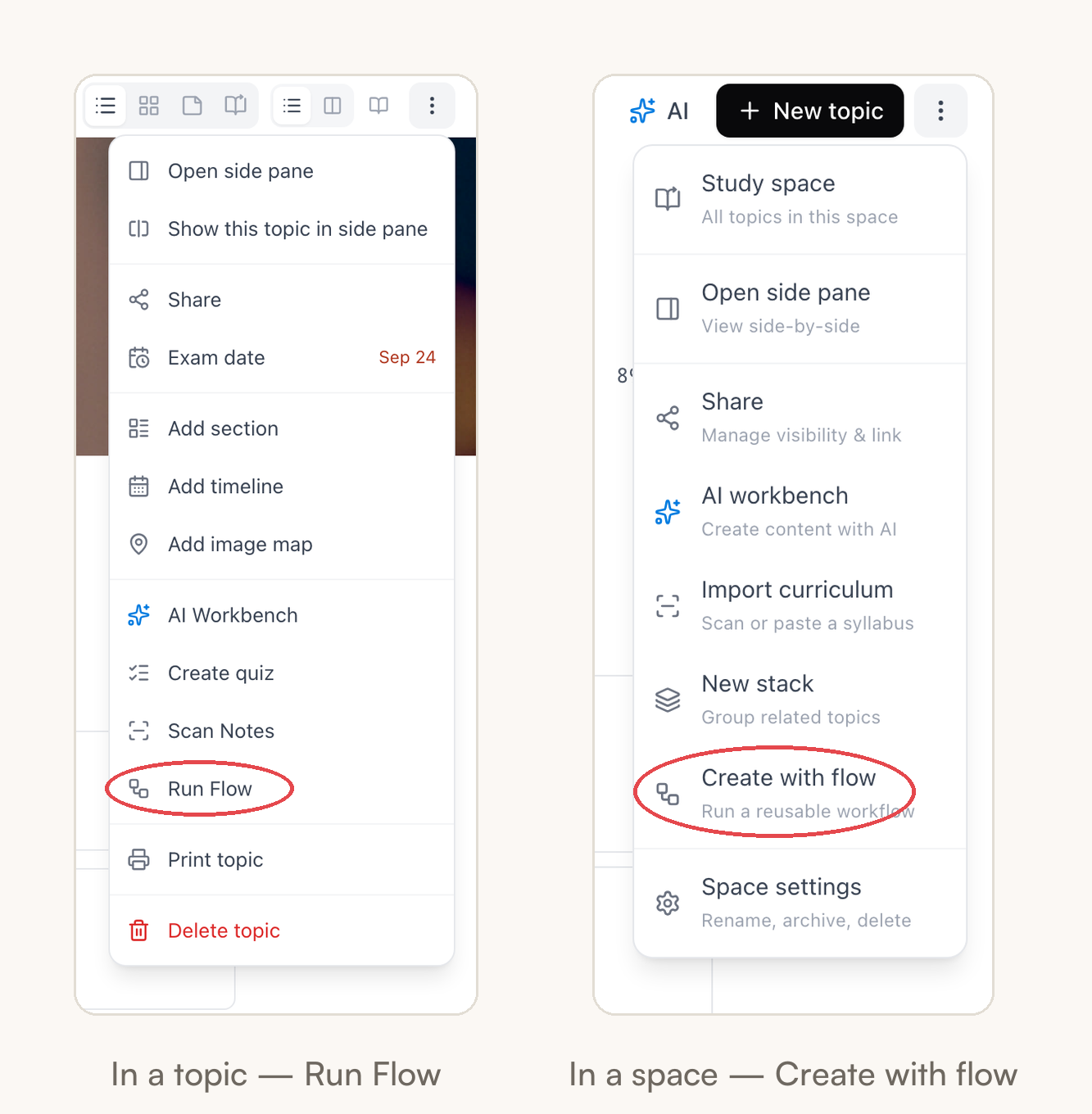
- From a topic — the topic's ⋯ menu has Run Flow, and the results land in that topic.
- From a space — the space's ⋯ menu has Create with flow, which builds a new topic in that space.
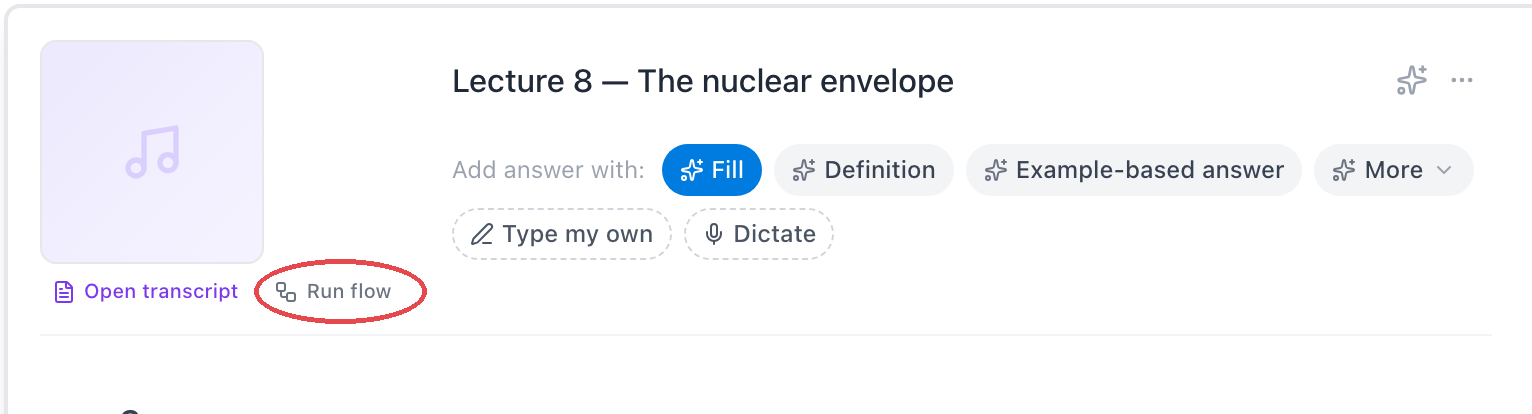
- From a recording — a transcribed class recording has a Run flow button, so a lecture can become a study set without leaving the player.
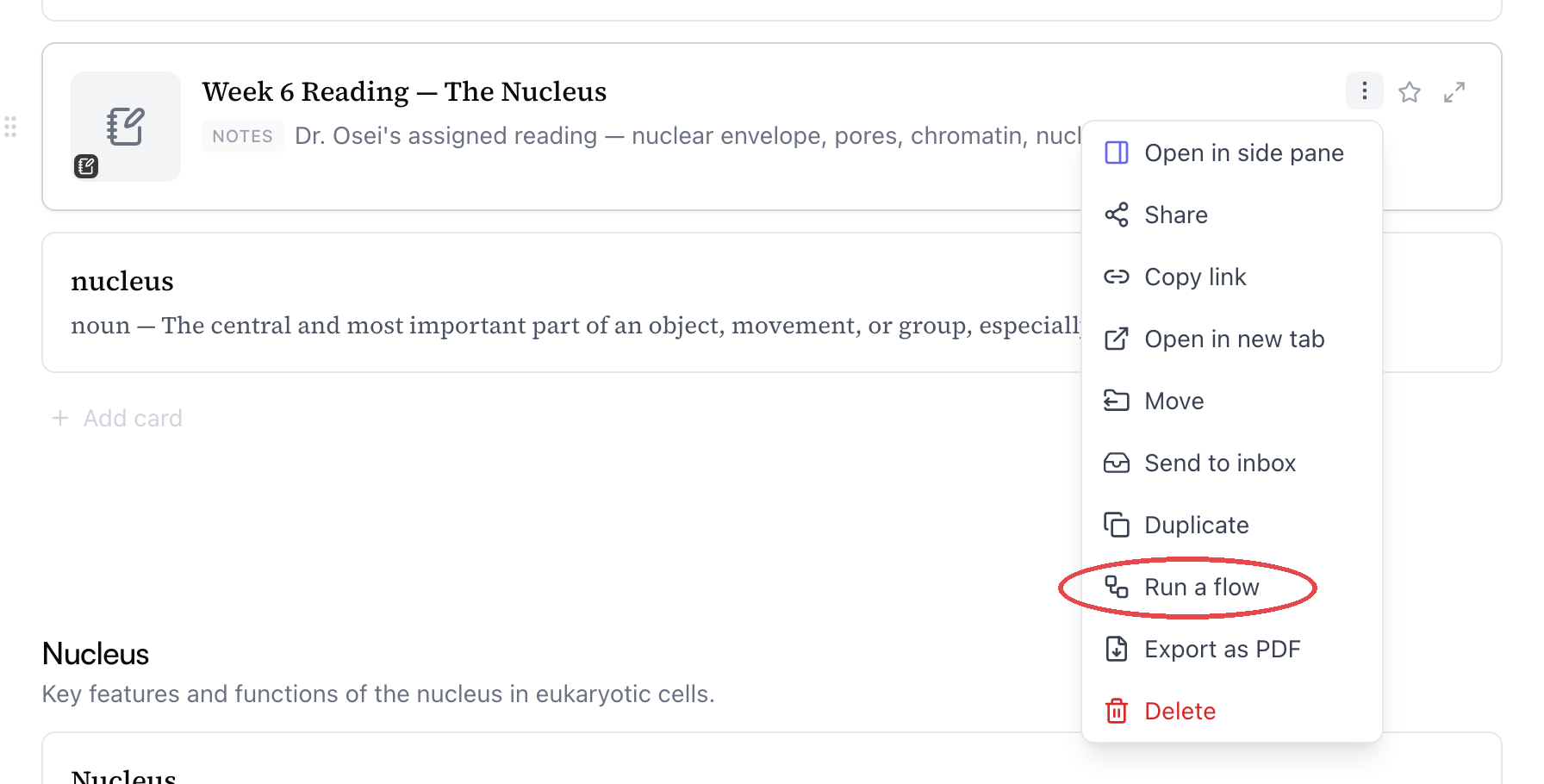
The topic and space menus keep theirs next to the other AI tools:
And on a transcribed recording, the button sits right under the audio player:
The mobile app has the same AI Hub, and the same Create with flow and Run Flow entries in space and topic menus.
Create your own flow
When the built-ins don't match how your course tests you, write the recipe yourself:
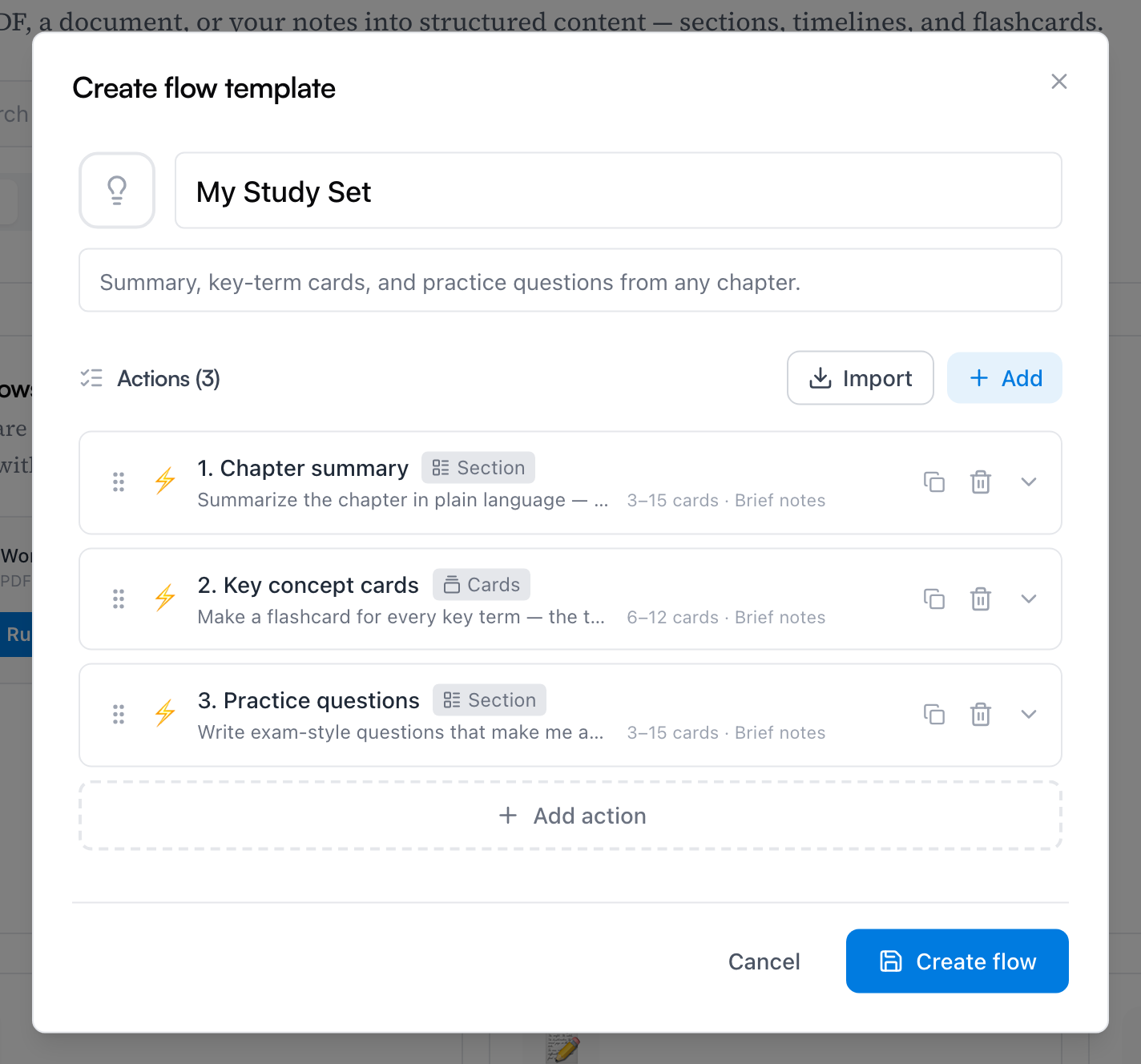
- Click Create Flow in the hub, and give the flow a name and an optional description.
- Click Add first action, then Add action for each further step. Every action gets a name, an outcome — Section, Timeline, or Cards (loose cards, no section) — and an Instruction: describe exactly what this action should generate, as if briefing a study partner.
- Set how many cards each action makes — Range gives min and max and lets the AI decide what each card covers; Detailed lets you design every card yourself (see below). Timelines get their own Length and Style options.
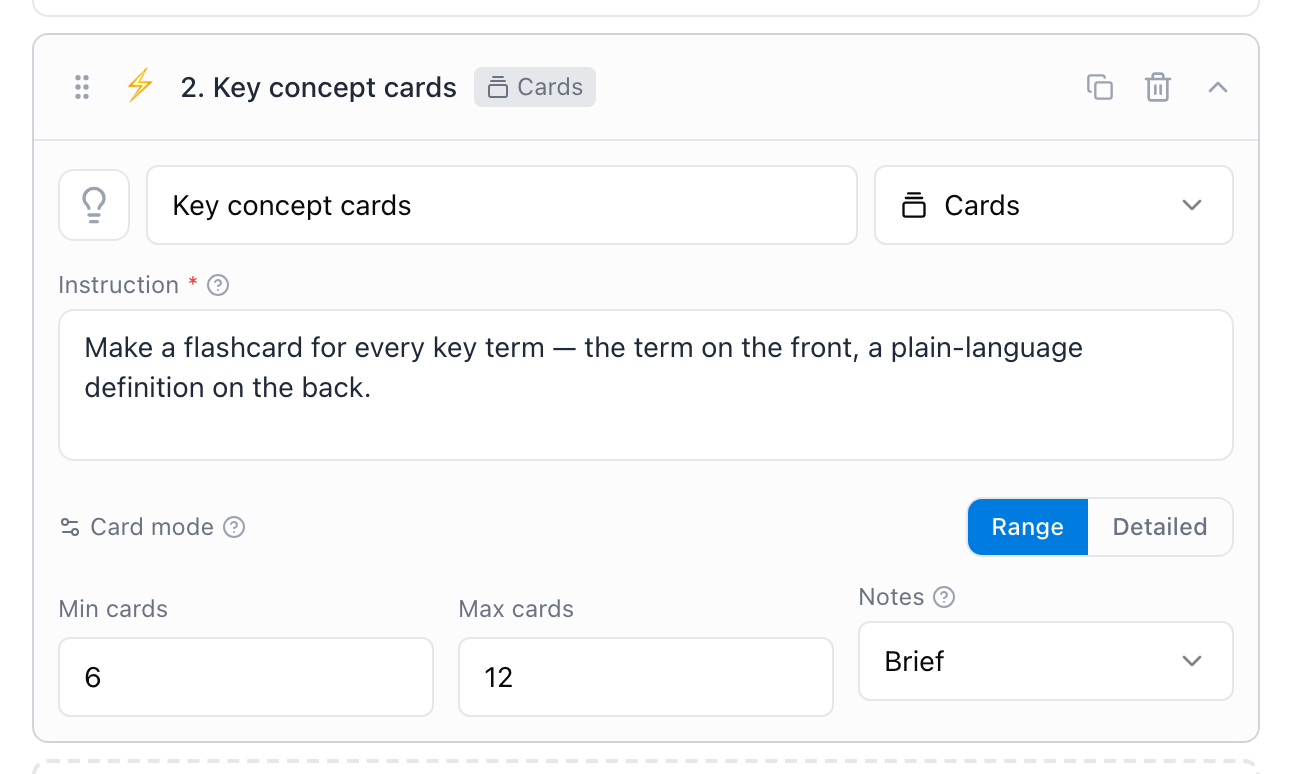
- Drag actions to reorder them, then click Create flow. It appears under My Flows and runs exactly like a built-in.
Detailed mode: one template per card
Range trusts the AI to decide what each card covers. Switch Card mode to Detailed and you take over: the Instruction box disappears, and in its place you build card templates with Add card — each template becomes exactly one card in every run. A template is a set of prompts: Idea for what the front should ask, Answer for what the back should contain, and an optional Notes prompt — which can be free text or one of your snippets.
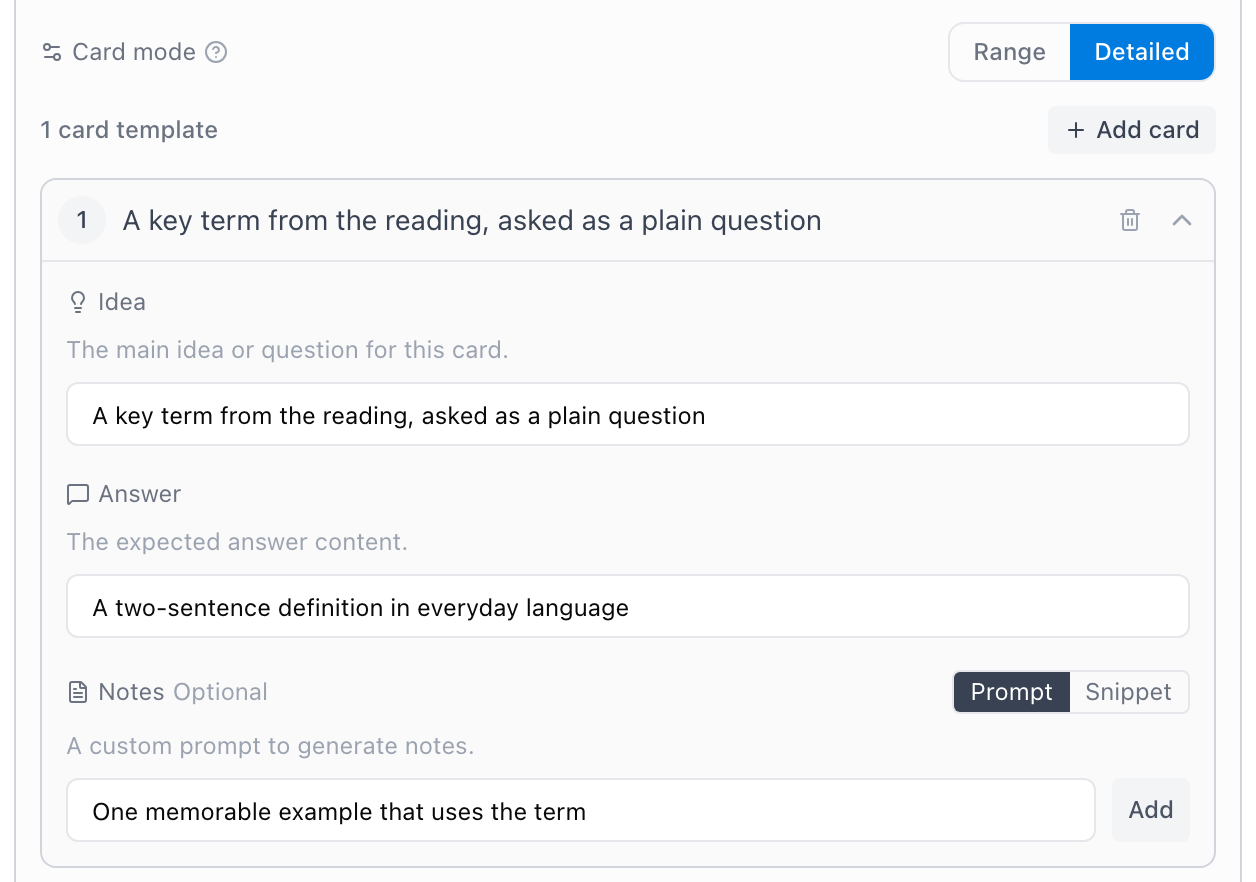
It's the mode for drills with a fixed shape: a vocabulary flow where every card asks a term the same way, or a formula sheet where each card is "name the quantity, give the equation." Run it on chapter 4 and again on chapter 5, and the cards come out shaped identically — only the material changes.
Import pulls in actions you've already written — that's what the Actions tab is for: reusable building blocks you can share across flows.
Tip: Steal from the best. The built-in flows can't be edited, but a custom flow with three actions — summary section, key-concept cards, practice questions — gets you a personal Study Set you can tune per subject.
Common questions
What does a run cost? AI actions from your monthly allowance — never a separate charge. A four-action flow over a 200-page PDF is a bigger job than a one-action flow over a note, and counts accordingly. The meter in the app shows exactly where you stand.
Do I need Pro? Yes — flows are part of Pro. The free plan's AI allowance covers the rest of Mento's AI — generating cards, transcribing voice notes; flows are the power tool on top. See Plans and billing.
Can I change what a flow created? Freely. Committed sections and cards are regular notes — nothing about them stays "AI content." Edit the wording, delete the misses, and the flashcards join your study rotation like any card.
What if the result isn't good? Don't commit it. Try the refine box first — "focus on the mechanisms, skip the history" reworks the draft in place — or Cancel, which costs you nothing but the AI actions already spent.
Up next
Record your classes
Record a lecture so the audio lives with your notes, with a transcript and summary you can search, study, and turn into flashcards.
Didn't find it?
The FAQ answers the questions we get most, and every way to reach us is on the contact page.