The daily note & calendar
FreeWeb & mobile
Updated · September 2026
Every day gets a page in Mento. The daily note is where a day's thoughts, captures, and tasks collect, and the calendar lays your days out so you can see the week — classes, exams, deadlines — in one place. This guide covers both, and how they work together.
The daily note
Click Calendar in the left sidebar and today opens with its date as the heading. At the top of the day sits the Daily note section. On a day you haven't written yet, it's a single quiet line: Add a note…

Click it and an editor appears in place. The note is created the moment you start typing — if you click and then wander off without writing, nothing is created, so your journal never fills up with empty pages. Everything saves as you type.
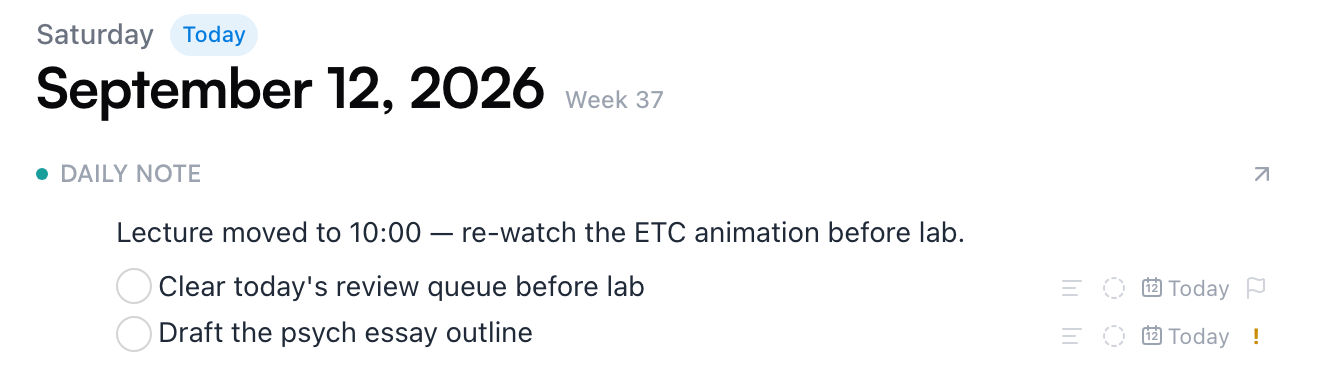
A daily note is a real note, in the same editor you use everywhere else — headings, checkboxes, formatting all work. It doesn't live in any of your spaces: it belongs to the day itself. And it doesn't have to be about the day — it's just the page that's always there when you have something to put down.
Two things make daily notes especially useful:
- Checkboxes are real tasks. A checkbox in a daily note works like a checkbox in any note — it lands on your Tasks page, and the small calendar chip on its row gives it a date. (To add a task already scheduled for a day, use the Add task line in the day's task list instead.)
- It's the "somewhere" for day-shaped thoughts. "Lecture moved to 10:00", "quiz covers chapters 5–8" — notes that would feel odd inside a course topic have an obvious home.
Note: It works the other way around too — add a task from the Tasks page and it's written into today's daily note. Every task lives in a note, and the daily note is the default home.
To see the note as a full page — or to file it somewhere — click the small arrow (Open daily note) at the right edge of the section header.
Reading the calendar
The calendar is one view over everything you do in Mento, across all your spaces. The day you've selected is the big column; on the right, a mini month shows the shape of your weeks:
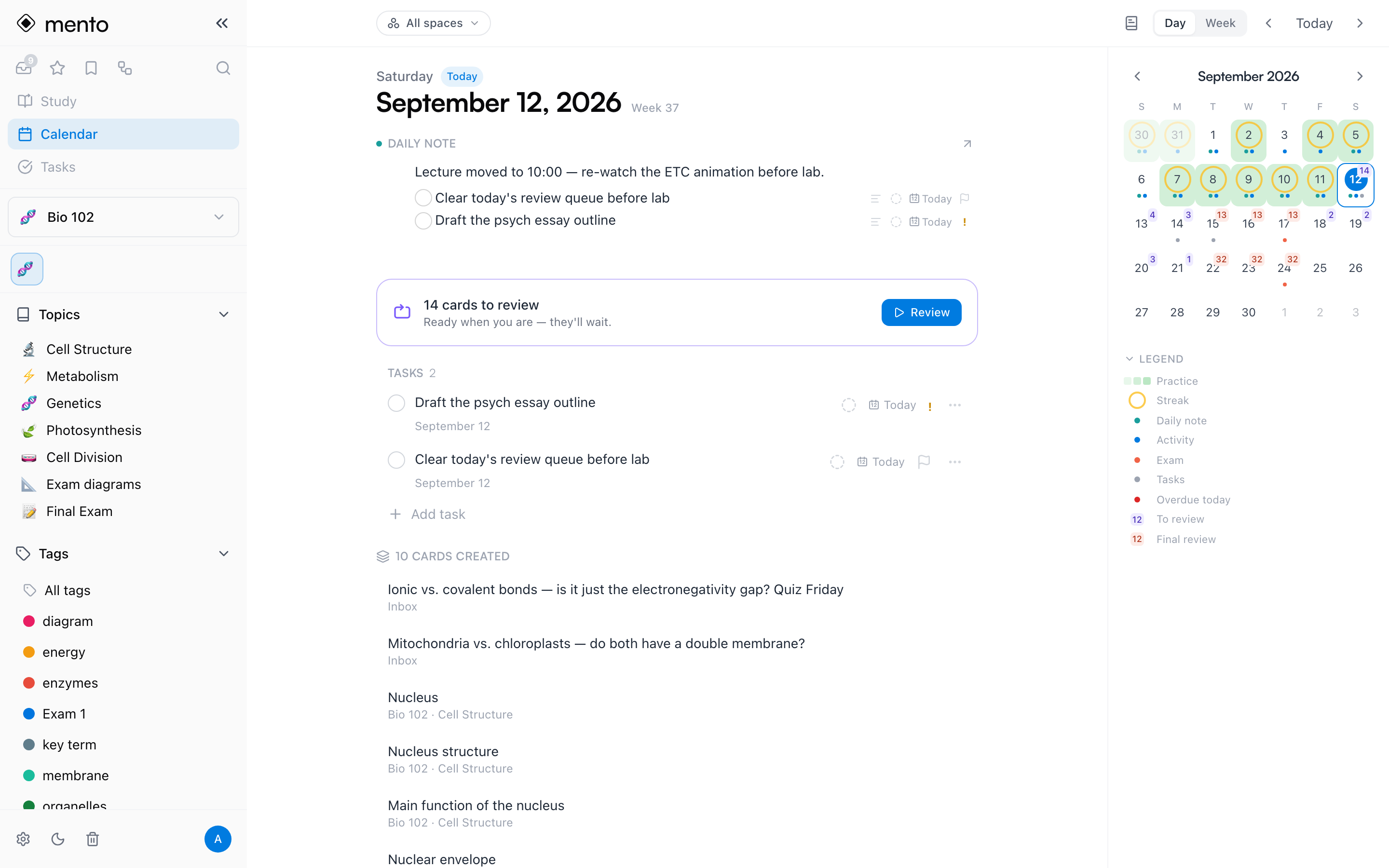
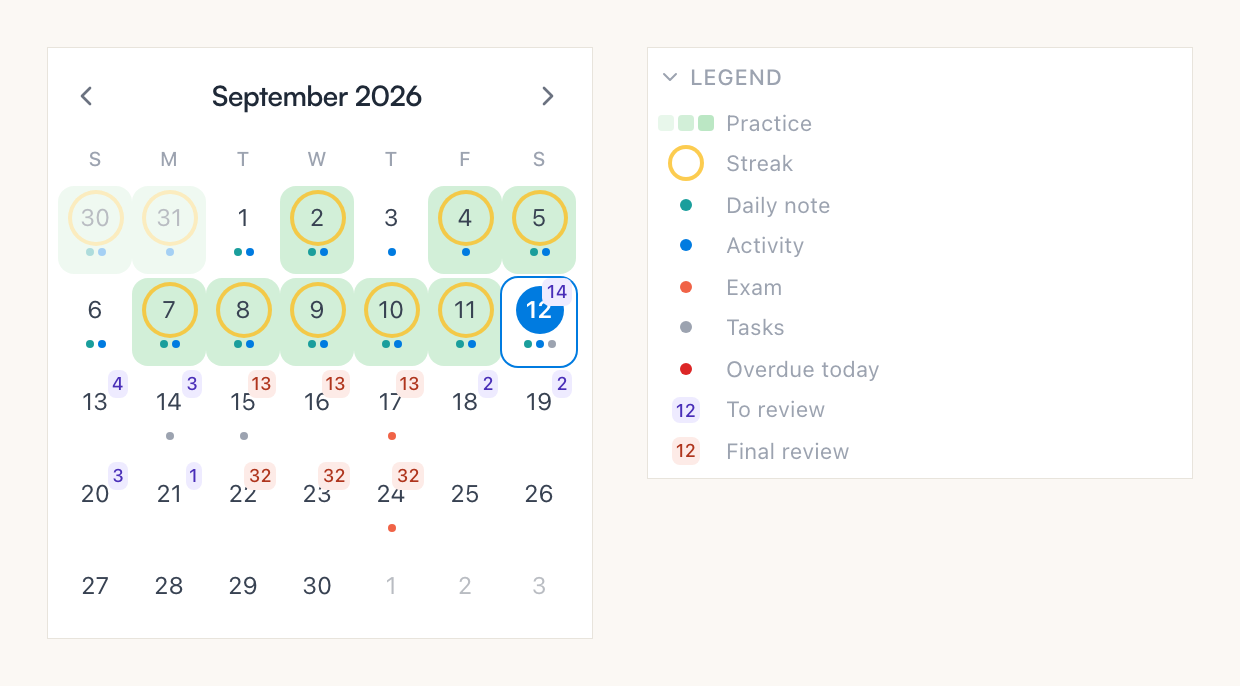
Past days show what happened: a green tint for days you practiced (darker = more cards), an amber ring for days that kept your streak alive, and small dots — teal for a daily note, blue for activity like new cards or tests, coral for an exam. Upcoming days show what's ahead: a violet count of cards scheduled for review, and coral for exams. The Legend under the month spells out every mark, and you can collapse it once you know them.
Below the date heading, the selected day collects everything in one feed:
- Exams. A topic with an exam date shows on that day in coral. You set the date from the topic's ⋯ menu → Exam date; there's more on what it changes in How to study.
- Reviews. Days with scheduled reviews show how many cards are ready. The counts are real, not projected — every review you do schedules the next one, so future days fill in as you practice. On today, a Review button starts the session. Cards that wait don't turn red or pile up as "overdue" — as the calendar puts it, they're ready when you are.
- Tasks (part of Pro). Everything scheduled for that day, with an Add task line to plan directly onto a date.
- What you did. Cards practiced, cards created, notebook pages edited, and tests taken that day — each row links back to the real thing.
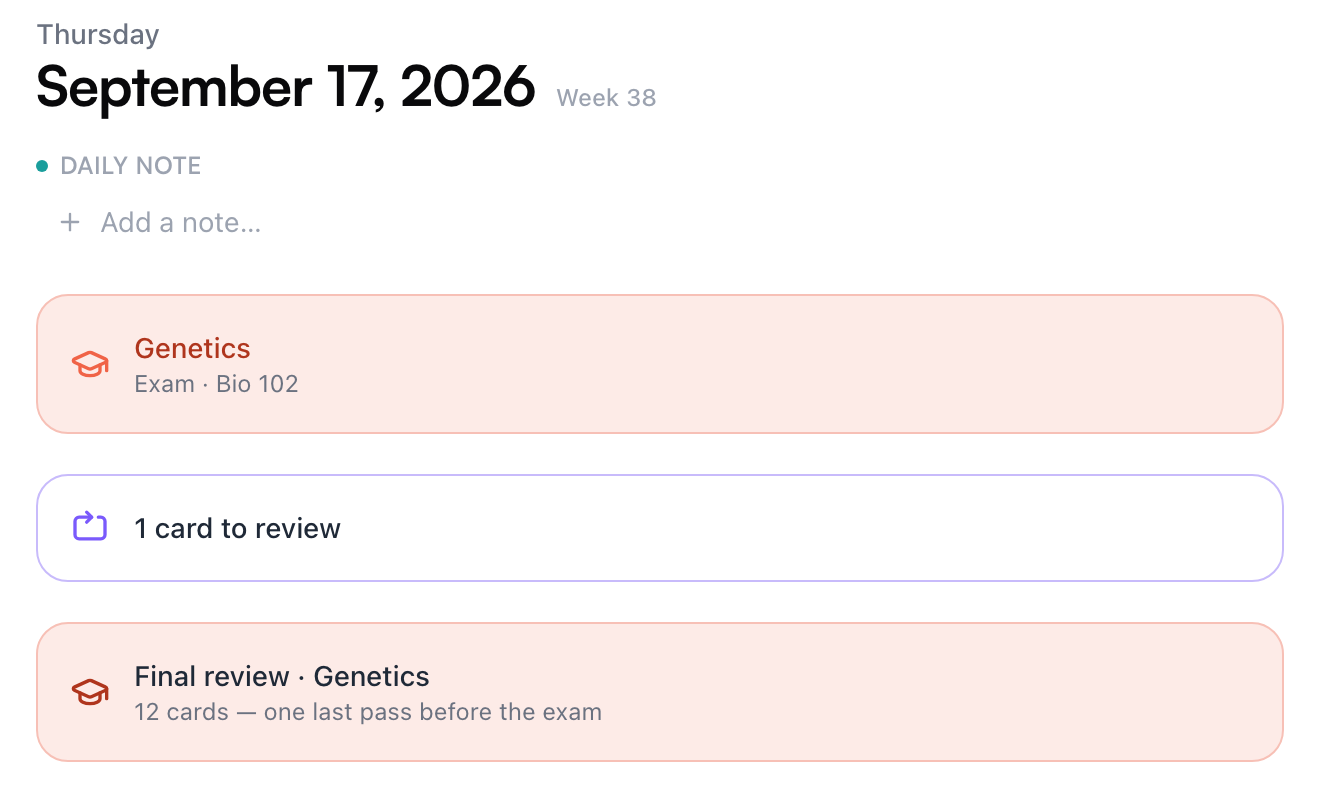
Select a day with an exam and you can see the shape of the run-up — the exam itself, that day's scheduled reviews, and the final pass Mento plans right before it:
Days just ahead of today offer Study ahead instead of Review — it pulls the next few days' reviews forward (part of Pro):

To move around: click any day in the mini month, use the ‹ › arrows next to Today in the top bar, or use the keyboard — ← and → step a day, Shift + ←/→ step a month, and T jumps back to today.
Filter by space
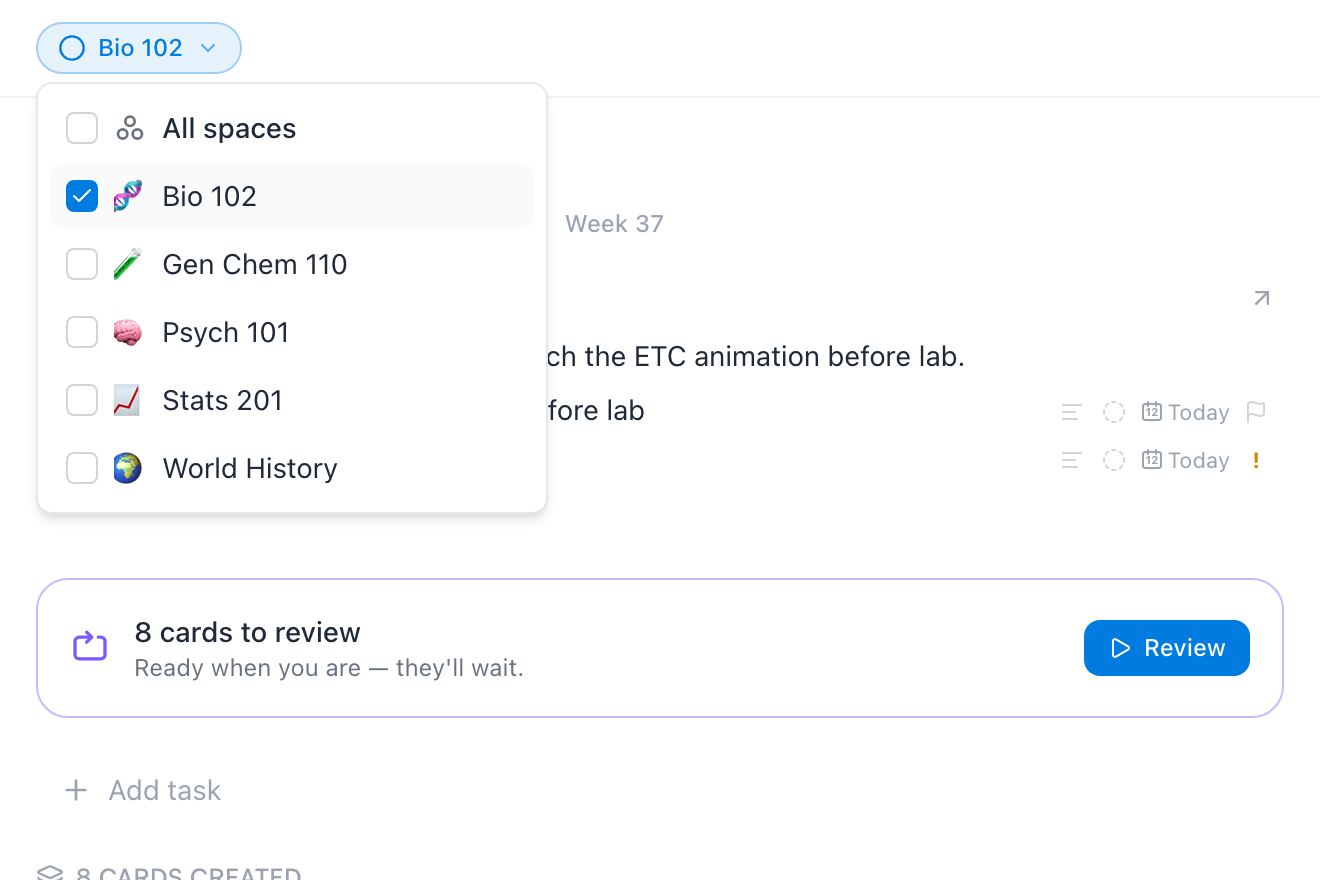
By default the calendar shows all your spaces at once. To see one course's world, click the All spaces chip in the top bar and check a space — or several. Exams, reviews, tasks, and created cards all narrow to those courses, in both Day and Week view, and the chip shows what you're looking at (Bio 102, or 2 spaces):
Two things deliberately stay global: the practice tint and streak rings on the month (you practiced that day, whichever course it was), and your daily notes — the journal belongs to you, not to a class.
Week view
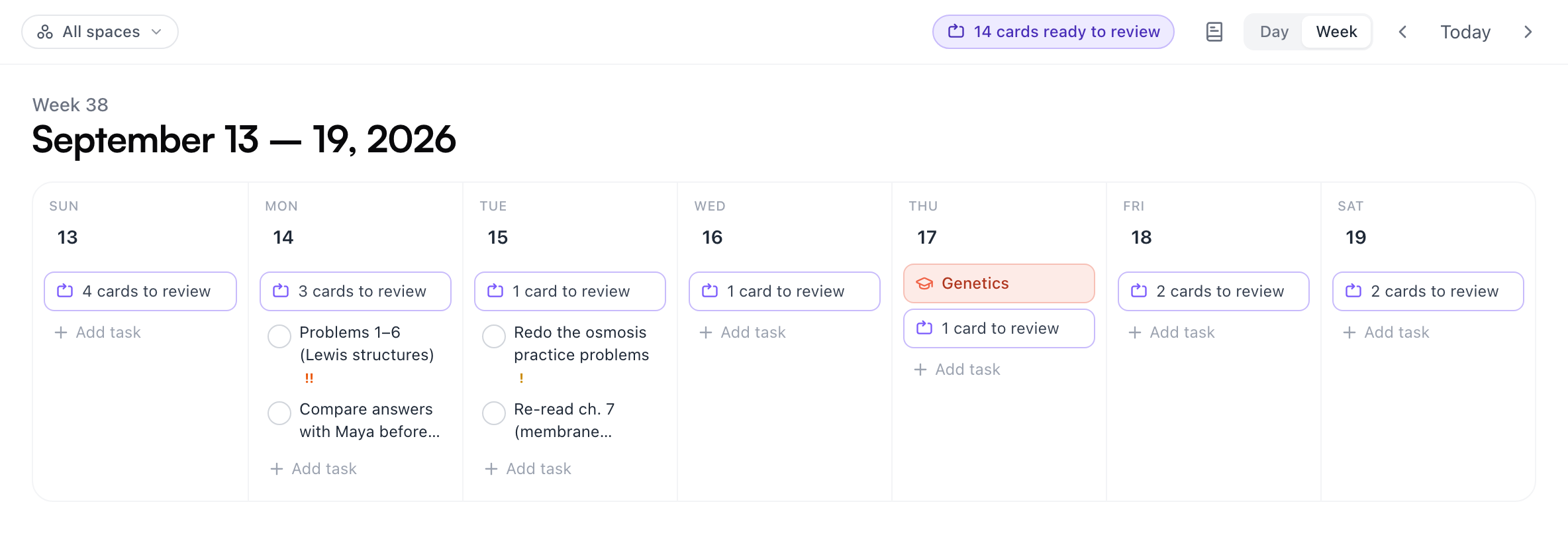
Switch the toggle in the top bar from Day to Week and the calendar becomes seven columns — a planning board for the week. Upcoming days show their tasks, exams, and review counts in full. You can add a task to any upcoming day, check tasks off in place, and drag a task from one day to another to reschedule it.
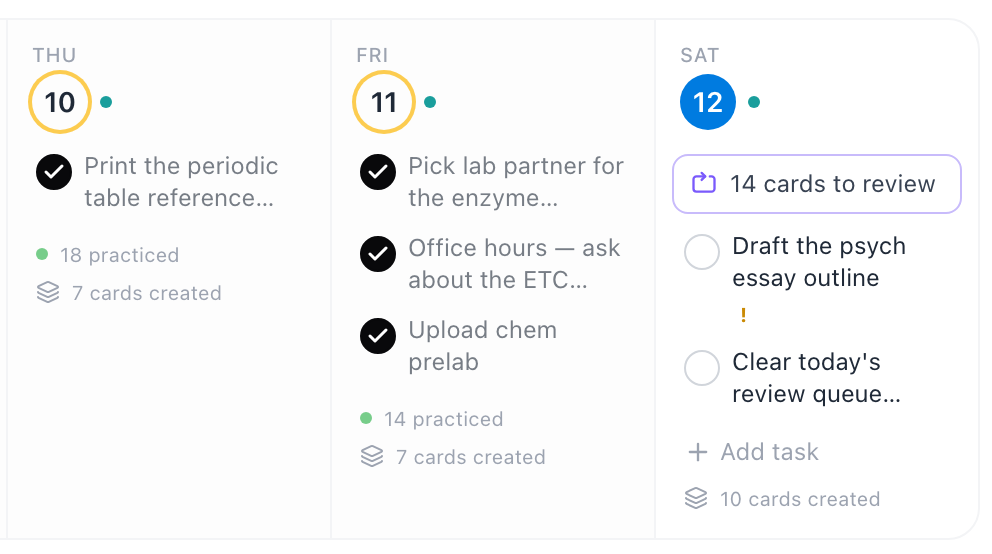
Past days compress to a short summary of what got done, while today keeps its live rows:
The journal
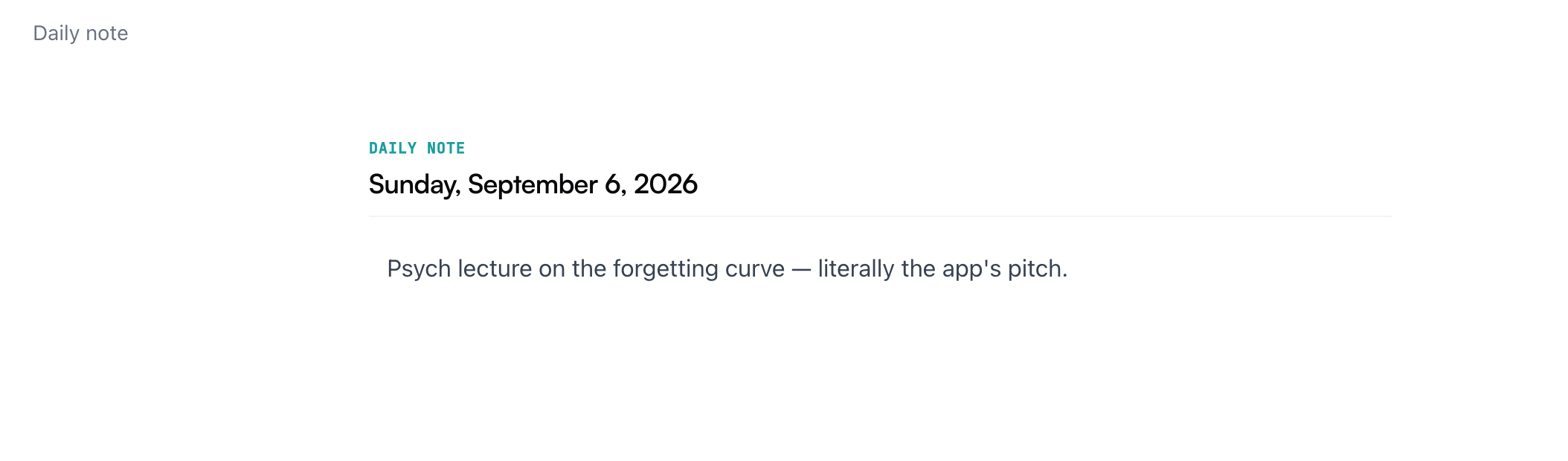
The calendar answers "what happened Tuesday?" The Journal answers "let me reread my last few weeks." Click the small book icon next to the Day | Week toggle and every daily note you've written appears in one list, newest first, grouped by month:
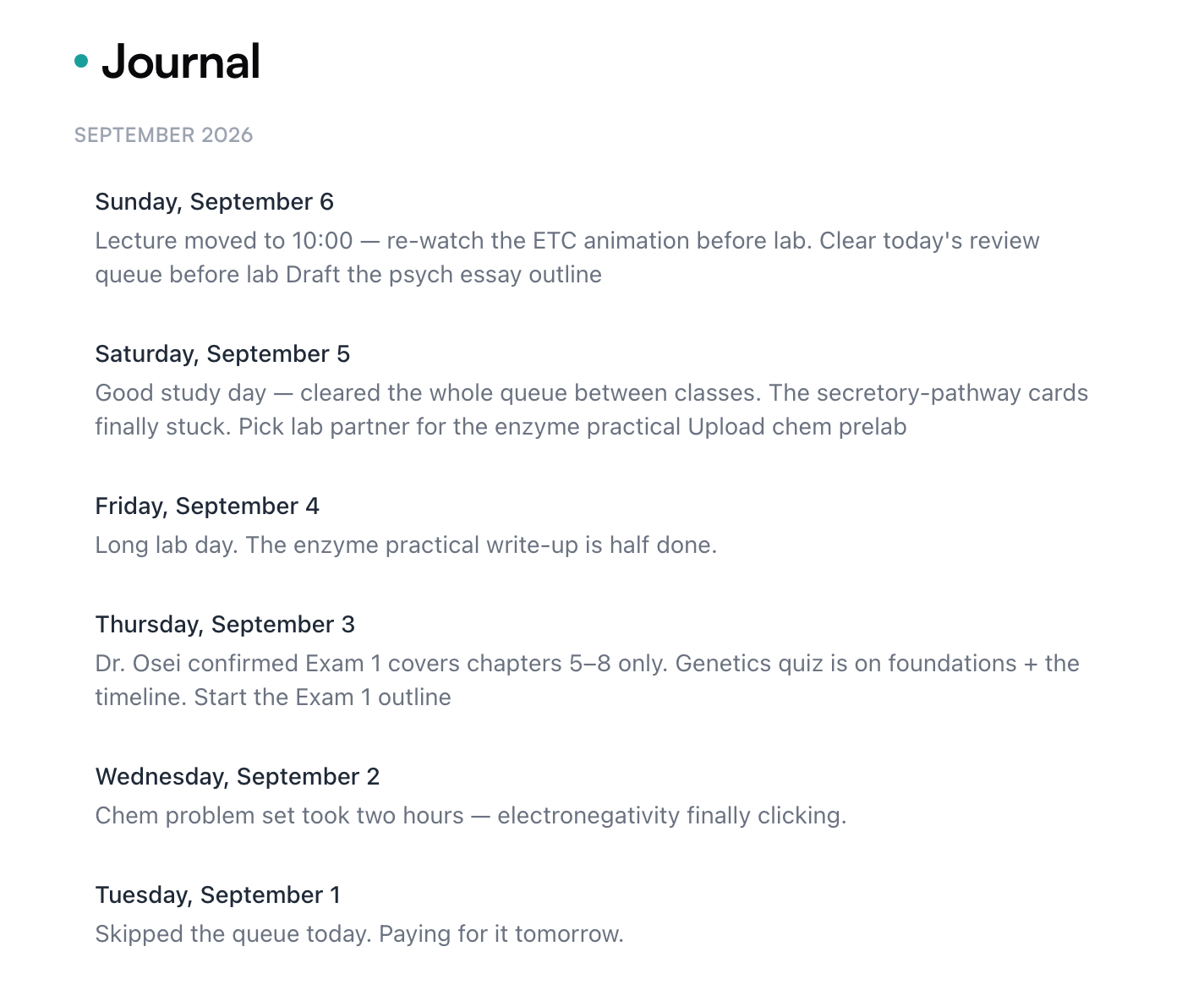
Click an entry to read the full note, or hover over it and click the calendar icon to jump to that day in context. There's no compose button here on purpose — notes are written on their day, in the calendar.
On your phone
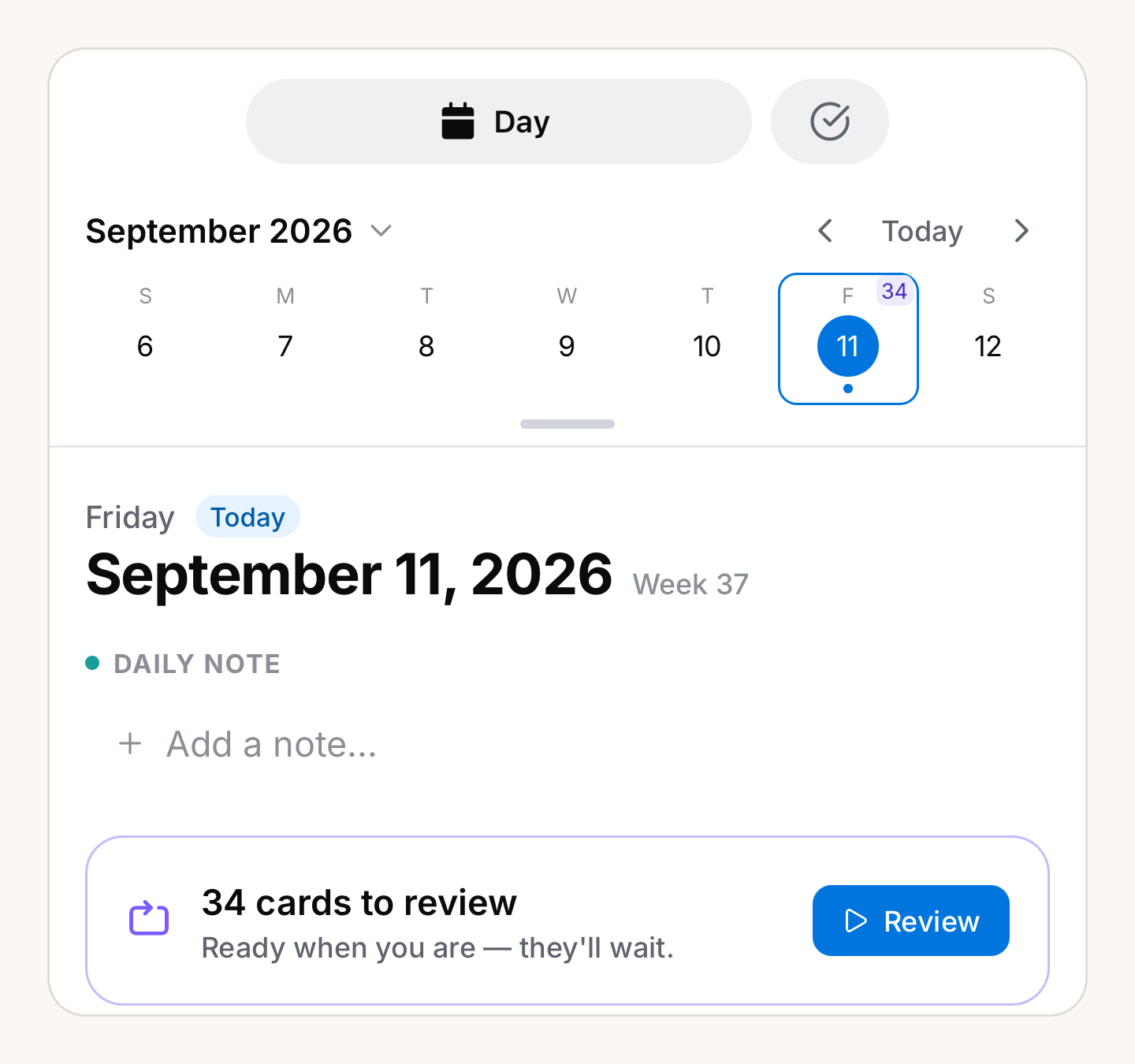
In the mobile app, the calendar lives in the Agenda tab. It's the same day page — daily note on top, then the day's feed — with a week strip you can swipe to move between weeks, and a Tasks view one swipe away. Pull the strip down to open the full month. The daily note works exactly like the web: tap Add a note…, and nothing is created until you type.
There's more on the app itself in Mento on your phone.
Common questions
Do I have to write a note every day? No. Days without notes stay empty — there's no streak to maintain and no blank pages to feel guilty about. (The amber streak ring on the calendar tracks practicing, not journaling.)
Can a daily note become a regular note? Yes. Open it with the arrow button, then use the ⋯ menu → Move to file it into a space, like any other note. Its title becomes the date it was written, and that day's note slot opens up again in case you want to start a fresh one.
Where else do daily notes show up? Your most recent note appears in Jump back in on the home page, and search finds any note by its date. The Journal keeps the full run.
Up next
AI flows
Reusable AI recipes that turn a PDF, a reading, or your notes into sections, timelines, and flashcards — run the built-ins or write your own.
Didn't find it?
The FAQ answers the questions we get most, and every way to reach us is on the contact page.