Set up a course in Mento
Updated · September 2026
A course in Mento is a space: one home for its notes, files, flashcards, and exam dates. This guide walks through setting one up from scratch — creating the space, shaping it with topics and sections (or letting AI build that from your syllabus), and putting the exam on the calendar — so everything you add during the semester already has a place to land.
Create the space
- In the left sidebar, click the space switcher — the dropdown showing the current space's name — and choose Create space.
- Give it a name. An icon is optional; click the icon button next to the name field to pick one.
- Click Create space.
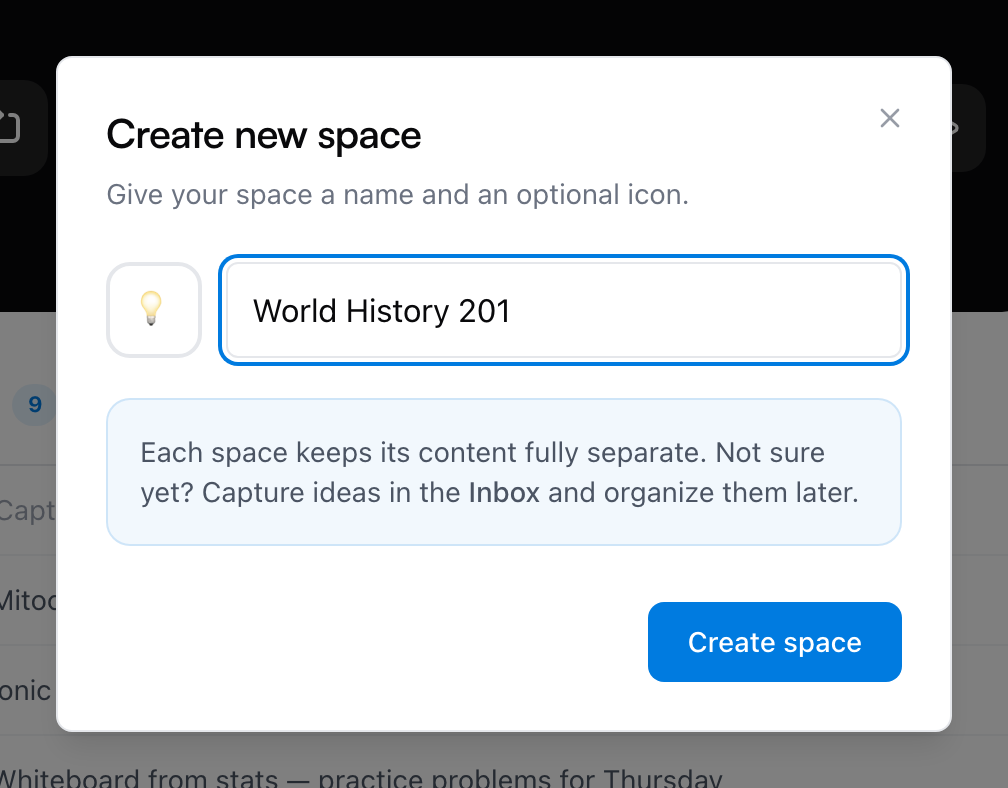
That's it — the dialog itself reminds you that each space keeps its content fully separate, so one space per class is the natural shape. You can rename it or change the icon anytime in Space settings.
Give it a structure
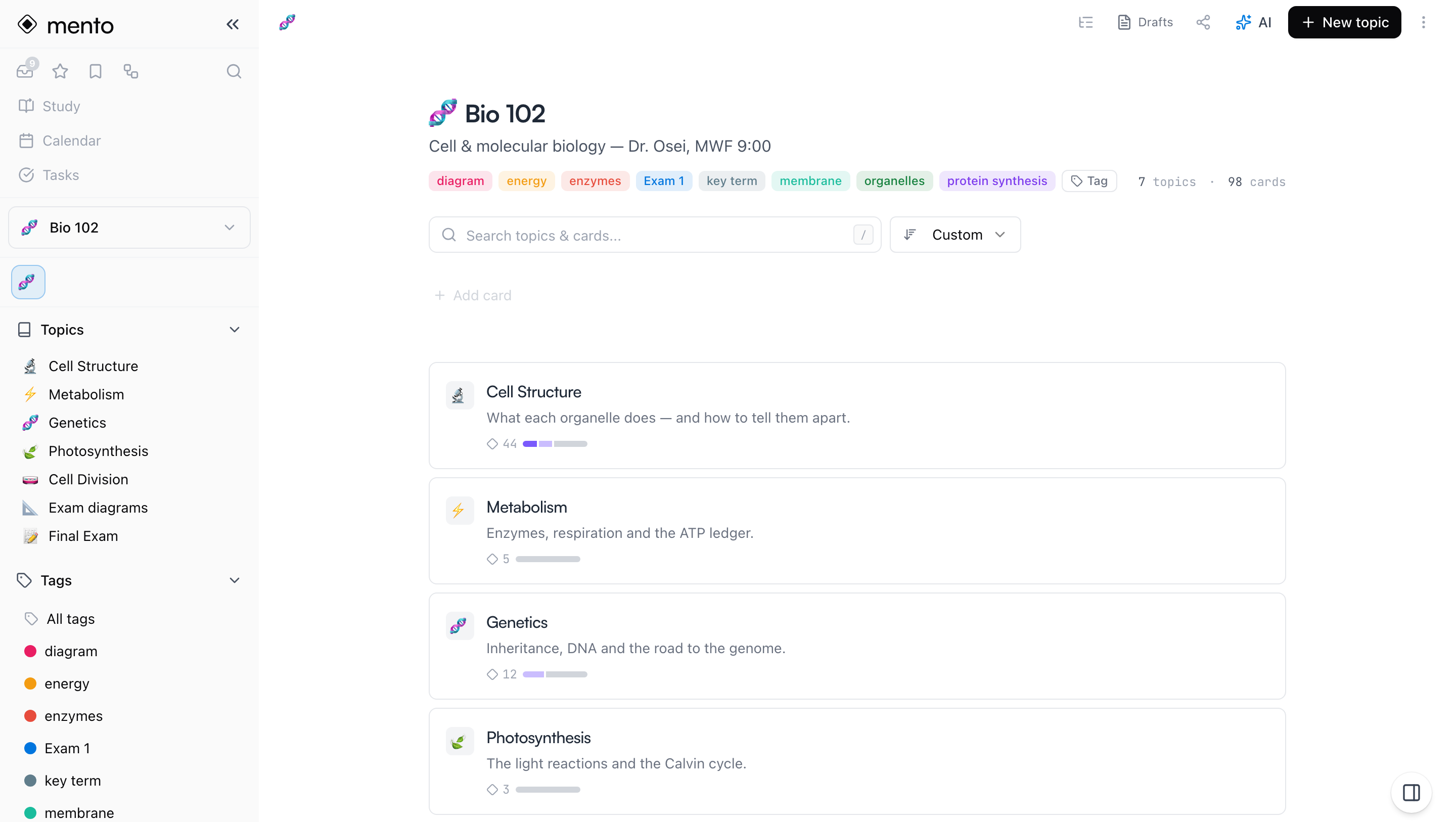
Inside a space, notes live in topics, and topics are split into sections. A good rule: let the structure follow the course. If the syllabus has units or chapters, those are your topics; the sections come later, as real notes accumulate — one for the lecture, one for the reading, one for practice problems, whatever the material actually turns out to be.
- To add a topic, click New topic on the space page. You can give it a title, a description, and tags.
- To add a section, open a topic and click Add section at the bottom — or Insert new section between two existing ones.
A new topic starts without any sections, and that's fine — it will prompt you to add one when you're ready. Don't aim for the perfect outline on day one; everything can be renamed, reordered, or moved later.
Or import your syllabus
If you have the syllabus, you don't have to build the structure by hand. Open the space's ⋯ menu and choose Import curriculum — a brand-new, empty space also offers Or import a curriculum right on the page.
The drawer gives you two ways in: Paste text for a course outline you can copy, or Scan photo if all you have is a picture of the syllabus. You can optionally tell AI how to organize the material, and choose whether it should generate sections and descriptions too. Then click Generate structure.
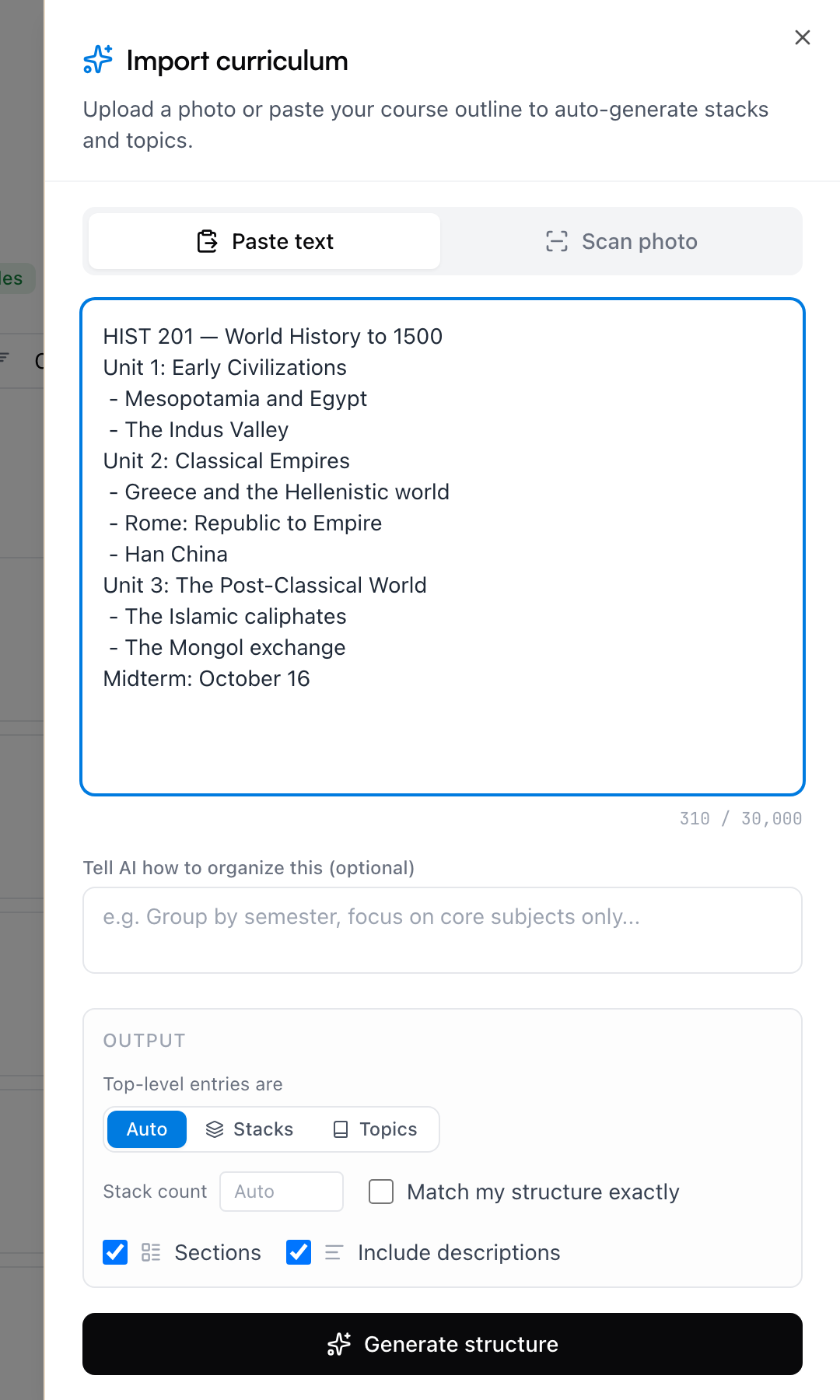
Nothing is created yet at this point. You get an editable preview of the proposed topics and sections first — rename anything, drag things around, remove what you don't want, or ask AI to adjust the structure. For a big course it can also group topics into stacks. When it looks right, one click creates the whole thing.
Note: Generating a structure with AI uses AI actions from your budget. Reviewing and editing the preview costs nothing.
Add the first content
With the shell in place, get something real into it:
- Open a topic and start writing — notes and flashcards live in its sections.
- Use Add card on the space page for quick one-off cards.
- Or don't decide yet: capture thoughts to your Inbox from anywhere and sort them into the course later. That habit is covered in Quick capture and the Inbox.
You don't need much — a space with one topic and three notes is already working.
Put the exam on the calendar
If the course has a dated exam, tell Mento now: open the topic's ⋯ menu and choose Exam date. Reviews for that topic get scheduled to land before the exam, and the final days sweep everything it covers — so the date changes how you study, not just what the calendar shows. Upcoming exams appear on your Study page with a countdown, and on the calendar.
On the free plan you can have one exam date set at a time; scheduling every exam at once is part of Pro. There's more on what exam dates do in How to study your notes.
Common questions
Should every class be its own space? Yes — that's what spaces are for. Content in one space stays fully separate from the others, so Bio 102's flashcards never mix into Psych 101's study sessions.
Can a space be something that isn't a class? Nothing about a space assumes a course or a semester — it's just a container with its own topics, notes, and cards. Keep one for the quotes and passages you want to hold on to as you read. One for a language you're picking up, or a certification or driving test you're preparing for. One for a hobby you're getting serious about — guitar chords, chess openings, recipes worth repeating. Personal projects fit the same way: a trip you're planning, a move, anything with enough moving pieces that it deserves a home instead of a notes app graveyard.
Studying works the same in those spaces as in a course. Flashcards in a Spanish vocabulary space come up for review exactly like the ones in Bio 102 — there's just no exam date, so reviews keep arriving at their normal pace instead of bunching up before a deadline.
How many spaces can I have? On the free plan, 10 active spaces. Archived spaces don't count — when a semester ends, use Archive space in the space's settings and the slot frees up (find old ones later under View archived). Pro removes the limit.
Do I need to plan all my sections up front? No. Sections exist to keep a topic readable once it has real material in it. Start with topics only, and add sections when a topic starts feeling crowded.
Up next
Quick capture and the Inbox
How to save a thought in seconds from anywhere in the app, and how the Inbox helps you make sense of it later.
Didn't find it?
The FAQ answers the questions we get most, and every way to reach us is on the contact page.