Record your classes
Updated · September 2026
Some lectures move faster than any note-taker. Recording fixes that: start it at the beginning of class, and by the time you've packed your bag, Mento has the audio on a card in the class's topic — with a summary, key points, and the full transcript. This article covers starting a recording, setting it up for a lecture, and what to do with the result.
This article is about recording someone else — a professor, a seminar, a meeting. It's the same recorder voice memos use, tuned differently; for your own voice, see Take notes with your voice.
Where to start recording
A recording lives on the card it starts from, so the best place to start is the topic for that class — everything ends up filed where you'll study it:
- Open the class's topic and hover over an Add card row.
- Click the small arrow next to it to open the More ways to add menu.
- Choose Voice note. Mento creates a card in the topic and starts recording immediately.
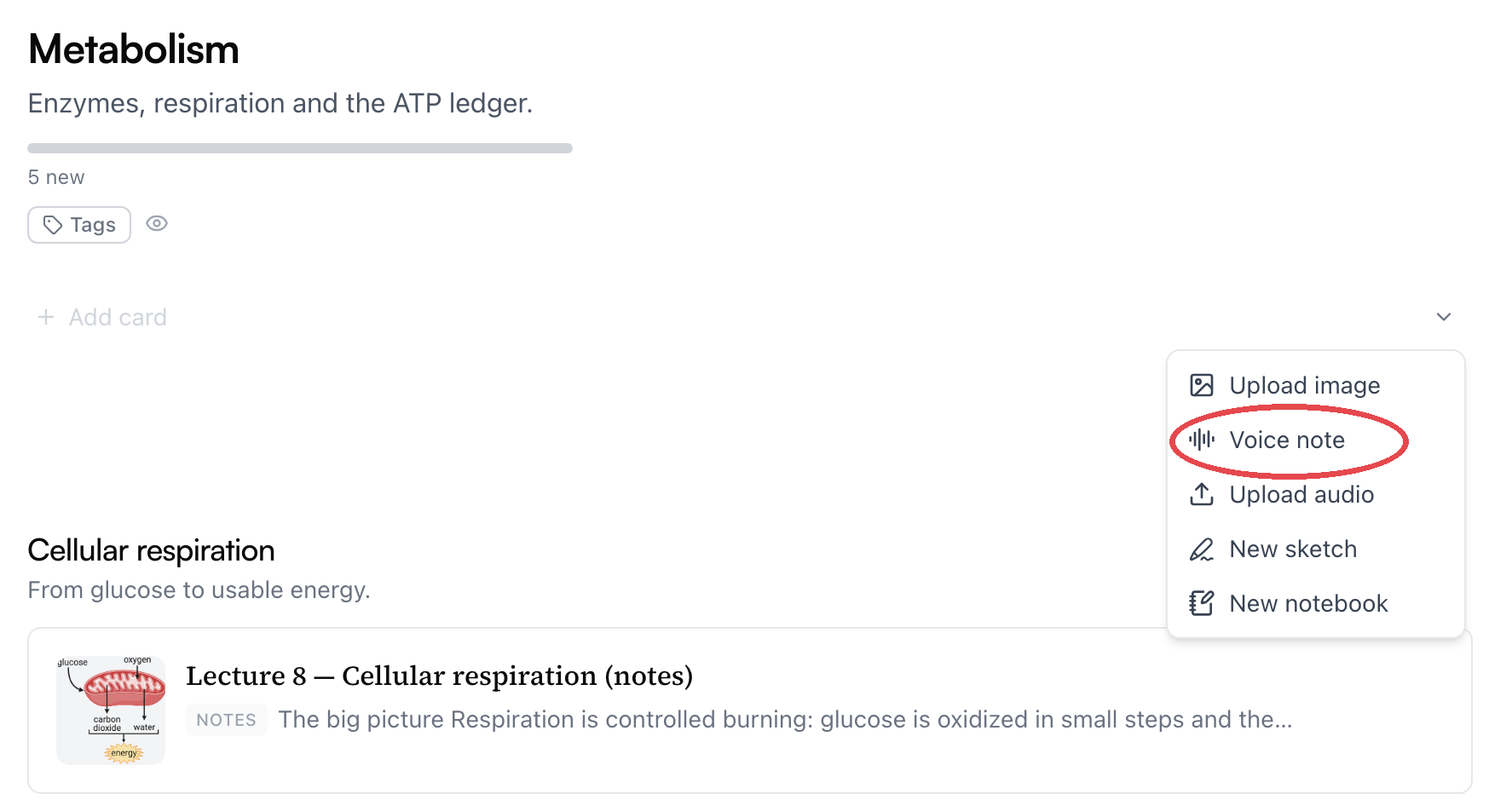
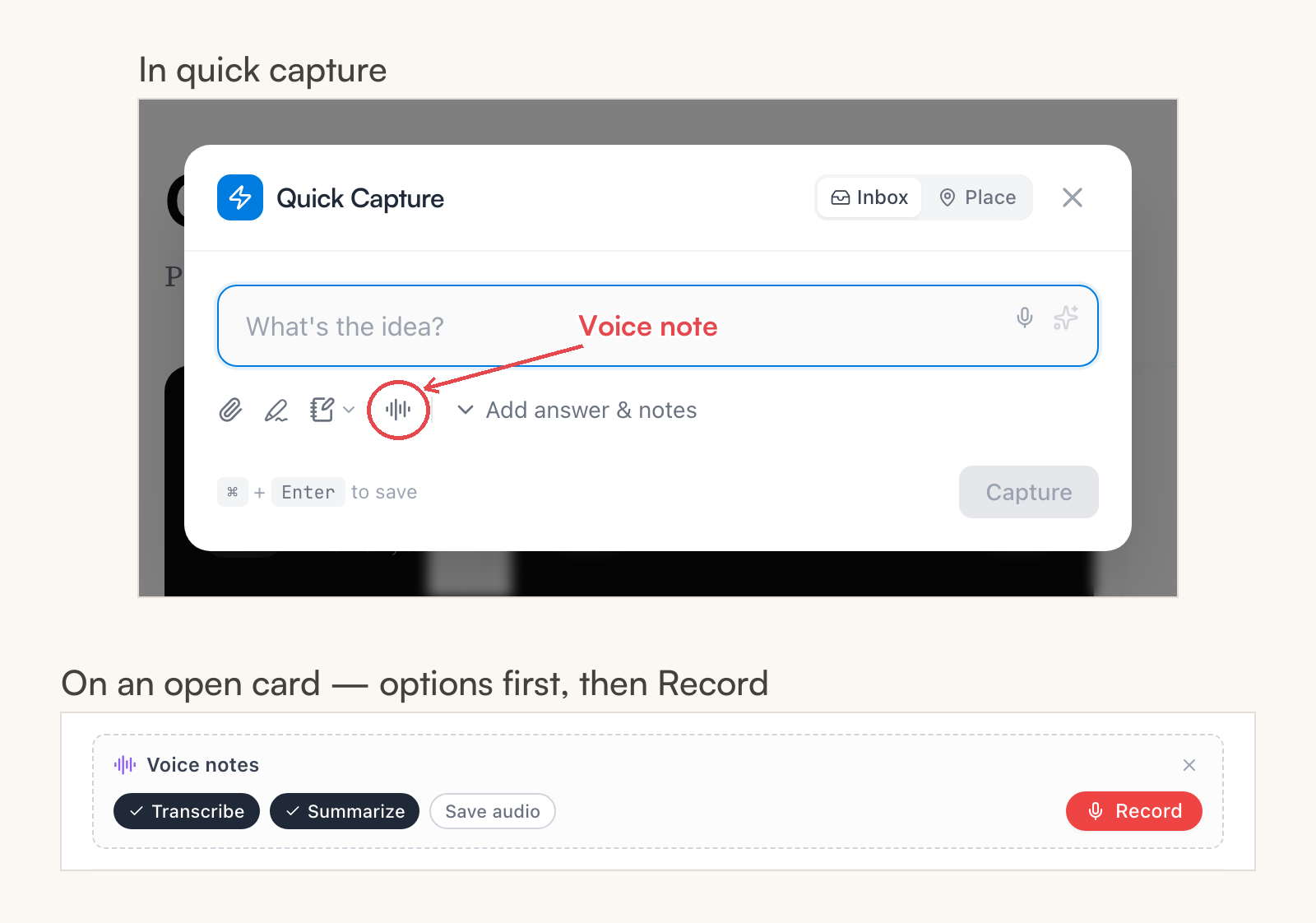
Two other places work too:
- Quick capture — the voice icon saves your capture and starts recording on it. The note lands wherever the capture was headed — the Inbox by default.
- A card you already have open — in the Add visual menu, choose Voice note. This is the one path that waits: you can check the options first, then click Record.
Note: Rules about recording lectures vary by school and by country. Ask your professor before you hit record.
Set it up for a lecture
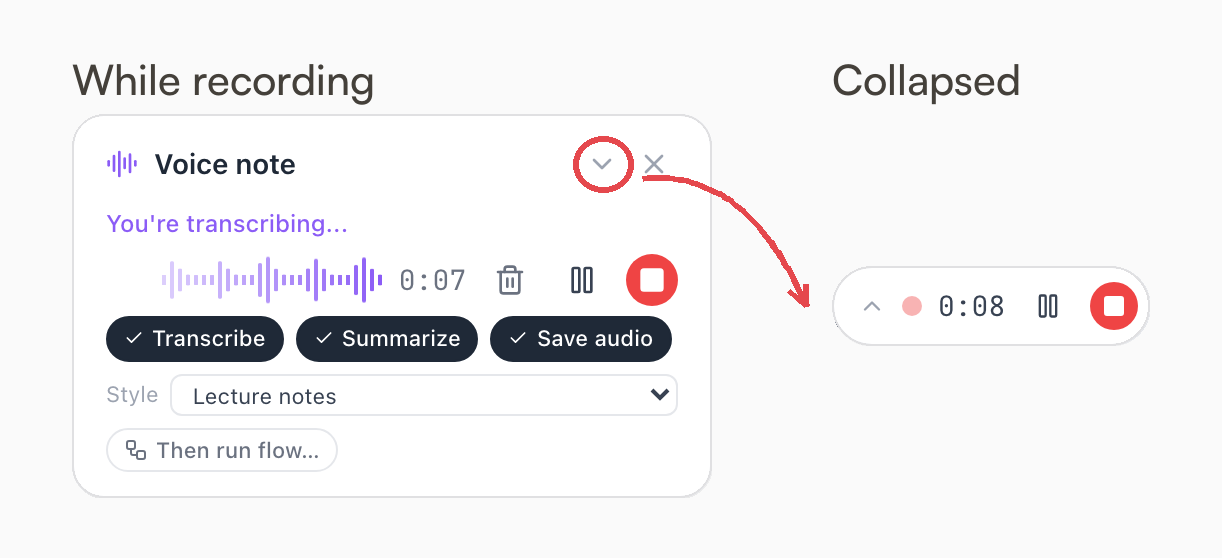
The recorder's defaults suit short memos, so once it's running, take five seconds to adjust it on the recorder:
- Save audio — turn it on. It's off by default, which is fine for a memo, but for a lecture you usually want the original audio kept on the card so you can re-listen to the part that confused you.
- Style — set it to Lecture notes. The other options are Default summary, Meeting minutes, Action items, and Custom…, where you describe the format yourself.
- Transcribe and Summarize — leave both on.
There's also Then run flow…, which runs one of your AI flows on the transcript the moment it's ready — straight from lecture to draft flashcards.
You can change any of this mid-recording — what counts is how the switches sit when you stop. And the recorder remembers your settings, so the second lecture is zero setup.
During the lecture
While recording, the recorder stays in the corner of the screen, and you don't have to stay put — browse your notes, open the slides; the recording follows you around the app. It has Pause and Resume for breaks, Stop recording when class ends, and a trash icon that discards the take (it asks first; a discarded recording is gone, nothing is saved or transcribed). And if the full recorder is in the way, the small arrow next to its title collapses it to a pill — just the timer, pause, and stop — and clicking the pill brings the full recorder back.
One recording can run up to 20 minutes on the free plan, or 90 minutes — long enough for most classes — on Pro. Near the cap the recorder shows a countdown; at the limit the recording stops on its own and is processed normally — nothing is lost. If the class runs longer, start a new recording for the rest.
What comes back
When you stop, Mento uploads the audio, transcribes it, and writes up the card on its own. You get the audio player on top, then a summary and key points in the card's notes, with the full transcript in a collapsible section at the end — skim the key points in a minute, or expand the transcript when you need the professor's exact words. The notes come back in whatever language the lecture was in.
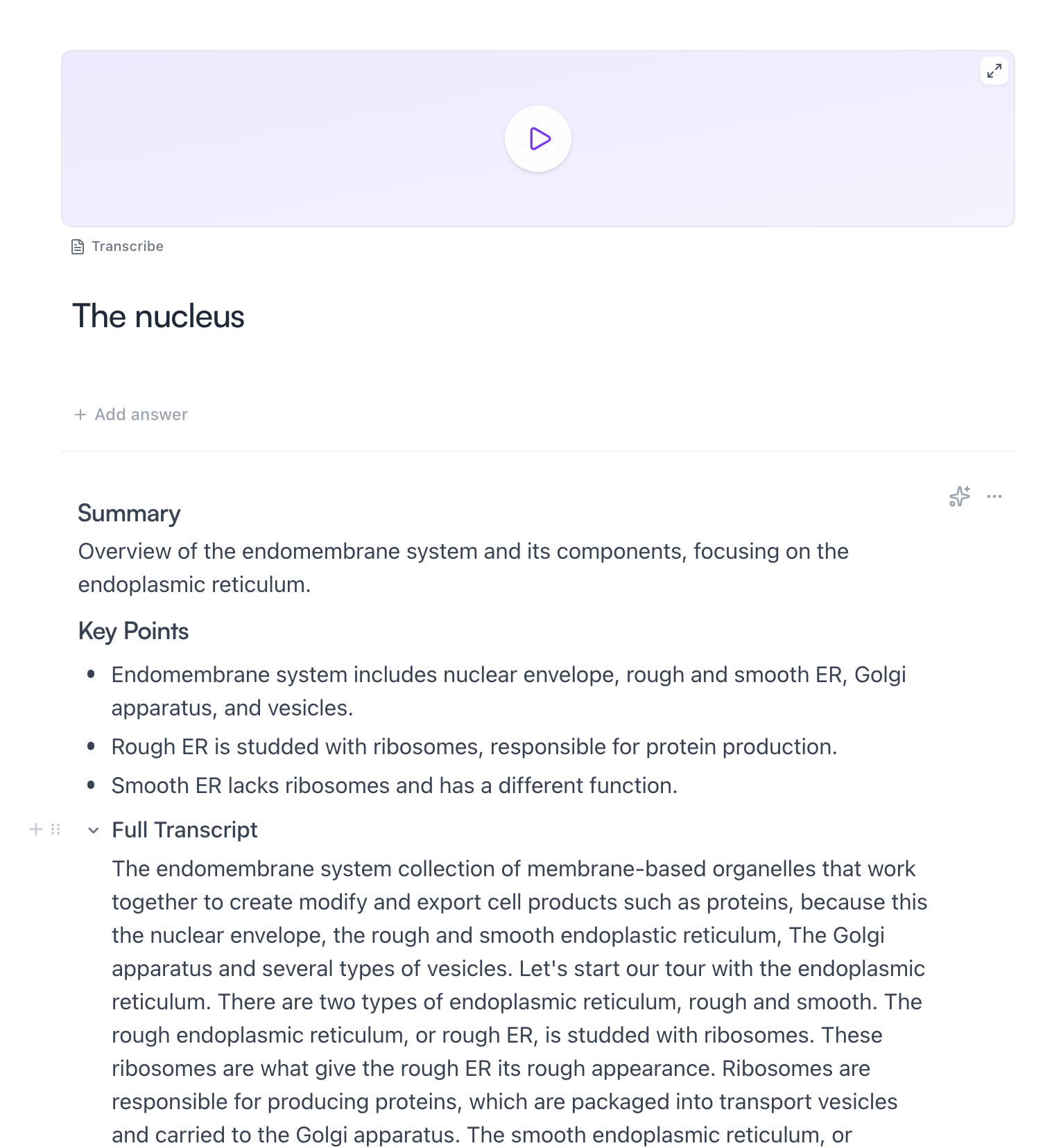
The player keeps its own controls: audio that has a transcript gets Open transcript and Run flow buttons, and audio that doesn't yet has a Transcribe button, so nothing has to happen right after class.
After class
Two things make a recorded lecture more than an archive:
- It's searchable. The transcript is part of the card's notes, so search finds what the professor said — even the things you never wrote down.
- It turns into flashcards. Hover over the notes, open the AI actions menu, and choose Extract to cards — AI drafts study cards from the transcript, and you review them before anything is kept. Or click Run flow on the transcript to run a full recipe like Study Set (flows are part of Pro — see AI flows).
Recording on your phone
In a lecture hall, your phone is usually the recorder that's actually with you. The mobile app records with the same options — Voice note, the same toggles, the same Lecture notes style — and the recording keeps running while you use the rest of the app.
If the recording happened somewhere else entirely — your phone's own recorder app, or an audio file the professor posted — the same More ways to add menu has Upload file: pick the audio and it runs through the same transcribe-and-summarize pipeline.
What it costs
Transcribing and summarizing are AI actions, and a full lecture uses more of your AI budget than a two-minute memo. A few things keep that predictable:
- If your budget runs out, recording still works — the audio is saved on the card, and you can press Transcribe on it whenever your budget allows.
- Audio that already has a transcript is never billed again — reading, searching, or re-opening it costs nothing.
- Recording and playback are free; AI actions are spent only when something is transcribed or summarized.
Plan limits (recording length, AI budget) are covered in Plans and billing.
Common questions
My class is longer than the recording limit. What happens? The recording stops at the cap and is processed normally — nothing is lost. Start a new recording for the rest of the class; you'll get two cards instead of one.
Do I have to keep the audio to get the notes? No. Save audio only decides whether the recording itself stays on the card. The summary, key points, and transcript are written into the notes either way.
Can Mento transcribe a recording I didn't make in Mento? Yes. Use Upload file in the More ways to add menu — an exported audio file from any recorder app goes through the same pipeline as a live recording.
Up next
Tags in Mento
One label for a theme that runs through a whole course — tag notes as you type, browse everything that shares the label, and study it in one session.
Didn't find it?
The FAQ answers the questions we get most, and every way to reach us is on the contact page.