Tags in Mento
Updated · September 2026
Topics answer where a note lives. Tags answer what it's about — one label that gathers a theme from every topic in a space, like everything about enzymes, or everything on the next exam. This guide covers adding tags, browsing and filtering by them, and studying every card that carries one.
What tags are for
Every card lives in exactly one place — a section, inside a topic. But themes don't respect that structure: energy metabolism shows up in three different topics, and the ideas your exam covers are scattered across half a course. A tag cuts across all of it. Tag a card wherever it lives, and the tag's page collects the whole theme in one place — and a card can carry as many tags as it needs.
Three things worth knowing up front:
- Tags belong to a space. Your biology course's tags are its own vocabulary, separate from your psychology course's. If you create a tag with the same name in another space, it's a separate tag — Mento just reuses the color so they look consistent.
- You can tag more than cards. Topics take tags too, and a
#on a task's line tags the task — more on both below. - Tags are a lens, not a location. Tagging a card doesn't move it, and a card can carry ten tags or none.
Two ways to tag a card
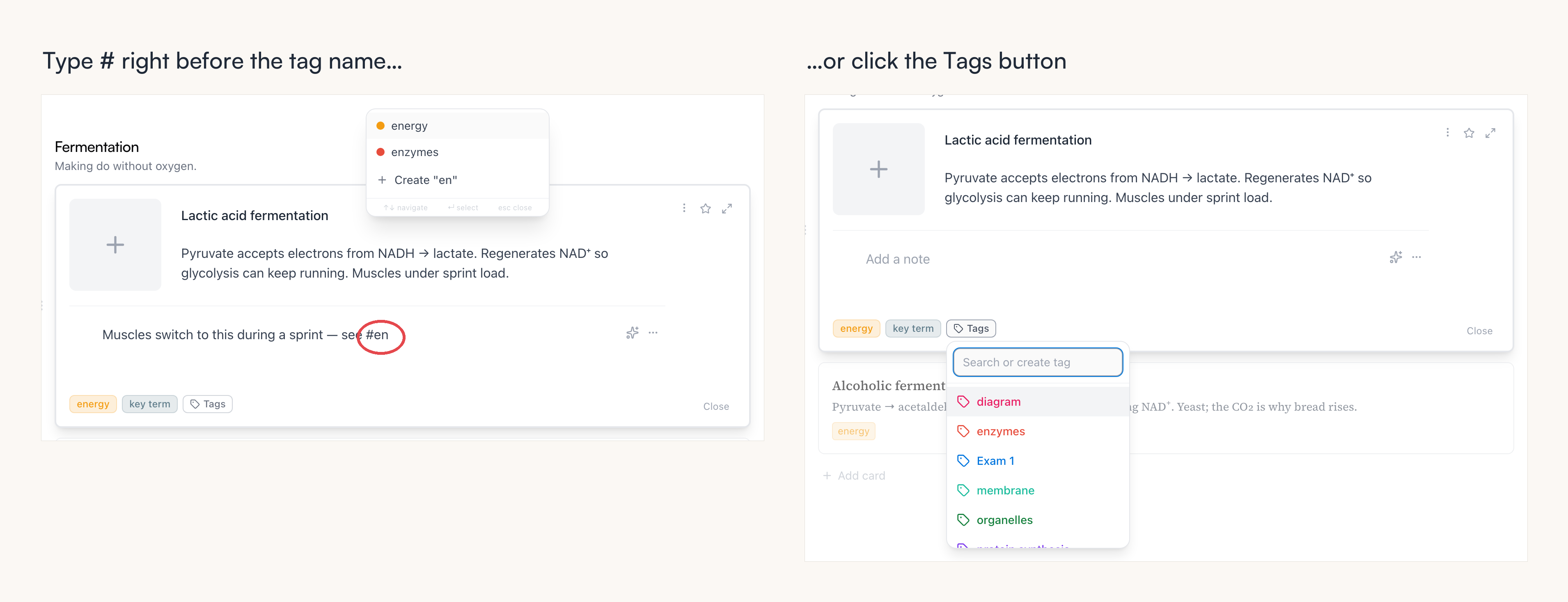
Both end the same way — the card carries the tag. Type # when you're mid-sentence and don't want to stop writing; use the Tags button when you're organizing a card you already wrote.
Type # as you write
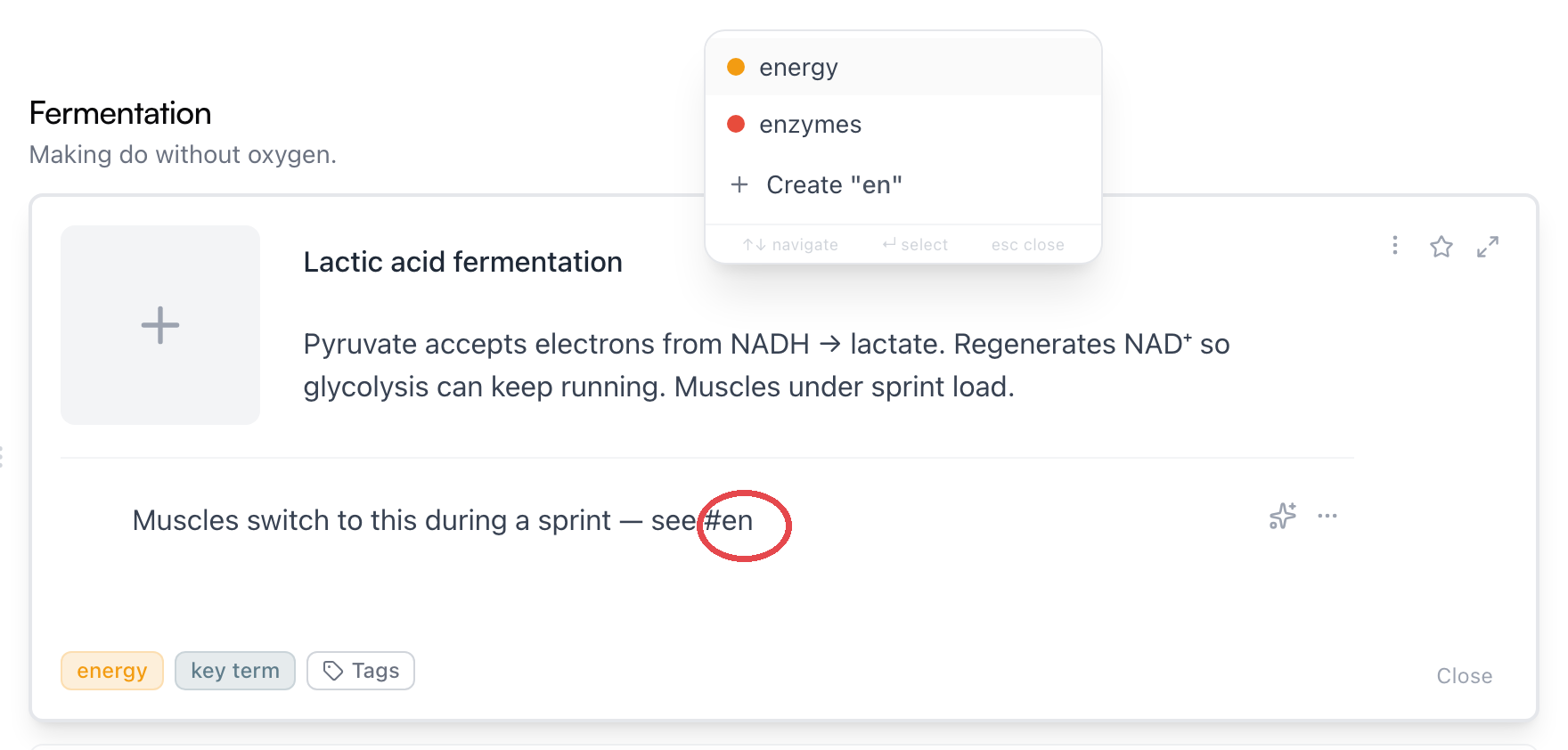
- In a card's notes, type # and start the tag's name right after it, with no space —
#energy, not# energy. A menu of the space's tags appears at your cursor. - Keep typing to narrow it down — tag names can contain spaces, and Esc dismisses the menu if you just meant to type a
#. - Pick a tag, or choose Create to make a new one on the spot.
The space matters because # followed by a blank is how you type a heading — the tag menu only opens while the name touches the #. If you got a big bold line instead of a tag, that's what happened (see Writing notes).
The tag lands in your text as a colored pill, and the card now carries it — the pill is the assignment. Delete the pill and the tag comes off again (unless it's still mentioned elsewhere in the note).
This works in notes fields across the app, including quick capture. The one catch: tags live in spaces, so on an Inbox card the # menu can't attach anything — it tells you to move the card to a space first.
Note: A
#typed on a task's line tags the task, not the note — and the Tasks page can filter by tag. Same gesture, sensibly different target.
Or click the Tags button
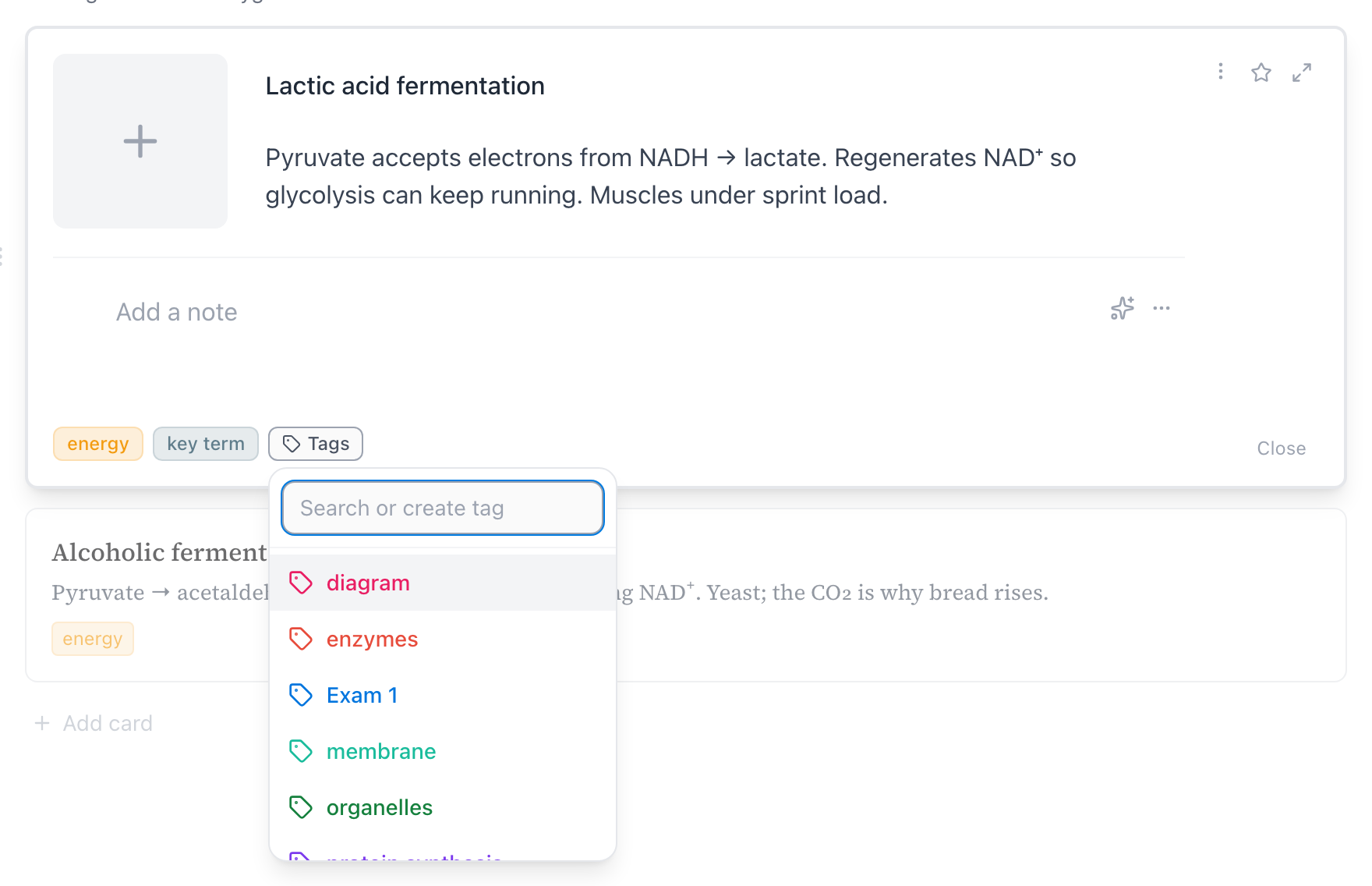
Every open card shows its tags as pills along the bottom, next to a Tags button. Click the button to search the space's tags or create a new one — the same list the # menu offers.
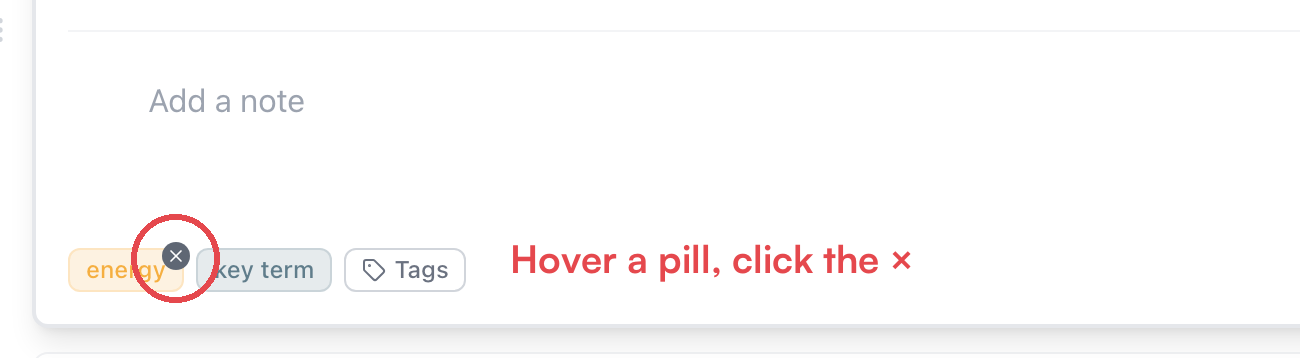
To take a tag off, hover its pill and click the ×:
Tag more than cards
A whole topic
When an entire topic belongs to a theme — the whole Metabolism topic is on Exam 1 — tag the topic itself. The row under a topic's title shows its tags, with the same Tags button to add more. The small eye button next to it also reveals the tags used by cards inside the topic, so you can see the topic's themes at a glance.
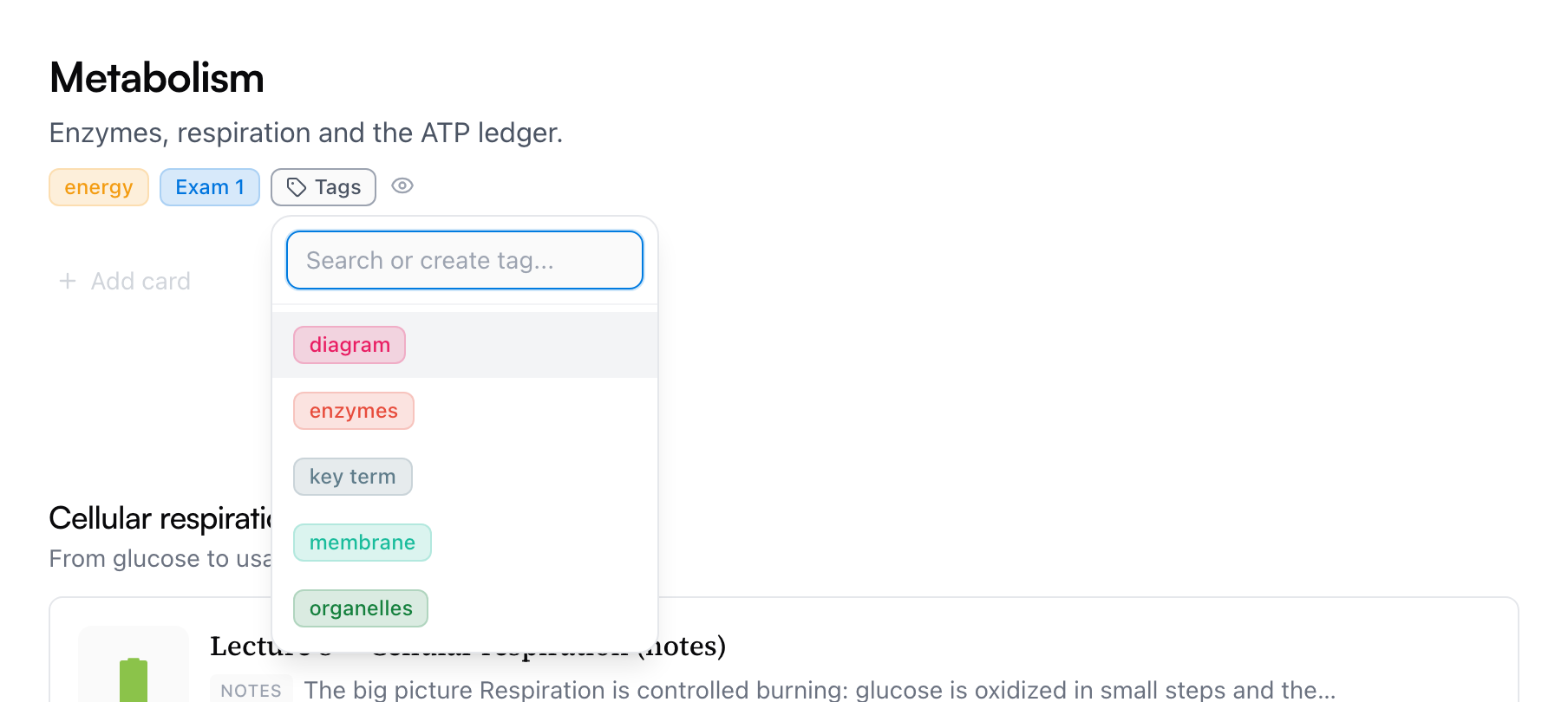
Topic tags also power the space page's tag filter — more on that below.
A whole section at once
A section's ⋯ menu has Tag all cards — the quickest way to mark everything a chapter covers. It opens a small panel telling you how many cards you're about to tag; Remove tag from all cards in the same menu undoes it in bulk.
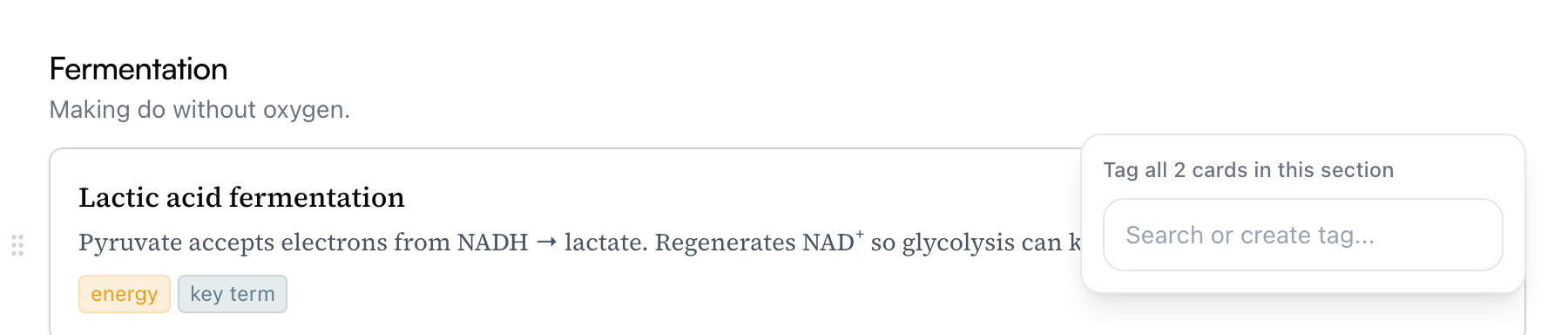
In quick capture
Switch the capture window to Place, and a Tags field appears below the note — tag a card before it's even saved. (See Quick capture and the Inbox.)
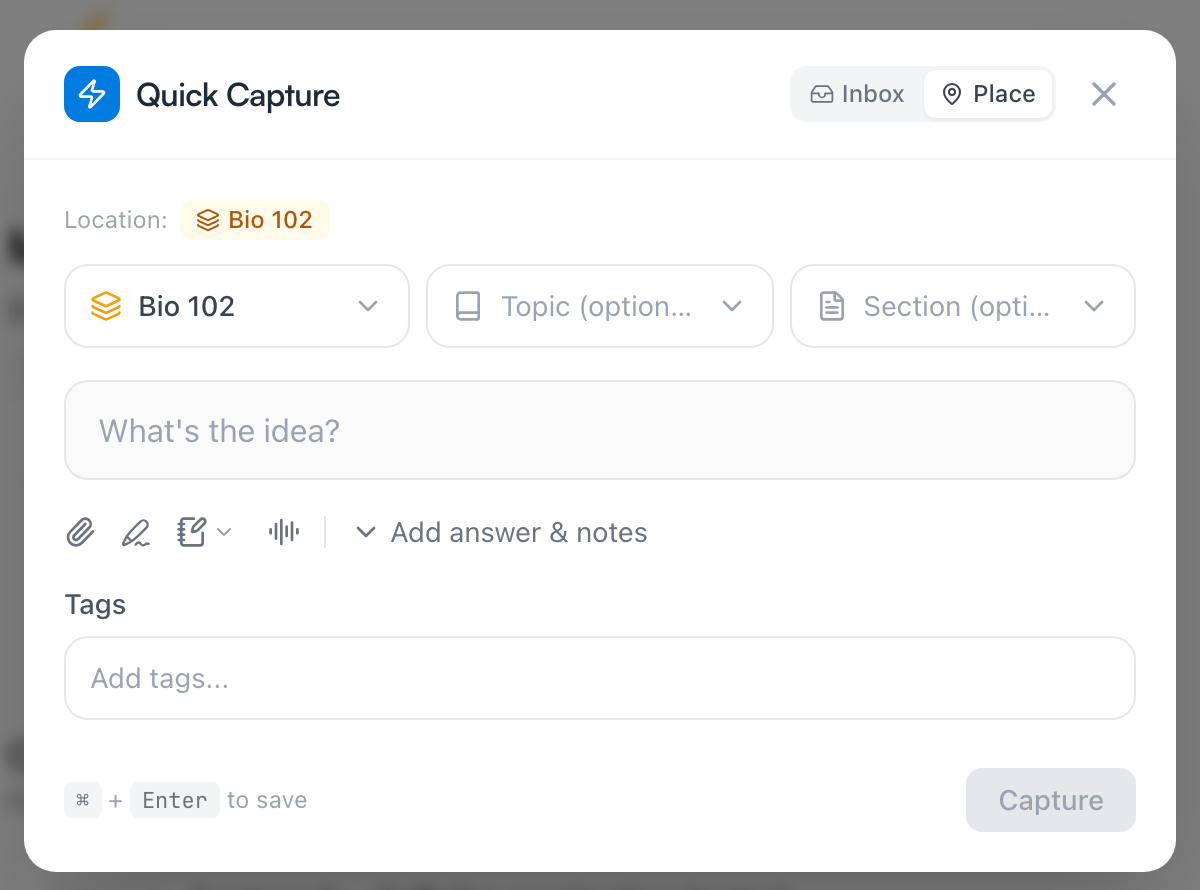
Browse and filter by tag
From the sidebar
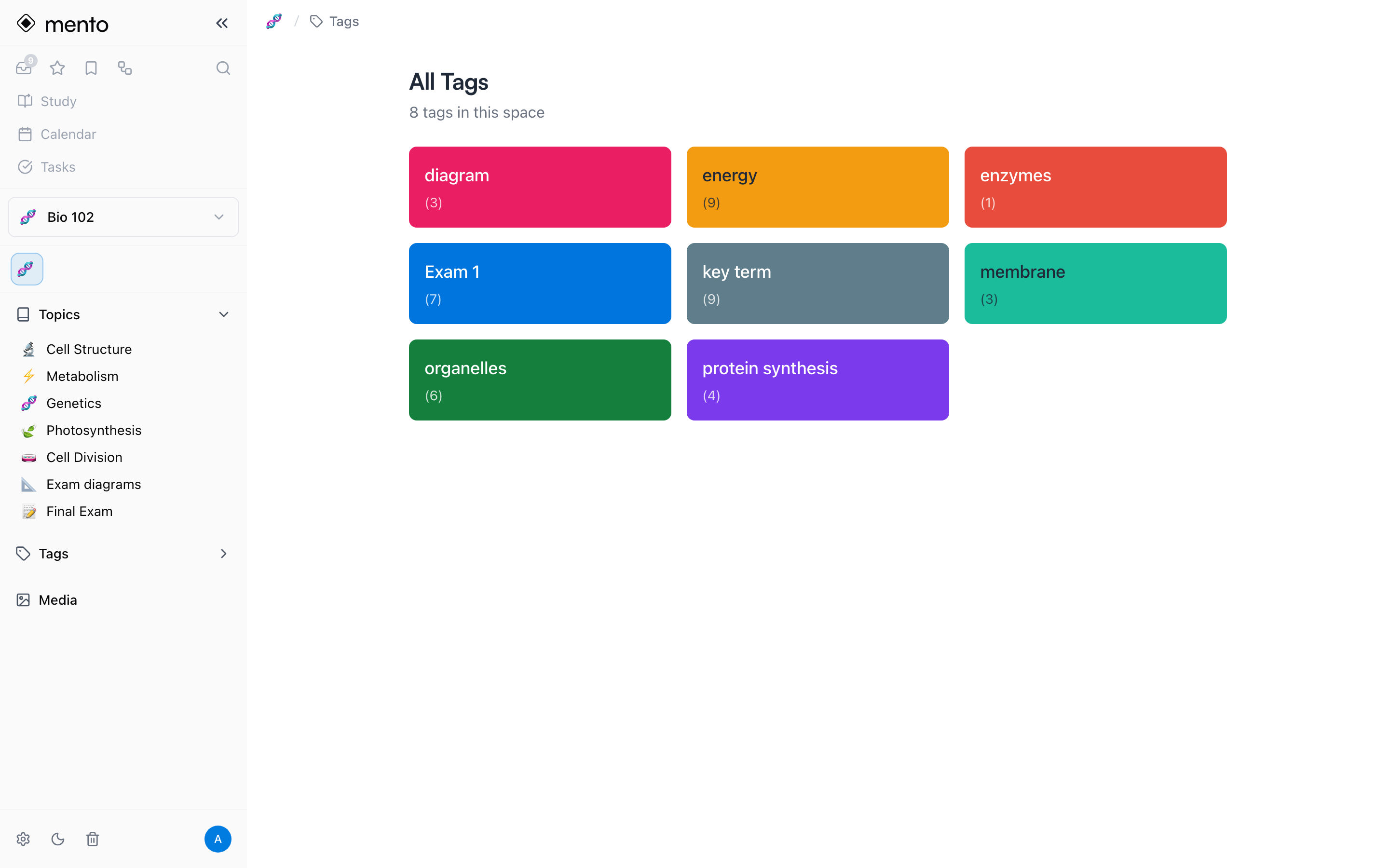
The left sidebar has a Tags section listing every tag in the current space — click one to open its page, or hover it and use Pin tag to keep your important ones at the top.
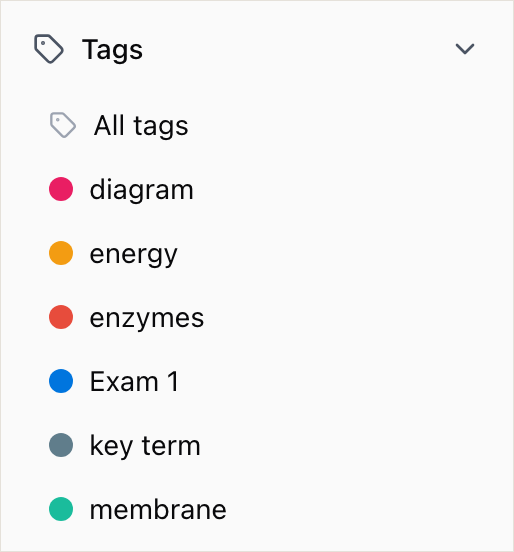
All tags opens the full wall of them, with each tag's count:
From any pill
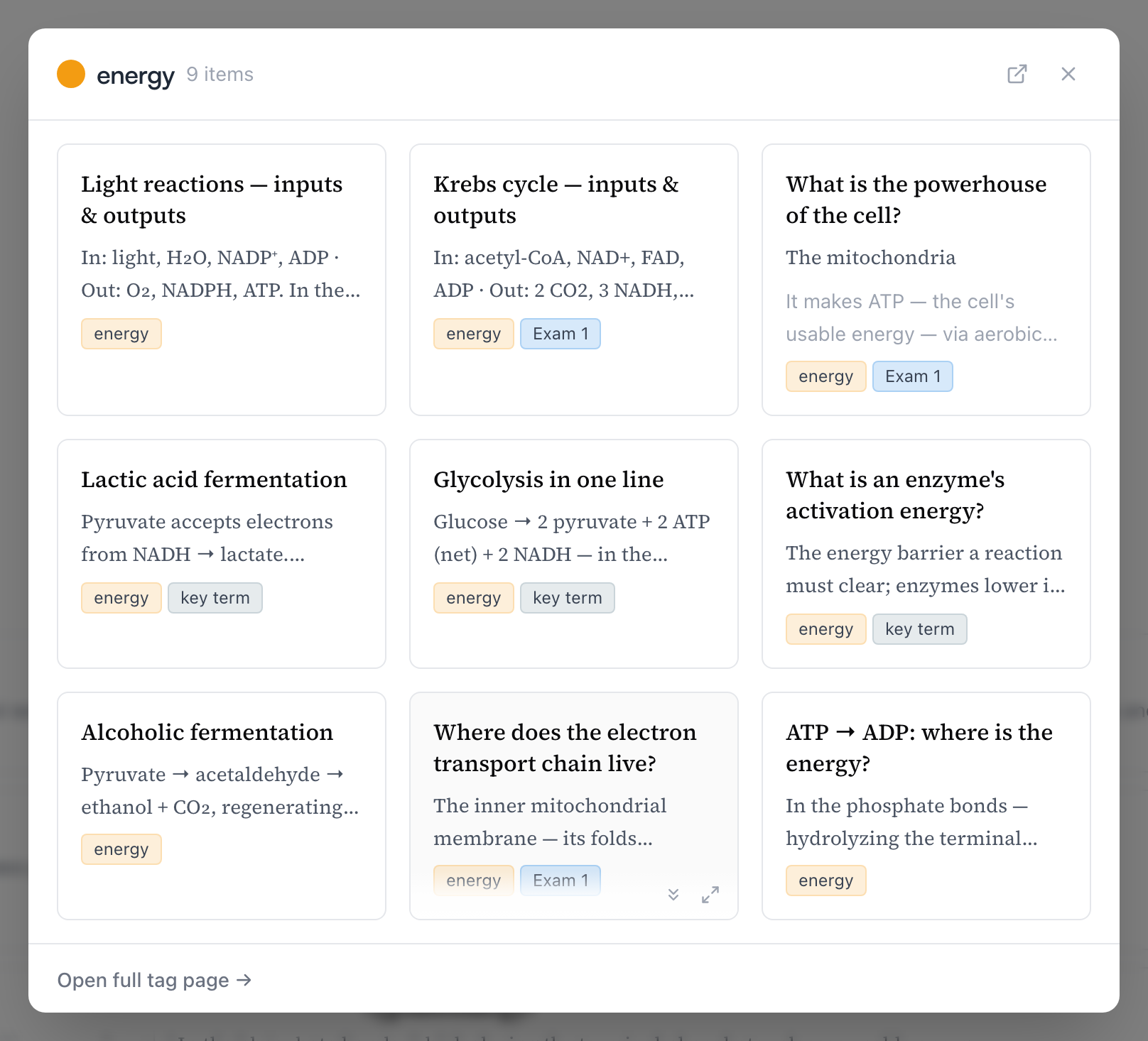
Clicking a tag pill on any card opens a quick view of everything that carries the tag, without leaving the page you're on — Open full tag page takes you the rest of the way.
The tag page
A tag's page collects everything that carries the label: cards from every topic in the space, plus any tagged topics.
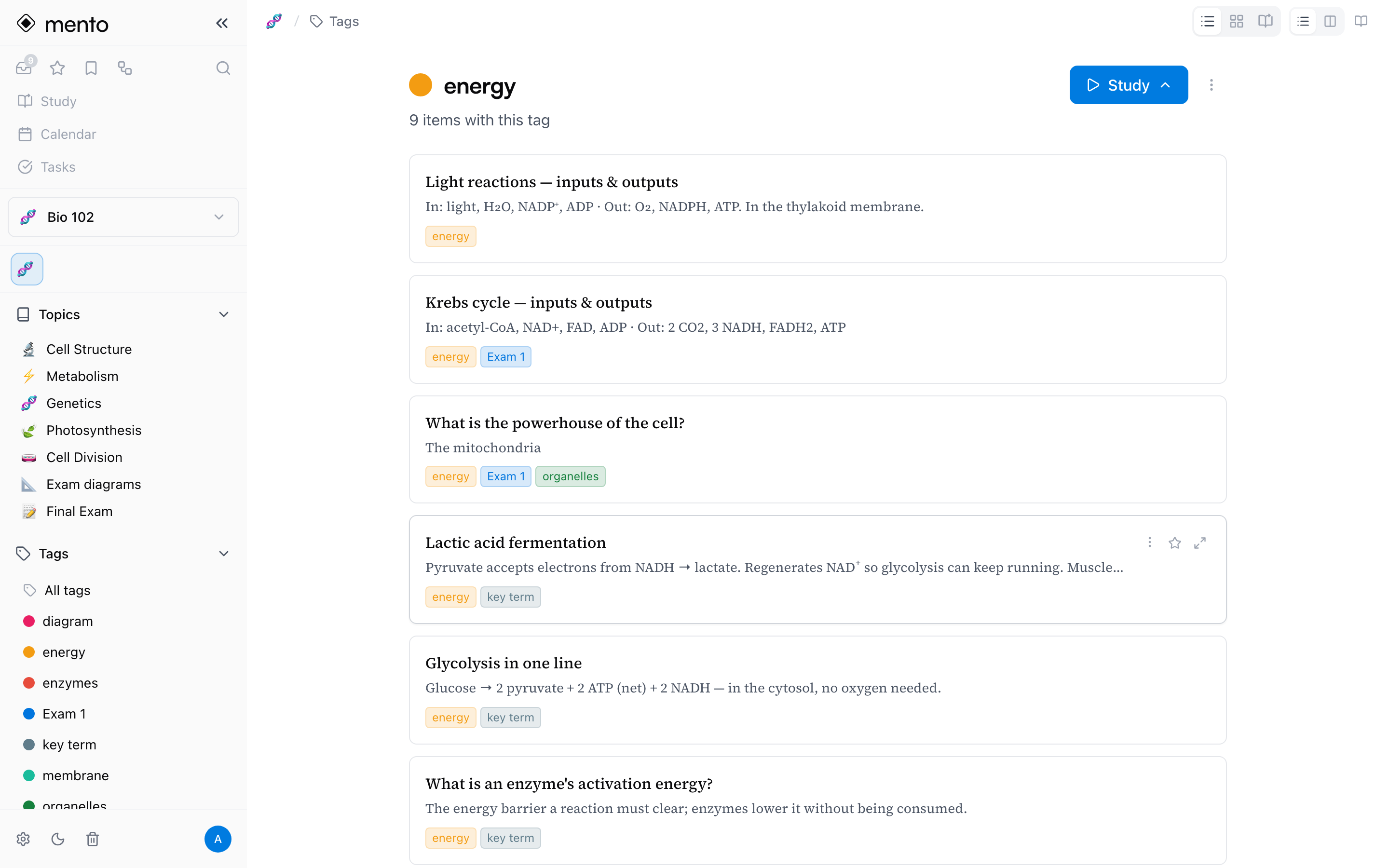
It's also where you manage the tag:

Filter a space by tag
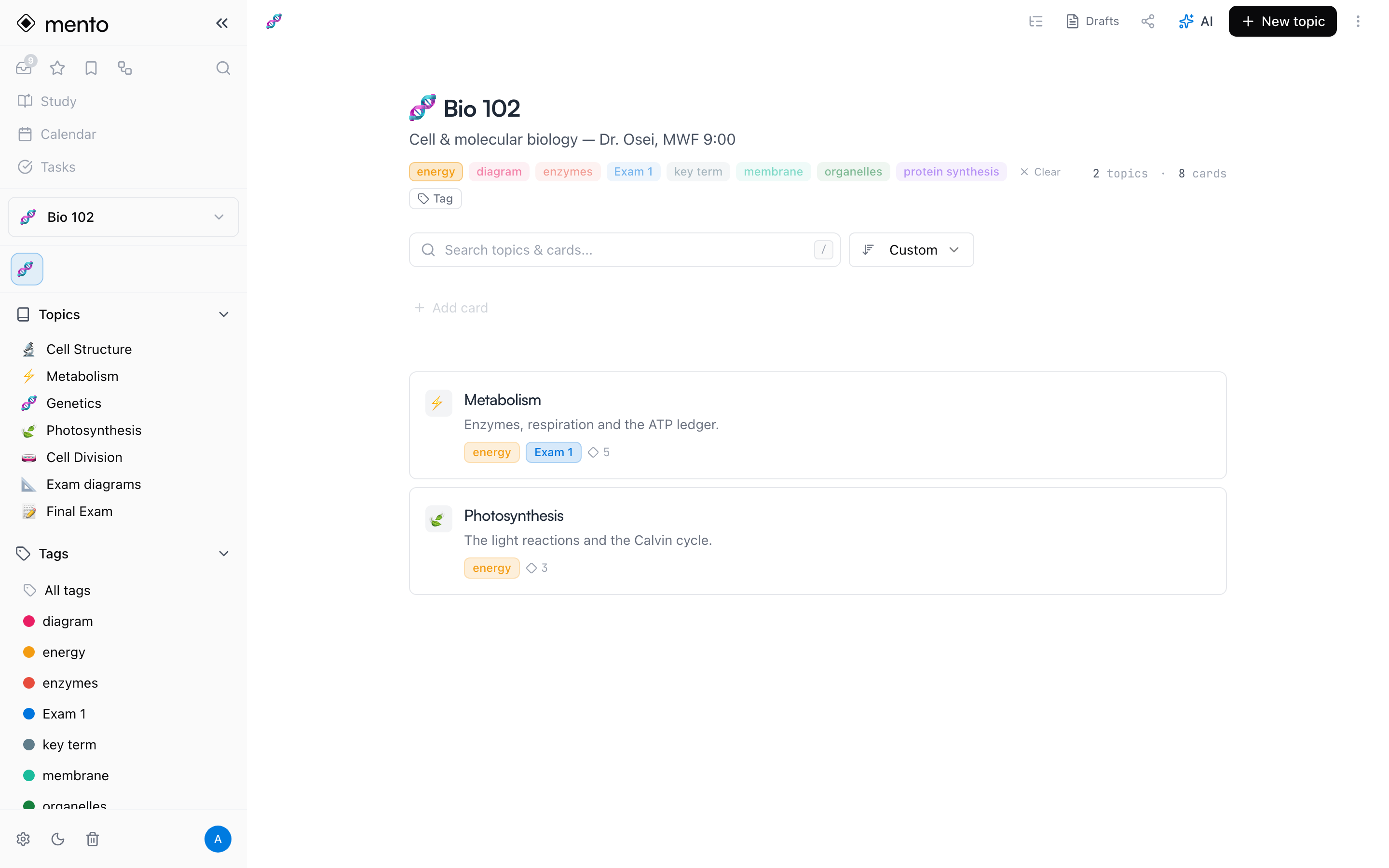
The space page shows the tag vocabulary as chips under the space's name. Click one and the page shows only the topics that carry that tag — this is where topic tagging pays off. Tag your exam topics Exam 1, and one click filters the course down to them; Clear brings everything back.
Tip: A tag's page can also open in the side pane, so you can keep a theme's cards next to whatever you're writing.
Study a tag
This is where tags pay off. The Study button on a tag's page starts a session over every card carrying that tag — pulled from every topic in the space into one queue. Click it and pick a mode, the same menu topics have: Learn for new material, Flashcards, Multiple Choice, Written, and Match for review, or a Test over the tag's cards. It's how you drill one theme the night before it matters: study #enzymes, not four topics that each mention enzymes somewhere.
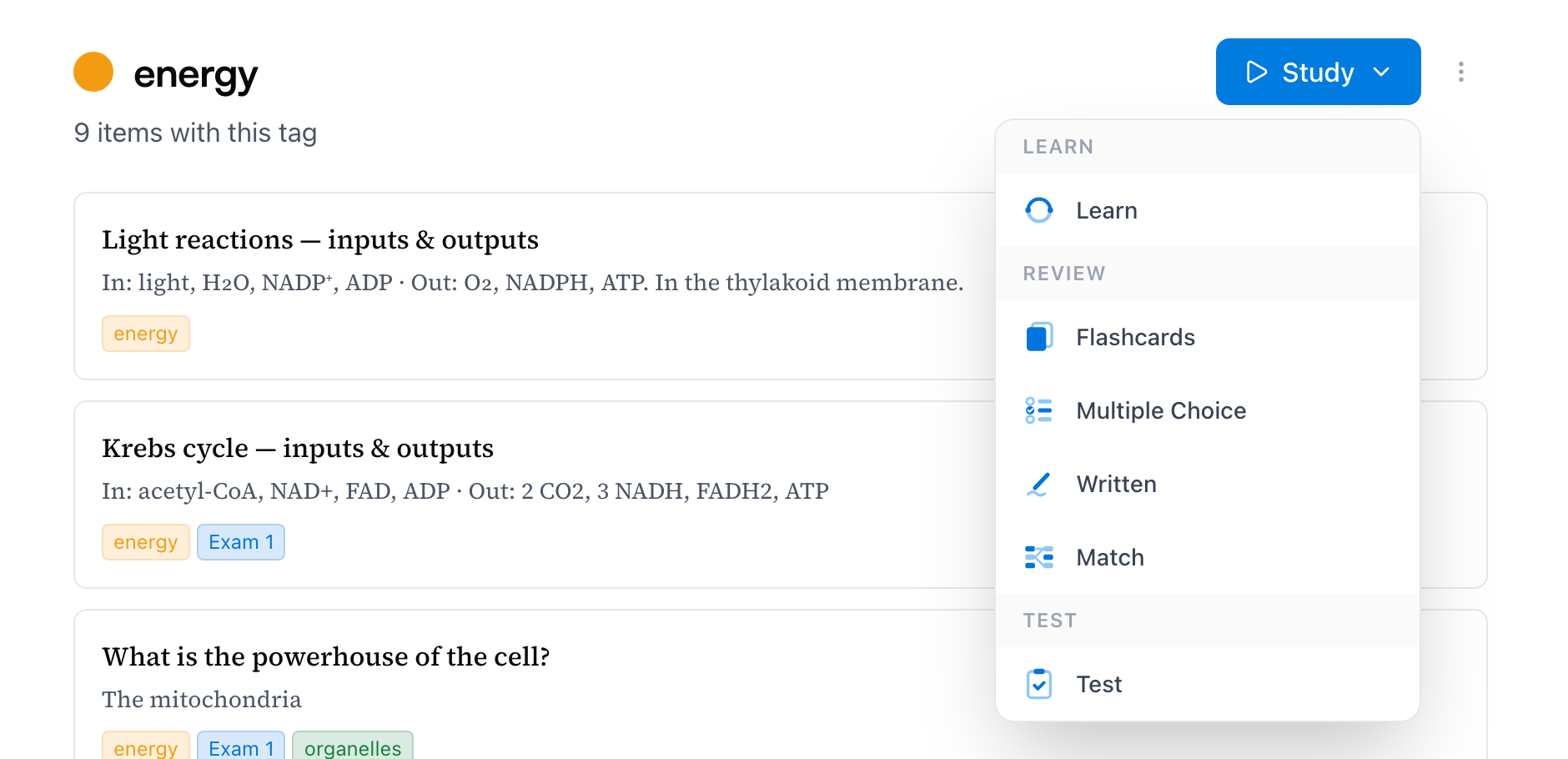
Studying by tag is part of Pro, alongside the other focused-practice tools — on the free plan the button shows a lock and offers the upgrade, while browsing tag pages stays free for everyone. Sessions themselves work like any other; see How to study for modes and grading.
Tags on your phone
The mobile app tags the same ways: type # in a card's notes, or tap the Tags pill on a card to open the tag sheet — search, create, and check tags on or off. Tapping any tag chip opens the tag's page, with the same Study button.
Common questions
Can one tag span two spaces? No — a tag lives in its space. If the same theme runs through two courses, create the tag in both; Mento keeps the color consistent, but each space's tag gathers only that space's notes.
I typed # and got a heading instead of a tag.
That's the space. # plus a space at the start of a line is the heading shortcut; a tag needs the name touching the # — #energy. Delete the heading, type # again, and start the name immediately.
Can I tag things in my Inbox? Not yet — tags need a space, and Inbox items haven't been given one. File the card first, then tag it. (Quick capture's Place option lets you do both in one go.)
What happens if I delete a tag? The tag comes off every card and topic that carried it — the cards and topics themselves are untouched. Deleting a tag never deletes notes.
Do tags affect the regular study schedule? No. Tags are a lens, not a location — a card's reviews are scheduled the same whether it carries ten tags or none.
Up next
Custom snippets
Your favorite AI instructions, saved under a name — run them on a card's idea, answer, or notes with a couple of keystrokes.
Didn't find it?
The FAQ answers the questions we get most, and every way to reach us is on the contact page.