Tasks in Mento
Part of ProWeb & mobile
Updated · September 2026
Studying comes with to-dos: problem sets, readings, "email the professor." In Mento a task is a line inside a note — you write it where the work lives, and it shows up everywhere tasks collect: the Tasks page, the calendar, your daily note. Tasks are part of Pro (see Plans and billing); this guide covers creating them, giving them dates and repeats, working with statuses (including your own), and getting around the Tasks page — its tabs, filters, and saved views.
To-do or task?
Mento has two kinds of checkbox, and the difference matters:
- A square checkbox is a simple to-do. It lives in its note and nowhere else — no dates, no tracking. Square checkboxes are free on every plan.
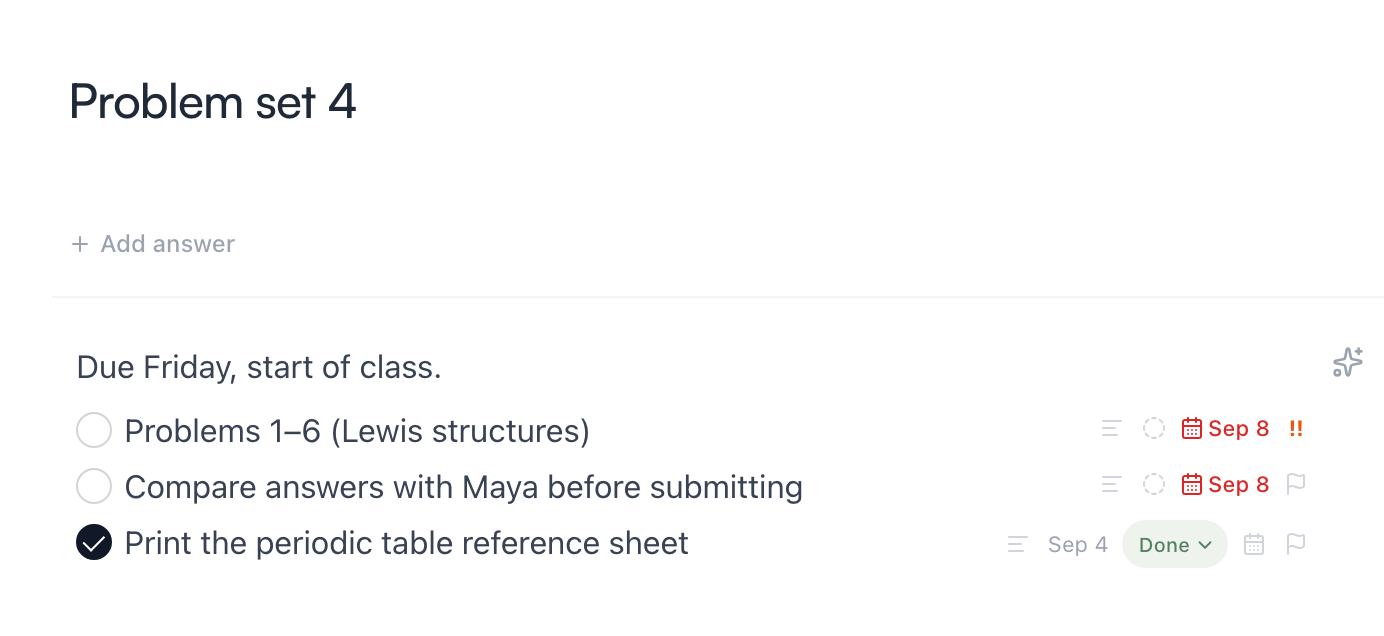
- A round checkbox is a task. Mento tracks it for you: it can carry dates, a priority, and a status, and it appears on the Tasks page and the calendar.
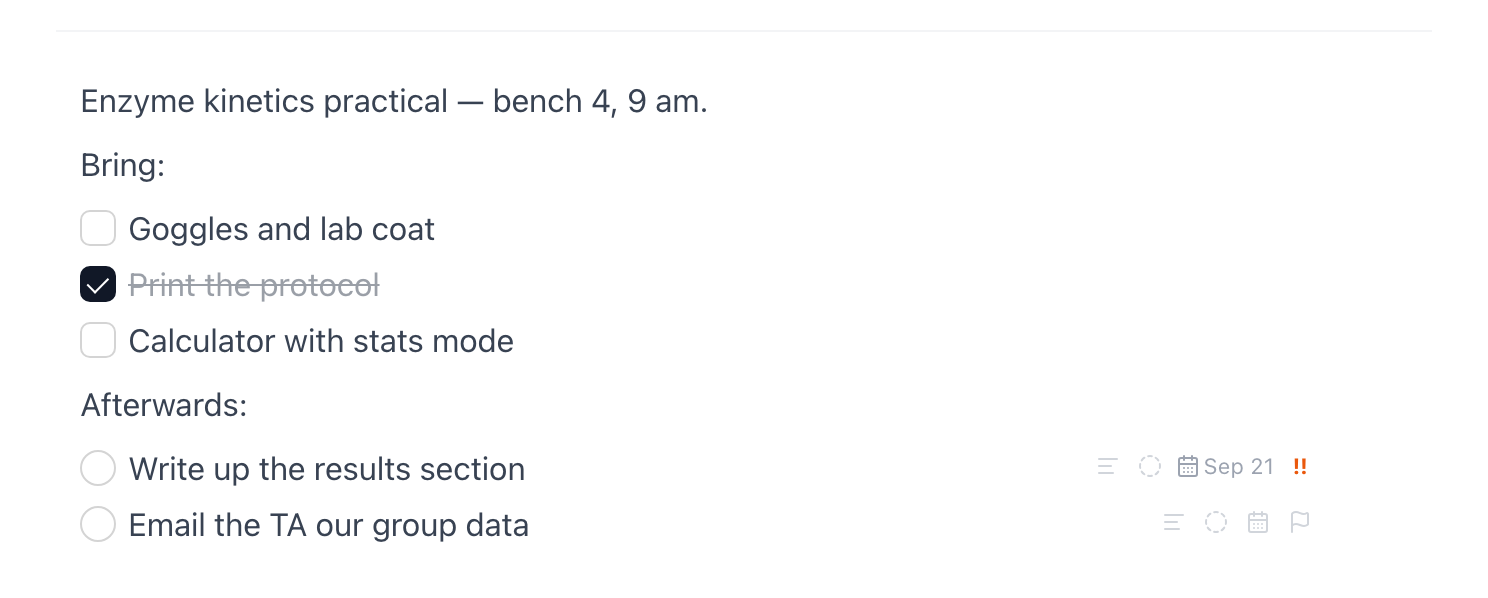
Both kinds can live in the same note, and that's usually right: in a lab-day note, "bring goggles" is a square — it matters only inside that note — while "write up the results" is a round task, because you'll want it back on Monday. A checklist that never needs to chase you can stay square.
They convert both ways. Put your cursor on a square to-do and a Turn into task button appears at the end of the line — one click makes it round (the Turn into option in the block menu works too, in either direction):

Tip: Converting is how a to-do graduates into something Mento chases for you. The moment it's round, it shows up on the Tasks page with everything else — you don't have to remember which note it's in.
Create a task in any note
To create a task, type () at the start of a line in any card's Notes and keep typing. You can also type /task and pick Task from the menu.
The title line understands dates and priority as you type. Write "Read chapter 3 !! friday 5pm" and Mento highlights the words it recognizes; the moment you move to another line, they leave the text and become the task's actual schedule and priority. Press Esc while they're highlighted to keep them as plain text instead.

Each task also has small controls at the end of its line:
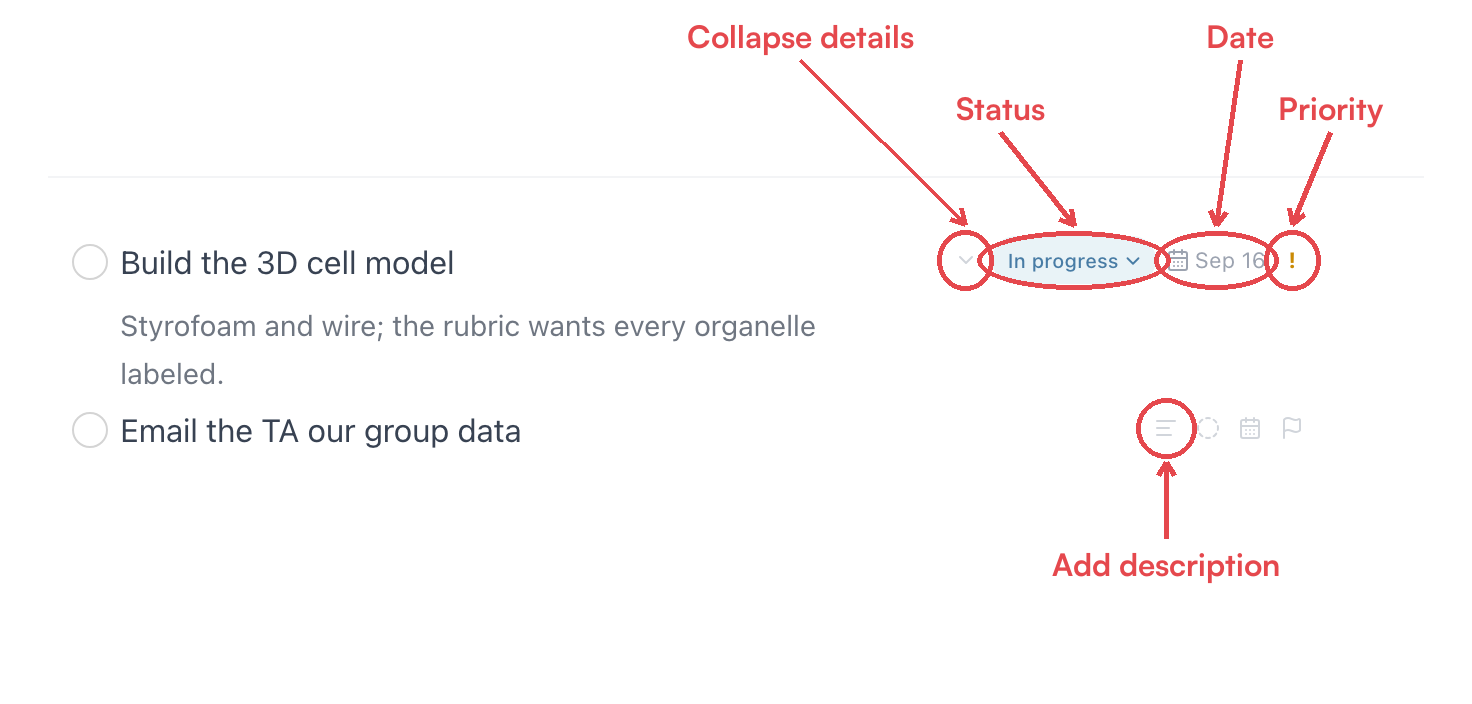
- Status — Open, In progress, Done, or your own labels (there's a whole section on statuses below).
- Date — opens the date panel for scheduling, deadlines, and repeats.
- Priority — from ! to !!!. Priority isn't just a marker: on the Tasks page it floats a task toward the top of its section (deadlines still outrank it).
- Add description / collapse — the first control adds detail lines under the title; once a task has them, it becomes the chevron that folds them away.
Descriptions and sub-tasks
A task title should stay one line; everything else has a place too:
- Description — press Shift+Enter on a task's title (or use the Add description button in its controls) and write the details underneath. Description lines render smaller and dimmer, and a chevron in the task's controls collapses them out of the way.
- Sub-tasks — indent one task under another (press Tab on its line) and it becomes a sub-task with its own dates, status, and priority.
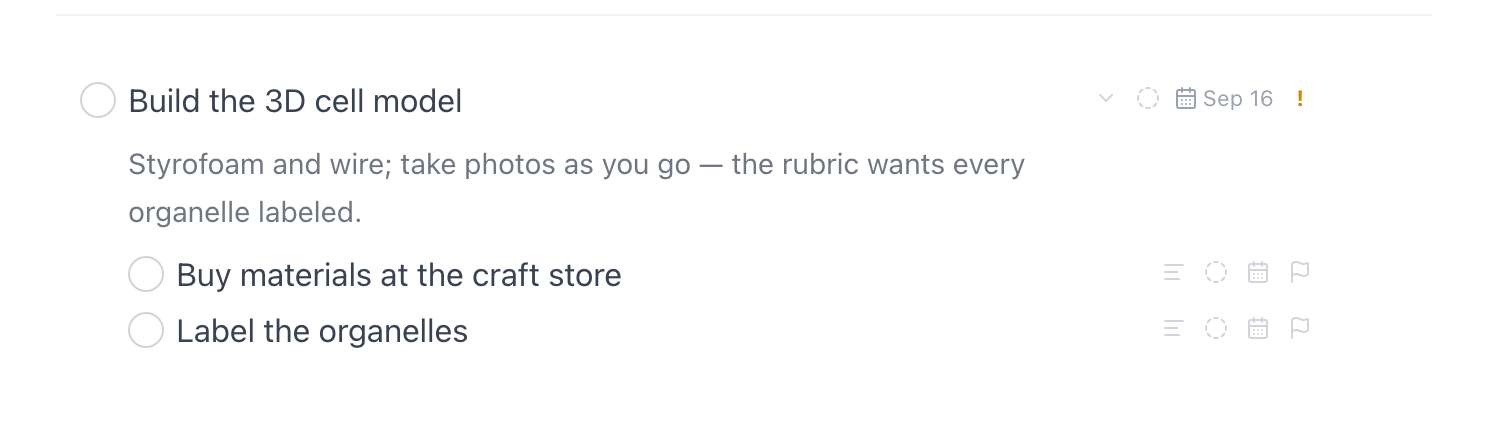
Both carry over to the Tasks page: descriptions show as an excerpt under the title, and sub-tasks stay nested under their parent — the Display menu controls both (more on it below).
Give it a date — and a time
Click a task's date control (or its date chip, once it has one) to open the date panel:
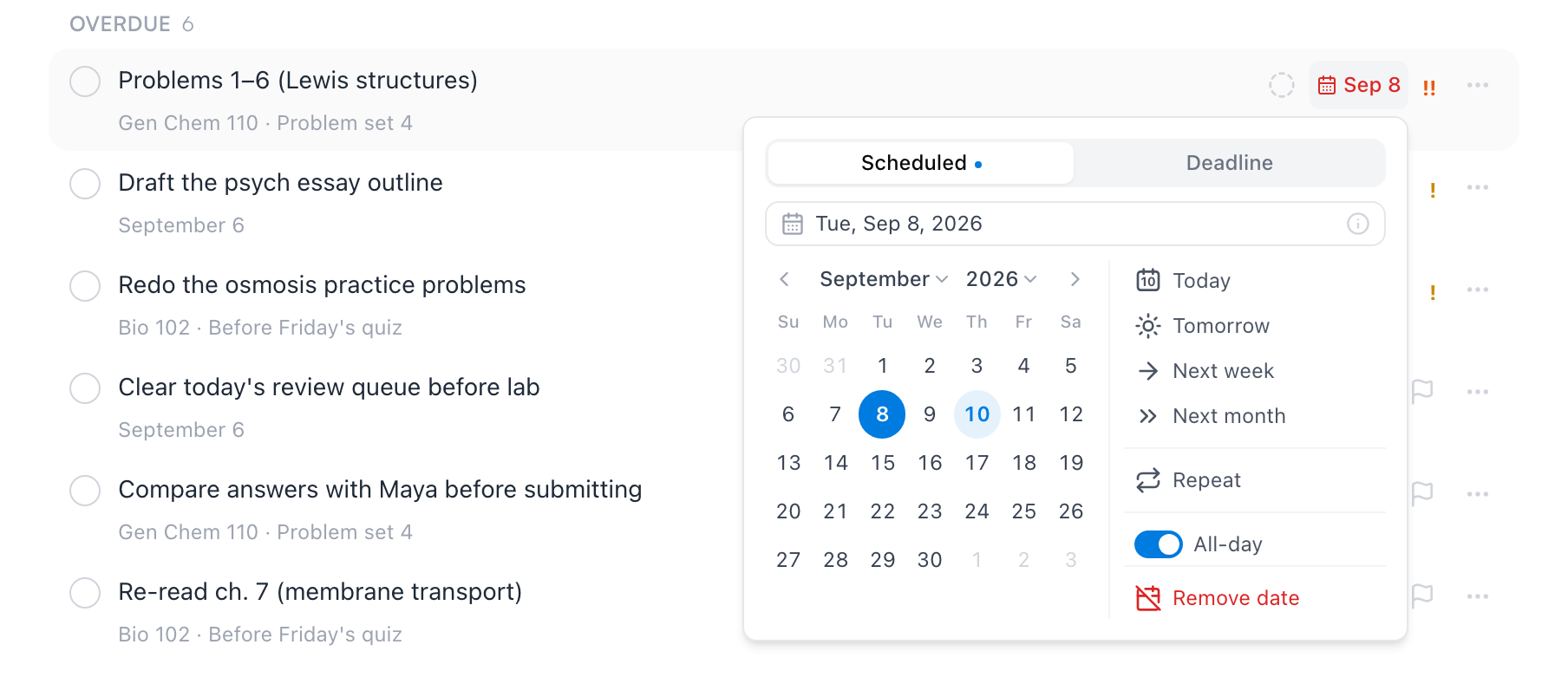
- Scheduled is when you plan to work on it; Deadline is when it's actually due. A task can have both — schedule the essay for Tuesday, deadline Friday.
- Pick a day from the calendar, use the presets (Today, Tomorrow, Next week, Next month), or just type into the field at the top — it understands "next Friday 3pm".
- Turn off All-day and a time field appears.
Note: The time is the reminder — there's no separate reminder to set. If you have the Mento app on your phone, it sends a notification at that time on the scheduled day. A task with only a date stays quiet.
Remove date clears everything, including any repeat.
Make it repeat
The same panel has a Repeat row. The presets read relative to the scheduled date — Daily, Weekly on Wednesday, Every weekday, Monthly on day 15, Yearly on the date — and Custom… handles the rest: every N days, weeks, months, or years, an optional end date, and whether the rhythm follows the scheduled date or the day you actually completed it.
A repeating task is one task that rolls forward. Check it off and it moves to its next date instead of disappearing — a toast confirms where it went ("Done — next Sep 16") — while the round you finished is recorded in Completed. Skip occurrence jumps ahead without marking anything done. Repeats need a scheduled date, so removing the date removes the rule too.
Statuses — and your own
The circle knows two states: open and done. Statuses add the shades in between. Every task has one, from a vocabulary that starts with five labels in four groups:
- Not started — Open (the default) and Next up, for the task you've decided comes next.
- In progress — In progress.
- Someday — Someday, for the task you mean to do eventually but not now. It leaves every list and waits on the Someday tab.
- Done — Done.
Click the status control at the end of a task's line — in a note or on the Tasks page — to change it:
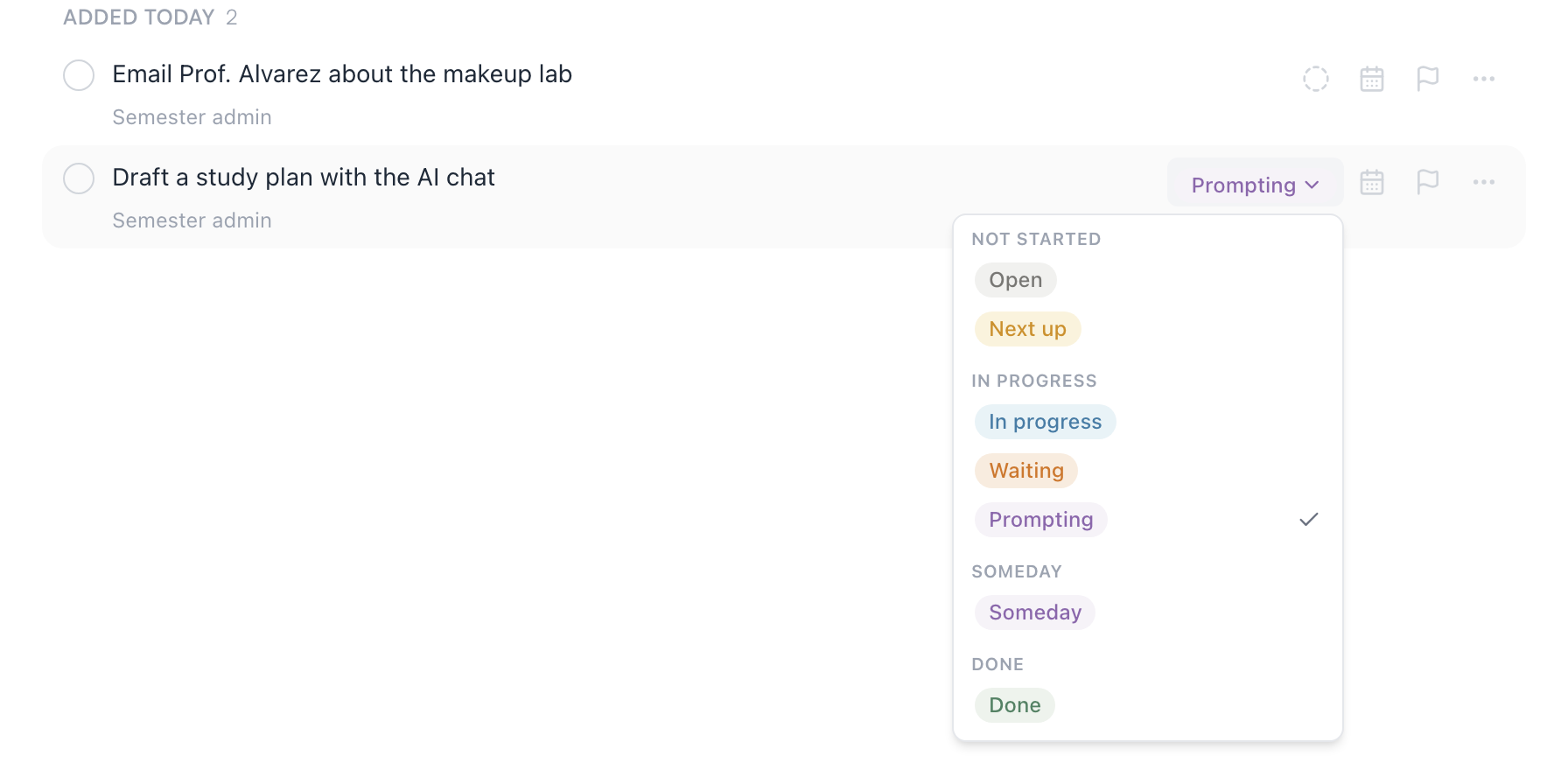
The circle and the status stay in sync: checking the circle sets the status to Done, and picking any status from the Done group checks the circle.
Make the labels yours
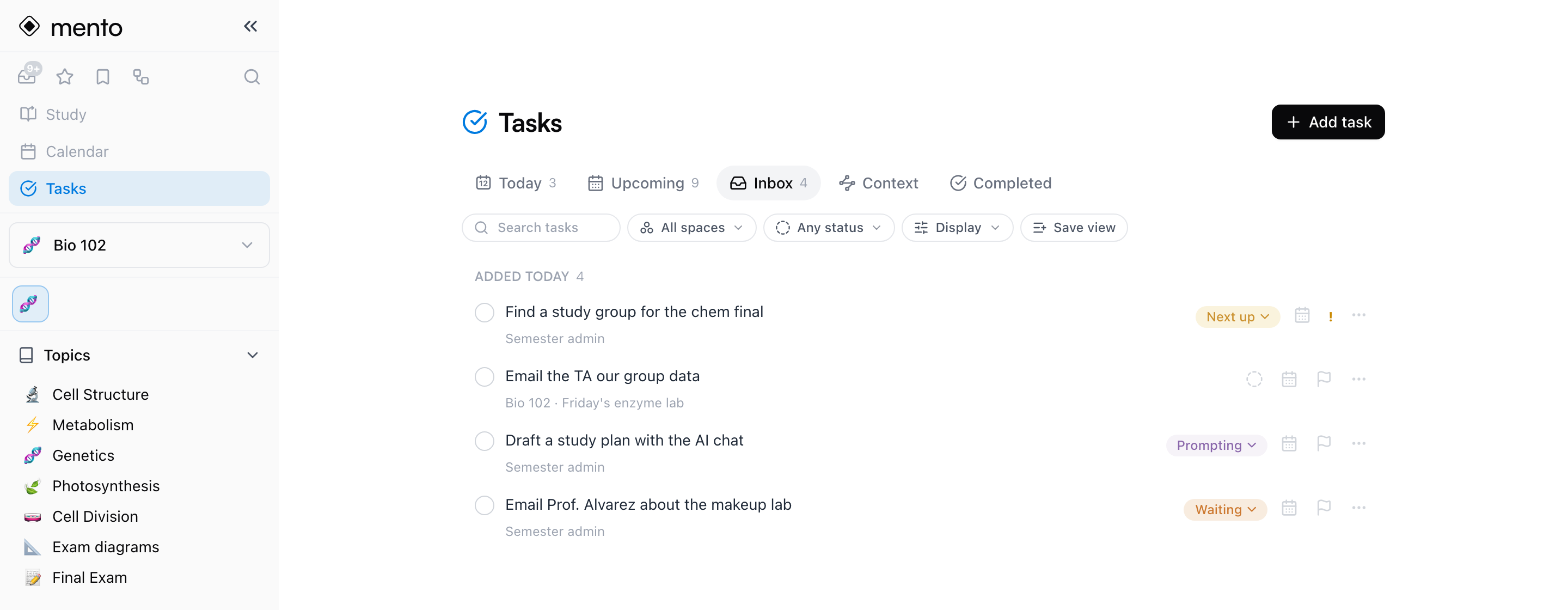
The default five are just a starting point. Under Settings → Task statuses you can rename any label, change its color, drag to reorder, and create your own in whichever group fits — a Waiting on label in the Someday group, say, parks a task exactly like Someday does:
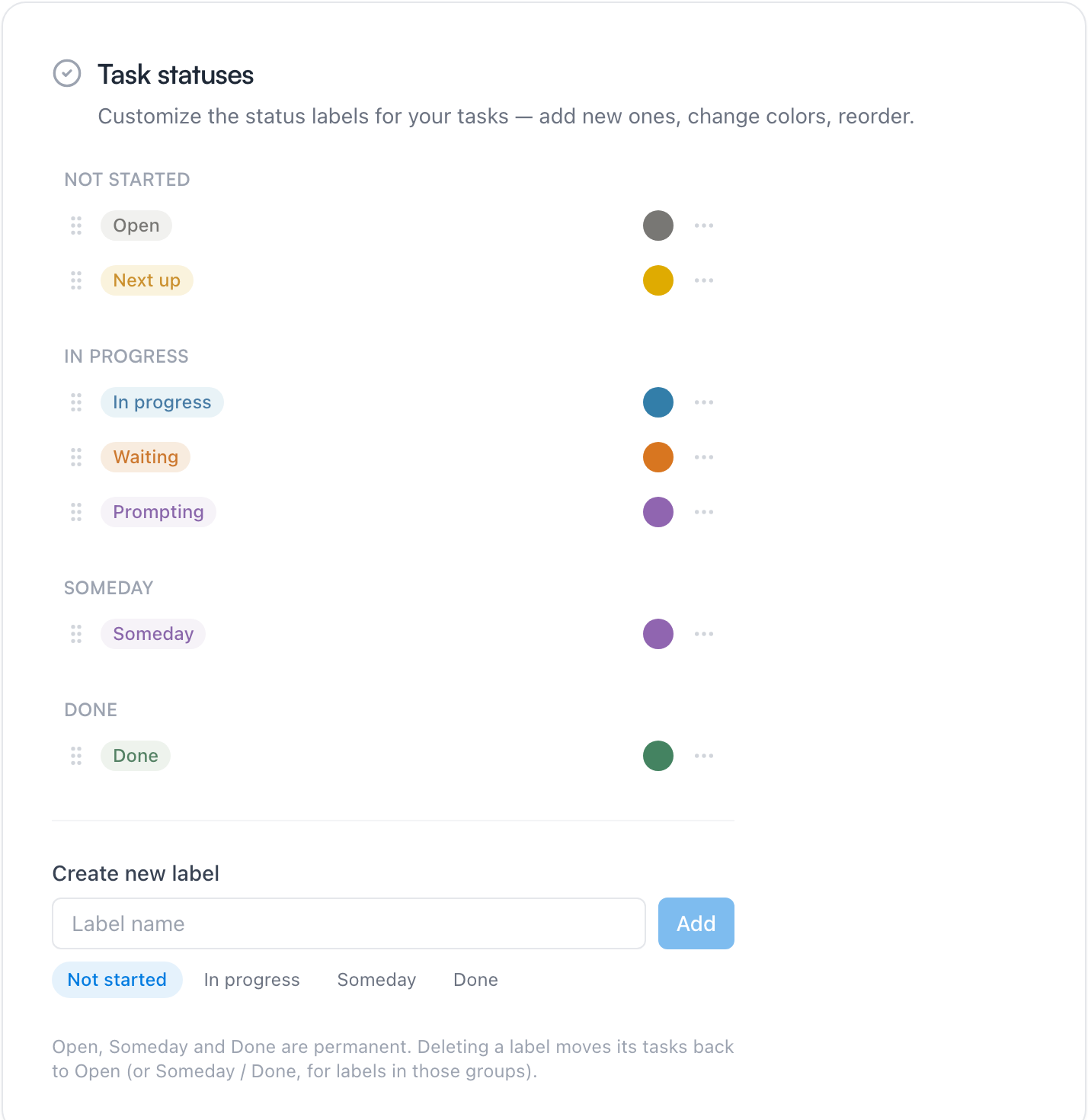
The group matters more than the name: anything in the Done group counts as finished everywhere (the circle, the Completed tab, the calendar), and everything else counts as still open. A few labels people actually use:
- Waiting — you did your part; now it's on someone else's reply.
- Prompting — you're mid-conversation with an AI chat about it and need to come back to finish.
- In review — the draft exists; what's left is checking it over.
- Someday — real, but not this week.
A label you stop using can be hidden from pickers without touching the tasks that still carry it, or deleted outright — its tasks fall back to Open (or Done, for labels in the Done group). Open and Done themselves are permanent; they're what the checkbox toggles between.
The Tasks page, tab by tab
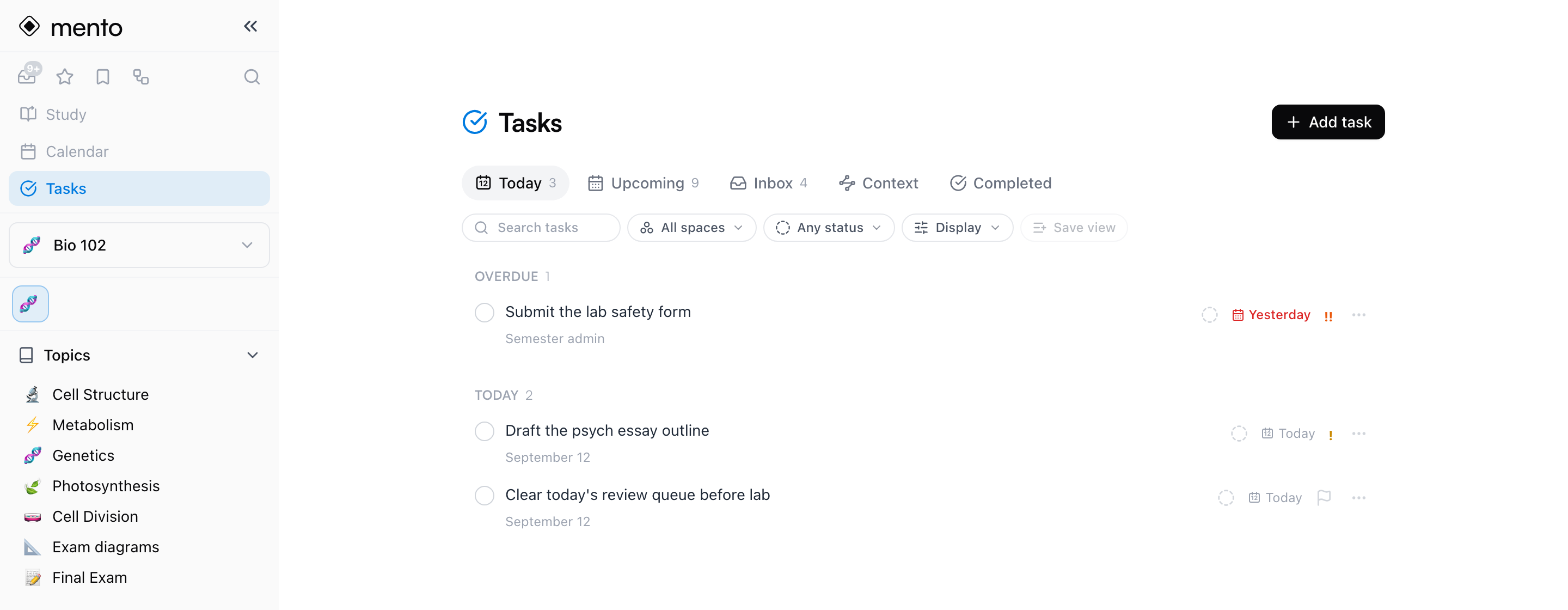
Click Tasks in the sidebar and every task from every note is in one place, organized into six tabs. The Add task button at the top opens a quick composer: it understands the same "Read chapter 3 !! friday 5pm" language, stays open so you can enter several in a row, and — since every task lives in a note — writes each one into today's daily note. The tab you're on fills in the default: Today schedules it for today, Upcoming for tomorrow, Inbox or Context leave it undated, and Someday parks it; a date you type in the line always wins.
Today
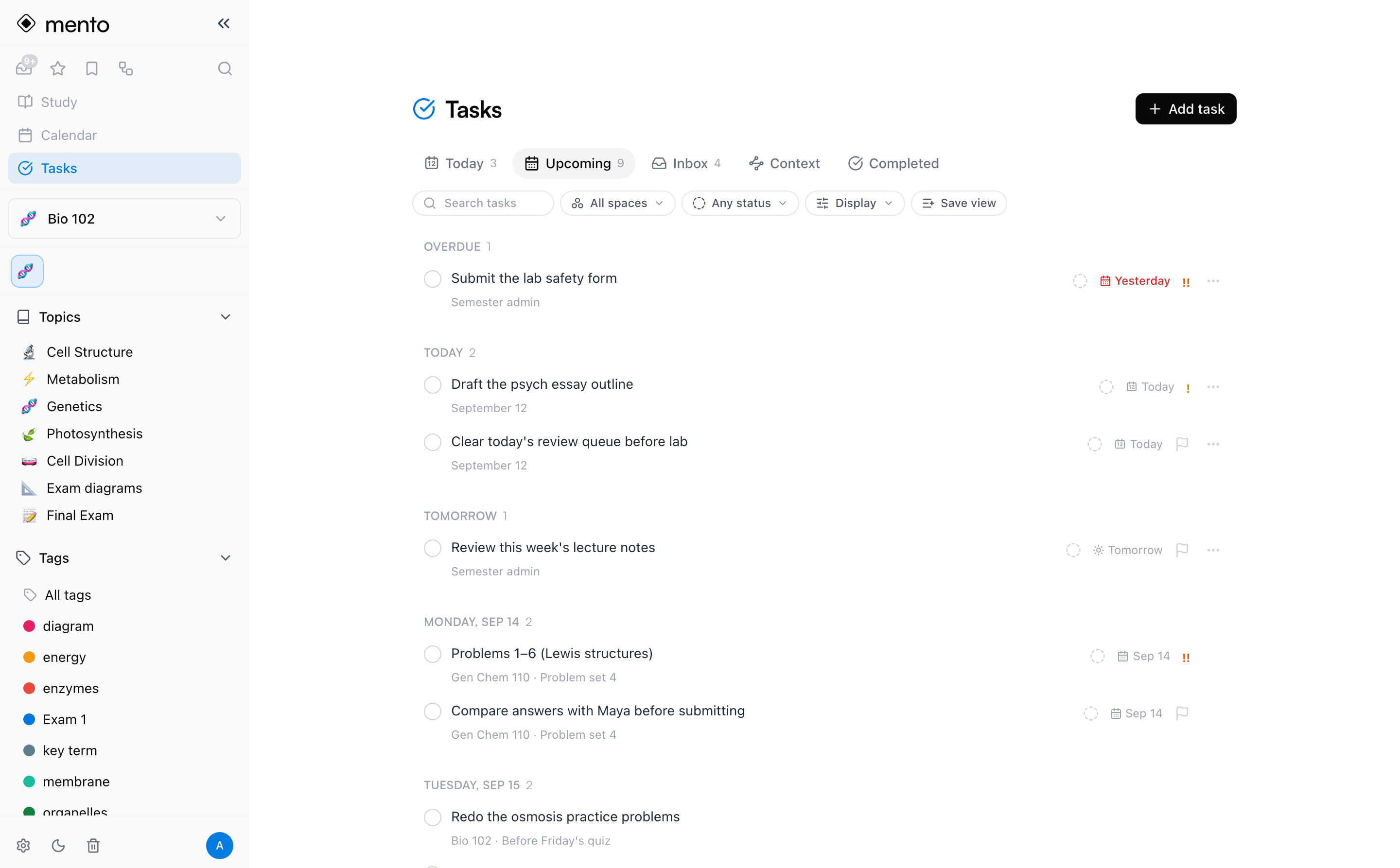
What's due today — with overdue tasks pinned on top in red until you complete or reschedule them. Tasks are commitments; Mento doesn't quietly drop them.
Upcoming
Everything with a date, day by day — today and overdue first, then tomorrow, then the days after. You can drag a task onto another day's section to reschedule it.
Inbox
Tasks with no date yet, grouped by when you added them, with higher-priority ones floating up. This is the triage pile: give a task a date and it moves to Today or Upcoming.
Context
The same open tasks, grouped by the note they live in — most recently active note first. The group header takes you to the note.
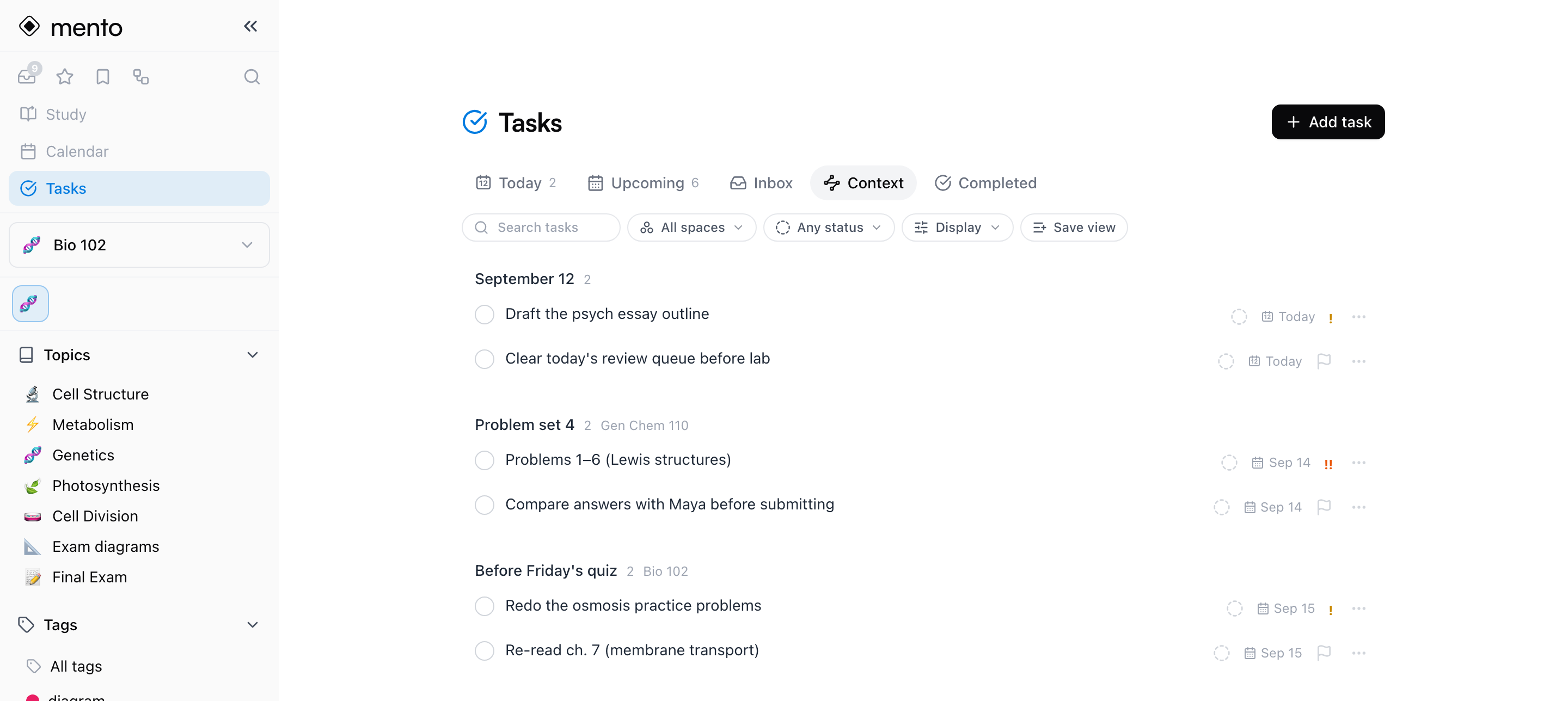
Tip: This is the tab for working note by note. Instead of keeping ten notes open in ten tabs to see what each one still needs, Context shows every note's open tasks in one scroll.
Someday
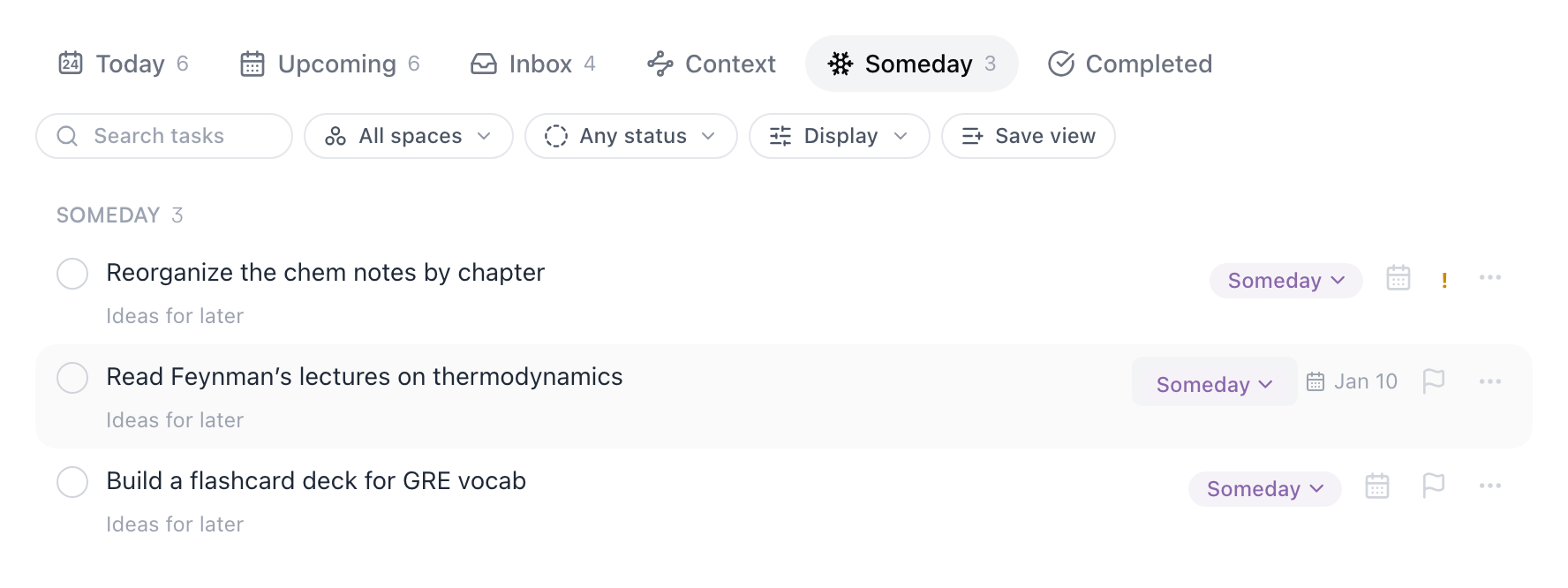
The parking lot. Give a task the Someday status and it disappears from Today, Upcoming, Inbox, Context, and the calendar — it isn't overdue, it isn't nagging, it's just here, waiting. Come back when you're ready and set it to Open, or check it off directly.
A date turns Someday into a snooze: a Someday task with a scheduled or deadline date stays hidden until that day, then shows up in Today like any other task (and stays listed here too). "Not for months, but remind me in January" is one status and one date.
Completed
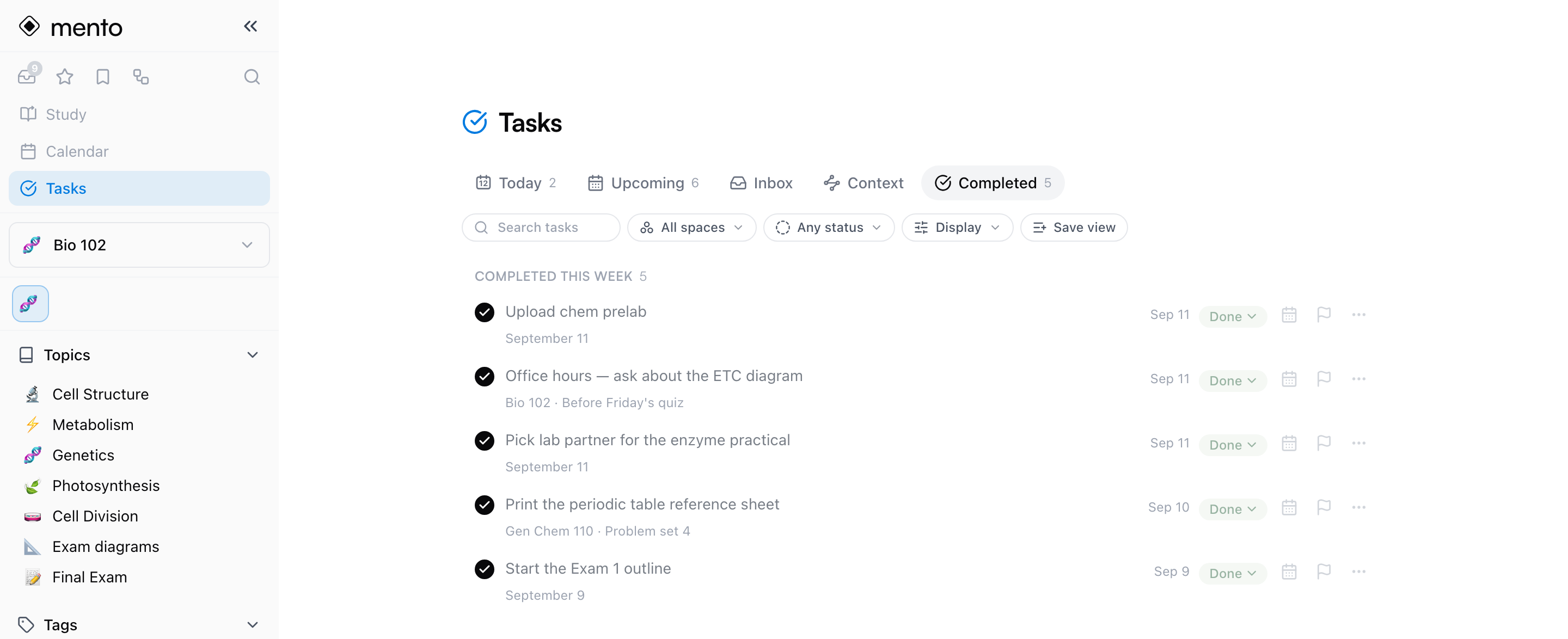
Everything you've finished, grouped by when you finished it. Your history stays here; nothing is purged.
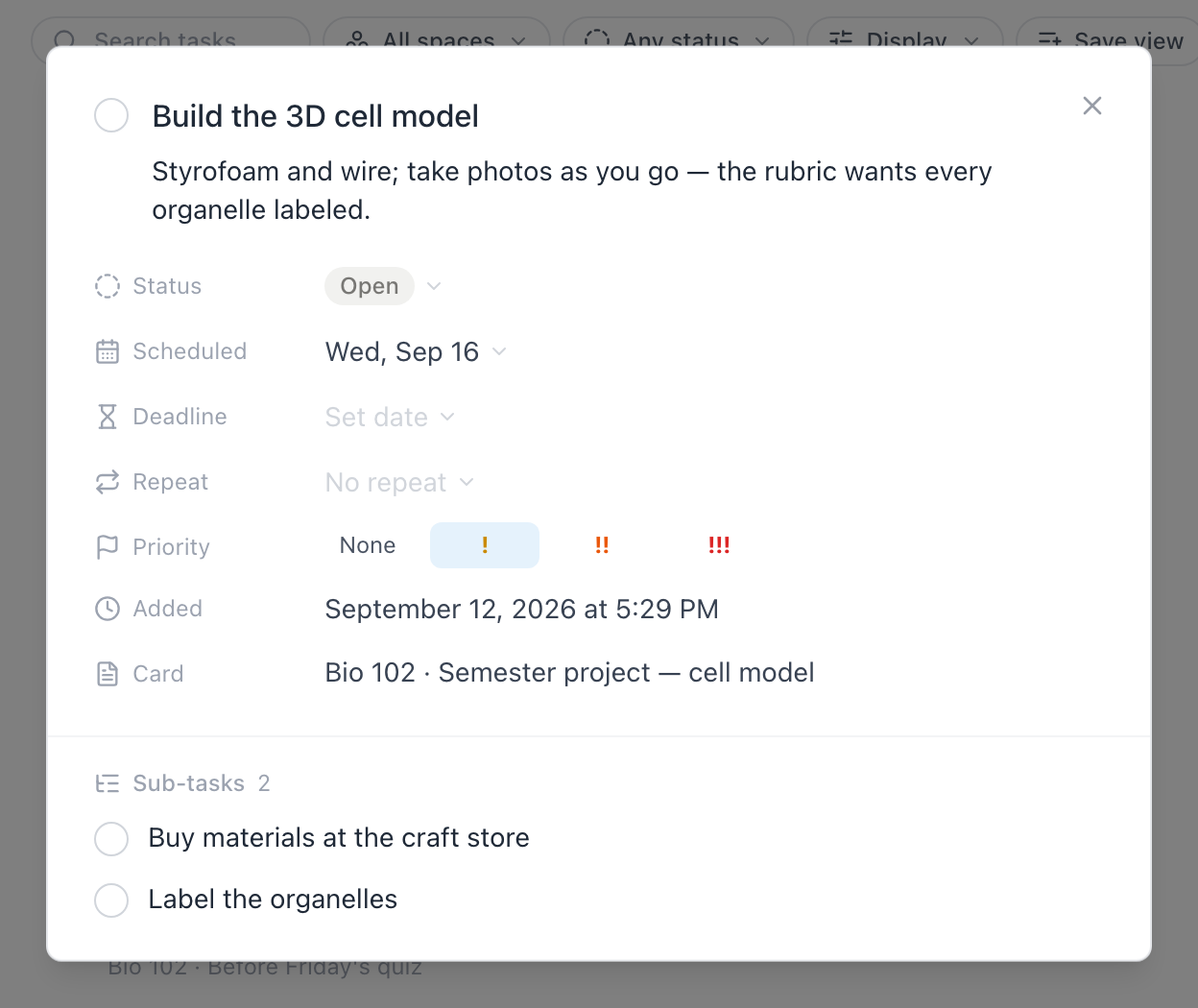
Task details
Click any row's title and the task opens in a detail view: status, both dates, repeat, priority, when it was added and completed, its tags, the note it lives in, the description, and its sub-tasks — everything in one place. The description is read-only here; writing happens in the note.
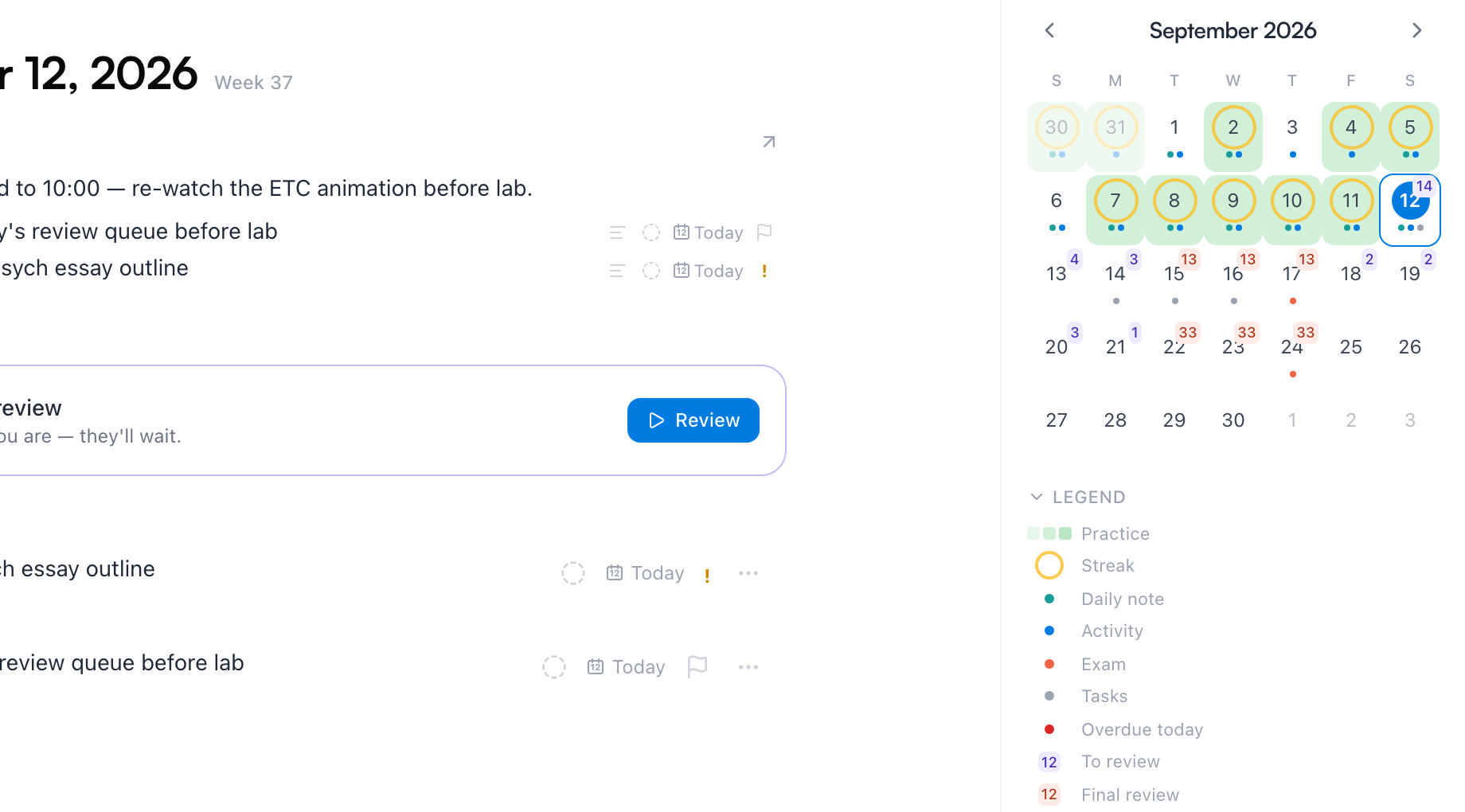
Tasks also show up on the Calendar: a day's view lists its tasks (with its own Add task), the daily note's checkboxes are right there too, and the mini-month marks days that have tasks — with overdue days in red. Past days show what you got done. There's more in Daily note and calendar.
Filters, display, and saved views
The row under the tabs shapes what every tab shows.
Filters
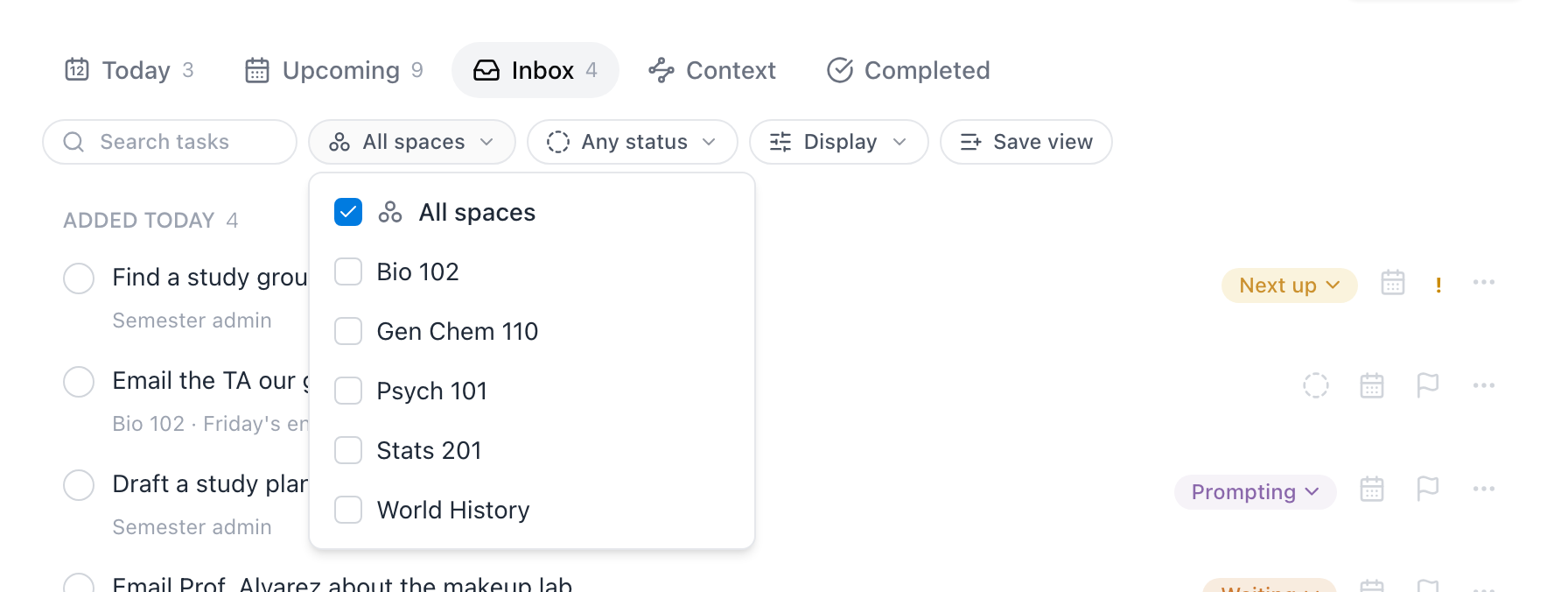
- Space — narrow the list to one or more spaces, e.g. just this semester's chem course.
- Status — show only one status; each tab offers the statuses that make sense there (open ones on open tabs, Someday ones on Someday, done ones on Completed).
- Tag — filter by the source note's tags; the pill appears once your noted-up cards actually have tags.
- Search — matches titles and descriptions as you type, ignoring accents ("sabado" finds "sábado").
Filters apply across tabs and live in the URL, so reload and back keep them. Clear filters puts everything back.
Display
The Display menu controls what a task row shows — descriptions, the note it comes from, the space, and whether sub-tasks stay nested under their parent or flatten into one list:
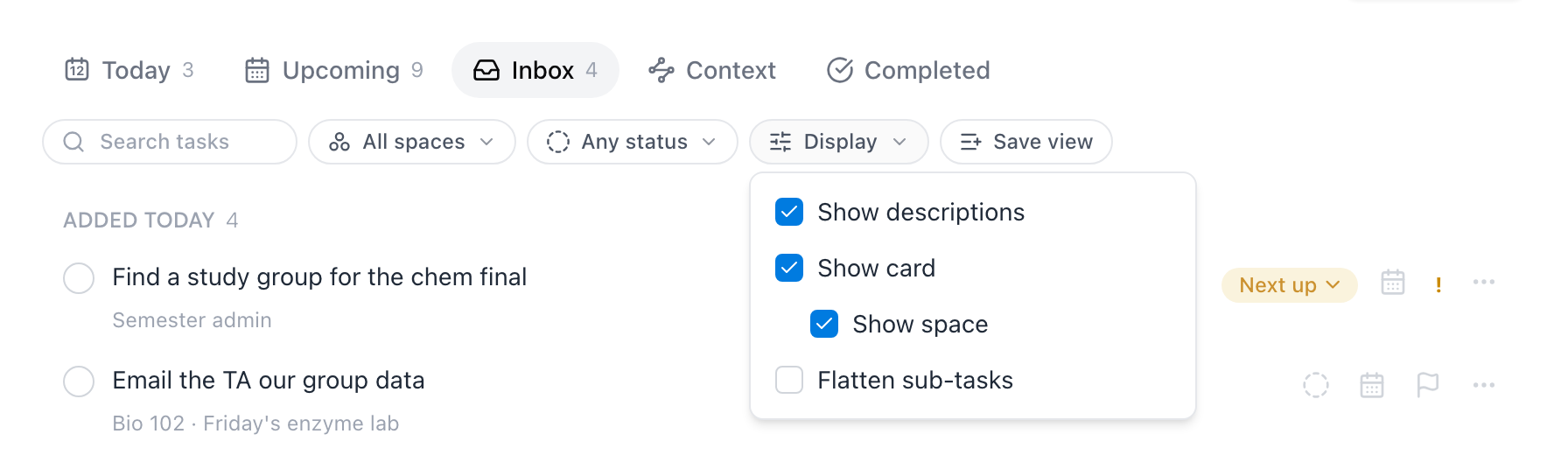
These are remembered on this device.
Saved views
When you keep coming back to the same setup — say, Upcoming filtered to Gen Chem — press Save view and name it. It appears as a chip above the tabs; one click re-applies the tab, the filters, and the Display setup together:

A view's ⋯ menu lets you rename it, update it to the current filters, reorder it, or delete it (deleting a view never touches the tasks). You can keep up to 10.
Edit many at once
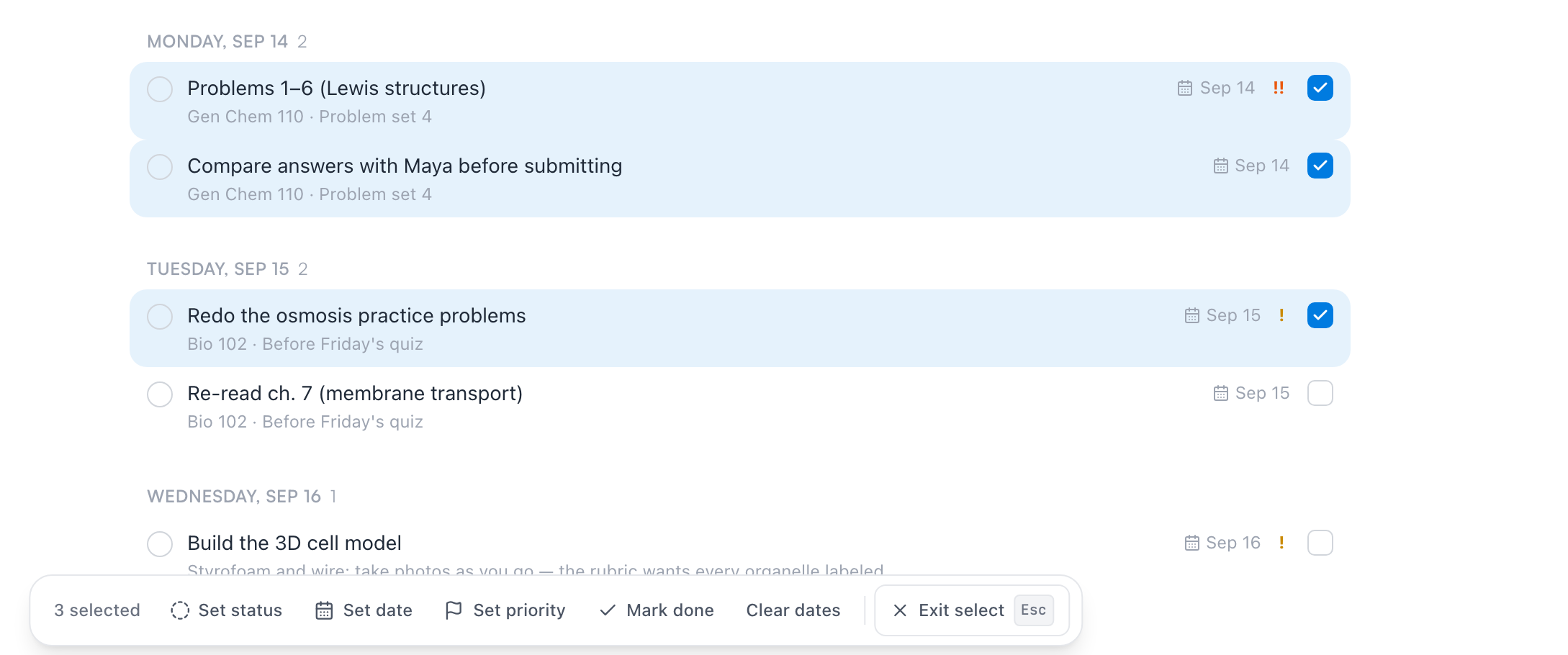
End of the week, five tasks to push to Monday? Pick Select multiple from any row's ⋯ menu — or just ⌘-click (Ctrl-click) a row. Click to select more, Shift-click to grab a range, and a bar appears with the bulk actions: Set status, Set date, Set priority, Mark done, and Clear dates. Esc exits select mode.
Check it off
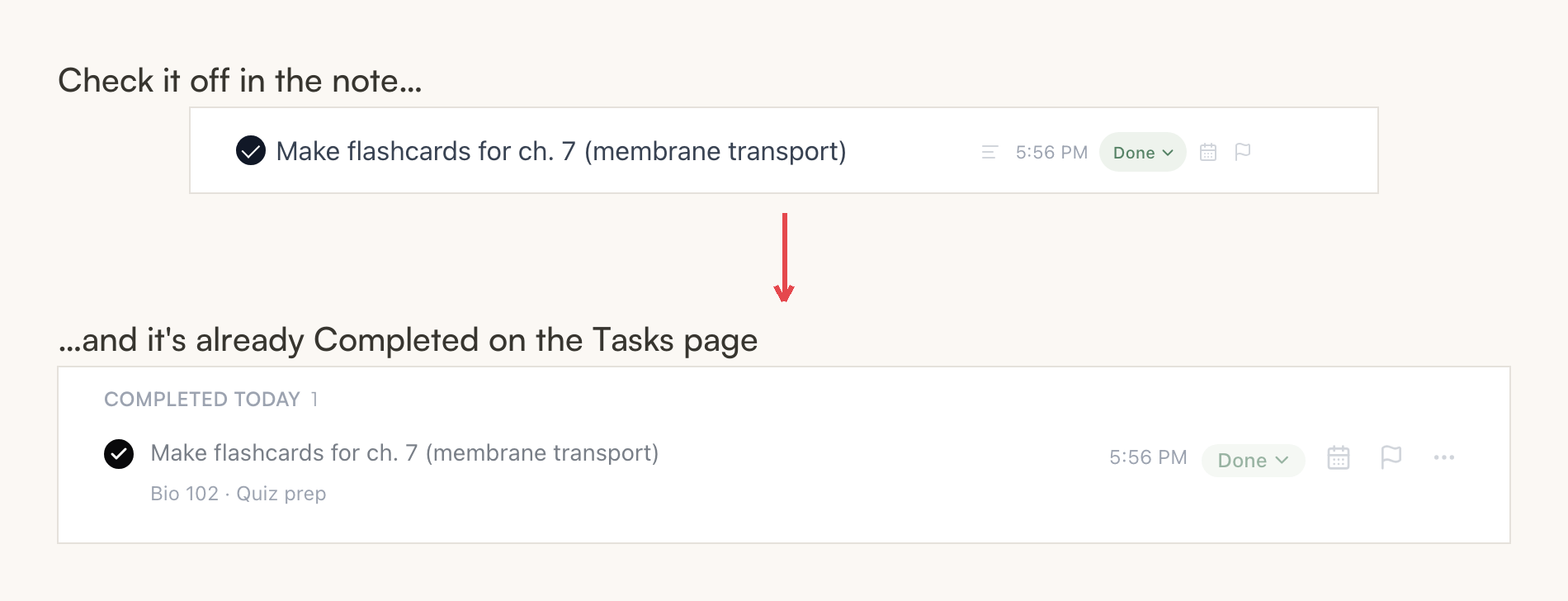
Click the circle anywhere — in the note, on the Tasks page, on the calendar — and every other surface updates. The status flips to Done with a timestamp, and the task moves to the Completed tab. Unchecking reopens a task if you got ahead of yourself.
If a task shouldn't exist at all, its row menu has Delete task — that removes the line from the note it lives in, so Mento asks first and tells you which note.
Tasks on your phone
The same tasks travel with you: on your phone they live in the Agenda tab, which toggles between your day and the Tasks view. You get the same five views and the same filters; tap any task to change its status, dates, priority, or repeat.
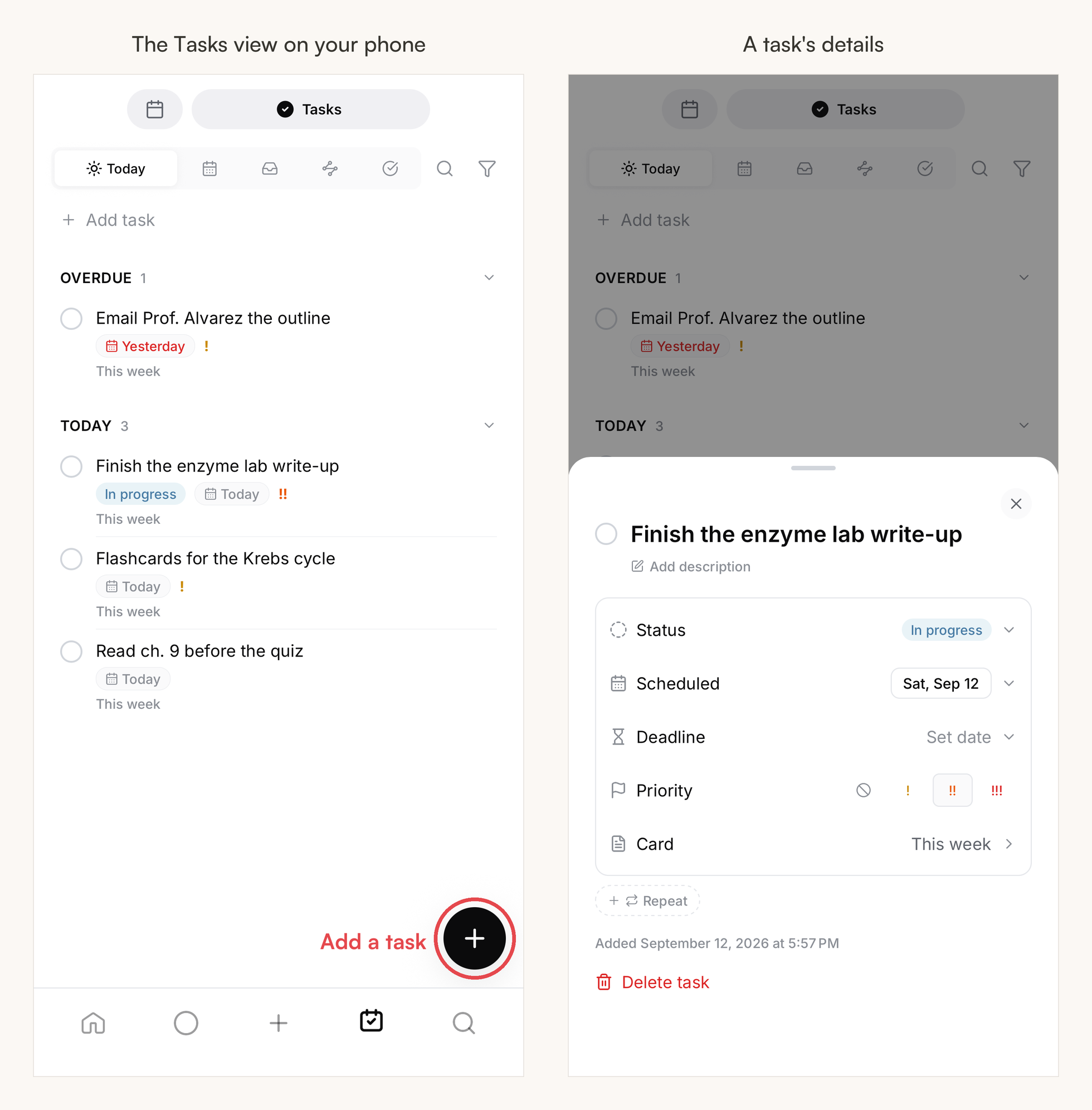
The round + button in the corner of the Tasks view is the quickest way to add a task — it opens a small sheet with the title field and chips for the date, deadline, priority, and status:
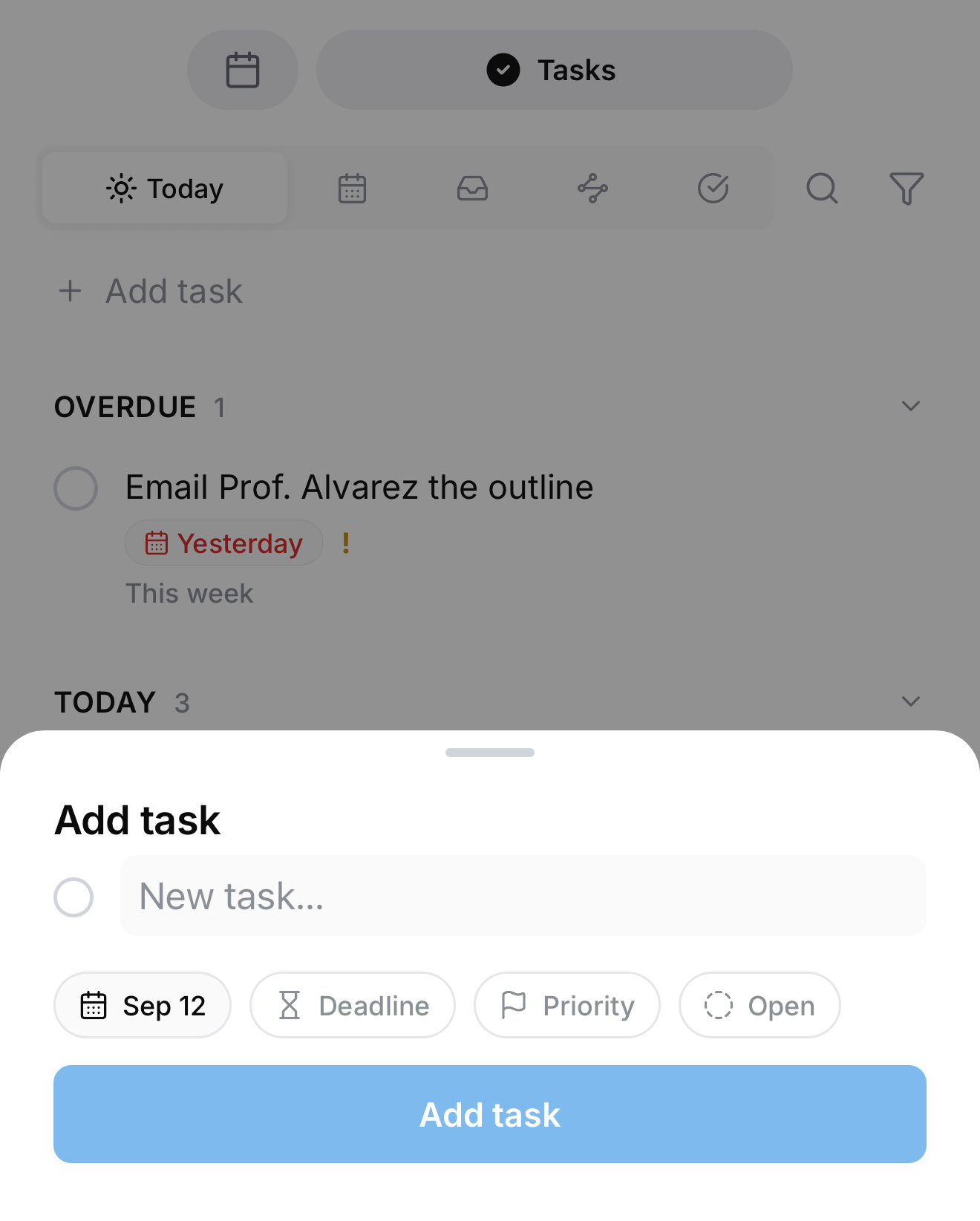
Tip: You don't have to be on the Agenda tab. From anywhere in the app, press and hold the center + in the bottom bar (a quick tap captures a note; holding it adds a task — you'll feel a firmer haptic bump when the task sheet is the one coming) or long-press the Agenda tab icon. Like everywhere else, quick-added tasks land in today's daily note.
Overdue tasks are pinned in red here too, and a task scheduled at a time sends its reminder as a push notification on the phone.
Common questions
What happens to my tasks if I leave Pro? They stay in your notes as simple checkboxes. Nothing is deleted, and checking them still works — they just stop being tracked on the Tasks page and calendar.
Do overdue tasks disappear? No. They stay pinned at the top of Today in red until you complete them or give them a new date.
Do square to-dos show up on the Tasks page? No — that's the point of the two kinds. A square checkbox is furniture for its note; a round task is something Mento manages for you. Convert a square with Turn into task whenever one grows up.
Do I have to use statuses? No. The circle alone — open or done — is a complete system. Statuses are there when "open" starts hiding useful differences, like waiting-on-someone versus actually-in-progress.
Up next
The daily note & calendar
Every day gets a page, and the calendar shows your days, exams, and tasks in one place.
Didn't find it?
The FAQ answers the questions we get most, and every way to reach us is on the contact page.