Find anything with search
FreeWeb & mobile
Updated · September 2026
The more you capture, the less you should have to remember where anything went. That's what search is for: one box that looks across everything you've written, wherever it lives. This page covers how to open it, what it does and doesn't look through, and the smaller searches that live inside individual features.
Open it from anywhere
Press ⌘P (on Windows, Ctrl+P) or click the magnifying glass in the left sidebar. On the mobile app, search is the Search tab at the bottom of the screen.
Note: ⌘P is search; ⌘K is quick capture. They're a pair — one shortcut to put things in, one to get them back out.
Before you type anything, the window is already useful: it shows your recently edited cards, a few topics and tags from the current space, and your other spaces — so it doubles as a "jump back to what I was doing" menu.
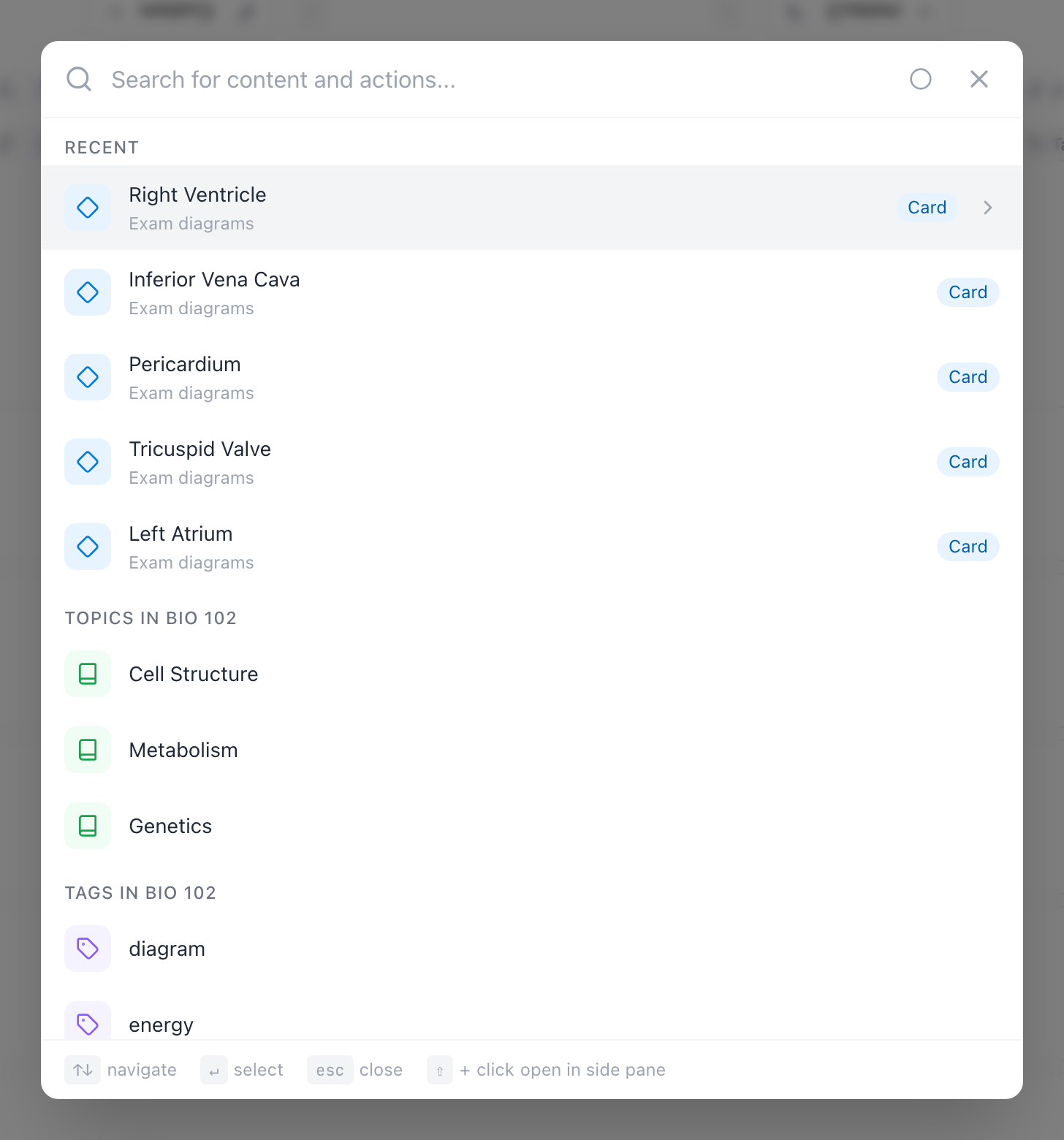
What it looks through
One query covers everything you've made:
- Spaces, stacks, topics, and sections — by title and description.
- Tags — by name.
- Cards — the idea, the answer, and the Notes text.
That last one matters more than it sounds. Because voice notes and class recordings put their transcripts into the card's notes, search finds things the professor said that you never typed yourself. Daily notes turn up by their date, since the date is their title.
Matching is forgiving: case doesn't matter, and part of a word is enough — mito finds mitochondria.
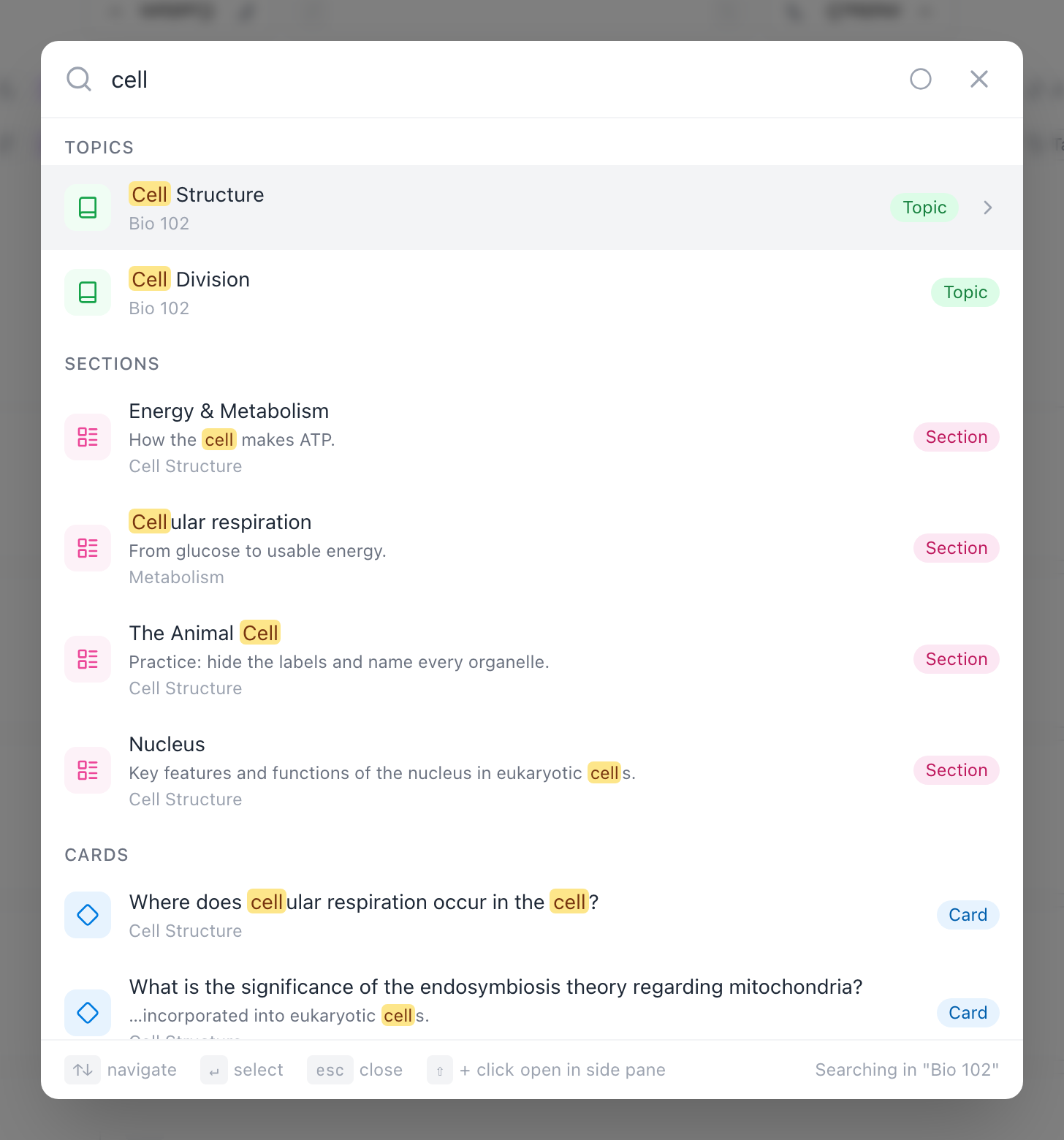
Every result row carries its kind's mark — the book for a topic, the list for a section, the diamond for a card — the same marks the hierarchy uses everywhere, so you can tell what kind of thing matched before you open it.
One space, or all of them
Search starts scoped to the space you're in — the footer of the window says so: Searching in "Bio 102". The icon at the top right of the search box is the switch, and it tells you the scope at a glance: the single circle means this space, the three-circle cluster means everywhere. Hover it and pick the current space or All Spaces:
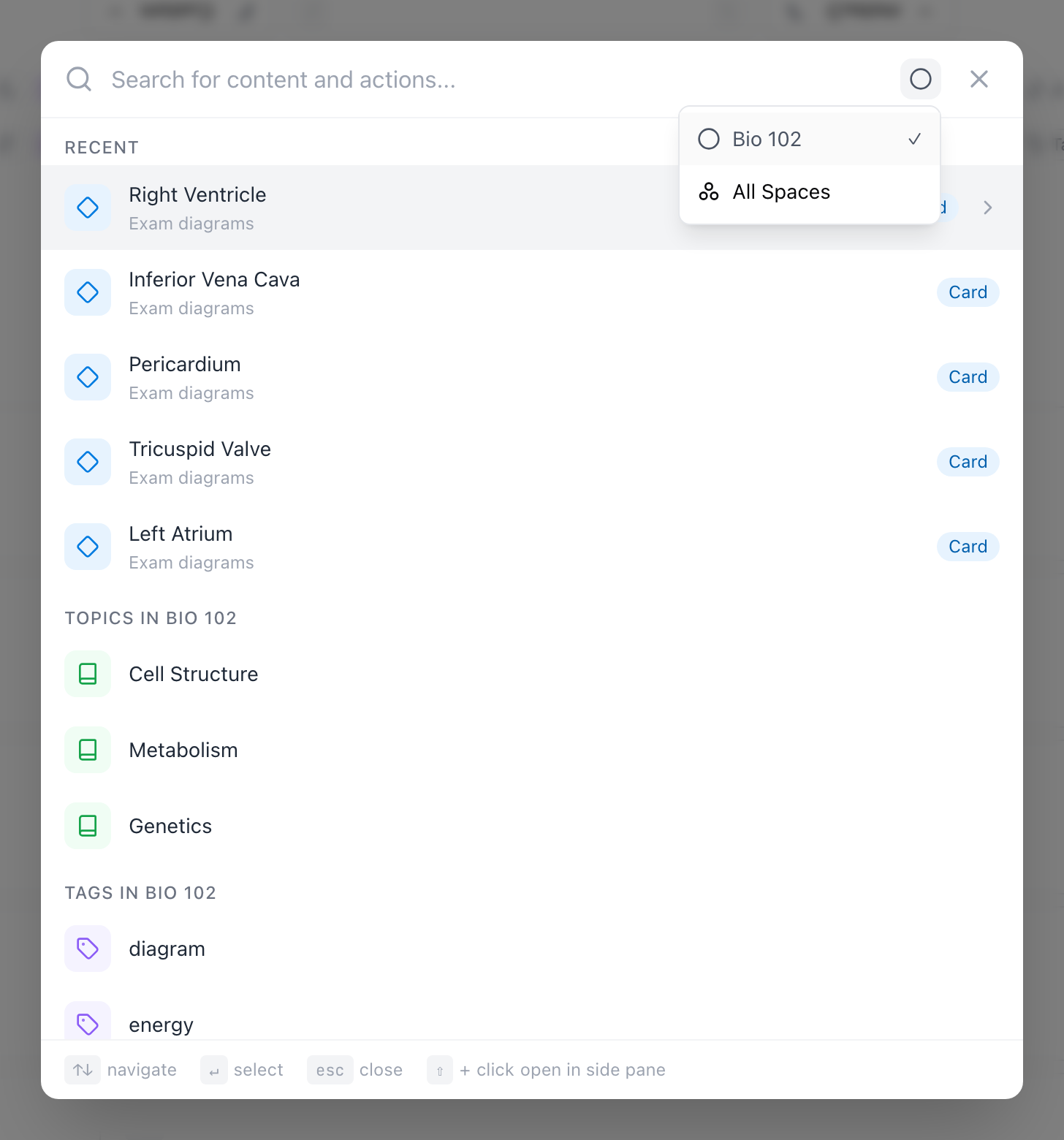
If nothing matches inside a space, the empty state offers Search all spaces? right there — one click widens the net.
Tip: When a card you know exists doesn't show up, the scope is almost always why. Check the button at the top before assuming it's gone.
Archived spaces stay out of the way
Archiving a space removes it — and every topic, tag, and card inside it — from All Spaces search. That's the point of archiving: last semester's flashcards shouldn't crowd the results for this semester's queries.
Nothing is lost, though. Open the archived space itself and search there, and everything inside it turns up as usual — being in the space is how you say "yes, look in here." Unarchive the space and its contents rejoin global search immediately.
Jump to a result
Arrow keys move through results, Enter opens the selected one, Esc closes the window. Cards open right there in a focused view so you can read or edit without leaving the page you were on; spaces, topics, and sections navigate you to them. On web, ⇧ + click opens a topic, section, or card in the side pane instead — good for keeping your current page while you peek at something.
Smarter matches with semantic search
On the free plan, search matches the words you type. Pro and Student plans add semantic search: cards whose meaning matches the query, even when the words don't. Search the layer that decides what gets in and out — no card is written anything like that, but the Plasma membrane card is exactly what you meant, so it turns up:
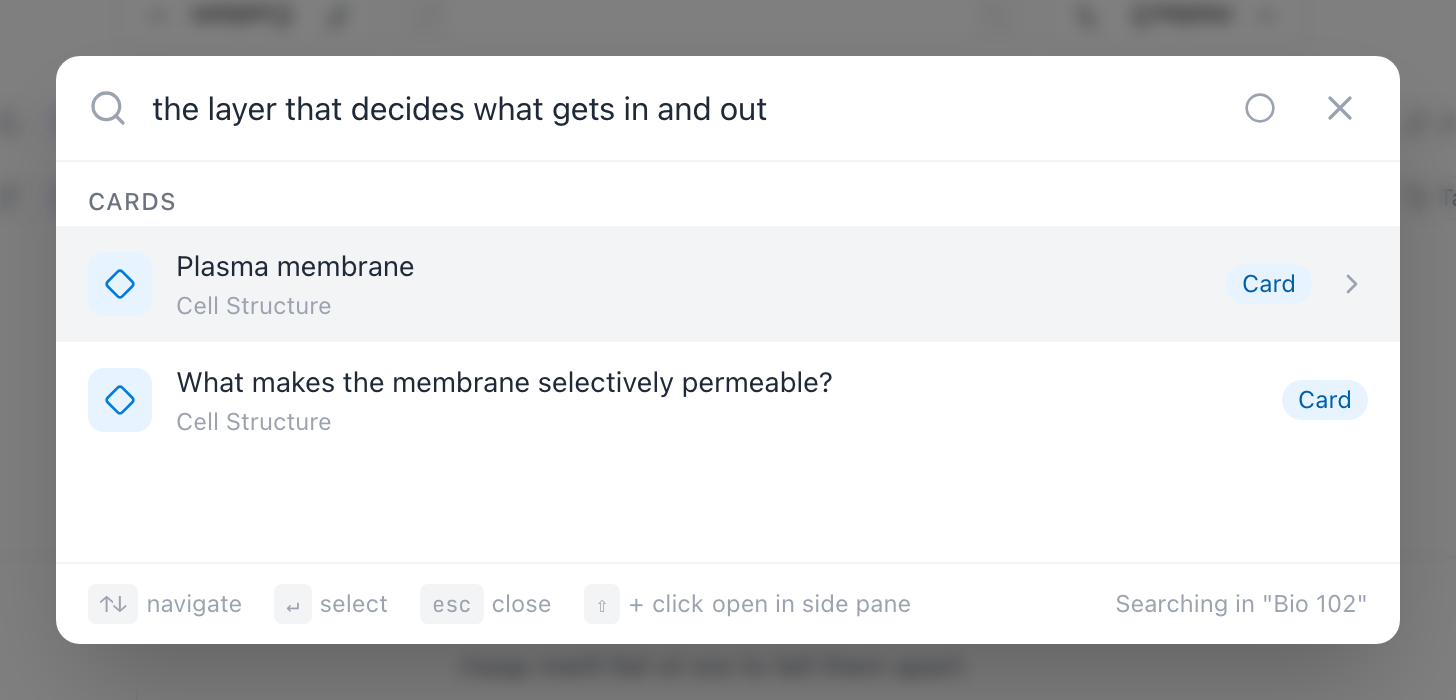
That's what it's for: the exam-week moment where you remember the idea but not the term. Exact word matches always come first; semantically similar cards follow them. There's nothing to turn on — with a Pro or Student plan it just happens on every search. See Plans and billing for what else the paid plans include.
Searches that live inside a feature
Two searches are deliberately separate from the global one.
Inside a notebook or PDF, the magnifying glass in the header searches that document — typed text boxes and the text of PDF pages — and jumps you between matches. Global search doesn't read PDF text or handwriting, so this is how you find a passage inside a long document. See the notebook and the PDF reader.
On a space page, the box above the topic list is a filter, not a search — press / to jump into it. As you type, the page hides the topics and quick-captured cards whose titles don't match; clear the box and everything comes back. It never reads inside cards, and the small print under it says exactly that — with a Search everything in this space link that opens real search when the filter isn't enough:

Common questions
Why can't I find a card I know exists? Check the scope first — you're probably searching one space while the card lives in another. Switch to all spaces and try again. If it still doesn't turn up, the card may live in an archived space: those are excluded from global search, so open the archived space and search inside it. Failing that, try a shorter piece of the word you remember.
Does search read my PDFs and handwriting? No. Global search covers titles, tags, and typed card content. Inside a notebook, the magnifying glass searches PDF text; handwriting isn't text, so no search can look through it — though anything AI-transcribed into notes (a voice note, a lecture recording) is searchable like any other typing.
Is search different on my phone? Same search, different door: it's the Search tab instead of a keyboard shortcut, with the same scope toggle and the same results.
Up next
Set up a course in Mento
Create a space for a class — by hand or straight from your syllabus — with topics, sections, and an exam date, so everything you add later has a place.
Didn't find it?
The FAQ answers the questions we get most, and every way to reach us is on the contact page.