Add photos from your phone
Updated · September 2026
Your phone is the fastest scanner you own. This guide shows how to get photos from your phone into your notes — during class, without breaking stride. If you're working on your computer, you can point Mento at your phone's camera directly; if you have the app on your phone, the photo is a capture like any other.
Note: Phone capture is in beta. It's switched on for a small group of accounts while we test it, so if /phone and the Phone tab aren't there yet, the feature hasn't reached your account — everything below is what to expect when it does.
Snap it with your phone, land it in your note
You're typing on your laptop and the thing you need is physical — the diagram on the whiteboard, the slide on the projector, the page of a library book. Instead of photographing it, AirDropping or emailing it to yourself, and then adding the file to your note, hand the camera work to your phone — the photo goes straight into the note, no files in between.
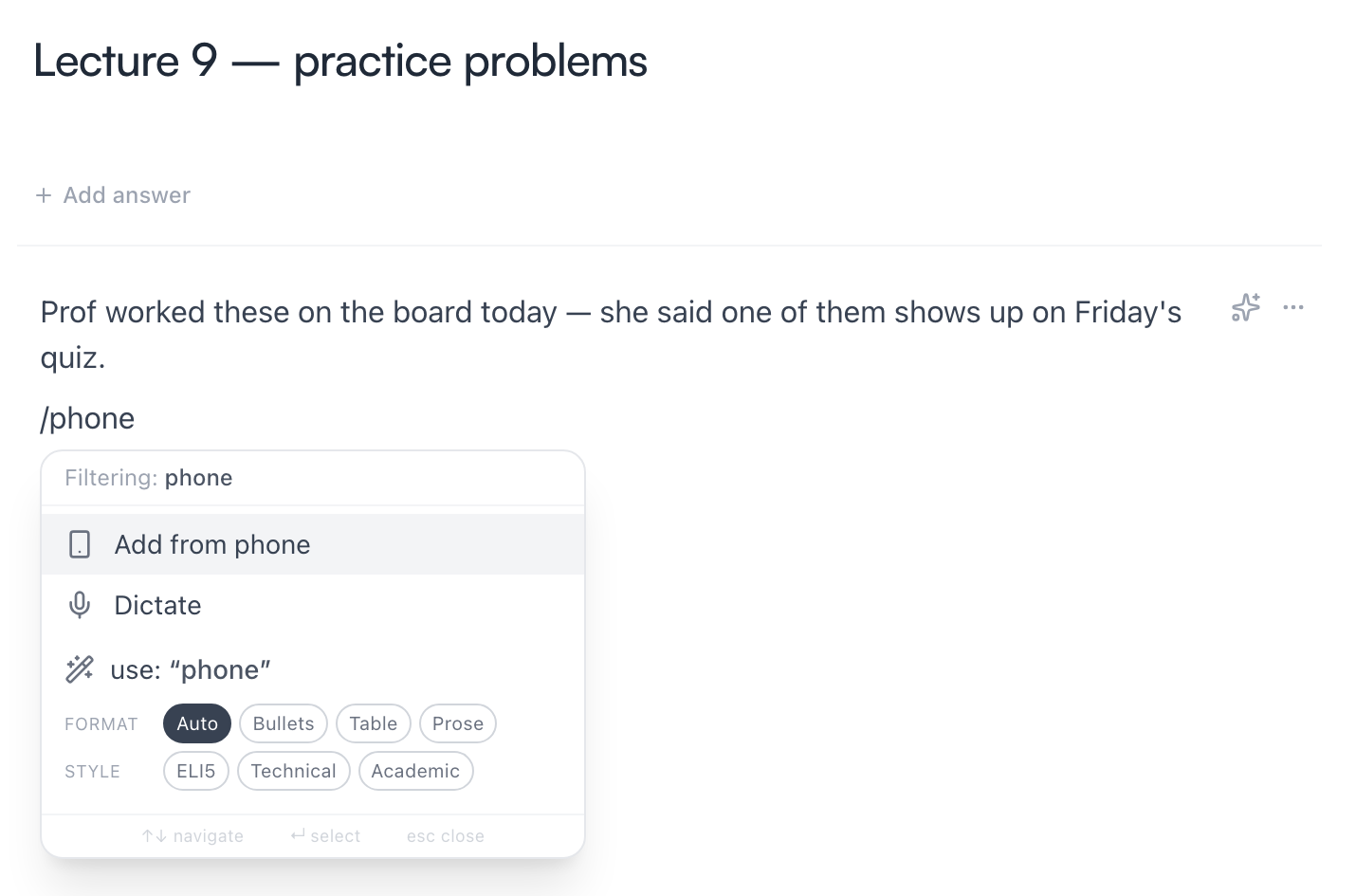
It starts in the middle of whatever you're writing: put the cursor where you want the photo, type /phone, and choose Add from phone.
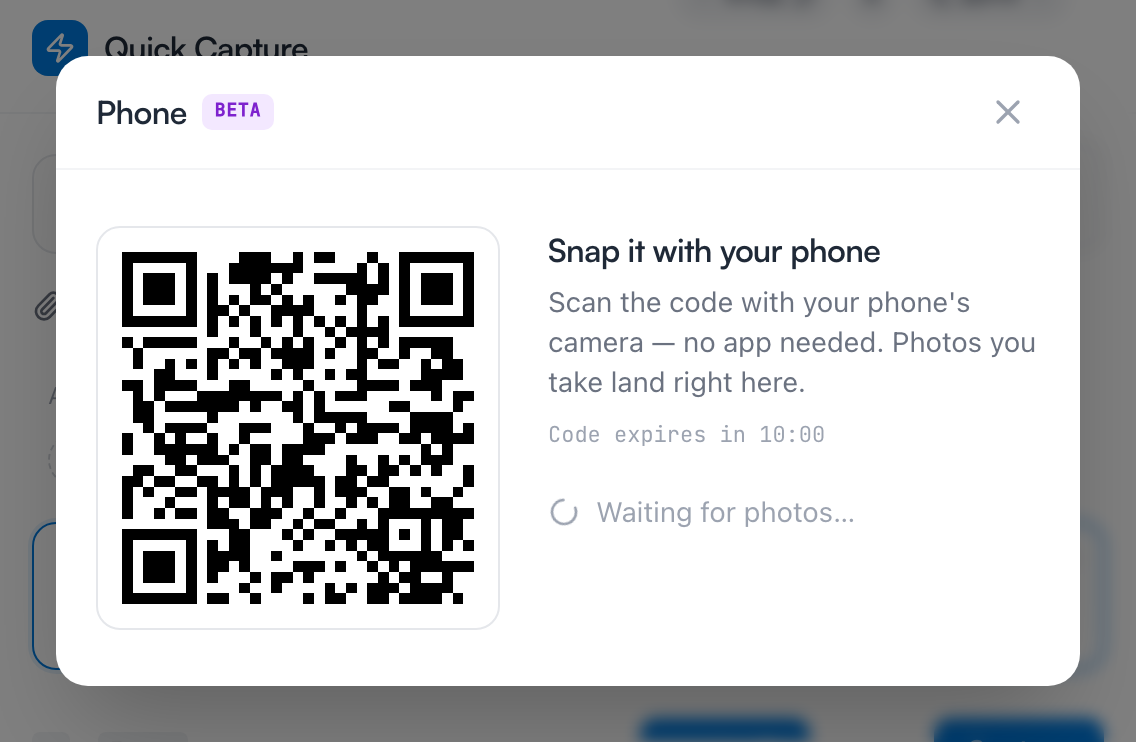
A window opens with a QR code. From here:
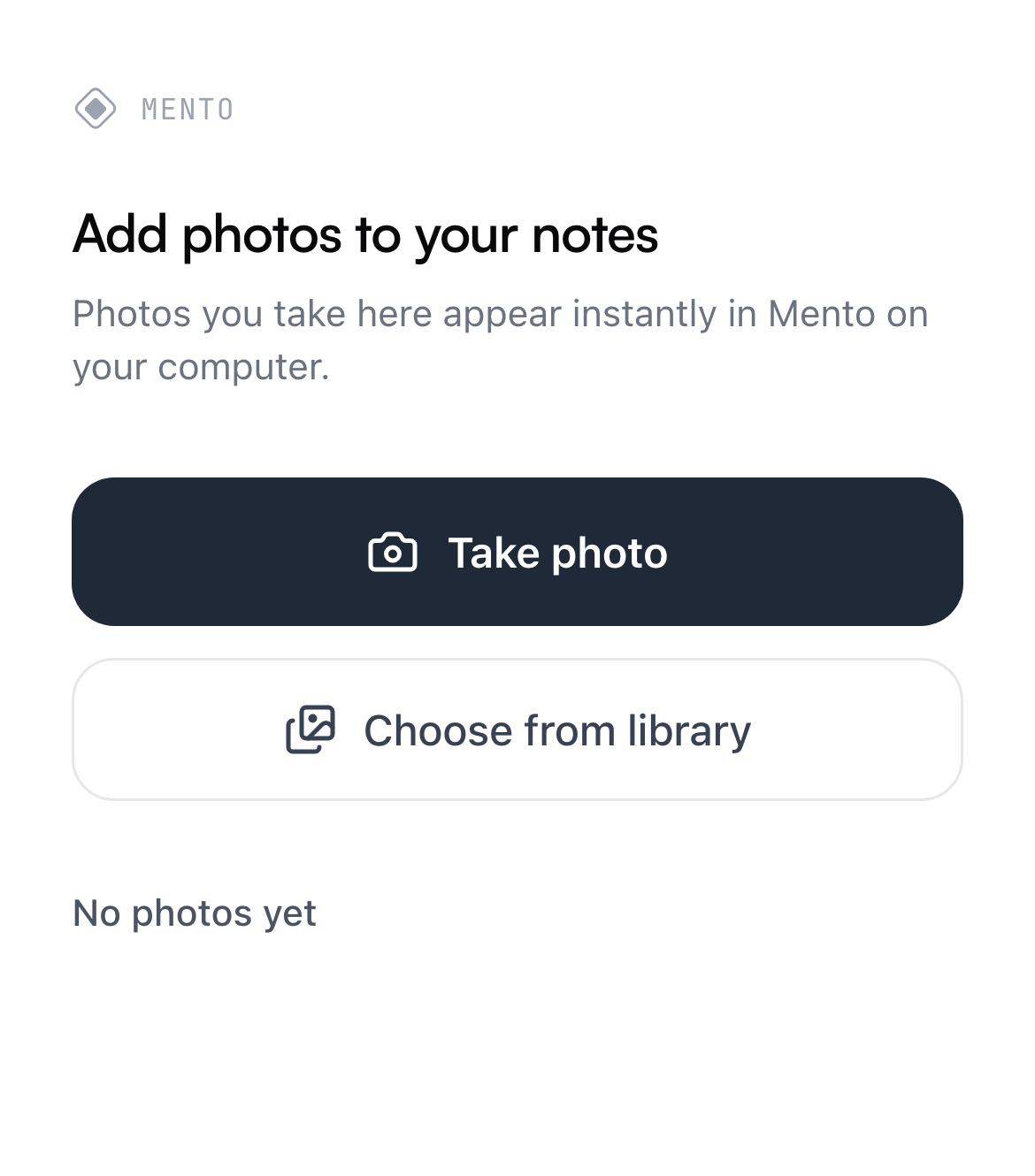
- Point your phone's camera at the code and tap the link that pops up. A page opens in your phone's browser — no app to install, nothing to sign into.
- On the phone, tap Take photo to use the camera, or Choose from library for a photo you already took.
- Each photo appears back on your computer a moment later. Click it, and it drops into your note right at the cursor.
The window stays open after you insert a photo, so you can work through the whole whiteboard in one go — snap, insert, snap again. A note can hold as many photos as you need; each one lands at the cursor. Photos you've already placed are marked Added so you don't insert one twice. Close the window when you're done.
Back in the note, the photo sits exactly where the cursor was, and you can keep typing right under it:
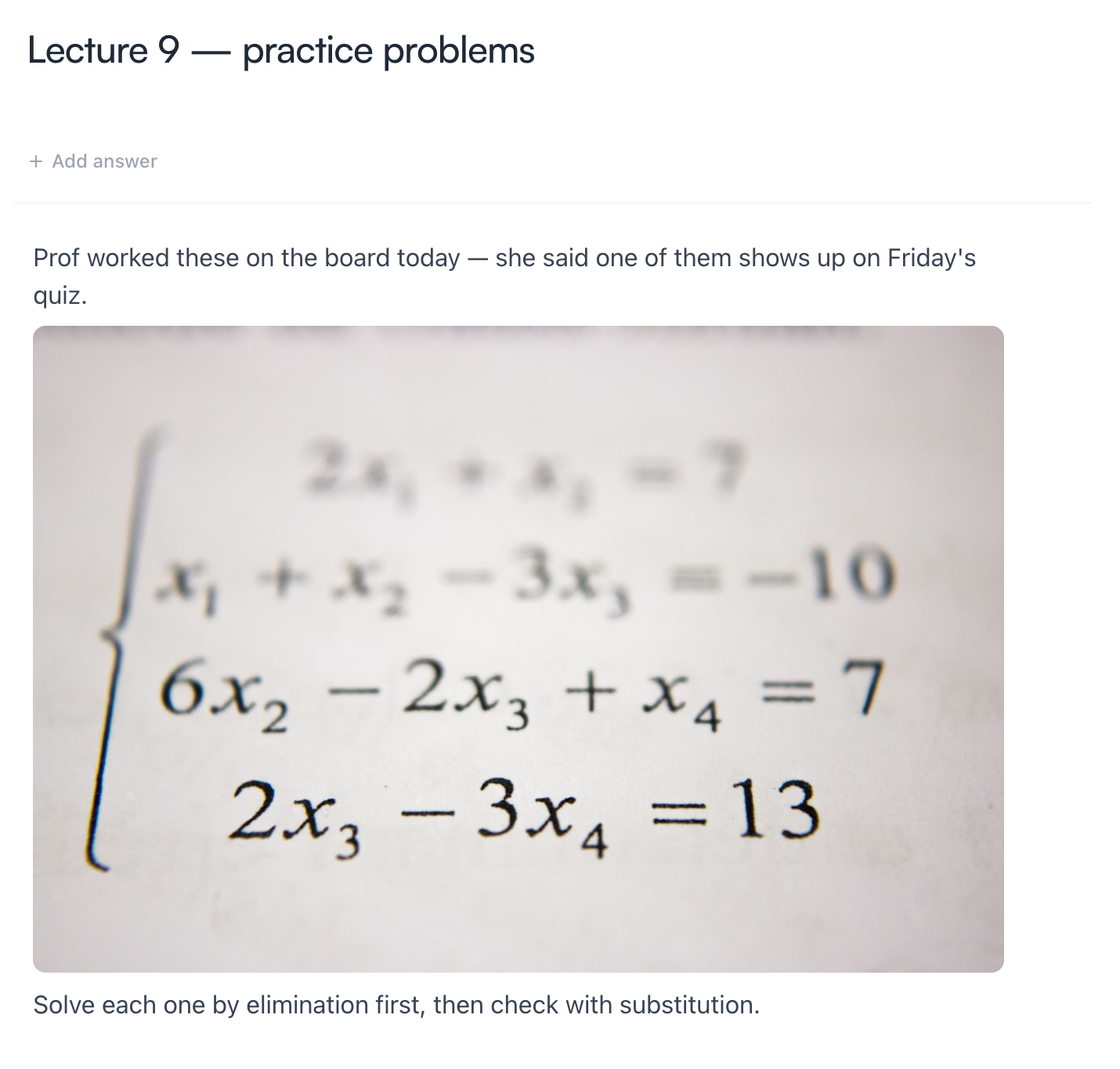
Tip: This is the move when placement matters. The photo doesn't land in a downloads folder or at the end of the note — it drops in at the cursor, so a diagram can sit exactly in the middle of your notes, right next to the step it belongs to.
A few things about the code, since it's a door into your notes:
- It's private to you, and it expires on its own after 10 minutes — the window counts down. If it runs out, click Get a new code and scan again.
- Closing the window on your computer cancels the code immediately.
- One code is good for up to 10 photos, which is more than a whiteboard usually needs.
Setting the card image
The same trick works when you're choosing an image for a card. Wherever you add an image, the picker that opens has a Phone tab alongside Library and Upload — same QR code, same phone page. This time, tapping a photo attaches it as the card's image and closes the picker.
Note: A card has exactly one main image — picking another photo replaces it. Notes are the opposite: you can insert as many photos as the note needs, one after another.
This is the move for turning something physical into a flashcard: snap the diagram, attach it, write the question. For more ways to build cards — including having AI draft them for you — see Create flashcards.
If you have the app on your phone
When the phone is already in your hand, you don't need your computer involved at all. Capture in the mobile app takes photos directly — open capture with the + button, take a photo or pull one from your library, and it lands in your Inbox, which syncs everywhere. That flow (and where captures go) is covered in Quick capture and the Inbox.
Rule of thumb: writing at your computer and need one photo here — scan the code. Out and about with just your phone — capture in the app and file it later.
Common questions
Do I need the Mento app on my phone for the QR code? No. The code opens a plain web page in your phone's browser. You don't install anything, and you don't sign in on the phone — the code itself is what proves it's you.
Does this cost AI actions? No. Adding photos is a regular upload — nothing here touches your AI budget.
Do iPhone photos work? Yes — take them or pick them from your library as usual, and they arrive in your notes in a format every device can display.
The page on my phone says the link expired. Codes are short-lived on purpose. Go back to your computer and get a fresh one — the window offers Get a new code, or just run /phone again.
Up next
Record your classes
Record a lecture so the audio lives with your notes, with a transcript and summary you can search, study, and turn into flashcards.
Didn't find it?
The FAQ answers the questions we get most, and every way to reach us is on the contact page.